> ## Documentation Index
> Fetch the complete documentation index at: https://docs.elasticfunnels.io/llms.txt
> Use this file to discover all available pages before exploring further.
# Tracking links and resources on the portal
> How affiliates build tracking links to your offer pages, add sub IDs, make links in bulk, and use the creatives and swipes you publish.
## Tracking links
**Tracking links** on the portal lists the [offer pages](/affiliate-portal/assets#offer-pages) you published for
the brands the affiliate promotes.
 ### Link builder
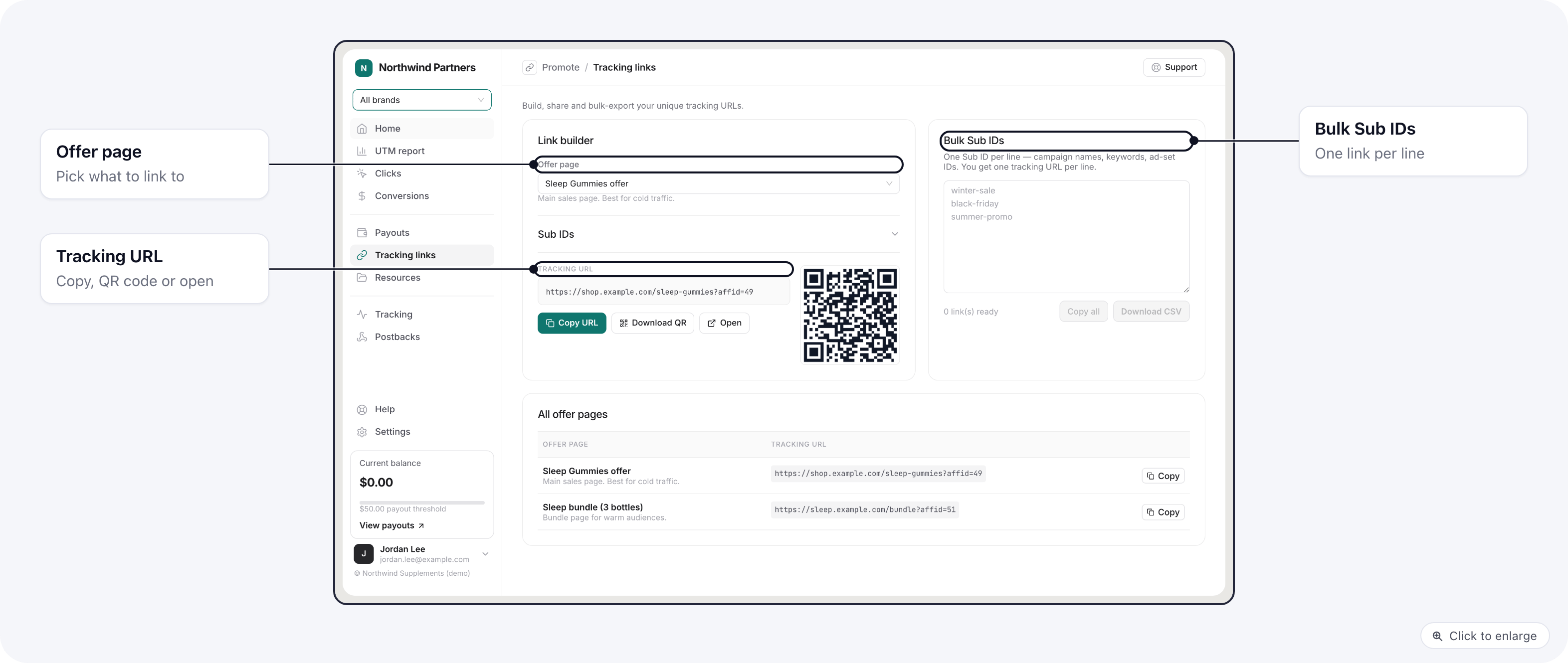
1. Pick an **Offer page**.
2. Optionally open **Sub IDs** and fill in up to five (`subid` to `subid5`), for example the campaign or ad set
the link is for.
3. Copy the **Tracking URL**, download it as a QR code, or open it.
The tracking URL is the offer page's address with `affid` (the affiliate's id on that brand) and the sub IDs
added. Sales from that link are credited to the affiliate, and the sub IDs come back in their
[Clicks](/affiliate-portal/affiliate-dashboard#clicks) report and in their
[postbacks](/affiliate-portal/affiliate-tracking#postbacks).
### Bulk Sub IDs
To make many links at once, the affiliate types one sub ID per line, such as campaign names or ad set ids. The box
makes one tracking URL per line for the offer page picked above, to **Copy all** or **Download CSV**.
### All offer pages
The table at the bottom gives every offer page's plain tracking link, with no sub IDs, and a **Copy** button.
If you have not published an offer page yet, the page says **No offer pages yet** and asks the affiliate to contact
their affiliate manager.
An affiliate still [waiting for approval](/affiliate-portal/affiliate-sign-up#waiting-for-approval) on a brand sees
no links for it. The page tells them their links appear once they are approved.
## Resources
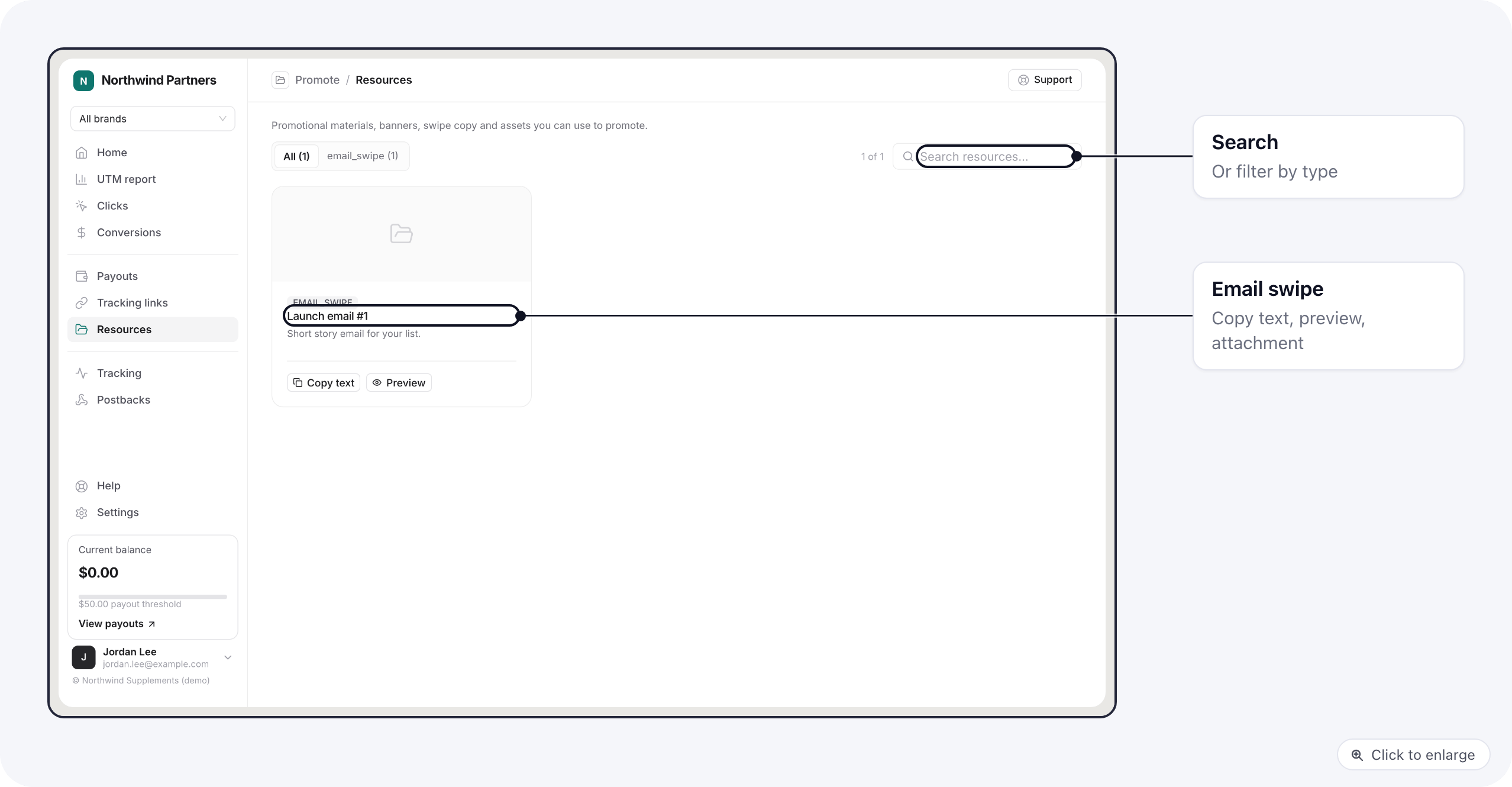
**Resources** shows everything else you published in [Assets](/affiliate-portal/assets): banners and images to
download, email swipes to copy, and prelanders and landing pages to open. Offer pages are not repeated here;
they are on **Tracking links**. Affiliates can filter by type and search by name. As with links, nothing from a brand
they are still waiting on is shown.
### Link builder
1. Pick an **Offer page**.
2. Optionally open **Sub IDs** and fill in up to five (`subid` to `subid5`), for example the campaign or ad set
the link is for.
3. Copy the **Tracking URL**, download it as a QR code, or open it.
The tracking URL is the offer page's address with `affid` (the affiliate's id on that brand) and the sub IDs
added. Sales from that link are credited to the affiliate, and the sub IDs come back in their
[Clicks](/affiliate-portal/affiliate-dashboard#clicks) report and in their
[postbacks](/affiliate-portal/affiliate-tracking#postbacks).
### Bulk Sub IDs
To make many links at once, the affiliate types one sub ID per line, such as campaign names or ad set ids. The box
makes one tracking URL per line for the offer page picked above, to **Copy all** or **Download CSV**.
### All offer pages
The table at the bottom gives every offer page's plain tracking link, with no sub IDs, and a **Copy** button.
If you have not published an offer page yet, the page says **No offer pages yet** and asks the affiliate to contact
their affiliate manager.
An affiliate still [waiting for approval](/affiliate-portal/affiliate-sign-up#waiting-for-approval) on a brand sees
no links for it. The page tells them their links appear once they are approved.
## Resources
**Resources** shows everything else you published in [Assets](/affiliate-portal/assets): banners and images to
download, email swipes to copy, and prelanders and landing pages to open. Offer pages are not repeated here;
they are on **Tracking links**. Affiliates can filter by type and search by name. As with links, nothing from a brand
they are still waiting on is shown.
 | Resource | What the affiliate can do |
| - | - |
| Banner, image | Preview it and **Download** the original. |
| Email swipe | **Copy text** or **Preview**, and download the attachment if there is one. `{link}`, `{affid}` and `{brand}` in the swipe are replaced with the affiliate's own tracking link, affiliate ID and the brand name. |
| Prelander, landing page | **Open page** or **Copy link**. |
## Related
* [Assets](/affiliate-portal/assets): publish what affiliates see here.
* [Their own pixels and postbacks](/affiliate-portal/affiliate-tracking)
This documentation is built and hosted on [Mintlify](https://mintlify.com), a developer documentation platform.
| Resource | What the affiliate can do |
| - | - |
| Banner, image | Preview it and **Download** the original. |
| Email swipe | **Copy text** or **Preview**, and download the attachment if there is one. `{link}`, `{affid}` and `{brand}` in the swipe are replaced with the affiliate's own tracking link, affiliate ID and the brand name. |
| Prelander, landing page | **Open page** or **Copy link**. |
## Related
* [Assets](/affiliate-portal/assets): publish what affiliates see here.
* [Their own pixels and postbacks](/affiliate-portal/affiliate-tracking)
This documentation is built and hosted on [Mintlify](https://mintlify.com), a developer documentation platform.