> ## Documentation Index
> Fetch the complete documentation index at: https://docs.elasticfunnels.io/llms.txt
> Use this file to discover all available pages before exploring further.
# Payouts and payout details on the portal
> Where affiliates add the details you pay them with, and how they follow their payouts and balance.
## Add payout details
Until an affiliate adds payout details, the portal shows **Add payout details to get paid** in the menu. They add
them under **Settings → Payout details**, which stays there to change them later. Links in portal emails open the
same page.
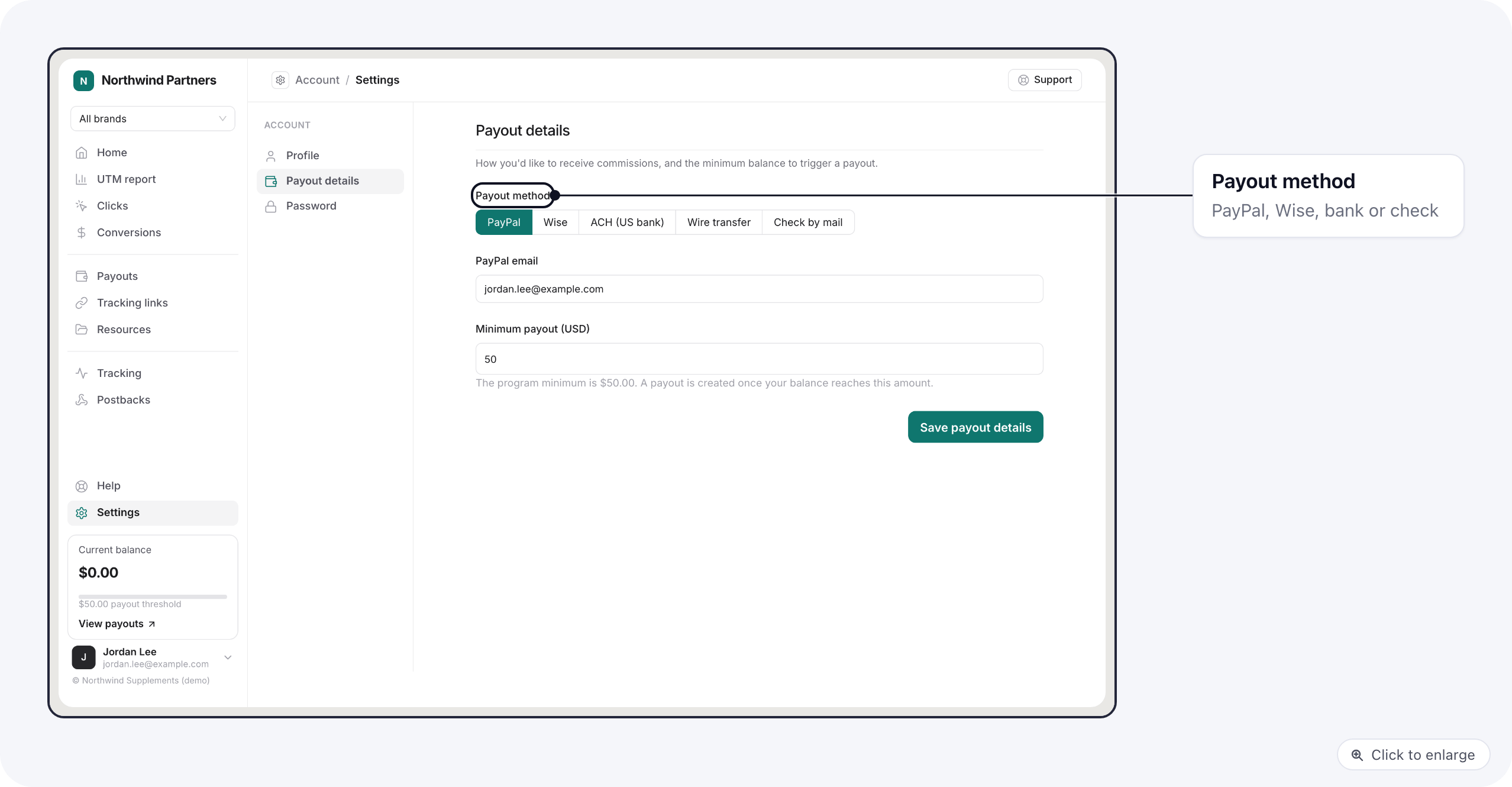 They pick a **Payout method** and fill in the fields it needs:
| Method | Fields |
| - | - |
| **PayPal** | PayPal email |
| **Wise** | Wise account email |
| **ACH (US bank)** | Account holder name, Bank name, Routing number (9 digits), Account number, Account type (checking or savings) |
| **Wire transfer** | Account holder name, Bank name, IBAN (or an account number), SWIFT / BIC, Bank address (optional) |
| **Check by mail** | Payable to, Mailing address |
Saved account numbers are shown masked; leaving the field blank keeps the one on file.
**Minimum payout (USD)** is the balance at which they want a payout. It starts at your portal's
[default minimum](/affiliate-portal/payouts#payout-schedule) and cannot go below it. Earnings under the minimum
carry over to the next payout.
You see the method in the **Payment method** column of the portal's Affiliates list, and under the affiliate's name
on each payout. If the portal [requires a payout method](/affiliate-portal/payouts#payout-schedule), an affiliate
without complete details gets no payout until they add them, and is emailed to do so. Their earnings wait for them.
## Follow payouts
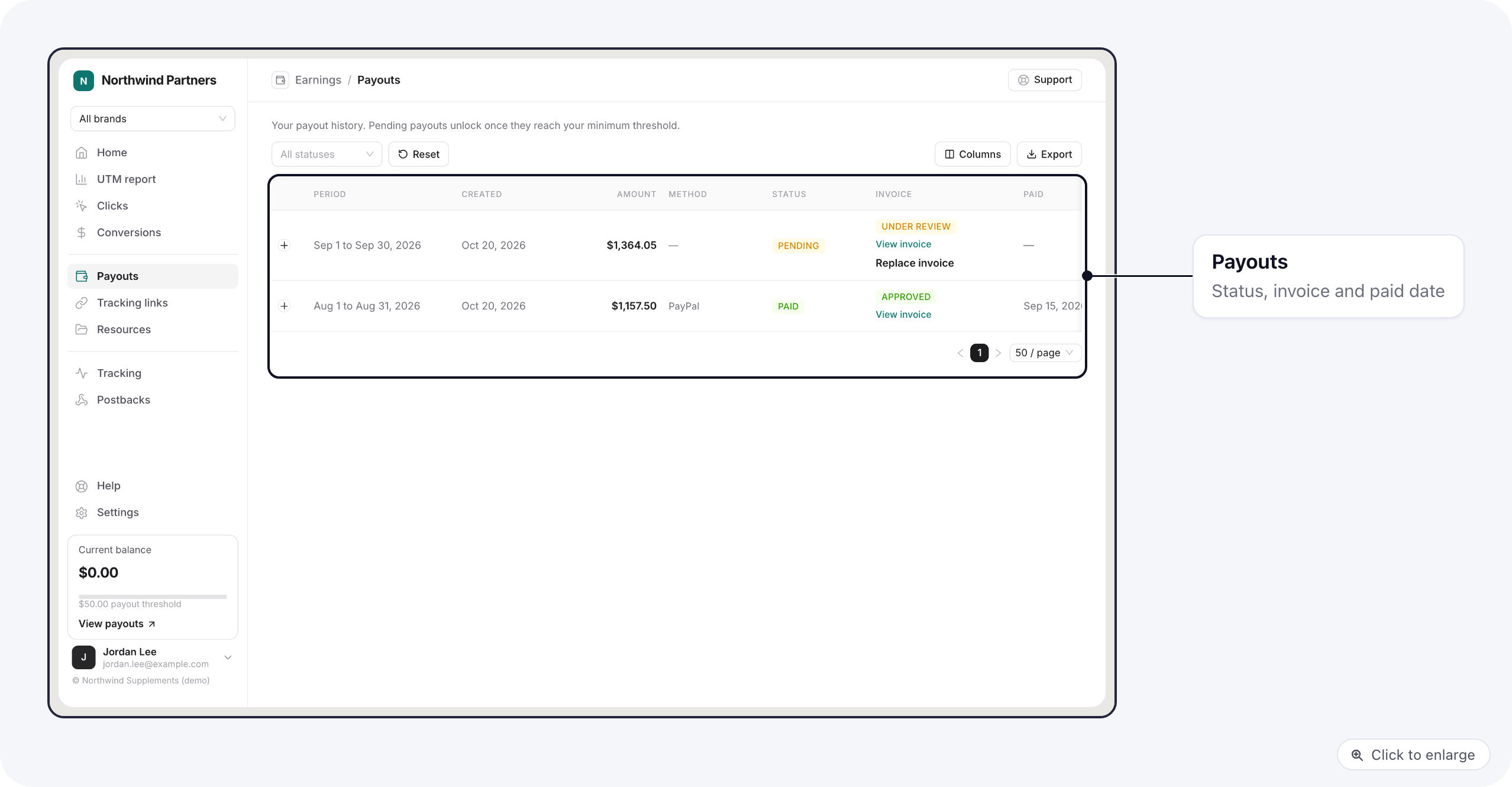
**Payouts** lists their payouts with the period, the date it was created, amount, method, status, invoice status
and the date it was paid. Until a payout is paid, its method shows the payout method on file (for example
**PayPal**, marked **On file**); once you mark it paid it shows the method you recorded. They can filter by status
and export the list as CSV.
They pick a **Payout method** and fill in the fields it needs:
| Method | Fields |
| - | - |
| **PayPal** | PayPal email |
| **Wise** | Wise account email |
| **ACH (US bank)** | Account holder name, Bank name, Routing number (9 digits), Account number, Account type (checking or savings) |
| **Wire transfer** | Account holder name, Bank name, IBAN (or an account number), SWIFT / BIC, Bank address (optional) |
| **Check by mail** | Payable to, Mailing address |
Saved account numbers are shown masked; leaving the field blank keeps the one on file.
**Minimum payout (USD)** is the balance at which they want a payout. It starts at your portal's
[default minimum](/affiliate-portal/payouts#payout-schedule) and cannot go below it. Earnings under the minimum
carry over to the next payout.
You see the method in the **Payment method** column of the portal's Affiliates list, and under the affiliate's name
on each payout. If the portal [requires a payout method](/affiliate-portal/payouts#payout-schedule), an affiliate
without complete details gets no payout until they add them, and is emailed to do so. Their earnings wait for them.
## Follow payouts
**Payouts** lists their payouts with the period, the date it was created, amount, method, status, invoice status
and the date it was paid. Until a payout is paid, its method shows the payout method on file (for example
**PayPal**, marked **On file**); once you mark it paid it shows the method you recorded. They can filter by status
and export the list as CSV.
 ### Upload an invoice
When you ask for invoices, the affiliate clicks **Upload invoice** on a payout, adds the file and, if they like,
an invoice number. The invoice then shows **Under review** until you approve or decline it on your
[Payouts tab](/affiliate-portal/payouts#pay-affiliates). After a decline they see the reason and can
**Re-upload**. **Replace invoice** swaps a file still under review.
**Current balance**, in the menu, is what they have earned and not been paid yet. The **Home** page shows their
recent payouts too.
When a payout changes status, the affiliate gets an email. You can change its wording in
[Branding and emails](/affiliate-portal/branding#emails).
## Related
* [Commissions and payouts](/affiliate-portal/payouts): your side of the same payouts.
This documentation is built and hosted on [Mintlify](https://mintlify.com), a developer documentation platform.
### Upload an invoice
When you ask for invoices, the affiliate clicks **Upload invoice** on a payout, adds the file and, if they like,
an invoice number. The invoice then shows **Under review** until you approve or decline it on your
[Payouts tab](/affiliate-portal/payouts#pay-affiliates). After a decline they see the reason and can
**Re-upload**. **Replace invoice** swaps a file still under review.
**Current balance**, in the menu, is what they have earned and not been paid yet. The **Home** page shows their
recent payouts too.
When a payout changes status, the affiliate gets an email. You can change its wording in
[Branding and emails](/affiliate-portal/branding#emails).
## Related
* [Commissions and payouts](/affiliate-portal/payouts): your side of the same payouts.
This documentation is built and hosted on [Mintlify](https://mintlify.com), a developer documentation platform.