> ## Documentation Index
> Fetch the complete documentation index at: https://docs.elasticfunnels.io/llms.txt
> Use this file to discover all available pages before exploring further.
# Manage portal affiliates
> Invite affiliates, approve them on each brand, set their commission group, build tracking links for them, and reset or disable their accounts.
The portal's **Affiliates** tab lists every affiliate login in your organization, with the number of portal brands
they are on, their payout method and their account status. External affiliates that come from merchants are not
listed here.
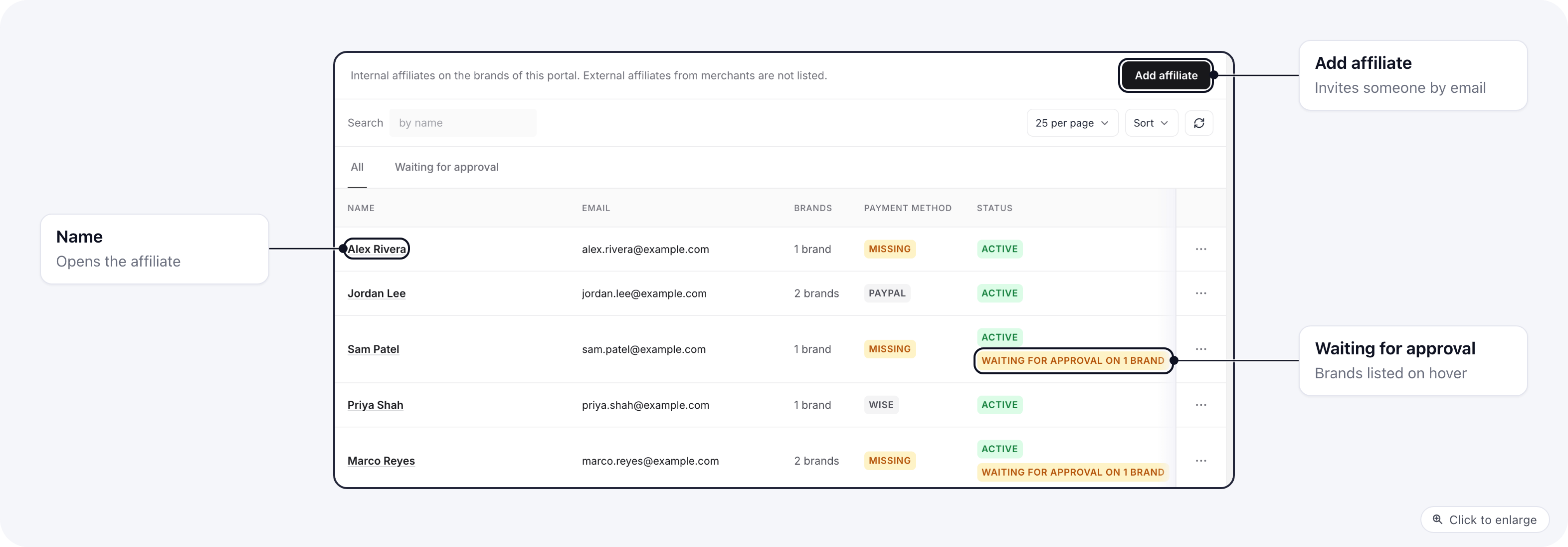 **Payment method** says **Missing** when the affiliate has not added payout details yet. An affiliate who still
waits on one or more brands gets a **Waiting for approval on N brands** pill under their status; hover it to see
which brands. The **Waiting for approval** tab lists only them.
## Invite an affiliate
Affiliates usually [sign up on the portal](/affiliate-portal/affiliate-sign-up). To add one yourself:
1. Click **Add affiliate**.
2. Enter their **Email** and, if you like, a **Name**.
3. Under **Brands**, untick any brand they should not promote. Every brand on the portal is ticked, the same as a
portal sign-up.
4. Click **Create and send password by email**.
**Payment method** says **Missing** when the affiliate has not added payout details yet. An affiliate who still
waits on one or more brands gets a **Waiting for approval on N brands** pill under their status; hover it to see
which brands. The **Waiting for approval** tab lists only them.
## Invite an affiliate
Affiliates usually [sign up on the portal](/affiliate-portal/affiliate-sign-up). To add one yourself:
1. Click **Add affiliate**.
2. Enter their **Email** and, if you like, a **Name**.
3. Under **Brands**, untick any brand they should not promote. Every brand on the portal is ticked, the same as a
portal sign-up.
4. Click **Create and send password by email**.
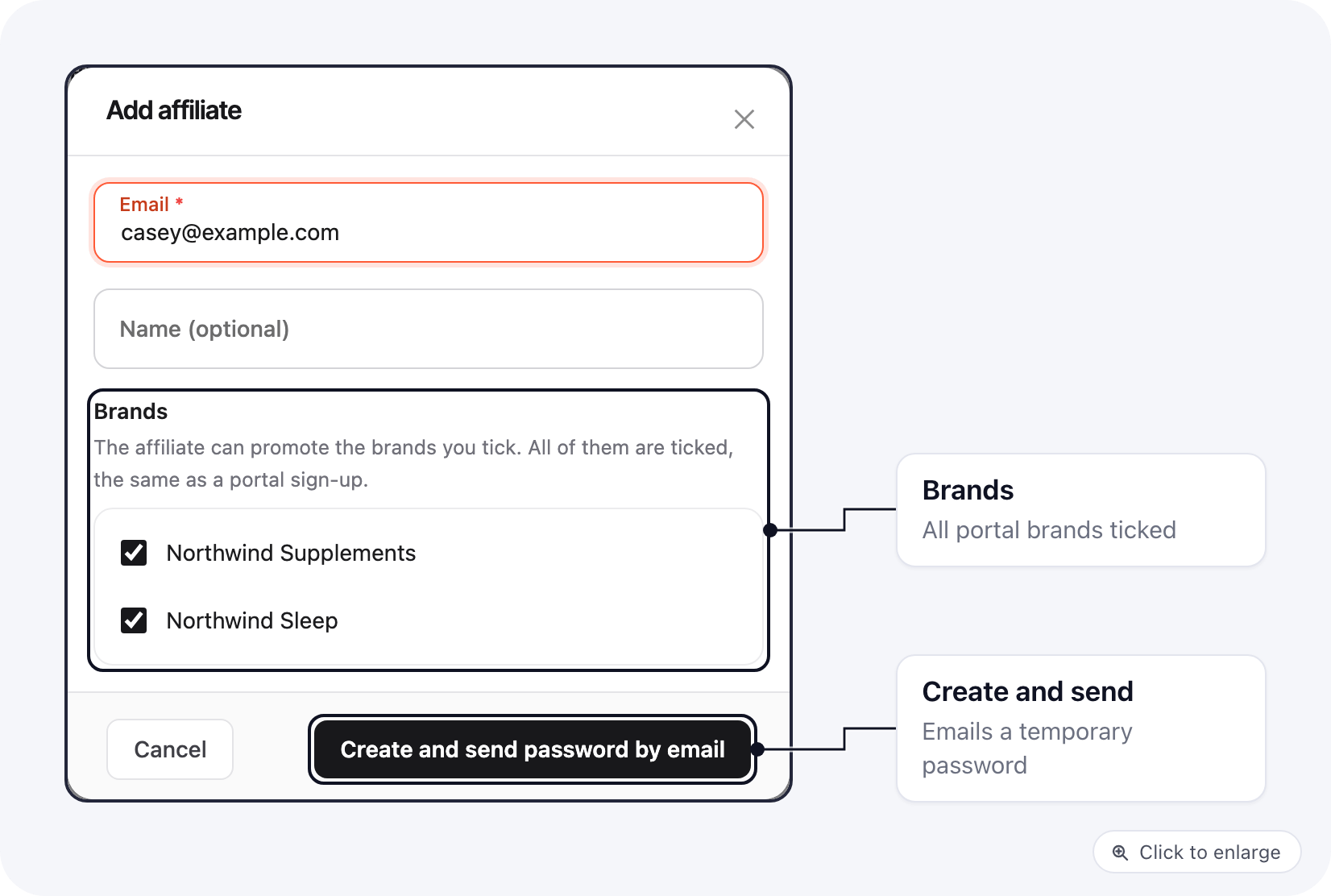 The affiliate gets an email with a temporary password and the portal's sign-in link. They are **Active** on every
brand you ticked, so they can start promoting right away.
## The affiliate's page
Click a name to open the affiliate. The header shows their email, phone and status, with these actions:
* **Edit profile**: name, nickname, phone and email.
* **Tracking link**: build a tracking link for them, see [below](#build-a-tracking-link-for-an-affiliate).
* **Reset password**: emails them a new temporary password.
* **Disable account** / **Enable account**.
The affiliate gets an email with a temporary password and the portal's sign-in link. They are **Active** on every
brand you ticked, so they can start promoting right away.
## The affiliate's page
Click a name to open the affiliate. The header shows their email, phone and status, with these actions:
* **Edit profile**: name, nickname, phone and email.
* **Tracking link**: build a tracking link for them, see [below](#build-a-tracking-link-for-an-affiliate).
* **Reset password**: emails them a new temporary password.
* **Disable account** / **Enable account**.
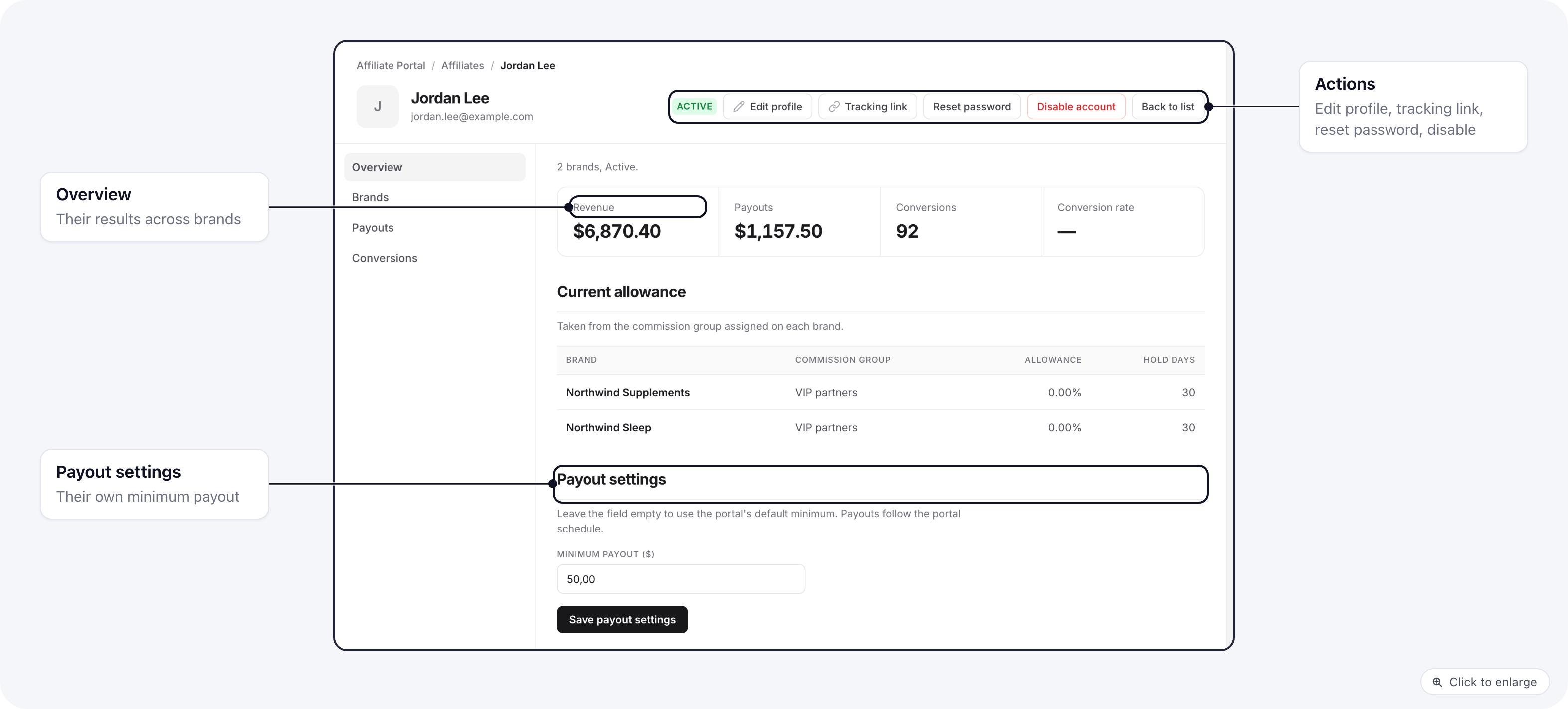 The tabs:
| Tab | What it shows |
| - | - |
| **Overview** | Revenue, payouts paid, conversions and conversion rate (conversions per click; **-** when there were no clicks), the allowance each brand's commission group holds back, and their own [payout settings](/affiliate-portal/payouts#one-affiliates-minimum). |
| **Brands** | One row per brand: status, commission group and allowance. You approve, move and remove them here. |
| **Payouts** | Their payouts on each brand: period, amount, status, invoice and payment. |
| **Conversions** | The conversions credited to them, with brand, order code, type, total and commission. |
## Approve an affiliate
An affiliate who signs up on a brand set to **Pending approval** waits on that brand until you approve them. They
can sign in while they wait, and they can fill in their profile and payout details.
1. Open the affiliate and go to the **Brands** tab.
2. Open the menu on the brand's row and pick **Edit assignment**.
3. Set **Status** to **Active**. Pick a **Commission group** if they should not get the brand's default.
4. Save.
The tabs:
| Tab | What it shows |
| - | - |
| **Overview** | Revenue, payouts paid, conversions and conversion rate (conversions per click; **-** when there were no clicks), the allowance each brand's commission group holds back, and their own [payout settings](/affiliate-portal/payouts#one-affiliates-minimum). |
| **Brands** | One row per brand: status, commission group and allowance. You approve, move and remove them here. |
| **Payouts** | Their payouts on each brand: period, amount, status, invoice and payment. |
| **Conversions** | The conversions credited to them, with brand, order code, type, total and commission. |
## Approve an affiliate
An affiliate who signs up on a brand set to **Pending approval** waits on that brand until you approve them. They
can sign in while they wait, and they can fill in their profile and payout details.
1. Open the affiliate and go to the **Brands** tab.
2. Open the menu on the brand's row and pick **Edit assignment**.
3. Set **Status** to **Active**. Pick a **Commission group** if they should not get the brand's default.
4. Save.
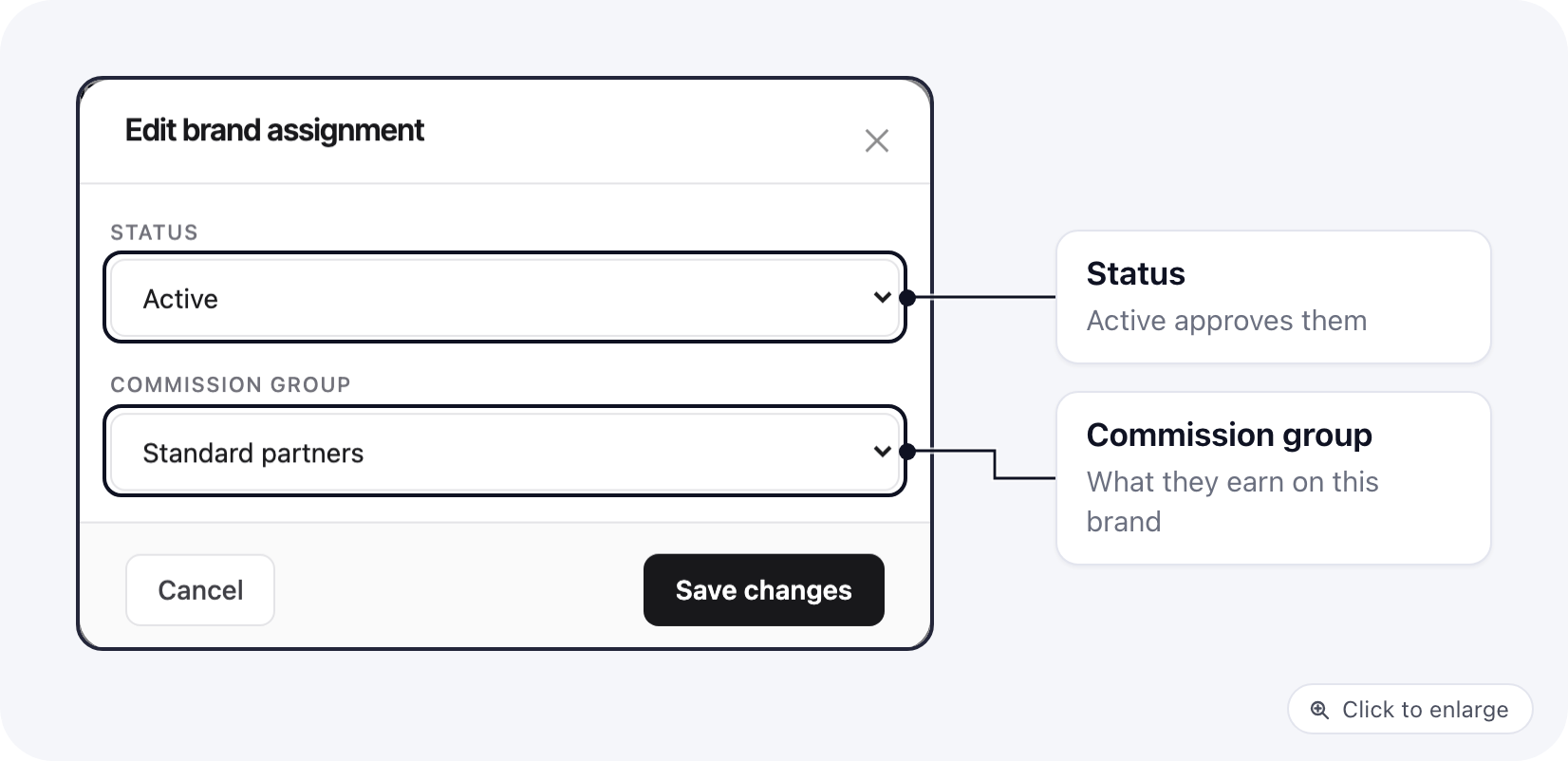 The affiliate gets an email from the brand saying their application was approved. The same modal sets **Disabled**
or **Blacklisted** to stop them on that one brand; setting Disabled emails them too.
New sign-ups email the organization's admins, so you know when someone is waiting. The **Waiting for approval**
tab of the Affiliates list shows everyone still waiting on a brand.
### Add or remove a brand
**Add brand**, on the **Brands** tab, puts the affiliate on another portal brand with the status and commission
group you pick. **Remove brand** in a row's menu takes them off that brand.
## Build a tracking link for an affiliate
**Tracking link** (on the affiliate's page, or **Copy tracking link** in the list's row menu) builds the link an
affiliate would build on the portal:
* **Enter URL**: paste a page on one of your brand's domains. The modal shows the final link for the brand that owns
that domain, marked **matched**. A URL on a domain none of their brands owns cannot be tracked, and the modal says
so.
* **Select offer page**: pick one of the offer pages you published in [Assets](/affiliate-portal/assets).
The affiliate gets an email from the brand saying their application was approved. The same modal sets **Disabled**
or **Blacklisted** to stop them on that one brand; setting Disabled emails them too.
New sign-ups email the organization's admins, so you know when someone is waiting. The **Waiting for approval**
tab of the Affiliates list shows everyone still waiting on a brand.
### Add or remove a brand
**Add brand**, on the **Brands** tab, puts the affiliate on another portal brand with the status and commission
group you pick. **Remove brand** in a row's menu takes them off that brand.
## Build a tracking link for an affiliate
**Tracking link** (on the affiliate's page, or **Copy tracking link** in the list's row menu) builds the link an
affiliate would build on the portal:
* **Enter URL**: paste a page on one of your brand's domains. The modal shows the final link for the brand that owns
that domain, marked **matched**. A URL on a domain none of their brands owns cannot be tracked, and the modal says
so.
* **Select offer page**: pick one of the offer pages you published in [Assets](/affiliate-portal/assets).
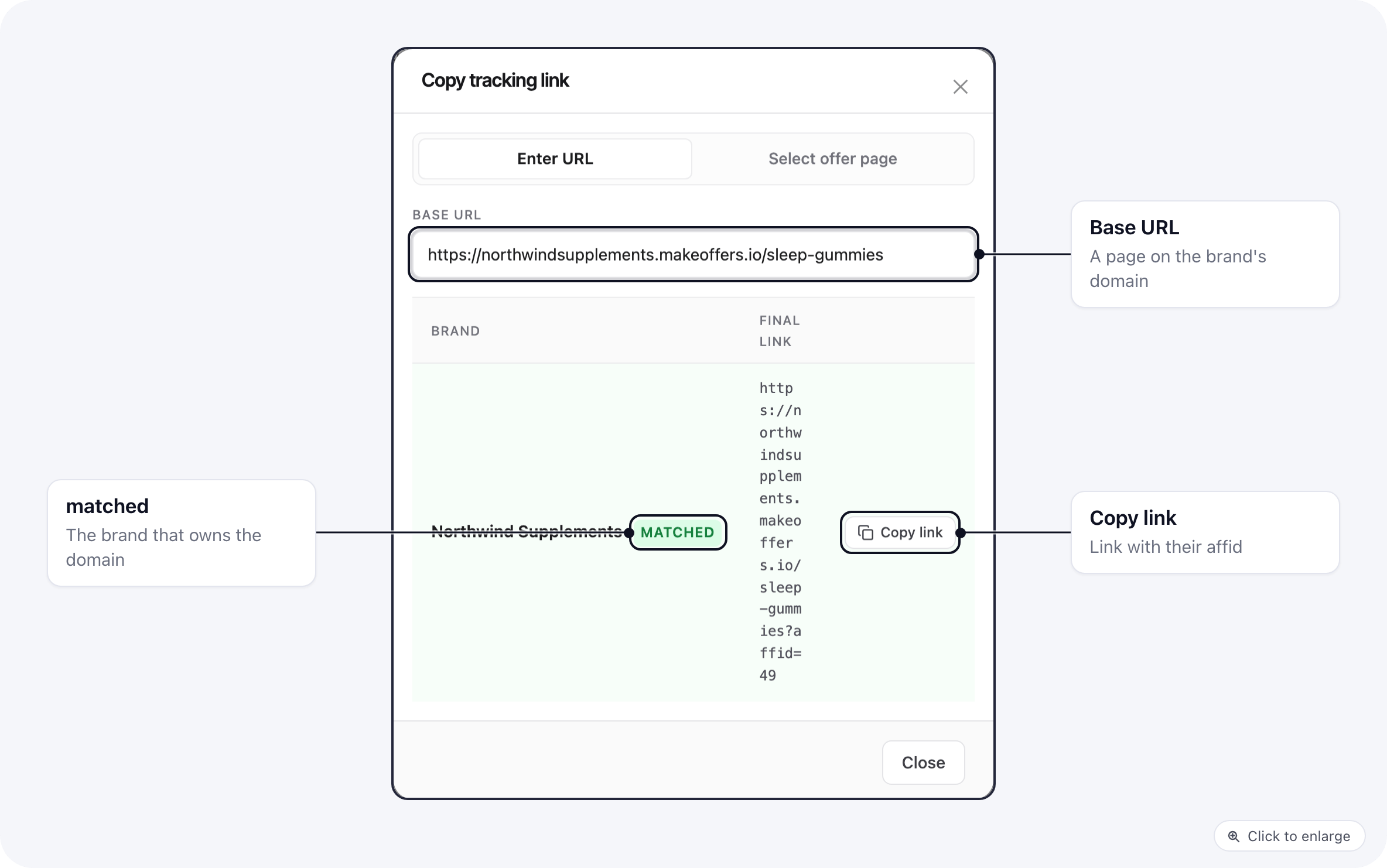 The link is the page URL with `affid` set to the affiliate's id on that brand. Click **Copy link**.
## Disable an account
**Disable account** stops the affiliate signing in to the portal and disables every brand they are on.
**Enable account** lets them back in and re-activates the brands that were disabled. Use **Edit assignment** on one brand
instead to stop them on one brand only.
## Related
* [Commission groups and payouts](/affiliate-portal/payouts)
* [Who can manage affiliates](/affiliate-portal/permissions)
* [Internal affiliates on a brand](/affiliates/internal-affiliates)
This documentation is built and hosted on [Mintlify](https://mintlify.com), a developer documentation platform.
The link is the page URL with `affid` set to the affiliate's id on that brand. Click **Copy link**.
## Disable an account
**Disable account** stops the affiliate signing in to the portal and disables every brand they are on.
**Enable account** lets them back in and re-activates the brands that were disabled. Use **Edit assignment** on one brand
instead to stop them on one brand only.
## Related
* [Commission groups and payouts](/affiliate-portal/payouts)
* [Who can manage affiliates](/affiliate-portal/permissions)
* [Internal affiliates on a brand](/affiliates/internal-affiliates)
This documentation is built and hosted on [Mintlify](https://mintlify.com), a developer documentation platform.