> ## Documentation Index
> Fetch the complete documentation index at: https://docs.elasticfunnels.io/llms.txt
> Use this file to discover all available pages before exploring further.
# Brands on the portal
> Choose which brands affiliates can promote on the portal, and the status a new sign-up gets on each one.
Affiliates can only promote the brands that are on the portal. Every brand in your organization can be added, and
one affiliate login covers all of them.
## Add brands
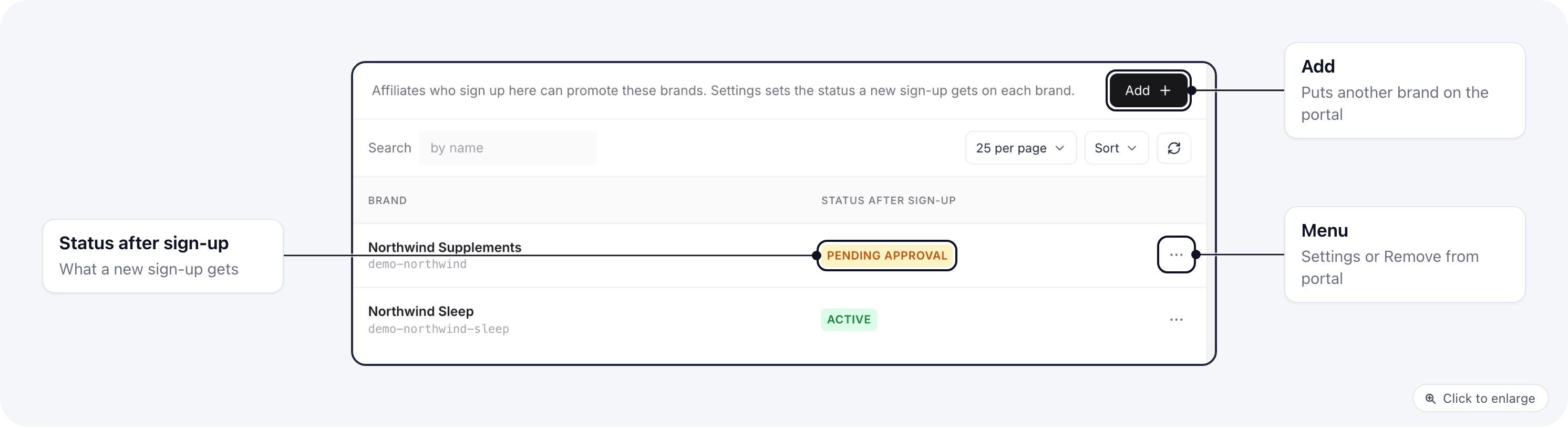
Open the portal's **Brands** tab and click **Add**. Tick the brands to add and click **Add N brands**. A brand that
is already on the portal does not appear in the list.
 ## Status after sign-up
Each brand has a **Status after sign-up**: the status an affiliate gets on that brand when they sign up on the
portal. Open the row's menu, pick **Settings** and choose:
| Status | What the affiliate gets |
| - | - |
| **Pending approval** | They can sign in, but you approve them before they promote the brand. The default for a brand you add. |
| **Active** | They can promote the brand right away. |
| **Disabled** | They are on the brand but cannot use it. |
## Status after sign-up
Each brand has a **Status after sign-up**: the status an affiliate gets on that brand when they sign up on the
portal. Open the row's menu, pick **Settings** and choose:
| Status | What the affiliate gets |
| - | - |
| **Pending approval** | They can sign in, but you approve them before they promote the brand. The default for a brand you add. |
| **Active** | They can promote the brand right away. |
| **Disabled** | They are on the brand but cannot use it. |
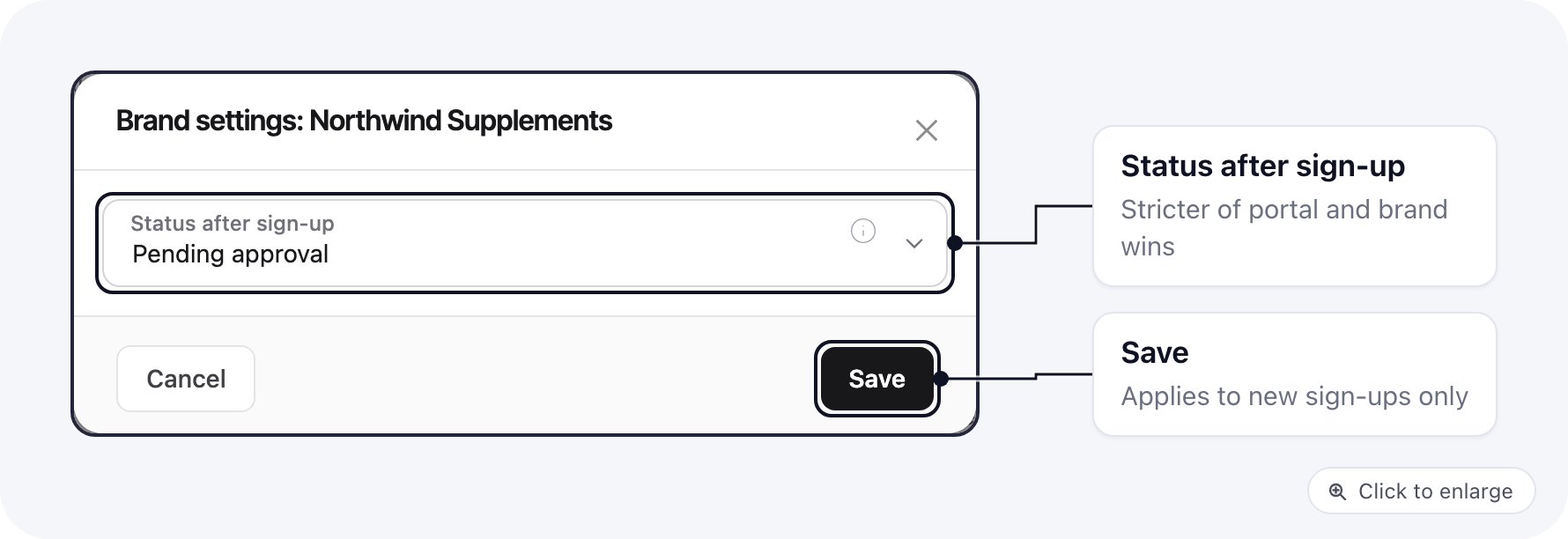 The brand has its own setting too: **Default Status After Register** in the brand's **Settings → Affiliates**.
When both are set, the stricter one applies, in this order: Disabled, then Pending approval, then Active. So a
portal set to Active never auto-approves sign-ups on a brand whose owner wants to approve them.
The status only applies to new sign-ups. Affiliates you invite are Active on every brand you tick in the invite. You
change an existing affiliate's status on their **Brands** tab. See [Affiliates](/affiliate-portal/affiliates).
## Remove a brand
Pick **Remove from portal** in the row's menu. Affiliates stop seeing the brand on the portal, and new sign-ups no
longer get it. The brand's internal affiliates stay on the brand, with their history.
## Related
* [Approve affiliates on a brand](/affiliate-portal/affiliates#approve-an-affiliate)
* [Commission groups](/affiliate-portal/payouts#commission-groups)
* [Internal affiliates](/affiliates/internal-affiliates)
This documentation is built and hosted on [Mintlify](https://mintlify.com), a developer documentation platform.
The brand has its own setting too: **Default Status After Register** in the brand's **Settings → Affiliates**.
When both are set, the stricter one applies, in this order: Disabled, then Pending approval, then Active. So a
portal set to Active never auto-approves sign-ups on a brand whose owner wants to approve them.
The status only applies to new sign-ups. Affiliates you invite are Active on every brand you tick in the invite. You
change an existing affiliate's status on their **Brands** tab. See [Affiliates](/affiliate-portal/affiliates).
## Remove a brand
Pick **Remove from portal** in the row's menu. Affiliates stop seeing the brand on the portal, and new sign-ups no
longer get it. The brand's internal affiliates stay on the brand, with their history.
## Related
* [Approve affiliates on a brand](/affiliate-portal/affiliates#approve-an-affiliate)
* [Commission groups](/affiliate-portal/payouts#commission-groups)
* [Internal affiliates](/affiliates/internal-affiliates)
This documentation is built and hosted on [Mintlify](https://mintlify.com), a developer documentation platform.