> ## Documentation Index
> Fetch the complete documentation index at: https://docs.elasticfunnels.io/llms.txt
> Use this file to discover all available pages before exploring further.
# Commissions and payouts
> Set what affiliates earn with commission groups, choose the payout schedule, and approve, pay or reject the payouts the portal generates.
Affiliates earn a commission on each sale their link brings in. The portal adds up what each affiliate earned on
all their brands in a period and makes one payout for it. You approve it, pay it outside ElasticFunnels, and mark it
paid.
## Commission groups
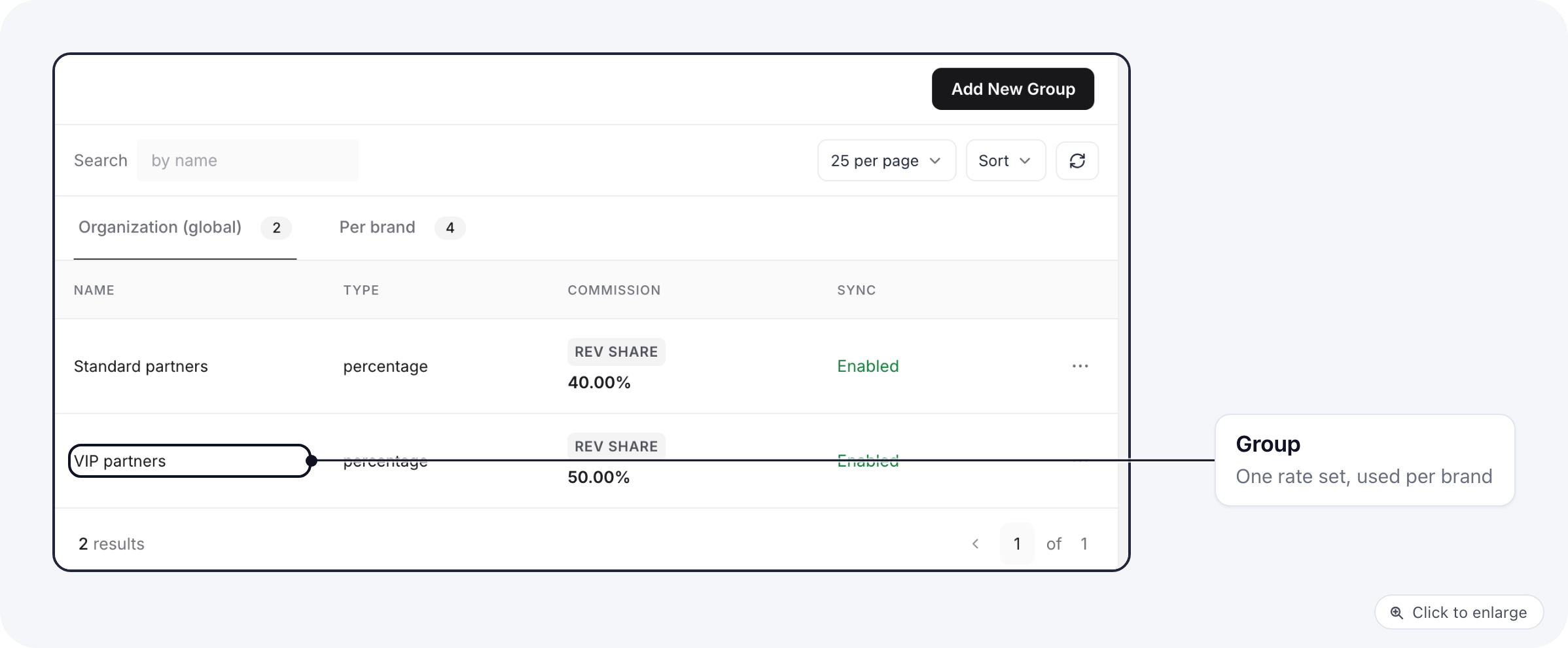
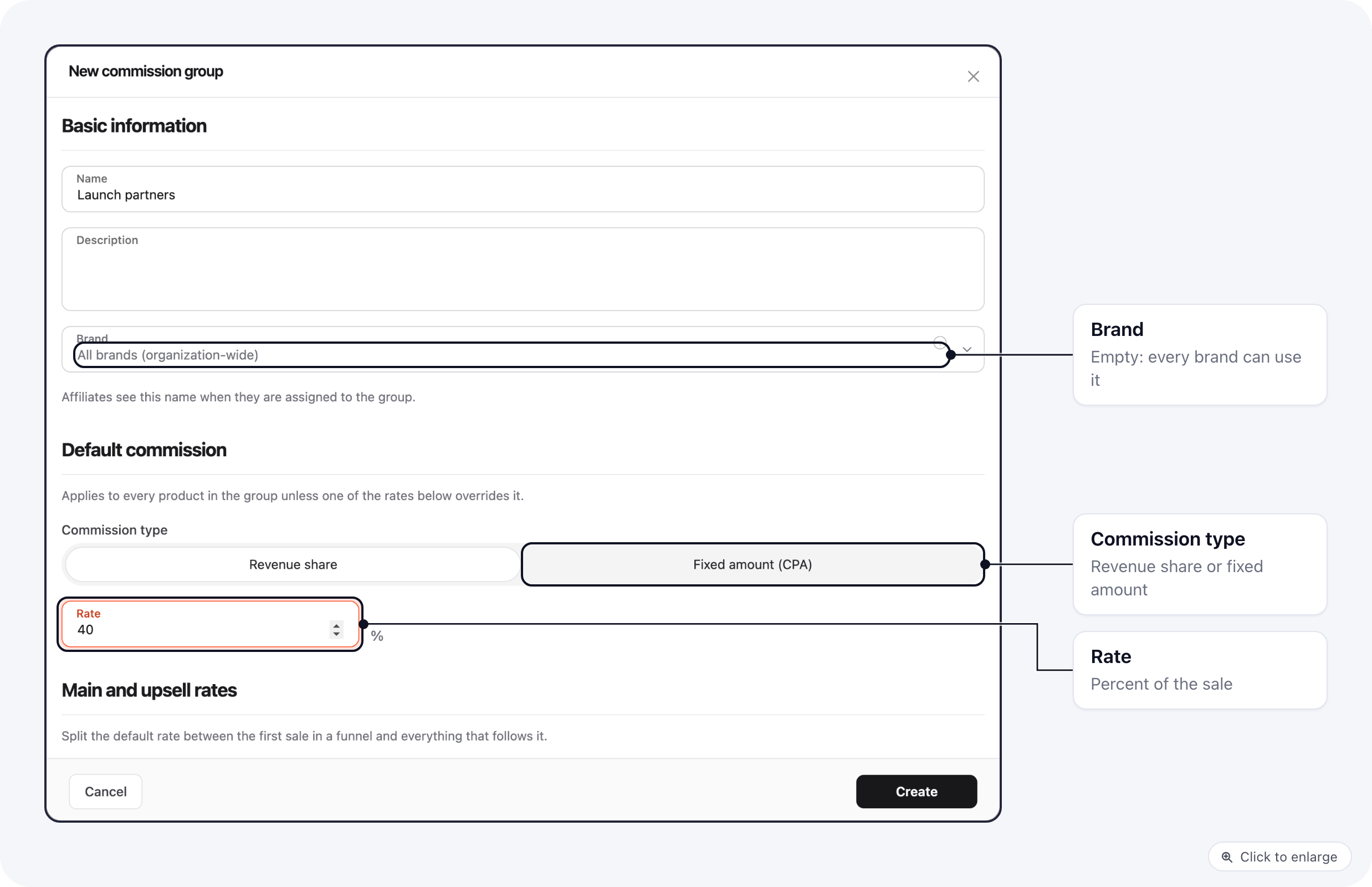
A commission group sets the rate. Open the portal's **Commission groups** tab and click **Add New Group**. The
list has two tabs: groups for every brand (**Organization (global)**) and groups for one brand (**Per brand**).
 | Setting | What it does |
| - | - |
| **Name** | Affiliates see this name when they are in the group. |
| **Brand** | Leave empty for a group every brand can use, or pick one brand. The brand cannot be changed later. |
| **Commission type** | **Revenue share** (a percentage of the sale) or **Fixed amount (CPA)** (an amount per sale). |
| **Main and upsell rates** | A different rate for the first sale in a funnel and for upsells and downsells. Optionally pay order bumps at the upsell rate. |
| **Allowance** | Holds back a percentage of every commission for a number of days, so refunds and chargebacks are covered first. |
| **Rates by product type** | A rate per product type (digital or physical, one-off or recurring), with separate rates for the initial sale and rebills. |
| **Copy this group to every brand** | Each brand gets a copy kept in sync with this group. Turn it off to let brands edit their copy. |
| Setting | What it does |
| - | - |
| **Name** | Affiliates see this name when they are in the group. |
| **Brand** | Leave empty for a group every brand can use, or pick one brand. The brand cannot be changed later. |
| **Commission type** | **Revenue share** (a percentage of the sale) or **Fixed amount (CPA)** (an amount per sale). |
| **Main and upsell rates** | A different rate for the first sale in a funnel and for upsells and downsells. Optionally pay order bumps at the upsell rate. |
| **Allowance** | Holds back a percentage of every commission for a number of days, so refunds and chargebacks are covered first. |
| **Rates by product type** | A rate per product type (digital or physical, one-off or recurring), with separate rates for the initial sale and rebills. |
| **Copy this group to every brand** | Each brand gets a copy kept in sync with this group. Turn it off to let brands edit their copy. |
 You put an affiliate in a group per brand, on the affiliate's **Brands** tab. See
[Approve an affiliate](/affiliate-portal/affiliates#approve-an-affiliate).
## Payout schedule
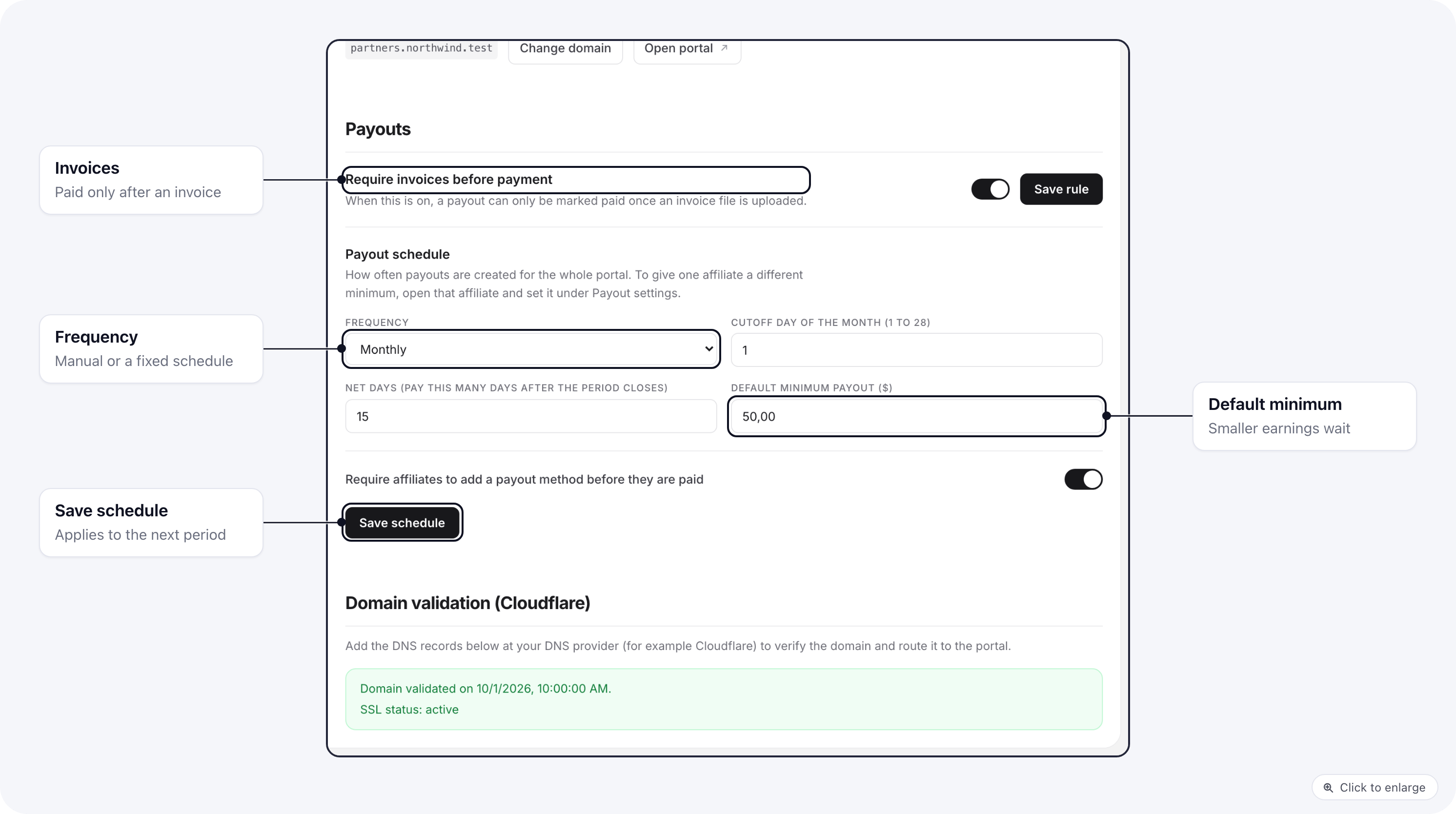
The portal's **Settings** tab, under **Payouts**, sets when payouts are made:
| Setting | What it does |
| - | - |
| **Frequency** | **Manual** (no automatic payouts, only Generate now), **Weekly**, **Every two weeks**, **Monthly** or **Every N days**. |
| **Cutoff day** | The weekday (weekly, every two weeks) or day of the month (monthly, 1 to 28) a period closes. |
| **Net days** | How many days after the period closes the payout is made. Leave room for refunds. |
| **Default minimum payout** | An affiliate whose unpaid earnings are below this gets no payout yet. The earnings are not lost: they carry over and are paid once the total reaches the minimum. |
| **Require a payout method** | Affiliates with no payout details are skipped and emailed to add them. |
| **Require invoices before payment** | A payout cannot be marked paid until the affiliate's invoice is uploaded. |
You put an affiliate in a group per brand, on the affiliate's **Brands** tab. See
[Approve an affiliate](/affiliate-portal/affiliates#approve-an-affiliate).
## Payout schedule
The portal's **Settings** tab, under **Payouts**, sets when payouts are made:
| Setting | What it does |
| - | - |
| **Frequency** | **Manual** (no automatic payouts, only Generate now), **Weekly**, **Every two weeks**, **Monthly** or **Every N days**. |
| **Cutoff day** | The weekday (weekly, every two weeks) or day of the month (monthly, 1 to 28) a period closes. |
| **Net days** | How many days after the period closes the payout is made. Leave room for refunds. |
| **Default minimum payout** | An affiliate whose unpaid earnings are below this gets no payout yet. The earnings are not lost: they carry over and are paid once the total reaches the minimum. |
| **Require a payout method** | Affiliates with no payout details are skipped and emailed to add them. |
| **Require invoices before payment** | A payout cannot be marked paid until the affiliate's invoice is uploaded. |
 ElasticFunnels checks every hour for a period that has closed and makes its payouts.
### One affiliate's minimum
To give one affiliate a different minimum, open the affiliate and fill in **Minimum payout (\$)** under **Payout
settings**, then **Save payout settings**. Leave it empty to use the portal default. Affiliates can also raise
their own minimum on the portal, but never below the portal's.
### What a payout includes
Sales credited to the affiliate in the period, on the brands on the portal, with a commission above zero, plus
any earlier sales since the portal was created that were never paid (for example because the affiliate was below
the minimum or had no payout details yet). Sales already in a payout, refunded or charged back orders and test
orders are left out.
## Pay affiliates
The portal's **Payouts** tab lists the payouts: one row per affiliate per period, across all their brands. A row
with several brands opens to show each brand's amount.
ElasticFunnels checks every hour for a period that has closed and makes its payouts.
### One affiliate's minimum
To give one affiliate a different minimum, open the affiliate and fill in **Minimum payout (\$)** under **Payout
settings**, then **Save payout settings**. Leave it empty to use the portal default. Affiliates can also raise
their own minimum on the portal, but never below the portal's.
### What a payout includes
Sales credited to the affiliate in the period, on the brands on the portal, with a commission above zero, plus
any earlier sales since the portal was created that were never paid (for example because the affiliate was below
the minimum or had no payout details yet). Sales already in a payout, refunded or charged back orders and test
orders are left out.
## Pay affiliates
The portal's **Payouts** tab lists the payouts: one row per affiliate per period, across all their brands. A row
with several brands opens to show each brand's amount.
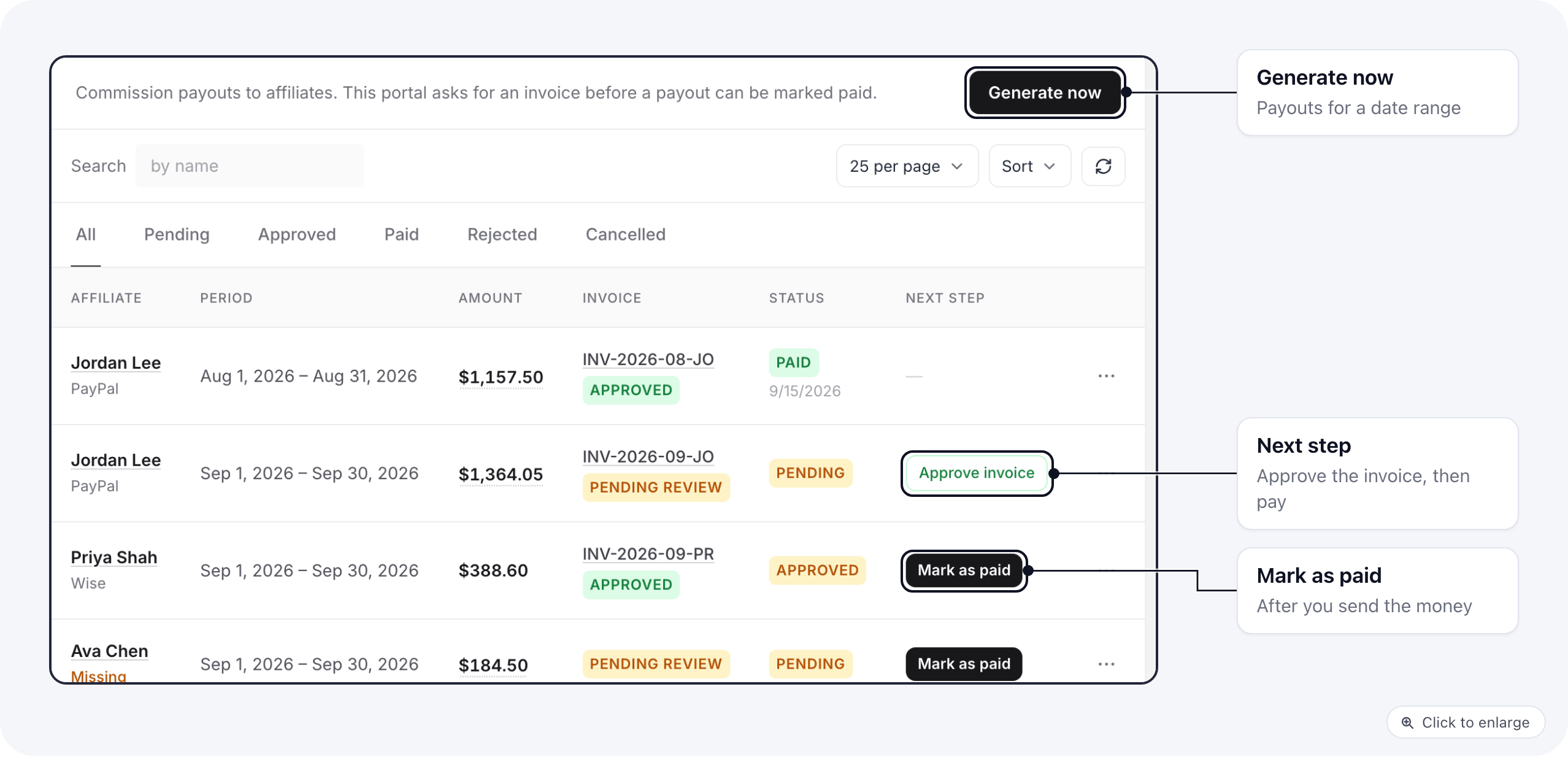 The tabs at the top filter by status: **All**, **Pending**, **Approved**, **Paid**, **Rejected** and
**Cancelled**. Under each affiliate's name is their payout method, or **Missing** when they have no payout
details yet.
**Next step** shows the one thing to do on each payout: **Approve invoice** when the affiliate uploaded one,
**Mark as paid** once it is approved. Everything else is in the row's menu:
* **Upload invoice**: attach the invoice yourself (PDF or image).
* **Approve invoice** or **Decline invoice**: a decline needs a reason, and the affiliate is emailed to fix it.
* **Approve**: confirms a pending payout.
* **Mark as paid**: after you send the money. Enter the payment method and, if you like, a reference such as the
transaction id. If the portal requires invoices, the invoice must be there first.
* **Reject**: with an optional reason.
**Generate now** makes payouts for a date range you pick. Its result says how many were created, how many were
skipped below the minimum or for a missing payout method, and how many affiliates were emailed to add one.
Affiliates can upload their invoice on the portal themselves. You then see it in the **Invoice** column, ready
to approve.
The affiliate sees each payout and its status on the portal. See [Payouts on the portal](/affiliate-portal/affiliate-payouts).
## Related
* [Affiliates](/affiliate-portal/affiliates)
* [Payout emails](/affiliate-portal/branding#emails)
This documentation is built and hosted on [Mintlify](https://mintlify.com), a developer documentation platform.
The tabs at the top filter by status: **All**, **Pending**, **Approved**, **Paid**, **Rejected** and
**Cancelled**. Under each affiliate's name is their payout method, or **Missing** when they have no payout
details yet.
**Next step** shows the one thing to do on each payout: **Approve invoice** when the affiliate uploaded one,
**Mark as paid** once it is approved. Everything else is in the row's menu:
* **Upload invoice**: attach the invoice yourself (PDF or image).
* **Approve invoice** or **Decline invoice**: a decline needs a reason, and the affiliate is emailed to fix it.
* **Approve**: confirms a pending payout.
* **Mark as paid**: after you send the money. Enter the payment method and, if you like, a reference such as the
transaction id. If the portal requires invoices, the invoice must be there first.
* **Reject**: with an optional reason.
**Generate now** makes payouts for a date range you pick. Its result says how many were created, how many were
skipped below the minimum or for a missing payout method, and how many affiliates were emailed to add one.
Affiliates can upload their invoice on the portal themselves. You then see it in the **Invoice** column, ready
to approve.
The affiliate sees each payout and its status on the portal. See [Payouts on the portal](/affiliate-portal/affiliate-payouts).
## Related
* [Affiliates](/affiliate-portal/affiliates)
* [Payout emails](/affiliate-portal/branding#emails)
This documentation is built and hosted on [Mintlify](https://mintlify.com), a developer documentation platform.