> ## Documentation Index
> Fetch the complete documentation index at: https://docs.elasticfunnels.io/llms.txt
> Use this file to discover all available pages before exploring further.
# Set up the affiliate portal
> Create the portal on your own domain, add the two DNS records it shows, work through the setup checklist, and manage its name, domain and removal.
Each organization has one affiliate portal. It runs on a domain you own, usually a subdomain of your main site
such as `partners.example.com`.
## 1. Create the portal
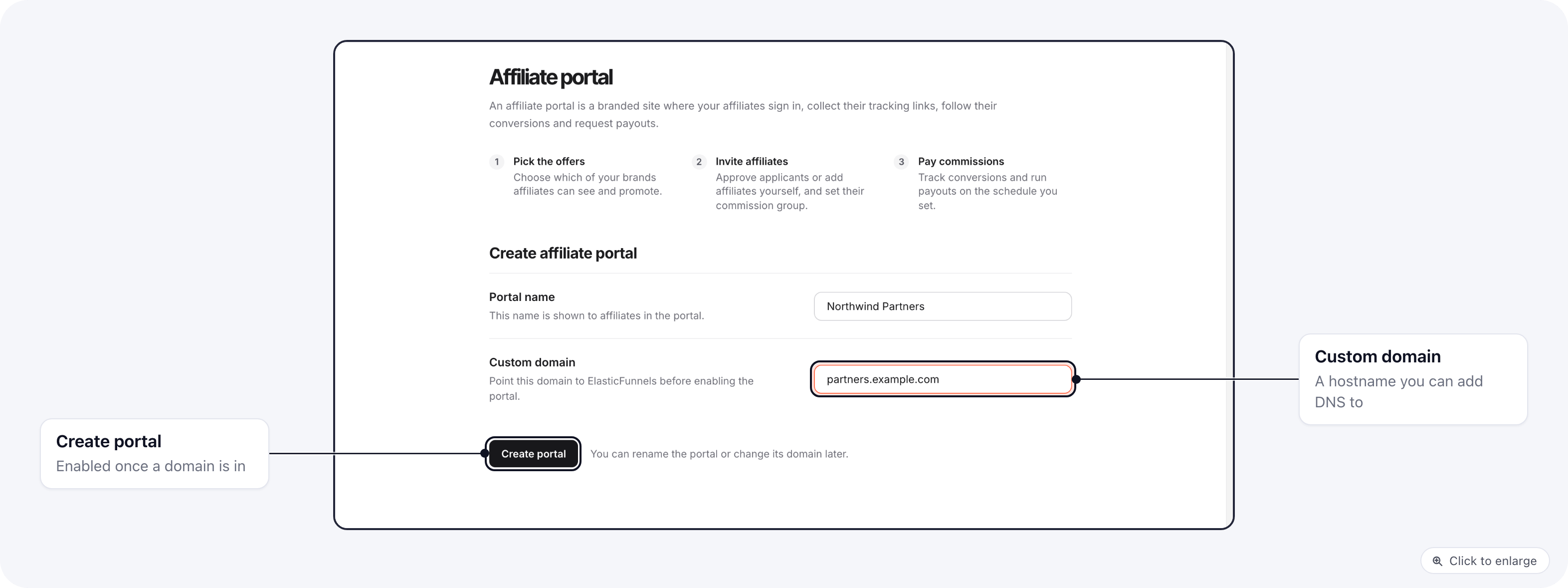
Open **Organization settings → Affiliate portal**. Fill in:
* **Portal name**: the name of your affiliate program, for example "Northwind Partners". You can change it
later.
* **Custom domain**: the hostname the portal will answer on, for example `partners.example.com`. Use a domain
you can add DNS records to. Domains of the ElasticFunnels platform itself are refused, and so is a domain
another portal already uses.
Click **Create portal**. The button stays disabled until a domain is filled in.
 ## 2. Add the DNS records
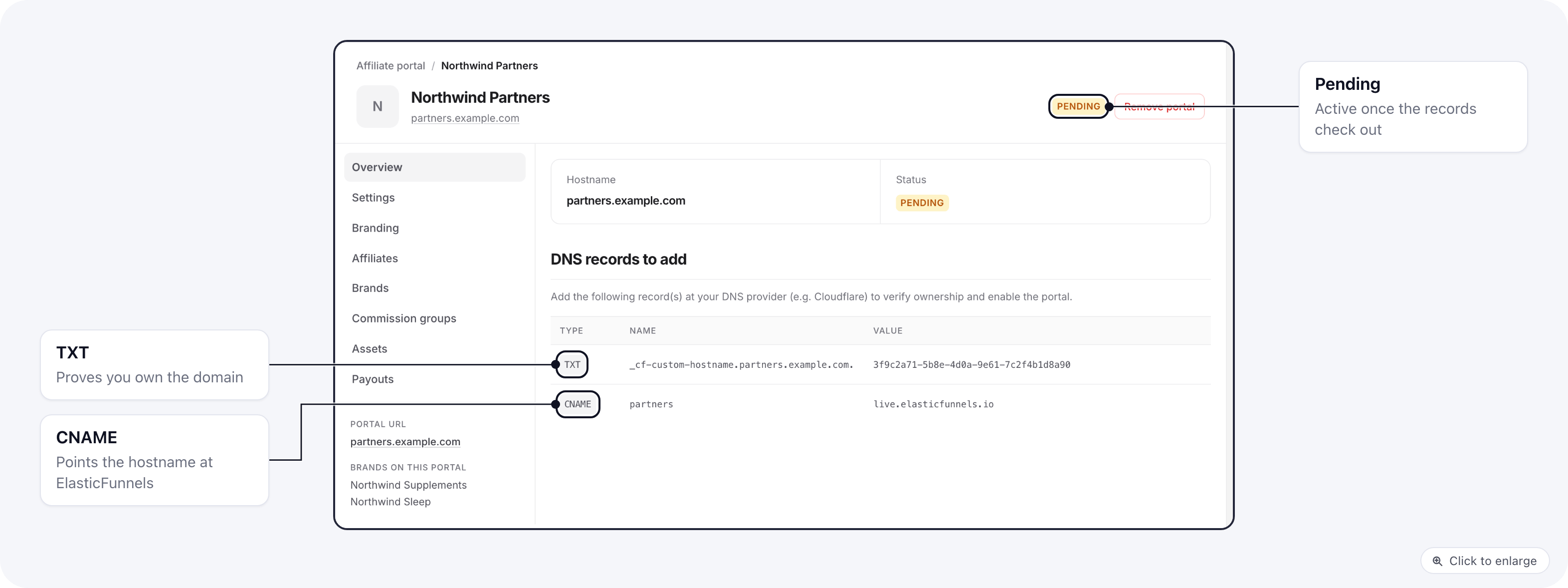
Right after you create it, the portal is **Pending**. Its **Overview** tab lists the records to add at your DNS
provider:
| Type | What it does |
| - | - |
| **TXT** | Proves you own the domain. The name starts with `_cf-custom-hostname`. |
| **CNAME** | Points the portal's hostname at ElasticFunnels. |
## 2. Add the DNS records
Right after you create it, the portal is **Pending**. Its **Overview** tab lists the records to add at your DNS
provider:
| Type | What it does |
| - | - |
| **TXT** | Proves you own the domain. The name starts with `_cf-custom-hostname`. |
| **CNAME** | Points the portal's hostname at ElasticFunnels. |
 The **Settings** tab shows the same records as a zone file you can **Copy** or **Download .txt** and import into
Cloudflare. If your DNS is on Cloudflare, set the records to **DNS only** (grey cloud), not Proxied.
ElasticFunnels checks pending portals every 15 minutes. Once the records are found, the status turns **Active**,
the SSL certificate is issued, and the Overview tab shows when the domain was validated. If the check fails, the
tab says so; fix the TXT record and the next check picks it up.
## 3. Work through the setup checklist
The **Overview** tab opens with a **Setup checklist**: what the portal still needs before affiliates can sign up,
promote and get paid. Each open item says what is missing, and **Open** takes you to the section that fixes it.
The **Settings** tab shows the same records as a zone file you can **Copy** or **Download .txt** and import into
Cloudflare. If your DNS is on Cloudflare, set the records to **DNS only** (grey cloud), not Proxied.
ElasticFunnels checks pending portals every 15 minutes. Once the records are found, the status turns **Active**,
the SSL certificate is issued, and the Overview tab shows when the domain was validated. If the check fails, the
tab says so; fix the TXT record and the next check picks it up.
## 3. Work through the setup checklist
The **Overview** tab opens with a **Setup checklist**: what the portal still needs before affiliates can sign up,
promote and get paid. Each open item says what is missing, and **Open** takes you to the section that fixes it.
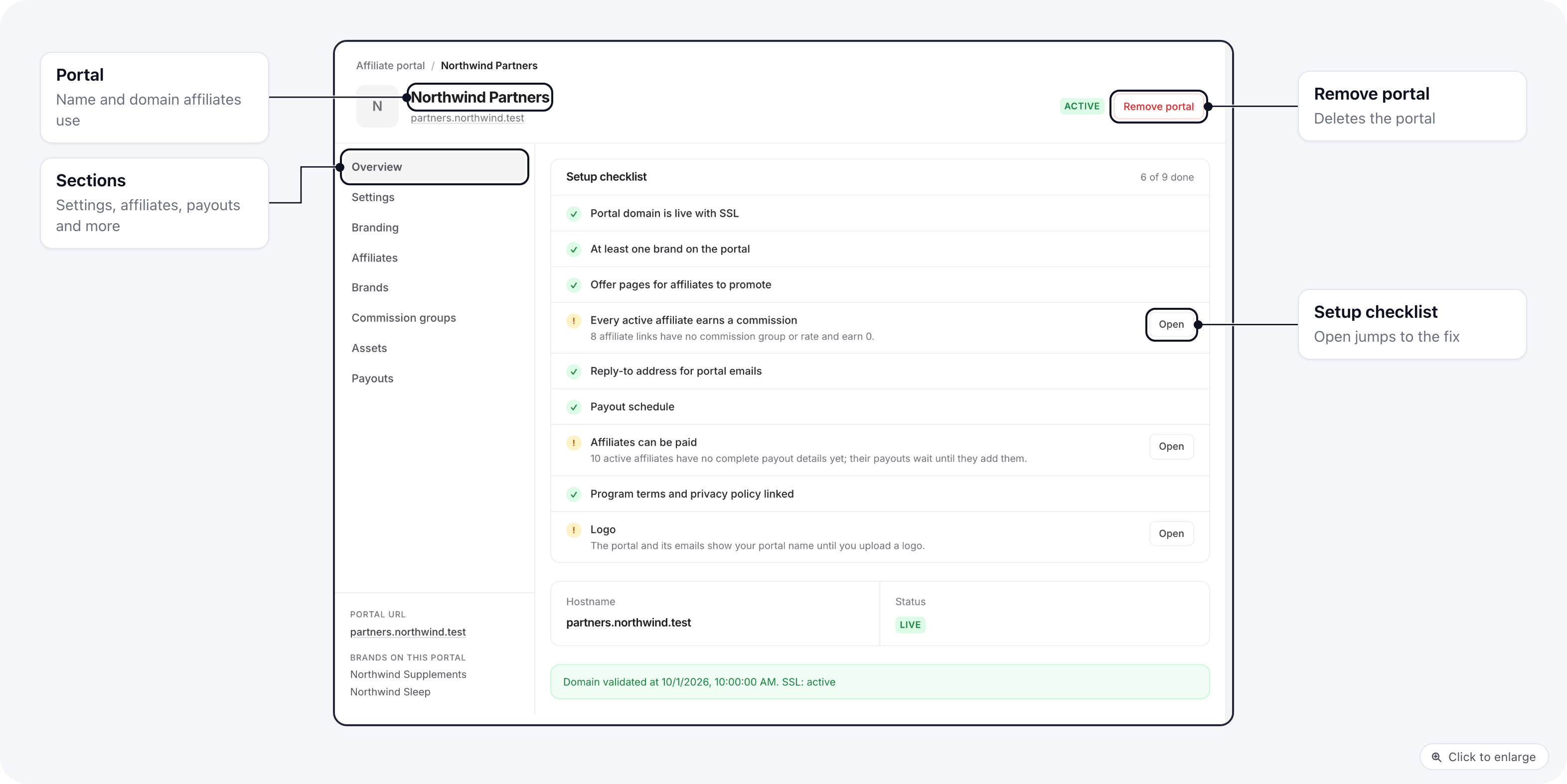 | Item | Done when |
| - | - |
| Portal domain is live with SSL | The DNS records validated. |
| At least one brand on the portal | You [added a brand](/affiliate-portal/brands). |
| Offer pages for affiliates to promote | Every brand on the portal has an [offer page](/affiliate-portal/assets#offer-pages). |
| Every active affiliate earns a commission | Each active affiliate has a [commission group](/affiliate-portal/payouts#commission-groups) or rate on each brand. |
| Reply-to address for portal emails | A reply-to is set in [Branding and emails](/affiliate-portal/branding#emails). |
| Payout schedule | The [payout schedule](/affiliate-portal/payouts#payout-schedule) is not Manual. |
| Affiliates can be paid | Every active affiliate has complete payout details. |
| Program terms and privacy policy linked | Terms and privacy URLs are set in Branding. |
| Logo | A logo is uploaded in Branding. |
## Rename the portal or change its domain
In the **Settings** tab, change **Portal name** and click **Save name**. **Open portal** opens the portal's
sign-in page in a new tab.
| Item | Done when |
| - | - |
| Portal domain is live with SSL | The DNS records validated. |
| At least one brand on the portal | You [added a brand](/affiliate-portal/brands). |
| Offer pages for affiliates to promote | Every brand on the portal has an [offer page](/affiliate-portal/assets#offer-pages). |
| Every active affiliate earns a commission | Each active affiliate has a [commission group](/affiliate-portal/payouts#commission-groups) or rate on each brand. |
| Reply-to address for portal emails | A reply-to is set in [Branding and emails](/affiliate-portal/branding#emails). |
| Payout schedule | The [payout schedule](/affiliate-portal/payouts#payout-schedule) is not Manual. |
| Affiliates can be paid | Every active affiliate has complete payout details. |
| Program terms and privacy policy linked | Terms and privacy URLs are set in Branding. |
| Logo | A logo is uploaded in Branding. |
## Rename the portal or change its domain
In the **Settings** tab, change **Portal name** and click **Save name**. **Open portal** opens the portal's
sign-in page in a new tab.
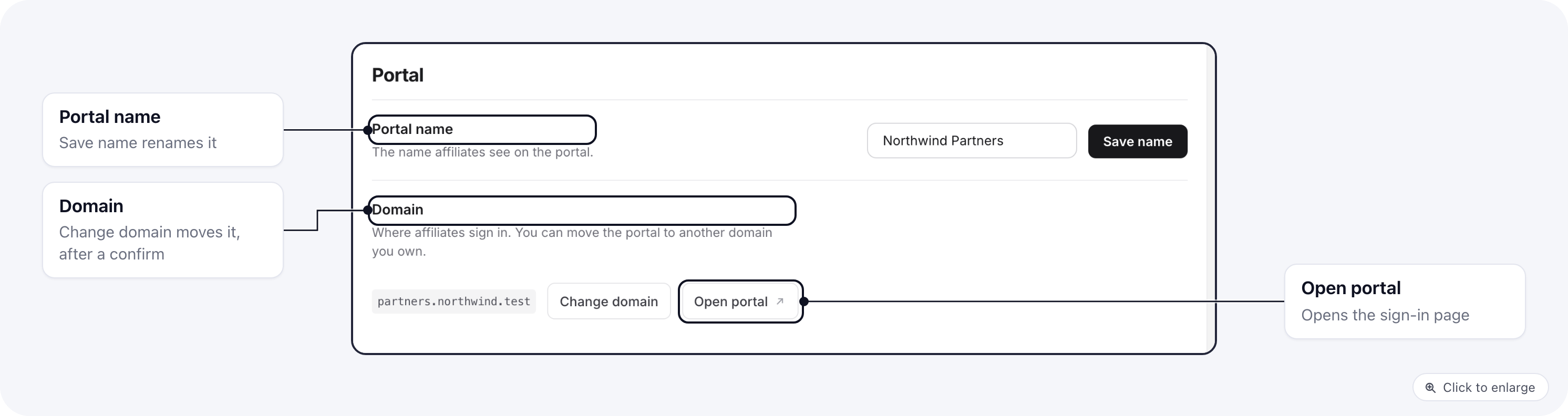 To move the portal to another domain you own, click **Change domain**, type the new hostname and confirm. Links on
the old domain stop working right away, and the portal stays offline on the new one until you add its new DNS
records and they validate. The records appear in the **Settings** tab, as in step 2.
## Remove the portal
**Remove portal**, at the top right of the portal page, deletes the portal and takes its brands off it.
Affiliates can no longer sign in on its domain. Removing needs the **Delete** permission on Portal settings.
A portal that has payouts, paid or not, cannot be removed, so your payout history is never lost. To close such a
portal to affiliates, remove its brands on the **Brands** tab instead, so affiliates have nothing left to promote.
## Next
* [Put brands on the portal](/affiliate-portal/brands)
* [Brand the portal and its emails](/affiliate-portal/branding)
This documentation is built and hosted on [Mintlify](https://mintlify.com), a developer documentation platform.
To move the portal to another domain you own, click **Change domain**, type the new hostname and confirm. Links on
the old domain stop working right away, and the portal stays offline on the new one until you add its new DNS
records and they validate. The records appear in the **Settings** tab, as in step 2.
## Remove the portal
**Remove portal**, at the top right of the portal page, deletes the portal and takes its brands off it.
Affiliates can no longer sign in on its domain. Removing needs the **Delete** permission on Portal settings.
A portal that has payouts, paid or not, cannot be removed, so your payout history is never lost. To close such a
portal to affiliates, remove its brands on the **Brands** tab instead, so affiliates have nothing left to promote.
## Next
* [Put brands on the portal](/affiliate-portal/brands)
* [Brand the portal and its emails](/affiliate-portal/branding)
This documentation is built and hosted on [Mintlify](https://mintlify.com), a developer documentation platform.