> ## Documentation Index
> Fetch the complete documentation index at: https://docs.elasticfunnels.io/llms.txt
> Use this file to discover all available pages before exploring further.
# Internal affiliates and the affiliate portal
> Run your own affiliate program on your own domain, and link the affiliates who sign up there to each brand.
ElasticFunnels has two kinds of affiliates on a brand:
| Type | Who they are | Where they log in |
| - | - | - |
| **Internal** | Partners in your own program. They get a login, tracking links and payouts from you. | Your affiliate portal, on your domain |
| **External** | Partners you track by sub ID or postback only, such as a network or a media buyer. | Nowhere in ElasticFunnels |
Internal affiliates belong to your organization. One person can promote several of your brands with the
same login, and each brand gets its own internal affiliate record with its own commission group.
In the API and in postback payloads an internal affiliate has `"type": "affcenter"`. That value is kept
for compatibility; the app calls it Internal.
## 1. Create the affiliate portal
Open **Organization settings → Affiliate portal**. Give the portal a name and the domain it will live on.
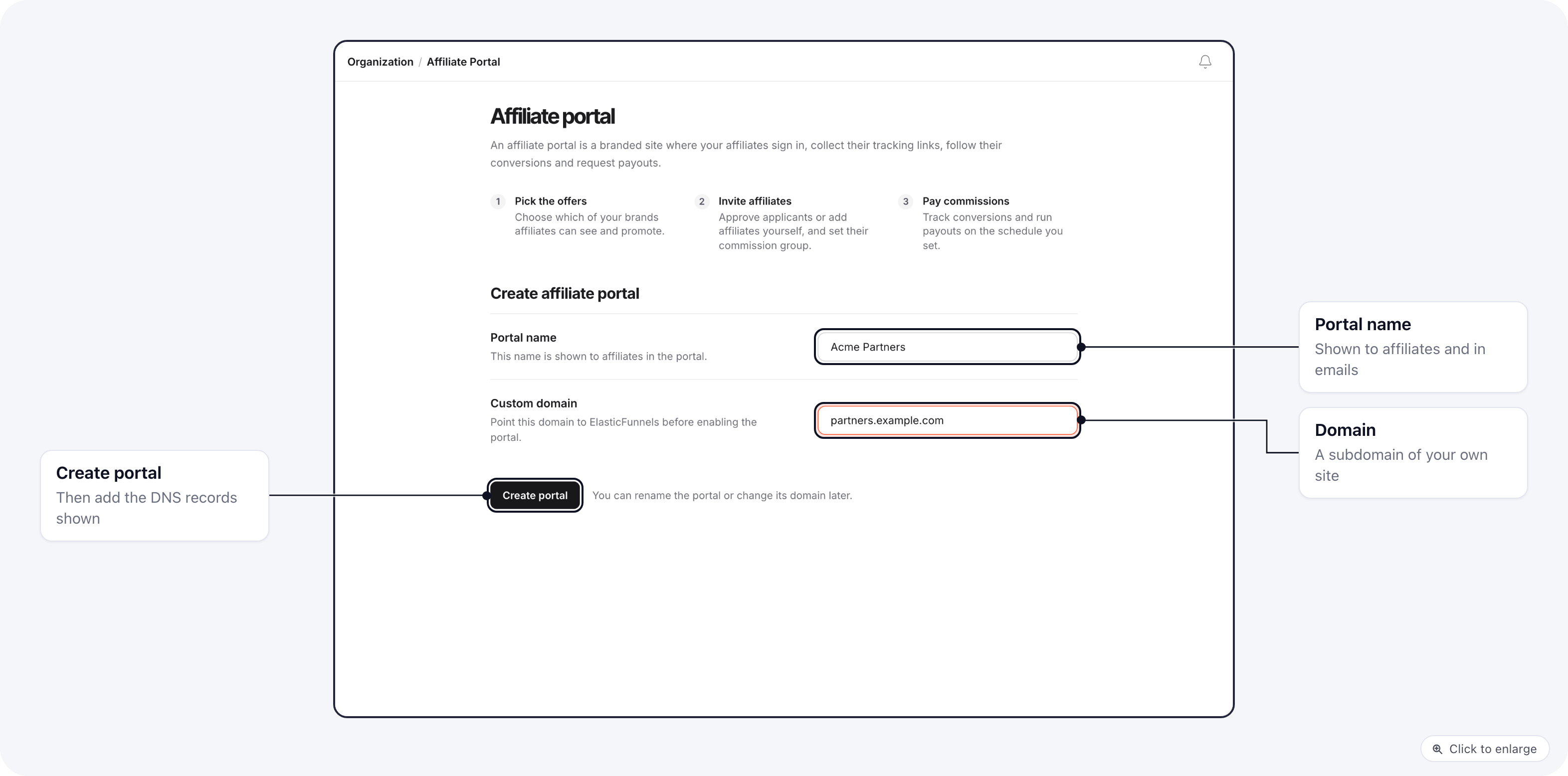 * The portal runs on a domain you own, usually a subdomain such as `partners.example.com`. After you
create it, the portal shows the DNS records to add at your DNS provider. It goes live once they check out.
* The portal name is what affiliates see on the login page and in the emails the portal sends them.
## 2. Put brands on the portal
Affiliates can only promote the brands that are on the portal. Add them in the portal's **Brands** tab.
* The portal runs on a domain you own, usually a subdomain such as `partners.example.com`. After you
create it, the portal shows the DNS records to add at your DNS provider. It goes live once they check out.
* The portal name is what affiliates see on the login page and in the emails the portal sends them.
## 2. Put brands on the portal
Affiliates can only promote the brands that are on the portal. Add them in the portal's **Brands** tab.
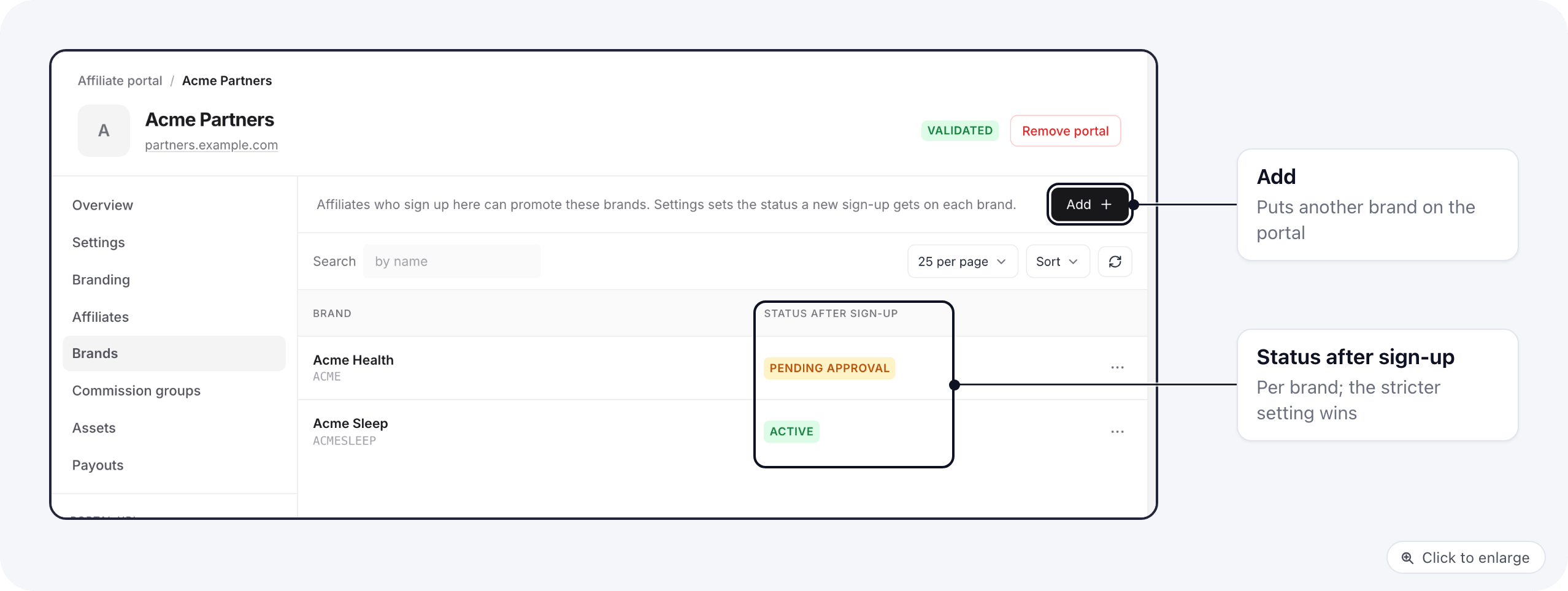 Each brand has a **Status after sign-up**: the status a new affiliate gets on that brand when they sign
up on the portal themselves and confirm their email.
The brand has the same setting of its own, in **Settings → Affiliates → Default Status After Register**.
When the two differ, the stricter one wins, in this order: Disabled, then Pending approval, then Active.
So a new sign-up is approved automatically only when both say Active. If the portal says Active and the
brand says Pending approval, the affiliate waits for your approval on that brand.
## 3. Invite affiliates
You can also add affiliates yourself instead of waiting for sign-ups. Either way they get a portal login
and an email with a temporary password.
### From the portal
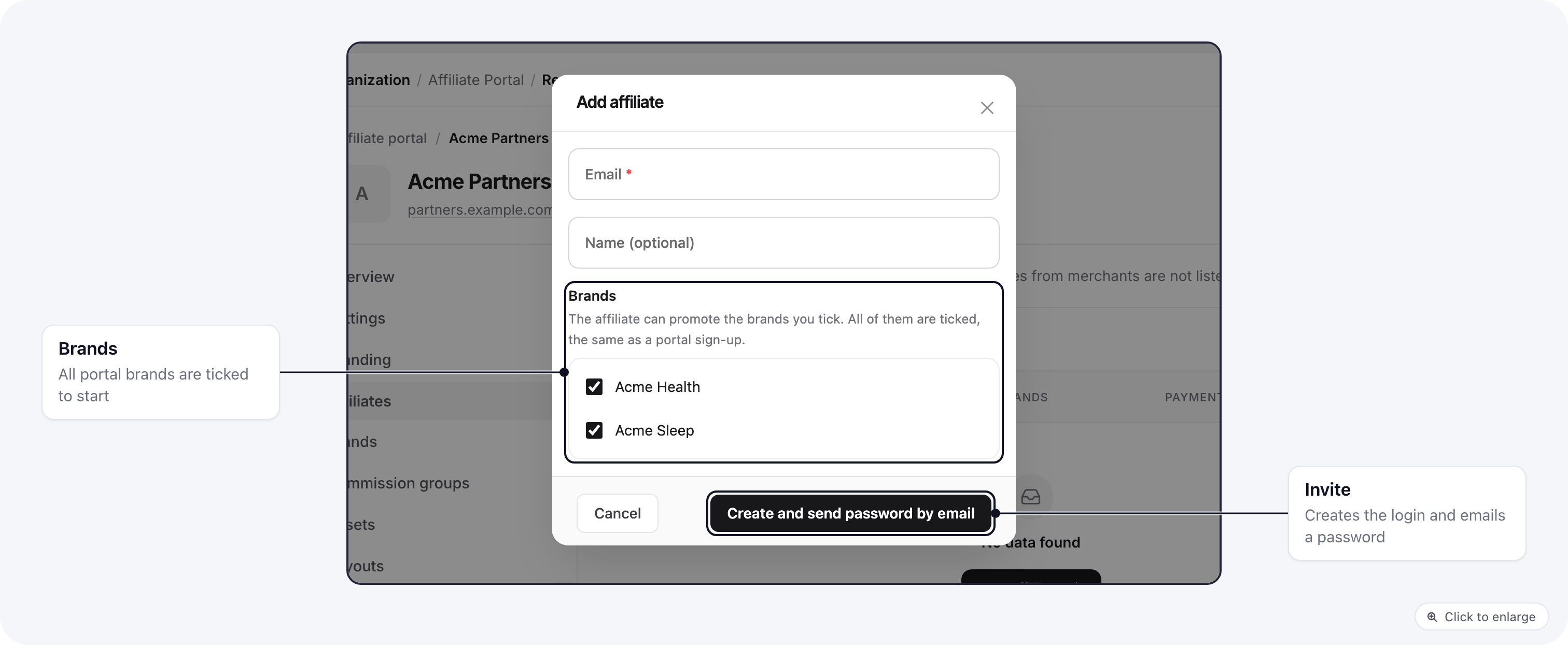
In the portal's **Affiliates** tab, click **Add affiliate**, enter their email, and pick the brands they
can promote. Every brand on the portal is ticked to start, the same as a portal sign-up.
Each brand has a **Status after sign-up**: the status a new affiliate gets on that brand when they sign
up on the portal themselves and confirm their email.
The brand has the same setting of its own, in **Settings → Affiliates → Default Status After Register**.
When the two differ, the stricter one wins, in this order: Disabled, then Pending approval, then Active.
So a new sign-up is approved automatically only when both say Active. If the portal says Active and the
brand says Pending approval, the affiliate waits for your approval on that brand.
## 3. Invite affiliates
You can also add affiliates yourself instead of waiting for sign-ups. Either way they get a portal login
and an email with a temporary password.
### From the portal
In the portal's **Affiliates** tab, click **Add affiliate**, enter their email, and pick the brands they
can promote. Every brand on the portal is ticked to start, the same as a portal sign-up.
 ### From a brand
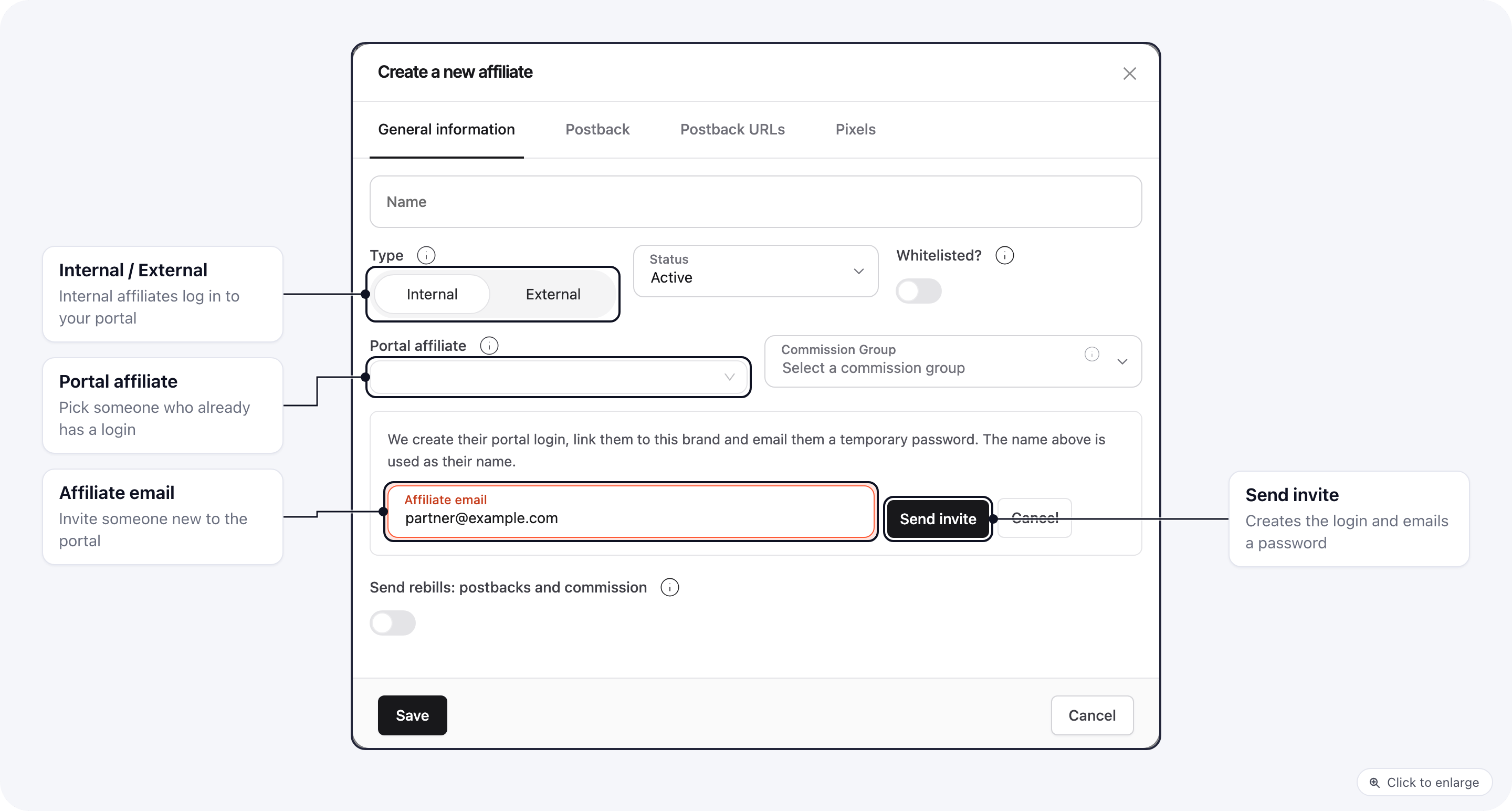
In the brand's **Affiliates** list, click **Create Affiliate** and choose **Internal**.
* **Portal affiliate**: pick someone who already has a portal login. This links them to this brand.
* **Invite a new affiliate**: type their email and click **Send invite**. ElasticFunnels creates their
portal login, links it to this brand only, and emails them a temporary password. The dialog then
edits the new affiliate, so you can set their commission group and save.
### From a brand
In the brand's **Affiliates** list, click **Create Affiliate** and choose **Internal**.
* **Portal affiliate**: pick someone who already has a portal login. This links them to this brand.
* **Invite a new affiliate**: type their email and click **Send invite**. ElasticFunnels creates their
portal login, links it to this brand only, and emails them a temporary password. The dialog then
edits the new affiliate, so you can set their commission group and save.
 Inviting from a brand needs the Create permission on the brand's affiliates and on the portal's
affiliates. See [Roles and permissions](/essentials/permission-matrix).
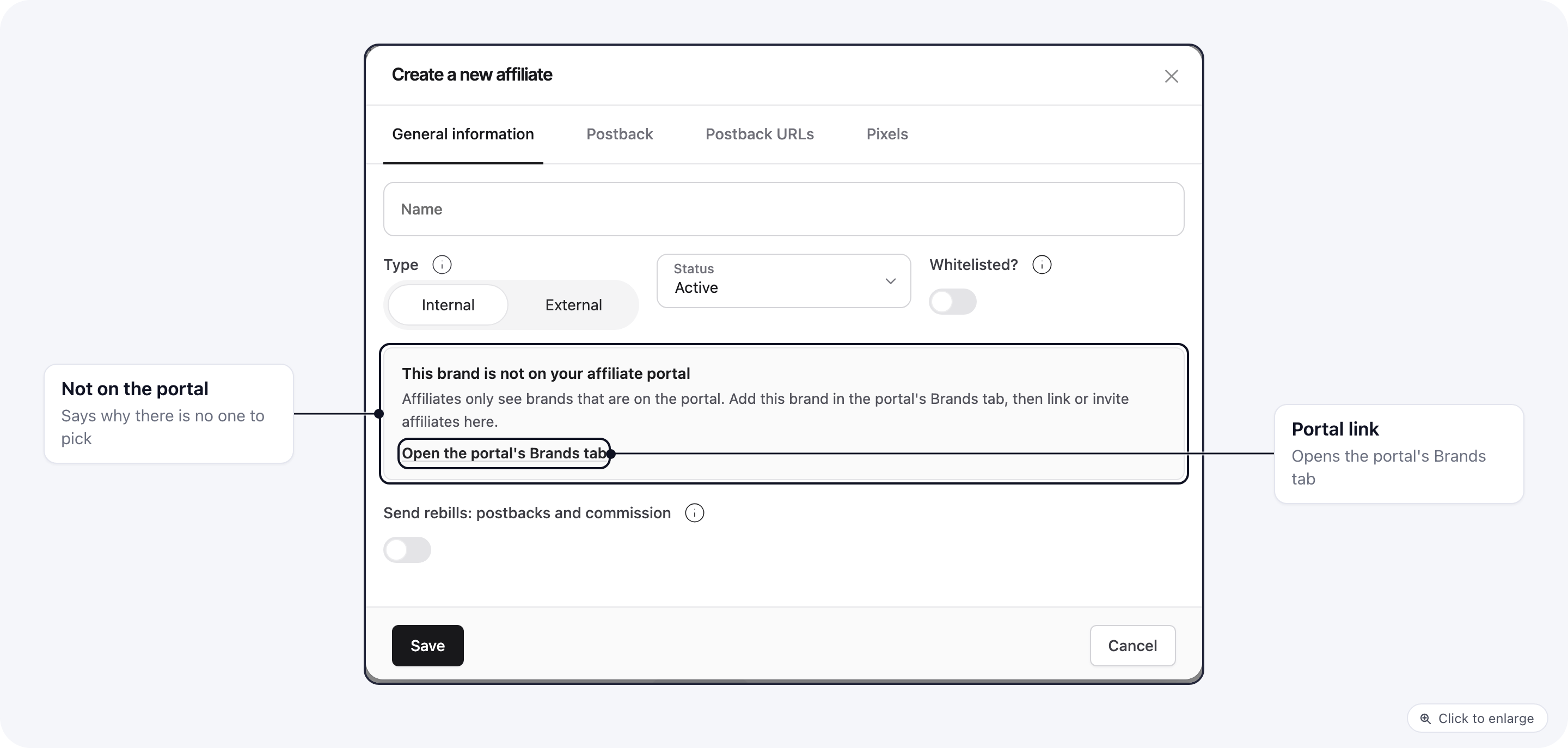
## When there is no one to pick
If the Portal affiliate list is empty, the dialog tells you why and links to the place that fixes it. Someone without access to the portal sees a note to ask an organization admin instead.
* **Your organization has no affiliate portal yet**: create one first (step 1).
* **This brand is not on your affiliate portal**: add it in the portal's Brands tab (step 2).
* **Your portal has no affiliates yet**: invite someone (step 3), or share the portal link so affiliates can sign up.
Inviting from a brand needs the Create permission on the brand's affiliates and on the portal's
affiliates. See [Roles and permissions](/essentials/permission-matrix).
## When there is no one to pick
If the Portal affiliate list is empty, the dialog tells you why and links to the place that fixes it. Someone without access to the portal sees a note to ask an organization admin instead.
* **Your organization has no affiliate portal yet**: create one first (step 1).
* **This brand is not on your affiliate portal**: add it in the portal's Brands tab (step 2).
* **Your portal has no affiliates yet**: invite someone (step 3), or share the portal link so affiliates can sign up.
 ## Related
* [Affiliate postback URLs](/affiliates/postback-urls): send conversions to an affiliate's own endpoint.
* [Affiliates API](/api-reference/endpoints/affiliates)
This documentation is built and hosted on [Mintlify](https://mintlify.com), a developer documentation platform.
## Related
* [Affiliate postback URLs](/affiliates/postback-urls): send conversions to an affiliate's own endpoint.
* [Affiliates API](/api-reference/endpoints/affiliates)
This documentation is built and hosted on [Mintlify](https://mintlify.com), a developer documentation platform.