> ## Documentation Index
> Fetch the complete documentation index at: https://docs.elasticfunnels.io/llms.txt
> Use this file to discover all available pages before exploring further.
# Audience Actions
> Send an email, keep a Klaviyo, ActiveCampaign or Mailchimp list in step, call a signed webhook or start an automation when people enter or leave an audience
An audience action runs for each person who enters or leaves one of your audiences. It can send them one of your
email templates, add them to a list or tag in another tool and take them off again, send the change to your
webhook, or run them through an automation. Actions run after each audience refresh, in batches.
Actions work on **customer audiences** (people identified by email). An audience that identifies anonymous
visitors cannot be sent anywhere, and a live audience is matched on the page as people browse, so it has no members
to send.
 ## Where to find it
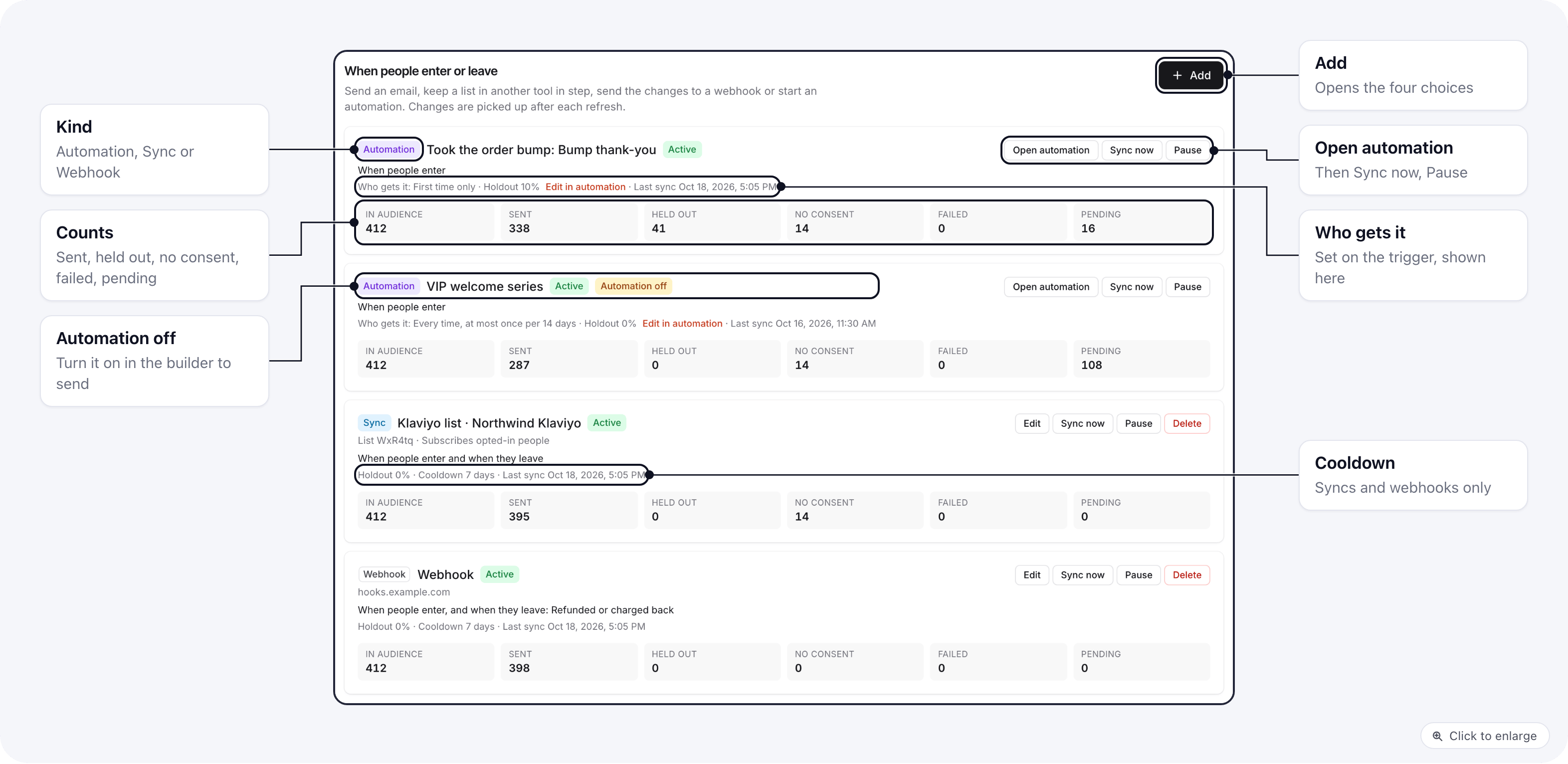
Open **Reports → Audiences**, pick an audience, and scroll to **When people enter or leave** on its **Overview**
tab. Each row starts with its kind (**Automation**, **Sync** or **Webhook**) and shows where it sends, when it
runs, the last sync, and its counts. An automation row also shows **Who gets it** and its holdout (for example
`Who gets it: First time only · Holdout 10%`); a sync or webhook row shows its holdout and cooldown.
| Count | Meaning |
| - | - |
| **In audience** | People in the audience now |
| **Sent** | People this action has sent |
| **Held out** | People in the holdout group, recorded and never sent |
| **No consent** | People your consent settings refused |
| **Failed** | Sends that still failed after 5 attempts |
| **Pending** | People waiting for a later refresh (over the per-run cap, paused integration, or a retry) |
Each row has **Sync now** and **Pause** / **Resume**. Sync and webhook rows also have **Edit** and **Delete**
(deleting leaves people already sent where they are). Automation rows have **Open automation** instead, plus an
**Edit in automation** link next to **Who gets it**: those settings live on the automation's trigger, so they are
changed there, not on the audience page. An automation row shows **Automation off** while the automation is not
turned on: nobody is run through it until you turn it on in the builder. An audience can have up to 20 actions.
## Add an action
Click **Add**. The window asks **What should happen when people enter or leave this audience?** Pick one of four
choices and click **Continue**:
## Where to find it
Open **Reports → Audiences**, pick an audience, and scroll to **When people enter or leave** on its **Overview**
tab. Each row starts with its kind (**Automation**, **Sync** or **Webhook**) and shows where it sends, when it
runs, the last sync, and its counts. An automation row also shows **Who gets it** and its holdout (for example
`Who gets it: First time only · Holdout 10%`); a sync or webhook row shows its holdout and cooldown.
| Count | Meaning |
| - | - |
| **In audience** | People in the audience now |
| **Sent** | People this action has sent |
| **Held out** | People in the holdout group, recorded and never sent |
| **No consent** | People your consent settings refused |
| **Failed** | Sends that still failed after 5 attempts |
| **Pending** | People waiting for a later refresh (over the per-run cap, paused integration, or a retry) |
Each row has **Sync now** and **Pause** / **Resume**. Sync and webhook rows also have **Edit** and **Delete**
(deleting leaves people already sent where they are). Automation rows have **Open automation** instead, plus an
**Edit in automation** link next to **Who gets it**: those settings live on the automation's trigger, so they are
changed there, not on the audience page. An automation row shows **Automation off** while the automation is not
turned on: nobody is run through it until you turn it on in the builder. An audience can have up to 20 actions.
## Add an action
Click **Add**. The window asks **What should happen when people enter or leave this audience?** Pick one of four
choices and click **Continue**:
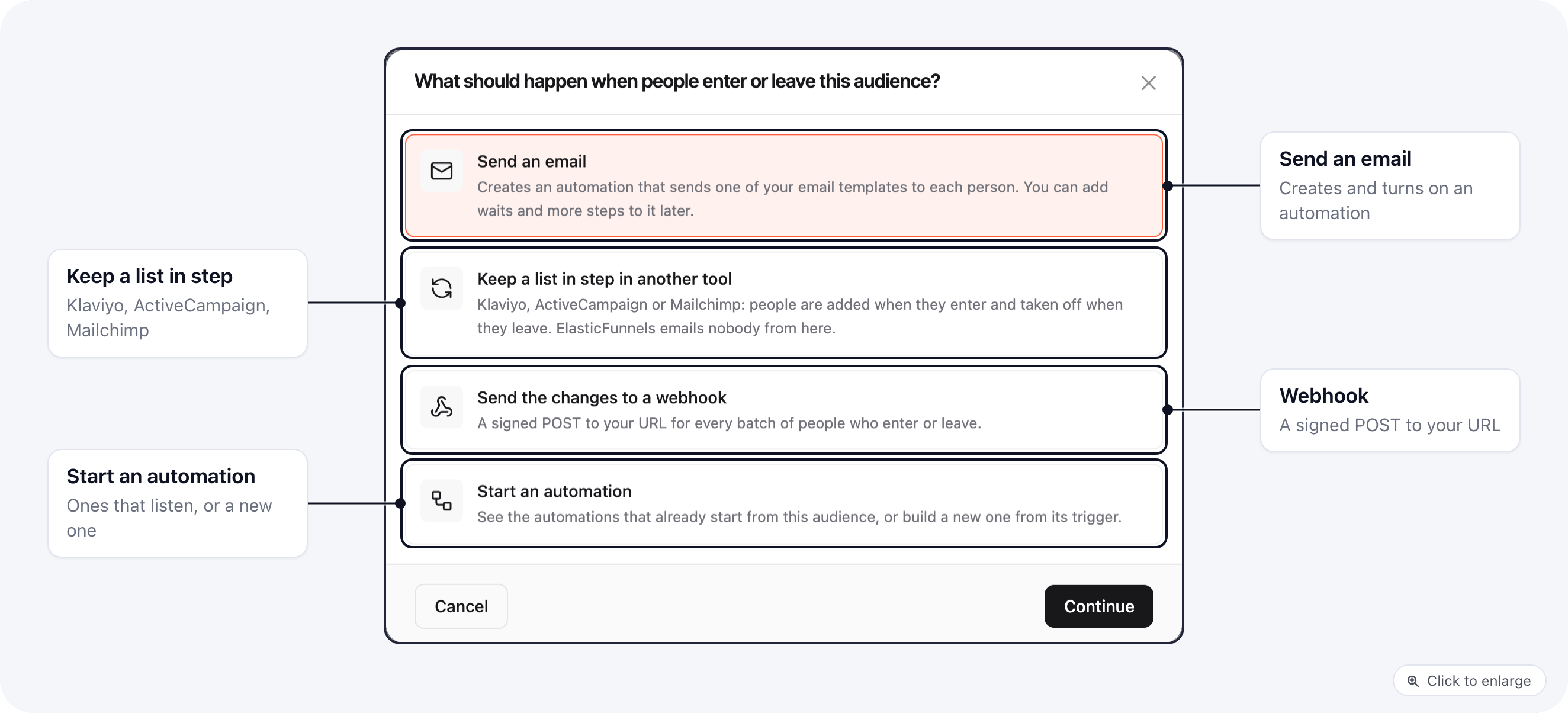 | Choice | What it does |
| - | - |
| **Send an email** | Creates and turns on an automation that sends one of your email templates to each person |
| **Keep a list in step in another tool** | Adds people to a Klaviyo, ActiveCampaign or Mailchimp list or tag when they enter, and takes them off when they leave. ElasticFunnels emails nobody from here |
| **Send the changes to a webhook** | A signed POST to your URL for every batch of people who enter or leave |
| **Start an automation** | Lists the automations that already start from this audience, or builds a new one from its trigger |
**Send an email** and **Start an automation** need a role that can create automations, and count toward your
plan's automation limit.
### Send an email
| Choice | What it does |
| - | - |
| **Send an email** | Creates and turns on an automation that sends one of your email templates to each person |
| **Keep a list in step in another tool** | Adds people to a Klaviyo, ActiveCampaign or Mailchimp list or tag when they enter, and takes them off when they leave. ElasticFunnels emails nobody from here |
| **Send the changes to a webhook** | A signed POST to your URL for every batch of people who enter or leave |
| **Start an automation** | Lists the automations that already start from this audience, or builds a new one from its trigger |
**Send an email** and **Start an automation** need a role that can create automations, and count toward your
plan's automation limit.
### Send an email
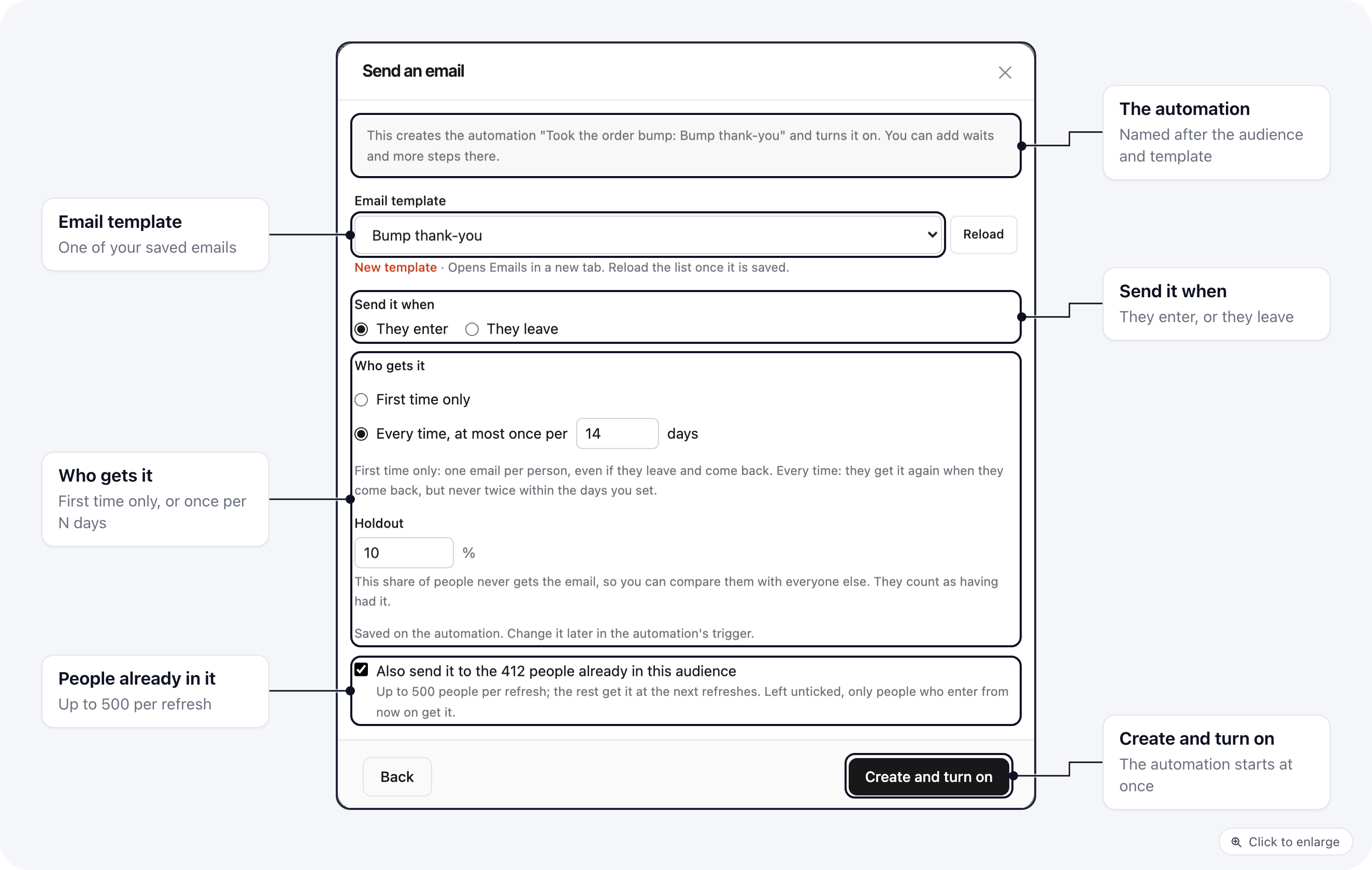 1. Pick an **Email template**. The list holds your saved emails, the same ones the automation **Send email** step
offers. **New template** opens Emails in a new tab; click **Reload** once it is saved.
2. Under **Send it when**, pick **They enter** or **They leave**. For **They leave**, you can limit it to some
reasons under **Only when they left because**.
3. Under **Who gets it**, pick **First time only** (the default) or **Every time, at most once per N days** and
enter the days (1 to 90). Set the **Holdout** if you want one. See [Who gets it](#who-gets-it). Both are
saved on the automation's trigger; to change them later, open the automation.
4. To send it to people who are already in the audience too, tick **Also send it to the N people already in this
audience** (only for **They enter**). Up to 500 of them are sent per refresh, and the rest at the next
refreshes. Left unticked, only people who enter from now on get it.
5. Click **Create and turn on**.
This creates an automation named after the audience and the template, for example
`Took the order bump: Bump thank-you`, made of the trigger (**On Entered Audience** or **On Left Audience**) and a
[Send email](/automations/send-email) step. It is turned on at once and shows up in the list as an **Automation**
row. Click **Open automation** to add waits, conditions or more emails in the builder.
The email goes out as a marketing email, with every safeguard of the **Send email** step: people who unsubscribed,
bounced, complained or said no to email are skipped, and each email carries an unsubscribe link and your postal
address. It is sent through your brand's SMTP server, or through your only email sending account; to pick another
account, open the automation and set **Sending account** on the step. See
[Send email: Marketing and Transactional](/automations/send-email#marketing-and-transactional).
### Keep a list in step in another tool
The window says **Sync to other tools. ElasticFunnels doesn't email anyone from here.** Pick the **Account**: the
Klaviyo, ActiveCampaign and Mailchimp integrations installed on the brand. A tool you have not connected has a
**Connect** button under the picker (**Connect Mailchimp**, for example), which connects it without leaving the
page.
| Tool | When someone enters | When someone leaves |
| - | - | - |
| **Klaviyo list** | Added to the list | Removed from the list |
| **ActiveCampaign tag** | Tagged | Tag removed |
| **ActiveCampaign list** | Subscribed to the list (people who left the checkout opt-in unticked are skipped) | Unsubscribed from the list |
| **Mailchimp list (audience)** | Added to the list, with an optional tag | The tag is removed (leaving never unsubscribes anyone, so a tag is needed to take people off) |
**Subscribe people who opted in** (Klaviyo and Mailchimp) subscribes everyone except people who left the email
opt-in unticked at checkout. Without it, people are added without a marketing subscription.
### Send the changes to a webhook
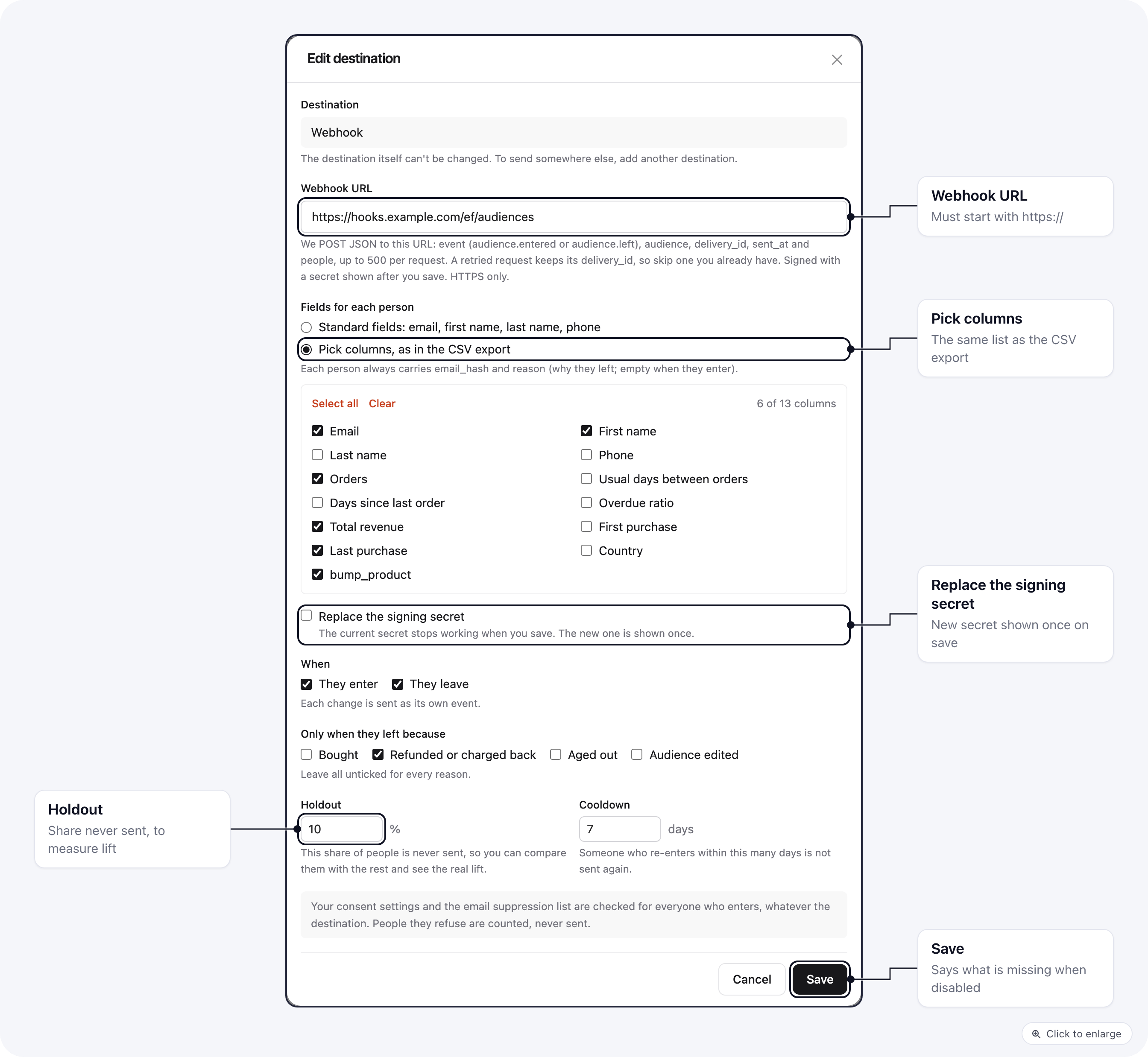
Enter the **Webhook URL** and choose the **Fields for each person**. Each change is sent as its own event:
`audience.entered` or `audience.left`. The signing secret is shown once, after you save. See
[Webhooks](#webhooks) for the headers, the body and how to check the signature.
### Start an automation
This lists the automations that start from this audience: their trigger is **Entered audience** or
**Left audience**, set to this audience. **Open automation** opens one in the builder.
Under **New automation from this audience**, pick **Starts when people enter** or **Starts when people leave** and
click **Open the builder**. It opens a new automation with the trigger already set to this audience. Add its steps
and publish it; it runs once it is published.
Publishing any automation whose trigger is set to this audience adds it to **When people enter or leave** right
away. An automation runs for up to 500 people per refresh, and the rest follow at the next refresh. Who it runs for
again is set on its trigger: see [Who gets it](#who-gets-it).
### The settings
These are the settings of a list, tag or webhook action. Automations use [Who gets it](#who-gets-it) instead of a
cooldown.
* **When**: **They enter**, **They leave**, or both (lists, tags and webhooks).
* **Only when they left because**: limit leave events to **Bought**, **Refunded or charged back**, **Aged out** or
**Audience edited**. Leave all unticked for every reason.
* **Holdout**: a share of people (0 to 50%) that is never sent. Each person's group stays the same, so you can
compare the held-out people with the rest and see the real lift.
* **Cooldown** (0 to 30 days, default 7): the same change (added, or removed) is not sent again for a person within
this many days of the last time it was sent. A different change always goes out, so someone who is added and then
leaves is still removed from the list right away. Lists and webhooks have no "first time only": they follow the
audience every time, so the list stays true to it.
* **Also sync the people already in this audience**: off by default, so only people who enter from now on are
sent.
When **Save** or **Create and turn on** is disabled, the line next to it says what is missing, for example
"Choose a template" or "The URL must start with https\://".
### Paused integrations
A paused integration still appears in the picker, marked **(paused)**, and its rows show an
**Integration paused** badge. You can save an action on it, but nothing is sent while it is paused: people
wait as **Pending** and are sent once you resume the integration under **Integrations**.
## Who gets it
Audience emails and automations have a **Who gets it** setting, so nobody gets the same email over and over. Set it
on the **On Entered Audience** or **On Left Audience** trigger in the builder, or in the **Send an email** window
when you create one. The audience page shows it on the automation's row, read only, with **Edit in automation**.
1. Pick an **Email template**. The list holds your saved emails, the same ones the automation **Send email** step
offers. **New template** opens Emails in a new tab; click **Reload** once it is saved.
2. Under **Send it when**, pick **They enter** or **They leave**. For **They leave**, you can limit it to some
reasons under **Only when they left because**.
3. Under **Who gets it**, pick **First time only** (the default) or **Every time, at most once per N days** and
enter the days (1 to 90). Set the **Holdout** if you want one. See [Who gets it](#who-gets-it). Both are
saved on the automation's trigger; to change them later, open the automation.
4. To send it to people who are already in the audience too, tick **Also send it to the N people already in this
audience** (only for **They enter**). Up to 500 of them are sent per refresh, and the rest at the next
refreshes. Left unticked, only people who enter from now on get it.
5. Click **Create and turn on**.
This creates an automation named after the audience and the template, for example
`Took the order bump: Bump thank-you`, made of the trigger (**On Entered Audience** or **On Left Audience**) and a
[Send email](/automations/send-email) step. It is turned on at once and shows up in the list as an **Automation**
row. Click **Open automation** to add waits, conditions or more emails in the builder.
The email goes out as a marketing email, with every safeguard of the **Send email** step: people who unsubscribed,
bounced, complained or said no to email are skipped, and each email carries an unsubscribe link and your postal
address. It is sent through your brand's SMTP server, or through your only email sending account; to pick another
account, open the automation and set **Sending account** on the step. See
[Send email: Marketing and Transactional](/automations/send-email#marketing-and-transactional).
### Keep a list in step in another tool
The window says **Sync to other tools. ElasticFunnels doesn't email anyone from here.** Pick the **Account**: the
Klaviyo, ActiveCampaign and Mailchimp integrations installed on the brand. A tool you have not connected has a
**Connect** button under the picker (**Connect Mailchimp**, for example), which connects it without leaving the
page.
| Tool | When someone enters | When someone leaves |
| - | - | - |
| **Klaviyo list** | Added to the list | Removed from the list |
| **ActiveCampaign tag** | Tagged | Tag removed |
| **ActiveCampaign list** | Subscribed to the list (people who left the checkout opt-in unticked are skipped) | Unsubscribed from the list |
| **Mailchimp list (audience)** | Added to the list, with an optional tag | The tag is removed (leaving never unsubscribes anyone, so a tag is needed to take people off) |
**Subscribe people who opted in** (Klaviyo and Mailchimp) subscribes everyone except people who left the email
opt-in unticked at checkout. Without it, people are added without a marketing subscription.
### Send the changes to a webhook
Enter the **Webhook URL** and choose the **Fields for each person**. Each change is sent as its own event:
`audience.entered` or `audience.left`. The signing secret is shown once, after you save. See
[Webhooks](#webhooks) for the headers, the body and how to check the signature.
### Start an automation
This lists the automations that start from this audience: their trigger is **Entered audience** or
**Left audience**, set to this audience. **Open automation** opens one in the builder.
Under **New automation from this audience**, pick **Starts when people enter** or **Starts when people leave** and
click **Open the builder**. It opens a new automation with the trigger already set to this audience. Add its steps
and publish it; it runs once it is published.
Publishing any automation whose trigger is set to this audience adds it to **When people enter or leave** right
away. An automation runs for up to 500 people per refresh, and the rest follow at the next refresh. Who it runs for
again is set on its trigger: see [Who gets it](#who-gets-it).
### The settings
These are the settings of a list, tag or webhook action. Automations use [Who gets it](#who-gets-it) instead of a
cooldown.
* **When**: **They enter**, **They leave**, or both (lists, tags and webhooks).
* **Only when they left because**: limit leave events to **Bought**, **Refunded or charged back**, **Aged out** or
**Audience edited**. Leave all unticked for every reason.
* **Holdout**: a share of people (0 to 50%) that is never sent. Each person's group stays the same, so you can
compare the held-out people with the rest and see the real lift.
* **Cooldown** (0 to 30 days, default 7): the same change (added, or removed) is not sent again for a person within
this many days of the last time it was sent. A different change always goes out, so someone who is added and then
leaves is still removed from the list right away. Lists and webhooks have no "first time only": they follow the
audience every time, so the list stays true to it.
* **Also sync the people already in this audience**: off by default, so only people who enter from now on are
sent.
When **Save** or **Create and turn on** is disabled, the line next to it says what is missing, for example
"Choose a template" or "The URL must start with https\://".
### Paused integrations
A paused integration still appears in the picker, marked **(paused)**, and its rows show an
**Integration paused** badge. You can save an action on it, but nothing is sent while it is paused: people
wait as **Pending** and are sent once you resume the integration under **Integrations**.
## Who gets it
Audience emails and automations have a **Who gets it** setting, so nobody gets the same email over and over. Set it
on the **On Entered Audience** or **On Left Audience** trigger in the builder, or in the **Send an email** window
when you create one. The audience page shows it on the automation's row, read only, with **Edit in automation**.
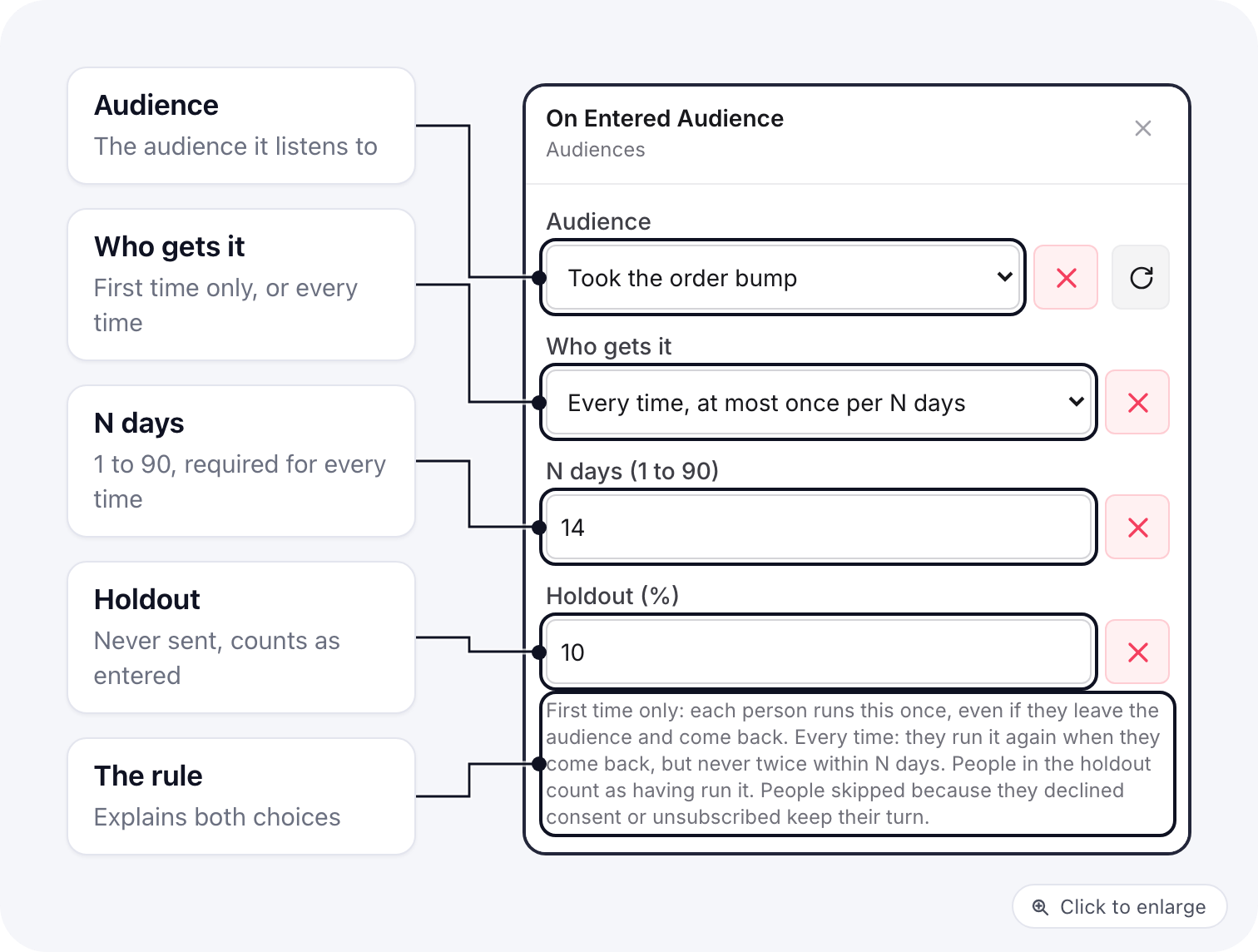 | Choice | What happens |
| - | - |
| **First time only** | The default for new automations. Each person runs through the automation once, ever. If they leave the audience and come back, they do not get it again |
| **Every time, at most once per N days** | Each person runs through it again when they come back, but never twice within N days. N is required, from 1 to 90 |
There is no unlimited "every time" for automations: an automation sends email, and someone who drops in and out of
an audience must not get an email at every refresh.
What else to know:
* **Entering and leaving keep separate counts.** On a **Left Audience** automation, leaving is what counts: someone
who already got your "welcome" email on entering can still get the "we miss you" email on leaving, and each
follows its own setting.
* **In and out quickly changes nothing.** Someone who leaves and comes back many times within a few days still gets
it at most what the setting allows: once with **First time only**, once per N days with **Every time**.
* **Held-out people count as having had it.** If someone lands in the **Holdout** group, they never get the email,
and they are treated as if they had: they are not picked again next time. Otherwise the held-out group would not
stay comparable with the rest.
* **People who were skipped keep their turn.** Someone skipped for consent, because they are on the email
suppression list (unsubscribed, bounced, complained) or because there is no email address for them is not counted
as sent. If that changes and they enter again, they can still get it. A send that failed does not use up their
turn either.
* **Holdout** is 0 to 50%. Each person's group stays the same, so you can compare the held-out people with the rest
and see the real lift.
* **Changing the setting** applies when you publish the automation. It does not resend to people who already got
it.
* **Automations made before October 18, 2026** kept the way they already worked: **Every time, at most once per N
days**, with the cooldown they had (at least 1 day). Open the trigger to switch one to **First time only**.
## Edit an action
Click **Edit** on a sync or webhook row to change it after saving: the list or tag, the webhook URL and fields,
when it sends, the leave reasons, holdout, cooldown and subscribe option. The kind itself (Klaviyo, a webhook)
and an ActiveCampaign tag/list choice cannot be changed; to send somewhere else, add another action. Automation
rows have no **Edit**: to change the email, the steps, **Who gets it** or the holdout, click **Open automation**
or **Edit in automation** and change the trigger.
| Choice | What happens |
| - | - |
| **First time only** | The default for new automations. Each person runs through the automation once, ever. If they leave the audience and come back, they do not get it again |
| **Every time, at most once per N days** | Each person runs through it again when they come back, but never twice within N days. N is required, from 1 to 90 |
There is no unlimited "every time" for automations: an automation sends email, and someone who drops in and out of
an audience must not get an email at every refresh.
What else to know:
* **Entering and leaving keep separate counts.** On a **Left Audience** automation, leaving is what counts: someone
who already got your "welcome" email on entering can still get the "we miss you" email on leaving, and each
follows its own setting.
* **In and out quickly changes nothing.** Someone who leaves and comes back many times within a few days still gets
it at most what the setting allows: once with **First time only**, once per N days with **Every time**.
* **Held-out people count as having had it.** If someone lands in the **Holdout** group, they never get the email,
and they are treated as if they had: they are not picked again next time. Otherwise the held-out group would not
stay comparable with the rest.
* **People who were skipped keep their turn.** Someone skipped for consent, because they are on the email
suppression list (unsubscribed, bounced, complained) or because there is no email address for them is not counted
as sent. If that changes and they enter again, they can still get it. A send that failed does not use up their
turn either.
* **Holdout** is 0 to 50%. Each person's group stays the same, so you can compare the held-out people with the rest
and see the real lift.
* **Changing the setting** applies when you publish the automation. It does not resend to people who already got
it.
* **Automations made before October 18, 2026** kept the way they already worked: **Every time, at most once per N
days**, with the cooldown they had (at least 1 day). Open the trigger to switch one to **First time only**.
## Edit an action
Click **Edit** on a sync or webhook row to change it after saving: the list or tag, the webhook URL and fields,
when it sends, the leave reasons, holdout, cooldown and subscribe option. The kind itself (Klaviyo, a webhook)
and an ActiveCampaign tag/list choice cannot be changed; to send somewhere else, add another action. Automation
rows have no **Edit**: to change the email, the steps, **Who gets it** or the holdout, click **Open automation**
or **Edit in automation** and change the trigger.
 ## Who is never sent
Every person who enters goes through the same checks, whatever the action:
1. **Consent**: your brand's consent settings. Email actions follow the same rule as email campaigns:
everyone is sent except people who left the checkout opt-in box unticked. Refusals are counted under
**No consent**.
2. **Email suppression list**: people on the brand's suppression list (unsubscribed, bounced or complained) are
never added to a list, sent to a webhook, or run through an automation. They are counted, not sent.
3. **No email**: a person with no known email address is skipped.
Removals (people leaving) do not need consent.
## Webhooks
A webhook action POSTs JSON to your URL. The URL must use HTTPS and point to a public address.
### Signing secret
When you save a new webhook, its signing secret is shown once. Copy it then; it is not shown again.
To change it, open **Edit**, tick **Replace the signing secret** and save. The old secret stops working at once,
and the new one is shown once. Update your receiver right after.
### Headers
| Header | Value |
| - | - |
| `X-EF-Event` | `audience.entered` or `audience.left` |
| `X-EF-Delivery` | The body's `delivery_id` |
| `X-EF-Timestamp` | Unix time in seconds when the request was signed |
| `X-EF-Signature` | `sha256=` followed by the hex HMAC-SHA256 of `.`, keyed with the signing secret |
Verify the signature on the raw body before you parse it, and reject a timestamp more than 5 minutes old:
```js theme={null}
import crypto from 'node:crypto';
function verify(rawBody, headers, secret) {
const ts = headers['x-ef-timestamp'];
if (Math.abs(Date.now() / 1000 - Number(ts)) > 300) return false;
const expected = 'sha256=' + crypto.createHmac('sha256', secret).update(`${ts}.${rawBody}`).digest('hex');
const given = String(headers['x-ef-signature'] || '');
return given.length === expected.length && crypto.timingSafeEqual(Buffer.from(given), Buffer.from(expected));
}
```
### Body
Each request carries up to 500 people. Larger batches are split into several requests.
```json theme={null}
{
"event": "audience.entered",
"audience": { "id": 8, "name": "Took the order bump" },
"activation_id": 41,
"run_id": 412,
"delivery_id": "3f1c9a7e-52b4-5d0e-9a61-0c4e2b7d8f13",
"sent_at": "2026-10-18T10:15:02Z",
"people": [
{
"email_hash": "9b74c9897bac770ffc029102a200c5de",
"email": "jane@example.com",
"first_name": "Jane",
"last_name": "Doe",
"phone": "+15555550123",
"reason": ""
}
]
}
```
| Field | Meaning |
| - | - |
| `event` | `audience.entered` or `audience.left` |
| `audience` | The audience's id and name |
| `activation_id` | The action's id |
| `run_id` | The audience refresh that produced this change |
| `delivery_id` | The id of this POST (see [Duplicates and retries](#duplicates-and-retries)) |
| `sent_at` | When the request was sent, UTC |
| `people[].email_hash` | A stable id for the person, present in every shape |
| `people[].reason` | Why they left: `bought`, `refunded`, `aged_out` or `definition_changed`. Empty when they enter |
### Fields for each person
Under **Fields for each person** you choose the shape of each entry in `people`:
* **Standard fields** (the default): `email_hash`, `email`, `first_name`, `last_name`, `phone` and `reason`, as in
the example above.
* **Pick columns, as in the CSV export**: `email_hash` and `reason`, plus exactly the columns you tick. The list is
the same one the audience's CSV export offers, including the audience's own computed columns (for example which
order bump each buyer took).
With picked columns, a person looks like this:
```json theme={null}
{
"email_hash": "9b74c9897bac770ffc029102a200c5de",
"reason": "",
"email": "jane@example.com",
"first_name": "Jane",
"orders": 2,
"total_revenue": 232,
"last_purchase_at": "2026-10-17 09:27:00",
"bump_product": ["Sleep Gummies, add a 30-day jar"]
}
```
A column that has no value for a person is sent as `null`. If you later edit the audience so a picked column no
longer exists, saving the action asks you to pick the columns again.
### Duplicates and retries
A `429`, a `5xx` or a dropped connection is retried, and a send that still fails is tried again at later refreshes,
up to 5 attempts in all. When a batch is retried, every request in it is sent again, including ones your receiver
already accepted.
`delivery_id` is built from the action, the refresh, the event and the people in the request, so a retried
request carries the same `delivery_id` (also in `X-EF-Delivery`) and any other request gets a new one. To ignore
duplicates:
1. Store each `delivery_id` you have processed.
2. When a request arrives with a `delivery_id` you already have, answer `200` and do nothing else.
3. Answer `2xx` only after you have stored the people. Any other status counts as a failed send.
If your receiver also writes per person, key it on `email_hash` plus `event`, so the same person entering twice in
a row is still one record.
## Related
* [CRM overview](/crm/overview)
* [Email marketing integrations](/integrations/email-marketing)
* [Automation run history](/automations/run-history)
This documentation is built and hosted on [Mintlify](https://mintlify.com), a developer documentation platform.
## Who is never sent
Every person who enters goes through the same checks, whatever the action:
1. **Consent**: your brand's consent settings. Email actions follow the same rule as email campaigns:
everyone is sent except people who left the checkout opt-in box unticked. Refusals are counted under
**No consent**.
2. **Email suppression list**: people on the brand's suppression list (unsubscribed, bounced or complained) are
never added to a list, sent to a webhook, or run through an automation. They are counted, not sent.
3. **No email**: a person with no known email address is skipped.
Removals (people leaving) do not need consent.
## Webhooks
A webhook action POSTs JSON to your URL. The URL must use HTTPS and point to a public address.
### Signing secret
When you save a new webhook, its signing secret is shown once. Copy it then; it is not shown again.
To change it, open **Edit**, tick **Replace the signing secret** and save. The old secret stops working at once,
and the new one is shown once. Update your receiver right after.
### Headers
| Header | Value |
| - | - |
| `X-EF-Event` | `audience.entered` or `audience.left` |
| `X-EF-Delivery` | The body's `delivery_id` |
| `X-EF-Timestamp` | Unix time in seconds when the request was signed |
| `X-EF-Signature` | `sha256=` followed by the hex HMAC-SHA256 of `.`, keyed with the signing secret |
Verify the signature on the raw body before you parse it, and reject a timestamp more than 5 minutes old:
```js theme={null}
import crypto from 'node:crypto';
function verify(rawBody, headers, secret) {
const ts = headers['x-ef-timestamp'];
if (Math.abs(Date.now() / 1000 - Number(ts)) > 300) return false;
const expected = 'sha256=' + crypto.createHmac('sha256', secret).update(`${ts}.${rawBody}`).digest('hex');
const given = String(headers['x-ef-signature'] || '');
return given.length === expected.length && crypto.timingSafeEqual(Buffer.from(given), Buffer.from(expected));
}
```
### Body
Each request carries up to 500 people. Larger batches are split into several requests.
```json theme={null}
{
"event": "audience.entered",
"audience": { "id": 8, "name": "Took the order bump" },
"activation_id": 41,
"run_id": 412,
"delivery_id": "3f1c9a7e-52b4-5d0e-9a61-0c4e2b7d8f13",
"sent_at": "2026-10-18T10:15:02Z",
"people": [
{
"email_hash": "9b74c9897bac770ffc029102a200c5de",
"email": "jane@example.com",
"first_name": "Jane",
"last_name": "Doe",
"phone": "+15555550123",
"reason": ""
}
]
}
```
| Field | Meaning |
| - | - |
| `event` | `audience.entered` or `audience.left` |
| `audience` | The audience's id and name |
| `activation_id` | The action's id |
| `run_id` | The audience refresh that produced this change |
| `delivery_id` | The id of this POST (see [Duplicates and retries](#duplicates-and-retries)) |
| `sent_at` | When the request was sent, UTC |
| `people[].email_hash` | A stable id for the person, present in every shape |
| `people[].reason` | Why they left: `bought`, `refunded`, `aged_out` or `definition_changed`. Empty when they enter |
### Fields for each person
Under **Fields for each person** you choose the shape of each entry in `people`:
* **Standard fields** (the default): `email_hash`, `email`, `first_name`, `last_name`, `phone` and `reason`, as in
the example above.
* **Pick columns, as in the CSV export**: `email_hash` and `reason`, plus exactly the columns you tick. The list is
the same one the audience's CSV export offers, including the audience's own computed columns (for example which
order bump each buyer took).
With picked columns, a person looks like this:
```json theme={null}
{
"email_hash": "9b74c9897bac770ffc029102a200c5de",
"reason": "",
"email": "jane@example.com",
"first_name": "Jane",
"orders": 2,
"total_revenue": 232,
"last_purchase_at": "2026-10-17 09:27:00",
"bump_product": ["Sleep Gummies, add a 30-day jar"]
}
```
A column that has no value for a person is sent as `null`. If you later edit the audience so a picked column no
longer exists, saving the action asks you to pick the columns again.
### Duplicates and retries
A `429`, a `5xx` or a dropped connection is retried, and a send that still fails is tried again at later refreshes,
up to 5 attempts in all. When a batch is retried, every request in it is sent again, including ones your receiver
already accepted.
`delivery_id` is built from the action, the refresh, the event and the people in the request, so a retried
request carries the same `delivery_id` (also in `X-EF-Delivery`) and any other request gets a new one. To ignore
duplicates:
1. Store each `delivery_id` you have processed.
2. When a request arrives with a `delivery_id` you already have, answer `200` and do nothing else.
3. Answer `2xx` only after you have stored the people. Any other status counts as a failed send.
If your receiver also writes per person, key it on `email_hash` plus `event`, so the same person entering twice in
a row is still one record.
## Related
* [CRM overview](/crm/overview)
* [Email marketing integrations](/integrations/email-marketing)
* [Automation run history](/automations/run-history)
This documentation is built and hosted on [Mintlify](https://mintlify.com), a developer documentation platform.