> ## Documentation Index
> Fetch the complete documentation index at: https://docs.elasticfunnels.io/llms.txt
> Use this file to discover all available pages before exploring further.
# Automation Run History
> See every time an automation was triggered, what each step did, and why a run failed or stopped
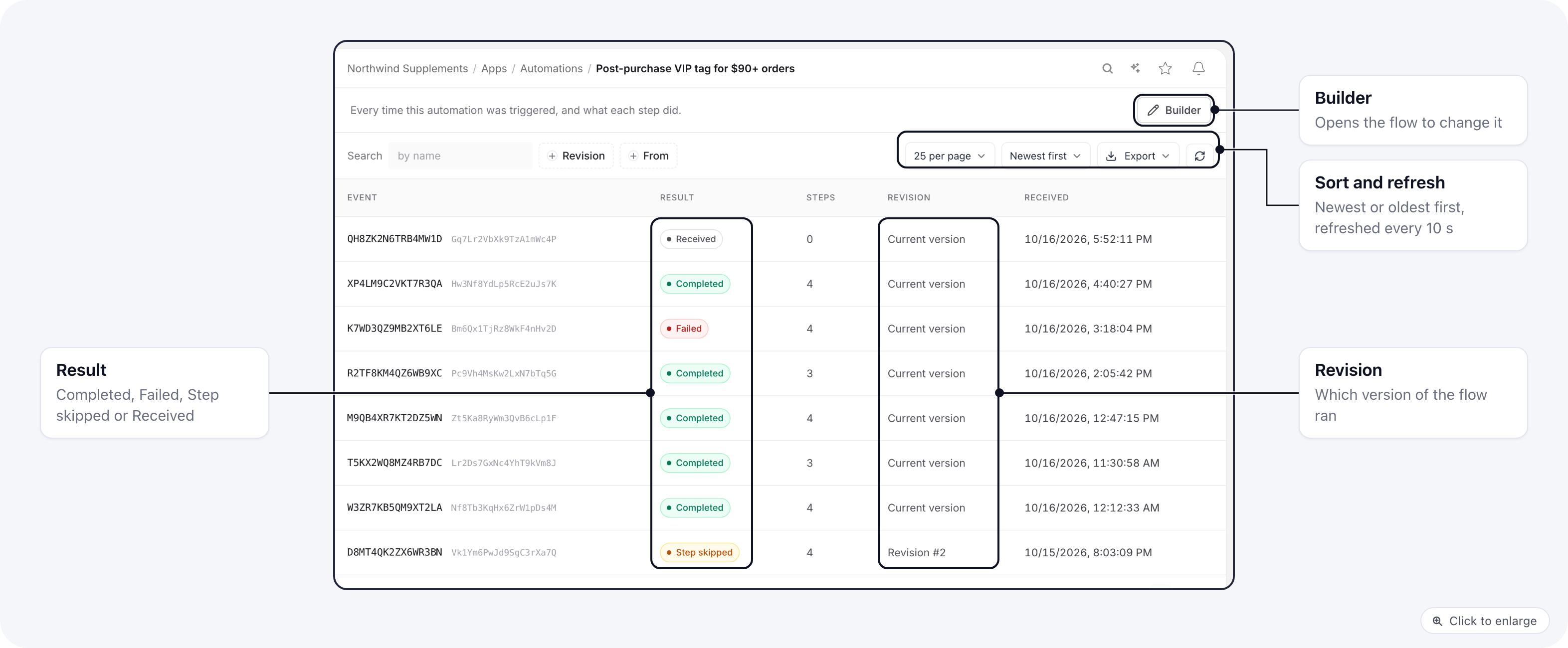
Every automation keeps a history of its runs. Each time the trigger fires, a run appears on the
automation's **Events** page with its result, and you can open it to see each step in the order it ran:
what went in, what came out, and the error when a step failed.
 ## Open the run history
1. Go to **Apps** → **Automations**.
2. On the automation's row, click **Events**.
The page lives at `/{brand}/automations/{id}/events`. The **Builder** button at the top right takes you
to the flow when you want to change it.
### Run counts on the Automations list
## Open the run history
1. Go to **Apps** → **Automations**.
2. On the automation's row, click **Events**.
The page lives at `/{brand}/automations/{id}/events`. The **Builder** button at the top right takes you
to the flow when you want to change it.
### Run counts on the Automations list
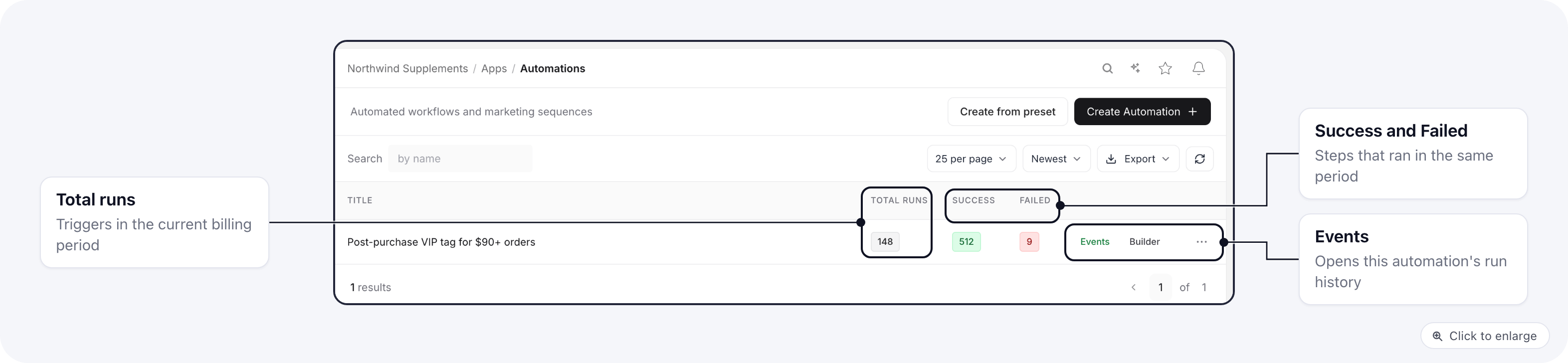 | Column | What it counts |
| - | - |
| **Total runs** | How many times the automation was triggered in the current billing period |
| **Success** | Steps that ran without an error in that period |
| **Failed** | Steps that failed in that period |
Success and Failed count steps, so one run of a four-step automation adds four to them.
## The Events list
Each row is one run.
| Column | What it shows |
| - | - |
| **Event** | The run's event code, with its event ID next to it in grey |
| **Result** | How the run went (see below) |
| **Steps** | How many steps logged something for this run |
| **Revision** | **Current version**, or **Revision #n** when a numbered revision of the flow handled the run |
| **Received** | When the trigger fired |
The **Result** pill is one of four:
* **Completed**: every step that ran finished without an error.
* **Failed**: at least one step failed. Open the run to see which one and why.
* **Step skipped**: a step was passed over (see [Older runs marked Step skipped](#older-runs-marked-step-skipped)).
* **Received**: the trigger fired and no step has logged yet, for example while the run waits on its first step.
Sort with **Newest first** or **Oldest first**, and filter by revision or by date. The list refreshes on
its own every 10 seconds, so new runs show up without reloading. If a run is open in the side drawer,
it stays open while the list refreshes.
## Open a run
Click a row to open the run in a side drawer.
| Column | What it counts |
| - | - |
| **Total runs** | How many times the automation was triggered in the current billing period |
| **Success** | Steps that ran without an error in that period |
| **Failed** | Steps that failed in that period |
Success and Failed count steps, so one run of a four-step automation adds four to them.
## The Events list
Each row is one run.
| Column | What it shows |
| - | - |
| **Event** | The run's event code, with its event ID next to it in grey |
| **Result** | How the run went (see below) |
| **Steps** | How many steps logged something for this run |
| **Revision** | **Current version**, or **Revision #n** when a numbered revision of the flow handled the run |
| **Received** | When the trigger fired |
The **Result** pill is one of four:
* **Completed**: every step that ran finished without an error.
* **Failed**: at least one step failed. Open the run to see which one and why.
* **Step skipped**: a step was passed over (see [Older runs marked Step skipped](#older-runs-marked-step-skipped)).
* **Received**: the trigger fired and no step has logged yet, for example while the run waits on its first step.
Sort with **Newest first** or **Oldest first**, and filter by revision or by date. The list refreshes on
its own every 10 seconds, so new runs show up without reloading. If a run is open in the side drawer,
it stays open while the list refreshes.
## Open a run
Click a row to open the run in a side drawer.
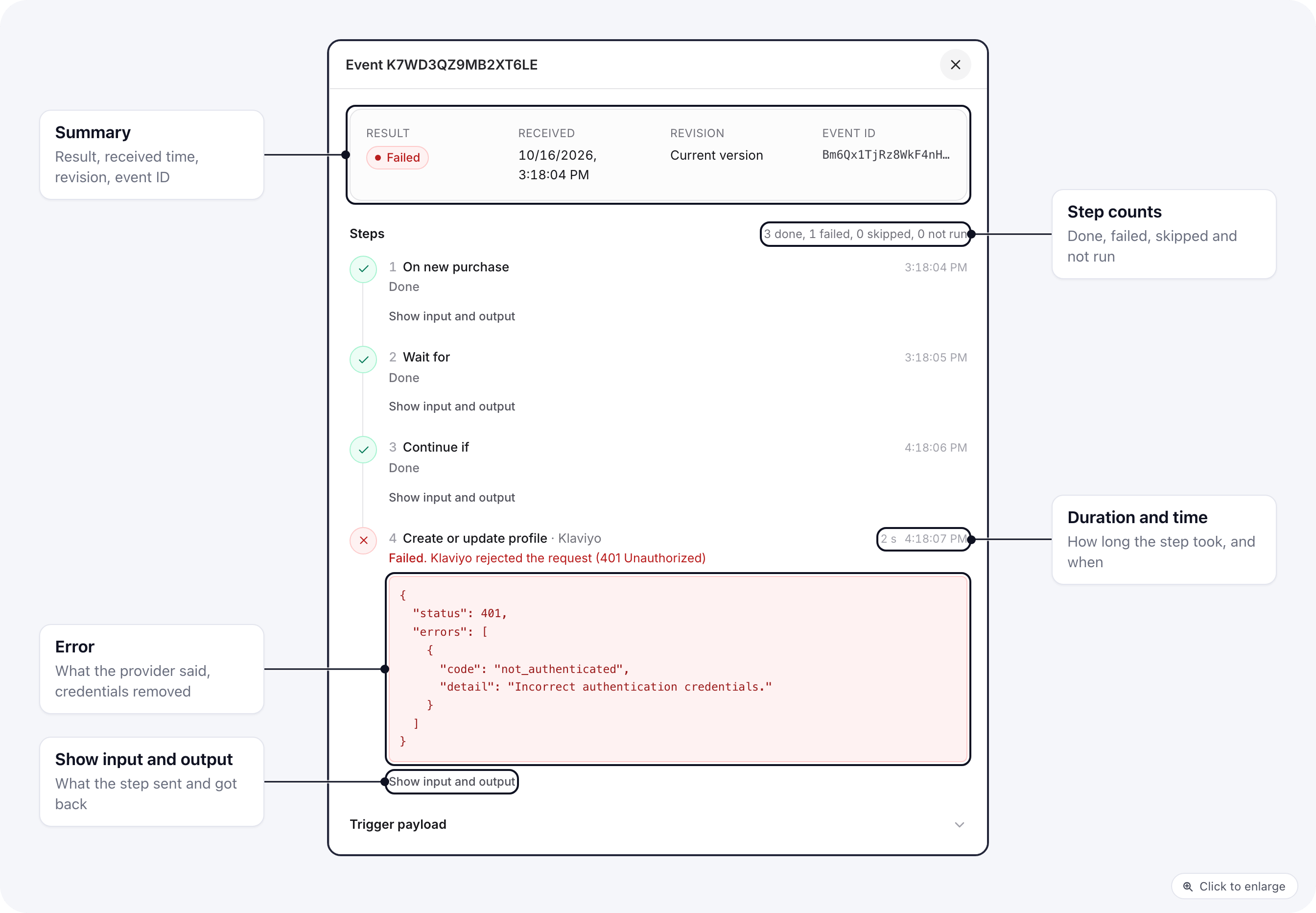 The summary at the top shows the **Result**, when the run was **Received**, the **Revision** and the
**Event ID**. Below it, **Steps** lists each step on a vertical timeline in the order it ran, with a
count of how many were done, failed, skipped and not run.
Each step shows its name (and the integration, such as Klaviyo, for an integration step), its status,
the time it ran and, when it took a second or more, its duration. The statuses are:
| Status | Meaning |
| - | - |
| **Done** | The step ran |
| **Failed** | The step ran and returned an error |
| **Skipped** | The step was passed over without running |
| **Waiting** | The step has started and has not finished yet |
| **Not run** | The run never reached this step |
### When a step fails
A failed step shows the message from the step in red, and below it the error the provider sent back.
Credentials such as API keys and tokens are removed from the error before it is shown. In the example
above, Klaviyo answered 401, which points at the API key on the Klaviyo integration: fix the key under
**Apps** → **Integrations**, and the next run uses it.
### Failure emails
When a step fails, the brand owner gets an email with the automation's name, the step, the error and the
time. For a brand that belongs to an organization, its admins get it too. The **Open this run** button in
the email opens the Events page with that run's drawer already open.
You get at most one email per automation per day (UTC), for the first failed step that day. Any later
failures that day appear only on the Events page, so check there once you have fixed the cause.
### Input and output
Click **Show input and output** on a step to see the data the step received and what it returned.
Click **Hide input and output** to close it again. At the bottom of the drawer, **Trigger payload**
opens the data the trigger received, such as the order and customer fields of a purchase.
## When a condition stops the run
A **Continue If** step ends the run when its condition is not met. The run is still **Completed**,
because nothing failed, and the condition step carries the note "The condition was not met, so the run
stopped here."
The summary at the top shows the **Result**, when the run was **Received**, the **Revision** and the
**Event ID**. Below it, **Steps** lists each step on a vertical timeline in the order it ran, with a
count of how many were done, failed, skipped and not run.
Each step shows its name (and the integration, such as Klaviyo, for an integration step), its status,
the time it ran and, when it took a second or more, its duration. The statuses are:
| Status | Meaning |
| - | - |
| **Done** | The step ran |
| **Failed** | The step ran and returned an error |
| **Skipped** | The step was passed over without running |
| **Waiting** | The step has started and has not finished yet |
| **Not run** | The run never reached this step |
### When a step fails
A failed step shows the message from the step in red, and below it the error the provider sent back.
Credentials such as API keys and tokens are removed from the error before it is shown. In the example
above, Klaviyo answered 401, which points at the API key on the Klaviyo integration: fix the key under
**Apps** → **Integrations**, and the next run uses it.
### Failure emails
When a step fails, the brand owner gets an email with the automation's name, the step, the error and the
time. For a brand that belongs to an organization, its admins get it too. The **Open this run** button in
the email opens the Events page with that run's drawer already open.
You get at most one email per automation per day (UTC), for the first failed step that day. Any later
failures that day appear only on the Events page, so check there once you have fixed the cause.
### Input and output
Click **Show input and output** on a step to see the data the step received and what it returned.
Click **Hide input and output** to close it again. At the bottom of the drawer, **Trigger payload**
opens the data the trigger received, such as the order and customer fields of a purchase.
## When a condition stops the run
A **Continue If** step ends the run when its condition is not met. The run is still **Completed**,
because nothing failed, and the condition step carries the note "The condition was not met, so the run
stopped here."
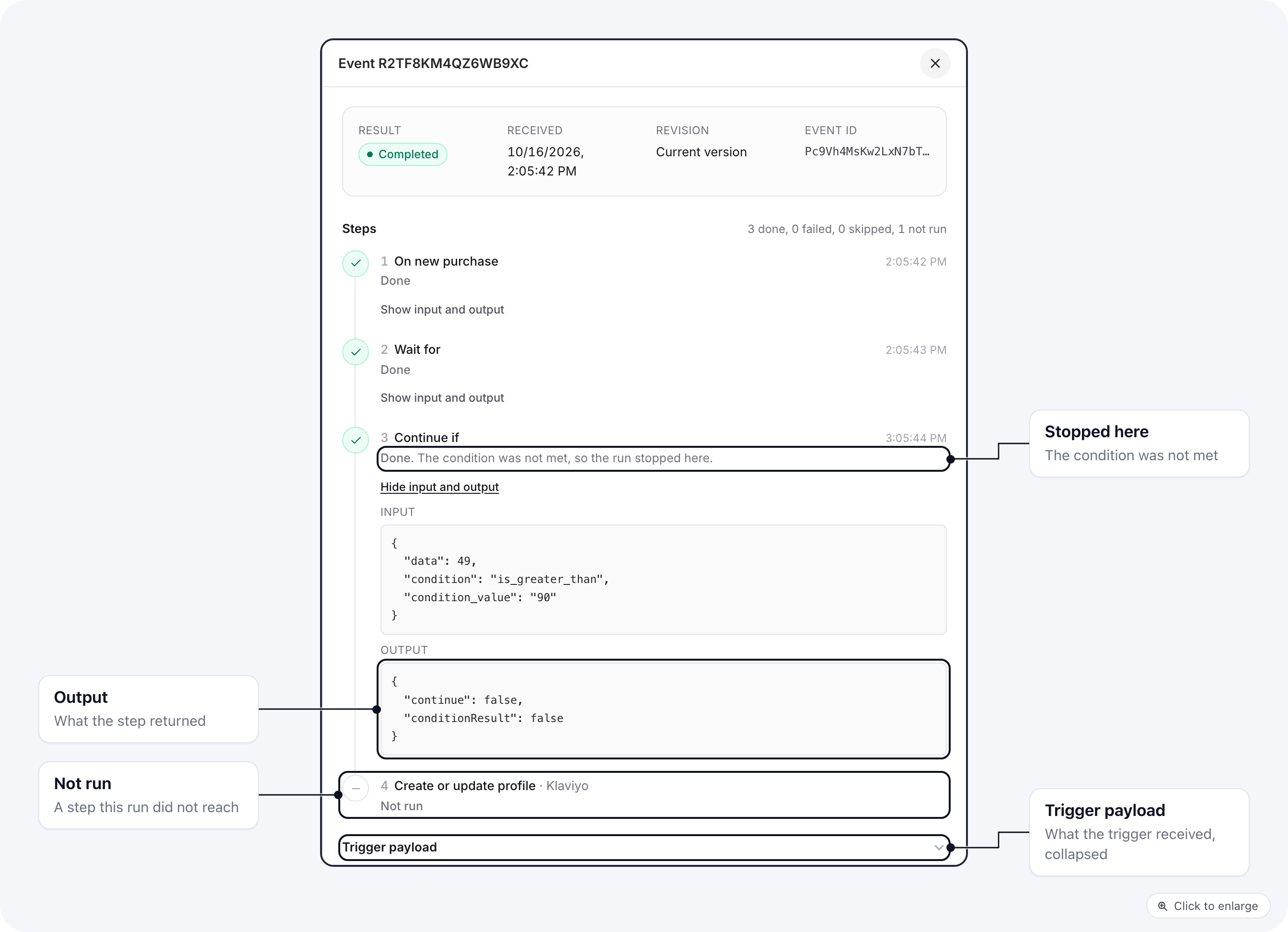 The steps after it are listed as **Not run**, so you can see what the run would have done. Open the
condition's input and output to check the value it compared: here the order total was 49 and the
condition needed more than 90.
The same **Not run** label marks steps on a branch the run did not take.
## Runs that are still going
A run with a **Wait For** step can take minutes or hours. While a run you have open is less than an
hour old, the drawer refreshes its steps every 10 seconds along with the list, so you can watch it
move on.
## Older runs marked Step skipped
Automations saved in an older flow format used to pass over email platform, CRM and validation steps
while logging them as successes. Since 2026-10-16 those steps run. A step the engine cannot run is now
logged as **Failed**, so it shows up instead of hiding behind a success.
Runs from before that date can still show **Step skipped**, with the note "This step did not run. The
automation was saved in an older format and the engine passed over it." Nothing needs to be changed for
new runs.
## Integration activity
Automation steps that use an integration also update that integration's last activity on the
Integrations list. See [Integration health](/integrations/integration-health).
This documentation is built and hosted on [Mintlify](https://mintlify.com), a developer documentation platform.
The steps after it are listed as **Not run**, so you can see what the run would have done. Open the
condition's input and output to check the value it compared: here the order total was 49 and the
condition needed more than 90.
The same **Not run** label marks steps on a branch the run did not take.
## Runs that are still going
A run with a **Wait For** step can take minutes or hours. While a run you have open is less than an
hour old, the drawer refreshes its steps every 10 seconds along with the list, so you can watch it
move on.
## Older runs marked Step skipped
Automations saved in an older flow format used to pass over email platform, CRM and validation steps
while logging them as successes. Since 2026-10-16 those steps run. A step the engine cannot run is now
logged as **Failed**, so it shows up instead of hiding behind a success.
Runs from before that date can still show **Step skipped**, with the note "This step did not run. The
automation was saved in an older format and the engine passed over it." Nothing needs to be changed for
new runs.
## Integration activity
Automation steps that use an integration also update that integration's last activity on the
Integrations list. See [Integration health](/integrations/integration-health).
This documentation is built and hosted on [Mintlify](https://mintlify.com), a developer documentation platform.