> ## Documentation Index
> Fetch the complete documentation index at: https://docs.elasticfunnels.io/llms.txt
> Use this file to discover all available pages before exploring further.
# Send Email Step
> Send one of your saved email templates from an automation, through any of your sending accounts: SMTP, Amazon SES, Postmark, Brevo, Resend, Mailgun, SendGrid or Mailrelay.
**Send email** sends one of your saved email templates from an automation, through a sending
account you pick. It works with every kind of account your brand has, so one step covers SMTP,
Amazon SES, Postmark, Brevo, Resend, Mailgun, SendGrid and Mailrelay. Find it in the step list
under **Email**.
The step does not hold a copy of the email. It sends the template as it is when the step runs,
so a change you save in the email builder reaches the next email the automation sends.
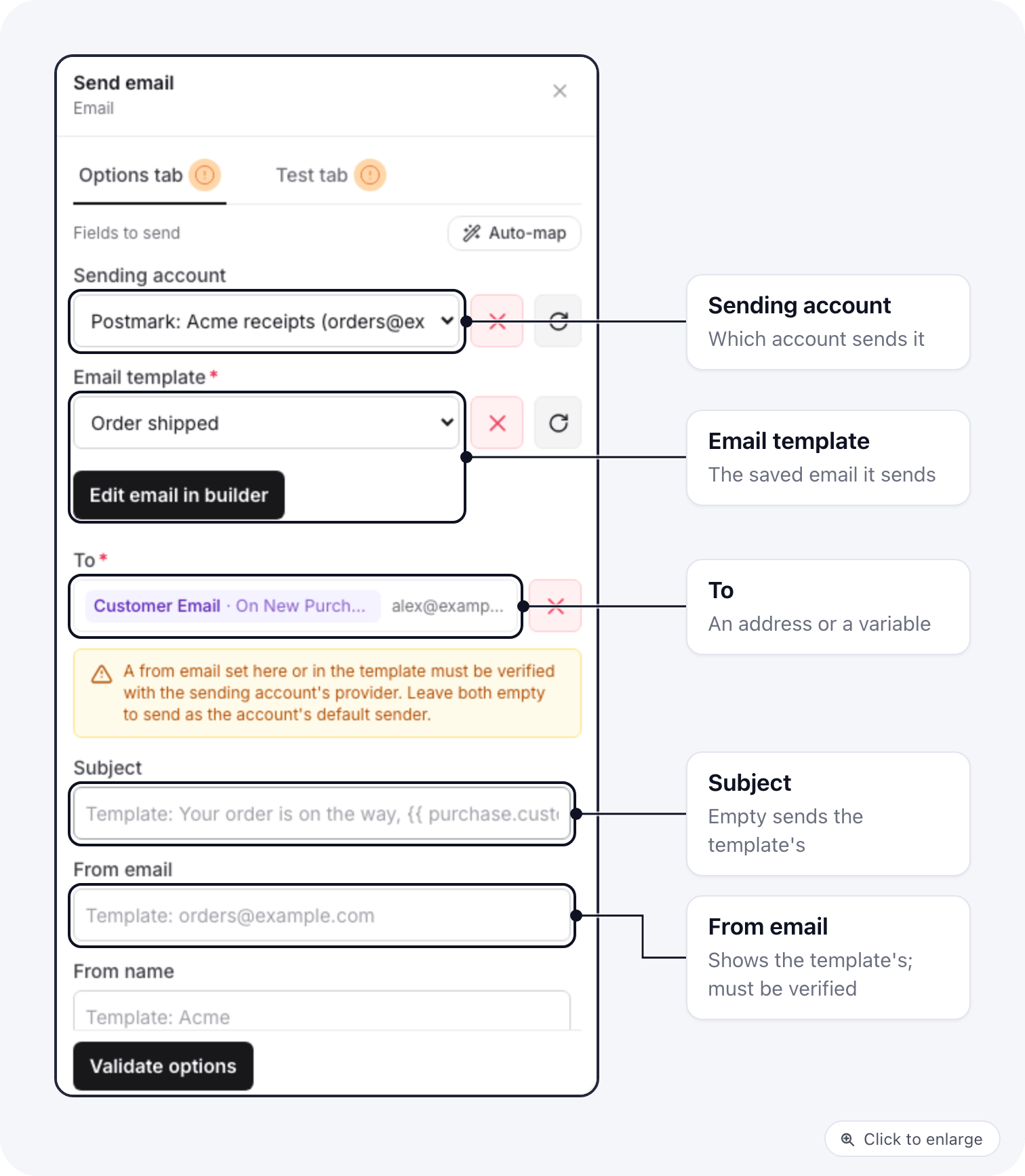 ## The fields
| Field | What it does |
| - | - |
| **Sending account** | The account that sends it. The list shows each active account as provider, name and its default from address, for example `Postmark: Acme receipts (orders@example.com)`. Paused accounts are not listed. |
| **Email template** | Required. The saved email the step sends. **Create new email** makes a template and opens it in the builder. **Edit email in builder** opens the picked one in a new tab. |
| **To** | Required. An address, or a variable such as the customer's email from the trigger. |
| **Transactional** | Off by default, so the email is a marketing email. Turn it on for mail the person needs, like access details or receipts. See [Marketing and Transactional](#marketing-and-transactional). |
| **Subject** | Optional. While it is empty, the field shows the template's subject in grey, and that is what is sent. Type one to use it instead. Variables work here. |
| **From email**, **From name**, **Reply-to email** | Optional, under the extra fields. An empty field shows the template's value in grey and sends it. When the template has none, the account's default sender is used. |
## Variables in the template
Write variables in the email builder the same way as in any other email, for example
`{{ purchase.customer_first_name }}`. When the step runs, they are filled with the data of that
run: the trigger's data and the output of the steps before it. The variable picker in a step
inserts the same values in the form `{trigger.customer_first_name}`, and both forms work in the
template.
A value that came from a visitor, such as a name typed into a form, is shown as text. It can't
add links, images or other markup to the email.
A variable with no value in that run prints nothing. See [Variables](/automations/variables) for
what each trigger provides.
## Marketing and Transactional
Every **Send email** step is a marketing email unless you turn on **Transactional**. The difference is who gets it
and what it carries.
## The fields
| Field | What it does |
| - | - |
| **Sending account** | The account that sends it. The list shows each active account as provider, name and its default from address, for example `Postmark: Acme receipts (orders@example.com)`. Paused accounts are not listed. |
| **Email template** | Required. The saved email the step sends. **Create new email** makes a template and opens it in the builder. **Edit email in builder** opens the picked one in a new tab. |
| **To** | Required. An address, or a variable such as the customer's email from the trigger. |
| **Transactional** | Off by default, so the email is a marketing email. Turn it on for mail the person needs, like access details or receipts. See [Marketing and Transactional](#marketing-and-transactional). |
| **Subject** | Optional. While it is empty, the field shows the template's subject in grey, and that is what is sent. Type one to use it instead. Variables work here. |
| **From email**, **From name**, **Reply-to email** | Optional, under the extra fields. An empty field shows the template's value in grey and sends it. When the template has none, the account's default sender is used. |
## Variables in the template
Write variables in the email builder the same way as in any other email, for example
`{{ purchase.customer_first_name }}`. When the step runs, they are filled with the data of that
run: the trigger's data and the output of the steps before it. The variable picker in a step
inserts the same values in the form `{trigger.customer_first_name}`, and both forms work in the
template.
A value that came from a visitor, such as a name typed into a form, is shown as text. It can't
add links, images or other markup to the email.
A variable with no value in that run prints nothing. See [Variables](/automations/variables) for
what each trigger provides.
## Marketing and Transactional
Every **Send email** step is a marketing email unless you turn on **Transactional**. The difference is who gets it
and what it carries.
 | | Marketing (default) | Transactional |
| - | - | - |
| Use it for | Promotions, follow-ups, win-backs, anything the person did not ask for | Mail the person needs: access details, receipts, a login link |
| Skipped when | The address is on your suppression list (unsubscribed, bounced, complained, or added by hand), or the person said no to email (your consent settings, the same rule as campaigns) | The address hard bounced or complained |
| Unsubscribe link | Added, with one-click unsubscribe headers (`List-Unsubscribe`) | None |
| Footer | Your postal address and the unsubscribe link | None |
Promotional mail must stay Marketing. Turning on Transactional for a promotion sends it to people who asked not to
get it.
The checks run when the step sends, not when the run starts, so someone who unsubscribes during a wait is skipped.
### When someone is skipped
A skipped email is not a failure. The step finishes with `skipped` and the reason in its output, and the run goes
on to the next step. The reason is `suppressed` when the address is on your suppression list, or `consent:`
followed by the consent rule that refused it. If the consent data cannot be read at that moment, a
marketing email is skipped too, never sent unchecked. See the step's output in
[Run history](/automations/run-history).
### Unsubscribe link and postal address
A marketing email gets a short footer with your brand name, your postal address and an unsubscribe link. The
postal address is the one saved under **Postal address** in your campaign settings, the same one campaign emails
print.
To place them yourself, print both variables in the template:
| Variable | What it prints |
| - | - |
| `{{ unsubscribe.url }}` | The person's unsubscribe link |
| `{{ brand.marketing_address }}` | Your postal address |
When the template uses both, no footer is added. When it uses one, the footer adds only the other. A transactional
email has neither variable filled and gets no footer.
Someone who unsubscribes from an automation email lands on the same suppression list as campaign unsubscribes, so
later marketing emails from any automation and every campaign skip them.
## Which account sends it
With **Sending account** picked, that account sends the email. Leave it empty and the step uses:
1. your brand SMTP server, when the brand has one,
2. otherwise your brand's email sending account, when it has exactly one.
With no SMTP and several sending accounts, pick one in the step, or the email is not sent.
An account must belong to the brand and be active. A paused account is refused, and the step
fails instead of sending through another account.
## Which sender it uses
The from address is chosen in this order:
1. the **From email** typed in the step,
2. the template's from address,
3. the account's **Default From Email**.
A from address set in the step or in the template has to be one the provider accepts: on a
domain or sender you verified with that provider, or the provider refuses the email. The notice
in the step says the same. The full rule is on
[How the sender is chosen](/emails/sending-accounts#how-the-sender-is-chosen).
## Steps made before templates were required
Before October 18, 2026, picking a template copied its subject and body into the step. Those
steps keep sending the body saved in them, and the step shows a notice about it. Pick an email
template in the step to send the template instead.
## When it fails
A person skipped by the marketing or transactional checks is not a failure (see
[When someone is skipped](#when-someone-is-skipped)). The step fails, and the reason is shown on the run, when:
* the template was deleted,
* the template has no subject and the step sets none,
* the provider refuses the email (an unverified from address, a revoked key),
* no account can send it.
See [Run history](/automations/run-history).
## The older per-provider steps
The **Mailgun**, **SendGrid** and **Mailrelay** send steps are still in the step list and keep
working in the automations that use them. They only send through their own provider, and they
keep a copy of the template made when you picked it. Use **Send email** for Amazon SES,
Postmark, Brevo, Resend or your SMTP server, when you want template changes to reach the
automation, or when you want to switch providers later by changing one field.
## Related docs
* [Email Sending Accounts](/emails/sending-accounts): connect SES, Postmark, Brevo and Resend
* [Variables](/automations/variables): insert values from earlier steps
* [Run history](/automations/run-history): see what each run sent and why a step failed
* [Audience actions](/analytics/audience-actions#send-an-email): send an email when people enter or leave an audience
This documentation is built and hosted on [Mintlify](https://mintlify.com), a developer documentation platform.
| | Marketing (default) | Transactional |
| - | - | - |
| Use it for | Promotions, follow-ups, win-backs, anything the person did not ask for | Mail the person needs: access details, receipts, a login link |
| Skipped when | The address is on your suppression list (unsubscribed, bounced, complained, or added by hand), or the person said no to email (your consent settings, the same rule as campaigns) | The address hard bounced or complained |
| Unsubscribe link | Added, with one-click unsubscribe headers (`List-Unsubscribe`) | None |
| Footer | Your postal address and the unsubscribe link | None |
Promotional mail must stay Marketing. Turning on Transactional for a promotion sends it to people who asked not to
get it.
The checks run when the step sends, not when the run starts, so someone who unsubscribes during a wait is skipped.
### When someone is skipped
A skipped email is not a failure. The step finishes with `skipped` and the reason in its output, and the run goes
on to the next step. The reason is `suppressed` when the address is on your suppression list, or `consent:`
followed by the consent rule that refused it. If the consent data cannot be read at that moment, a
marketing email is skipped too, never sent unchecked. See the step's output in
[Run history](/automations/run-history).
### Unsubscribe link and postal address
A marketing email gets a short footer with your brand name, your postal address and an unsubscribe link. The
postal address is the one saved under **Postal address** in your campaign settings, the same one campaign emails
print.
To place them yourself, print both variables in the template:
| Variable | What it prints |
| - | - |
| `{{ unsubscribe.url }}` | The person's unsubscribe link |
| `{{ brand.marketing_address }}` | Your postal address |
When the template uses both, no footer is added. When it uses one, the footer adds only the other. A transactional
email has neither variable filled and gets no footer.
Someone who unsubscribes from an automation email lands on the same suppression list as campaign unsubscribes, so
later marketing emails from any automation and every campaign skip them.
## Which account sends it
With **Sending account** picked, that account sends the email. Leave it empty and the step uses:
1. your brand SMTP server, when the brand has one,
2. otherwise your brand's email sending account, when it has exactly one.
With no SMTP and several sending accounts, pick one in the step, or the email is not sent.
An account must belong to the brand and be active. A paused account is refused, and the step
fails instead of sending through another account.
## Which sender it uses
The from address is chosen in this order:
1. the **From email** typed in the step,
2. the template's from address,
3. the account's **Default From Email**.
A from address set in the step or in the template has to be one the provider accepts: on a
domain or sender you verified with that provider, or the provider refuses the email. The notice
in the step says the same. The full rule is on
[How the sender is chosen](/emails/sending-accounts#how-the-sender-is-chosen).
## Steps made before templates were required
Before October 18, 2026, picking a template copied its subject and body into the step. Those
steps keep sending the body saved in them, and the step shows a notice about it. Pick an email
template in the step to send the template instead.
## When it fails
A person skipped by the marketing or transactional checks is not a failure (see
[When someone is skipped](#when-someone-is-skipped)). The step fails, and the reason is shown on the run, when:
* the template was deleted,
* the template has no subject and the step sets none,
* the provider refuses the email (an unverified from address, a revoked key),
* no account can send it.
See [Run history](/automations/run-history).
## The older per-provider steps
The **Mailgun**, **SendGrid** and **Mailrelay** send steps are still in the step list and keep
working in the automations that use them. They only send through their own provider, and they
keep a copy of the template made when you picked it. Use **Send email** for Amazon SES,
Postmark, Brevo, Resend or your SMTP server, when you want template changes to reach the
automation, or when you want to switch providers later by changing one field.
## Related docs
* [Email Sending Accounts](/emails/sending-accounts): connect SES, Postmark, Brevo and Resend
* [Variables](/automations/variables): insert values from earlier steps
* [Run history](/automations/run-history): see what each run sent and why a step failed
* [Audience actions](/analytics/audience-actions#send-an-email): send an email when people enter or leave an audience
This documentation is built and hosted on [Mintlify](https://mintlify.com), a developer documentation platform.