> ## Documentation Index
> Fetch the complete documentation index at: https://docs.elasticfunnels.io/llms.txt
> Use this file to discover all available pages before exploring further.
# Alerts
> Problems on your brand and how to fix them: the bell, fixes you can apply or decline, how often each problem happens, who gets emailed, and how to acknowledge or resolve it
Alerts collect the problems on a brand that cost sales or data, such as a merchant postback that is not set up or a checkout that keeps failing. Each problem is one issue that counts every time it happens again, so you see one line with a count instead of a pile of repeated notifications.
Suggested fixes are part of the same list. When ElasticFunnels can fix a problem for you (create a missing product, set up order emails), the alert carries that fix, and applying or declining it closes the alert.
Open alerts from the bell (the star at the top right of every screen) or from **Settings > Alerts**.
## The bell
The bell's badge counts the brand's open alerts. Click it to see them, most serious first, one row per problem: twelve buy links asking for the same missing product code are one row that says "12 times".
 * **All / Critical / Escalating** filter the list by severity.
* When an alert carries a fix, its buttons sit on the row:
* **Review** opens the fix so you can check it and apply it;
* **Decline** turns the fix down and closes the alert;
* **Decline all like this** declines every fix of the same kind on the brand.
* Click an alert's title to open its details.
* **View all alerts** opens **Settings > Alerts**.
When there are critical alerts, a red bar at the top of the screen says how many; click it to open the bell on the Critical filter.
* **All / Critical / Escalating** filter the list by severity.
* When an alert carries a fix, its buttons sit on the row:
* **Review** opens the fix so you can check it and apply it;
* **Decline** turns the fix down and closes the alert;
* **Decline all like this** declines every fix of the same kind on the brand.
* Click an alert's title to open its details.
* **View all alerts** opens **Settings > Alerts**.
When there are critical alerts, a red bar at the top of the screen says how many; click it to open the bell on the Critical filter.
 ## What an issue shows
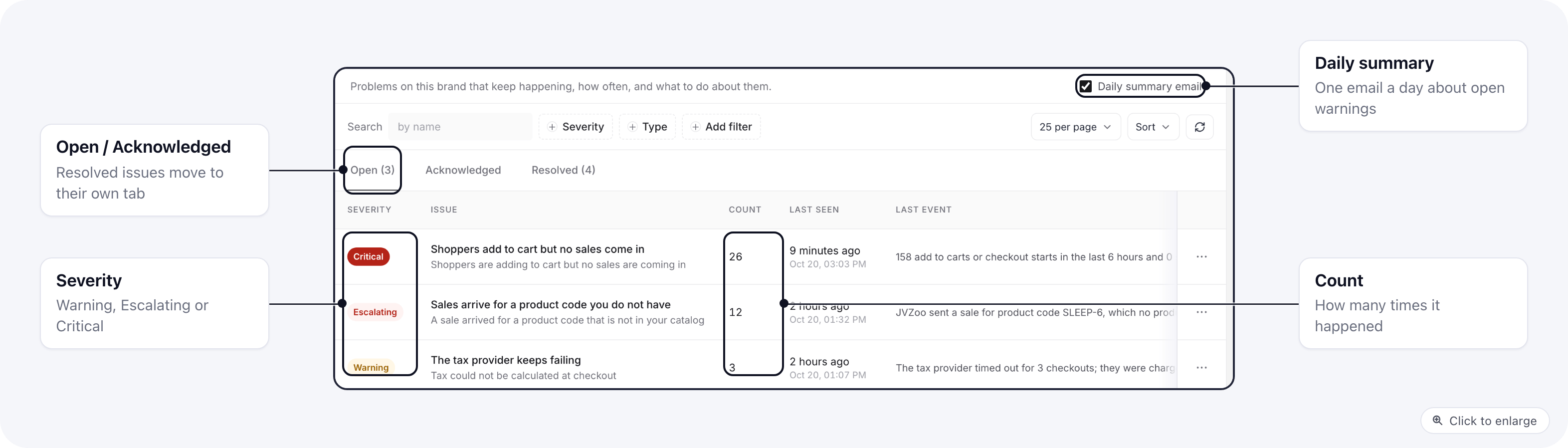
| Column | Meaning |
| - | - |
| Severity | Warning, Escalating or Critical. Hover the badge to see what each level means. |
| Issue | What is wrong. |
| Count | How many times it has happened since the issue opened. |
| Last seen | When it last happened. |
| Last event | The most recent occurrence, with the likely cause. |
The **Open**, **Acknowledged** and **Resolved** tabs split issues by state. Filter by severity or type with **Severity** and **Type**.
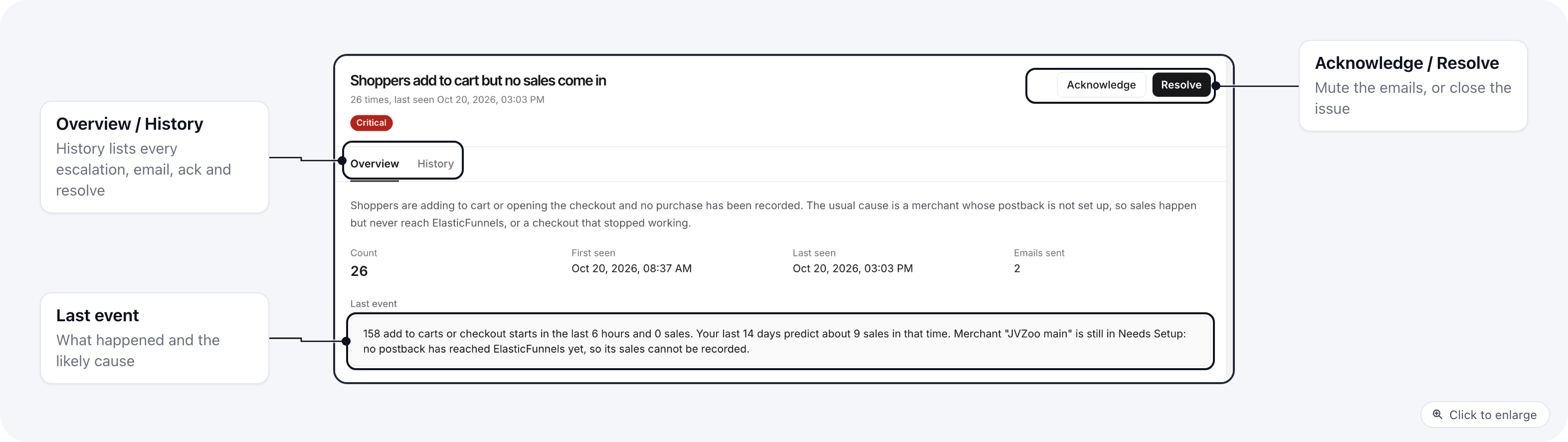
Click an issue to see the full details, a button that takes you to the screen where you fix it (for example the merchant's postback setup), and the **History** tab with every escalation, email, acknowledgement and resolution.
## What an issue shows
| Column | Meaning |
| - | - |
| Severity | Warning, Escalating or Critical. Hover the badge to see what each level means. |
| Issue | What is wrong. |
| Count | How many times it has happened since the issue opened. |
| Last seen | When it last happened. |
| Last event | The most recent occurrence, with the likely cause. |
The **Open**, **Acknowledged** and **Resolved** tabs split issues by state. Filter by severity or type with **Severity** and **Type**.
Click an issue to see the full details, a button that takes you to the screen where you fix it (for example the merchant's postback setup), and the **History** tab with every escalation, email, acknowledgement and resolution.
 ## Fixes
An alert with a fix shows **Fix ready** in the list and a **Fix** panel on its detail page. **Review** opens the fix so you can check every change before you apply it. Applying it, or declining it, closes the alert and is recorded in **History**. If several fixes are waiting on one alert (twelve buy links for the same missing code, for example), the alert closes when the last one is applied or declined.
## Fixes
An alert with a fix shows **Fix ready** in the list and a **Fix** panel on its detail page. **Review** opens the fix so you can check every change before you apply it. Applying it, or declining it, closes the alert and is recorded in **History**. If several fixes are waiting on one alert (twelve buy links for the same missing code, for example), the alert closes when the last one is applied or declined.
 An alert with a waiting fix has no **Resolve** button and does not close on its own when it goes quiet: apply or decline the fix to close it.
## Alert types
| Type | When it opens |
| - | - |
| Shoppers add to cart but no sales come in | Shoppers add to cart or open the checkout and no purchase is recorded. See below. |
| Merchant postbacks are being rejected | A merchant sends sales and ElasticFunnels rejects them because a setting is missing. |
| Checkout is failing for shoppers | Checkout submissions fail and the failures are growing, or the payment processor refuses them. |
| Sales arrive for a product code you do not have | A merchant sends a sale for a product code that is not in your products. Its fix creates the product, or links the code to one you already have. |
| A buy link asks for a product code you do not have | Someone opens a buy link with a product code that is not in your products, so the click cannot reach checkout. It opens only when the code is used on one of your pages, or when at least 3 different visitors ask for it within 24 hours. Codes that bots try (test values like prod\_999, SQL fragments, long random strings) never open an alert. Create the product, or correct the code in the link. |
| Postbacks arrive for a different merchant account | A postback names an account that does not match your merchant. |
| An integration keeps failing / has gone quiet | An integration fails most of its attempts, or stops doing anything for days. |
| An ad account lost access | ElasticFunnels can no longer read the ad account, so spend stops importing. |
| The tax provider keeps failing | Tax calculation keeps failing at checkout for a merchant. |
| Suggestion | Any other recommended change for the brand, named after the change itself (for example "Set up your order emails"). Suggestions never email you; their severity comes from how urgent the change is. |
### Shoppers add to cart but no sales come in
This check runs every 15 minutes over the last 6 hours. It opens an issue when all of these are true:
* at least 25 add to carts or checkout starts in those 6 hours, and no purchase;
* and either your sales rate over the last 14 days predicts at least 3 sales in that time, or a merchant used on those carts is still in **Needs Setup** (no postback has ever reached ElasticFunnels).
A brand with no sales in the last 14 days gets the alert when it has at least 50 carts in 24 hours and no sale.
The message names the cause when it can (for example, the merchant that is still in Needs Setup) and links to that merchant's postback setup. The issue resolves itself as soon as a purchase arrives.
## Severity
Every issue starts as a **Warning**. It becomes:
* **Escalating** after 10 occurrences or 24 hours;
* **Critical** after 50 occurrences or 72 hours.
Problems that lose sales directly (no sales on carts, rejected postbacks, failing checkouts) become Critical after 6 hours.
Time only counts while the problem keeps happening. An alert that has gone quiet but is still open because its fix is waiting keeps its severity: it does not climb to Critical, or email you, just because days pass.
## Emails
Emails go to the brand's owners and admins, in each person's language:
* **No email** on the first occurrence. A one-off does not need you.
* **One email** when an issue becomes Escalating.
* **An immediate email** when an issue becomes Critical, and a reminder once a day while it keeps happening.
* At most one email per issue per 24 hours, and at most 3 alert emails per brand per day. Critical emails are always sent.
**Daily summary.** Once a day you get one email listing the open warnings. Turn it off for yourself with the **Daily summary email** checkbox on the Alerts page, or with the link at the bottom of the email.
## Acknowledge and resolve
Brand owners and admins can act on an issue from its row menu or its detail page.
**Acknowledge** says "we know, we are on it". The issue stops sending emails but keeps counting. It comes back to Open and emails again when:
* the same problem shows up with a new cause or on another item (for example a second merchant);
* the count doubles since you acknowledged it;
* it is still happening 7 days after you acknowledged it.
**Resolve** closes the issue. If the problem happens again later, a new issue opens. Issues also resolve on their own:
* when the clearing event happens (a purchase arrives, the merchant postback works, the product is added);
* after 24 hours with no new occurrence (7 days for integrations, ad accounts and the tax provider, which fail less often).
Every acknowledge and resolve is recorded in **History** with who did it and when.
## Related
* [Brand actions and alerts](/essentials/brand-actions) for the kinds of fixes ElasticFunnels suggests and how their preview works.
* [Postback URLs](/merchants/postback-urls) for setting up a merchant postback.
This documentation is built and hosted on [Mintlify](https://mintlify.com), a developer documentation platform.
An alert with a waiting fix has no **Resolve** button and does not close on its own when it goes quiet: apply or decline the fix to close it.
## Alert types
| Type | When it opens |
| - | - |
| Shoppers add to cart but no sales come in | Shoppers add to cart or open the checkout and no purchase is recorded. See below. |
| Merchant postbacks are being rejected | A merchant sends sales and ElasticFunnels rejects them because a setting is missing. |
| Checkout is failing for shoppers | Checkout submissions fail and the failures are growing, or the payment processor refuses them. |
| Sales arrive for a product code you do not have | A merchant sends a sale for a product code that is not in your products. Its fix creates the product, or links the code to one you already have. |
| A buy link asks for a product code you do not have | Someone opens a buy link with a product code that is not in your products, so the click cannot reach checkout. It opens only when the code is used on one of your pages, or when at least 3 different visitors ask for it within 24 hours. Codes that bots try (test values like prod\_999, SQL fragments, long random strings) never open an alert. Create the product, or correct the code in the link. |
| Postbacks arrive for a different merchant account | A postback names an account that does not match your merchant. |
| An integration keeps failing / has gone quiet | An integration fails most of its attempts, or stops doing anything for days. |
| An ad account lost access | ElasticFunnels can no longer read the ad account, so spend stops importing. |
| The tax provider keeps failing | Tax calculation keeps failing at checkout for a merchant. |
| Suggestion | Any other recommended change for the brand, named after the change itself (for example "Set up your order emails"). Suggestions never email you; their severity comes from how urgent the change is. |
### Shoppers add to cart but no sales come in
This check runs every 15 minutes over the last 6 hours. It opens an issue when all of these are true:
* at least 25 add to carts or checkout starts in those 6 hours, and no purchase;
* and either your sales rate over the last 14 days predicts at least 3 sales in that time, or a merchant used on those carts is still in **Needs Setup** (no postback has ever reached ElasticFunnels).
A brand with no sales in the last 14 days gets the alert when it has at least 50 carts in 24 hours and no sale.
The message names the cause when it can (for example, the merchant that is still in Needs Setup) and links to that merchant's postback setup. The issue resolves itself as soon as a purchase arrives.
## Severity
Every issue starts as a **Warning**. It becomes:
* **Escalating** after 10 occurrences or 24 hours;
* **Critical** after 50 occurrences or 72 hours.
Problems that lose sales directly (no sales on carts, rejected postbacks, failing checkouts) become Critical after 6 hours.
Time only counts while the problem keeps happening. An alert that has gone quiet but is still open because its fix is waiting keeps its severity: it does not climb to Critical, or email you, just because days pass.
## Emails
Emails go to the brand's owners and admins, in each person's language:
* **No email** on the first occurrence. A one-off does not need you.
* **One email** when an issue becomes Escalating.
* **An immediate email** when an issue becomes Critical, and a reminder once a day while it keeps happening.
* At most one email per issue per 24 hours, and at most 3 alert emails per brand per day. Critical emails are always sent.
**Daily summary.** Once a day you get one email listing the open warnings. Turn it off for yourself with the **Daily summary email** checkbox on the Alerts page, or with the link at the bottom of the email.
## Acknowledge and resolve
Brand owners and admins can act on an issue from its row menu or its detail page.
**Acknowledge** says "we know, we are on it". The issue stops sending emails but keeps counting. It comes back to Open and emails again when:
* the same problem shows up with a new cause or on another item (for example a second merchant);
* the count doubles since you acknowledged it;
* it is still happening 7 days after you acknowledged it.
**Resolve** closes the issue. If the problem happens again later, a new issue opens. Issues also resolve on their own:
* when the clearing event happens (a purchase arrives, the merchant postback works, the product is added);
* after 24 hours with no new occurrence (7 days for integrations, ad accounts and the tax provider, which fail less often).
Every acknowledge and resolve is recorded in **History** with who did it and when.
## Related
* [Brand actions and alerts](/essentials/brand-actions) for the kinds of fixes ElasticFunnels suggests and how their preview works.
* [Postback URLs](/merchants/postback-urls) for setting up a merchant postback.
This documentation is built and hosted on [Mintlify](https://mintlify.com), a developer documentation platform.