> ## Documentation Index
> Fetch the complete documentation index at: https://docs.elasticfunnels.io/llms.txt
> Use this file to discover all available pages before exploring further.
# Maropost Integration
> Save customers and leads as Maropost contacts, subscribe them to lists and send transactional email from automations.
## Overview
The Maropost integration connects your Maropost Marketing Cloud account to ElasticFunnels automations. When someone buys, signs up or fills in a form, an automation step can create or update their Maropost contact, subscribe them to your lists, set tags and custom fields, or send them a transactional email through one of your Maropost transactional campaigns.
## What you get
| Action | What it does |
| - | - |
| Create / Update Contact | Finds the contact by email and updates it, or creates it. Saves first and last name and phone, subscribes the contact to the list you pick, adds tags and sets custom fields |
| Send Email | Sends one email through a Maropost transactional campaign, with the subject, sender and HTML you set on the step |
| Contact Exists | Looks the contact up by email and returns whether it was found, for a later **Continue If** step |
The list picker loads the lists from your Maropost account, so you choose them by name.
## Setup
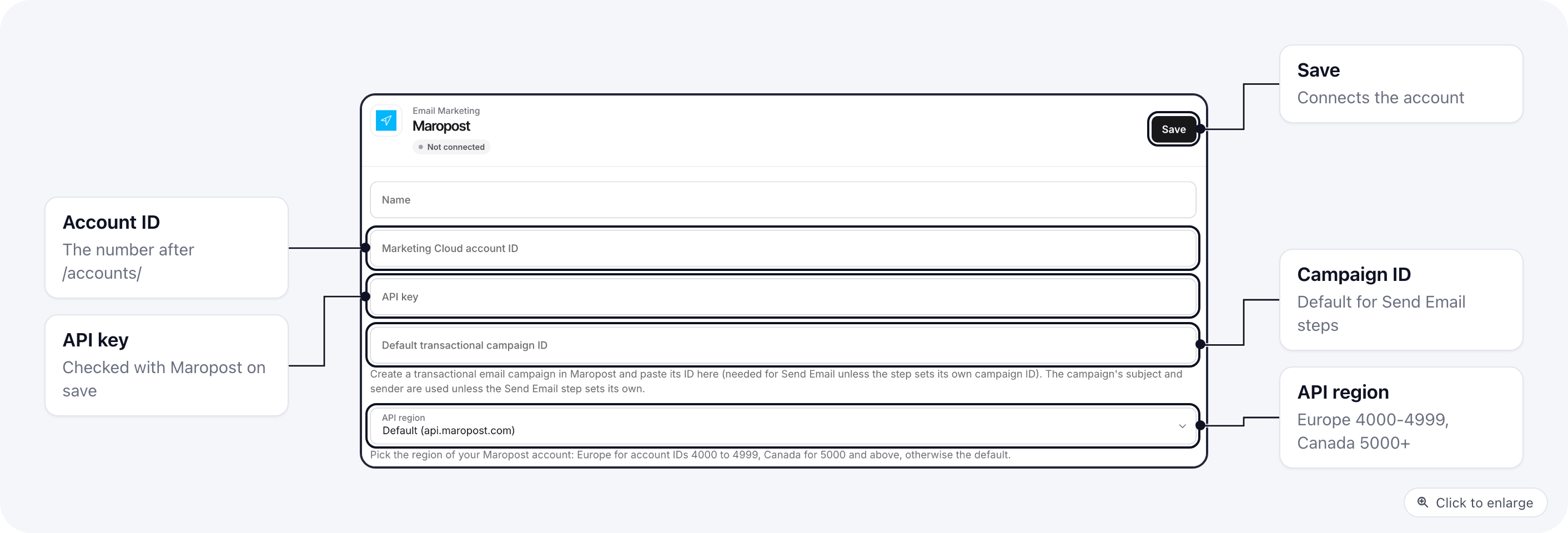 Sign in to Maropost Marketing Cloud. Your account ID is the number after `/accounts/` in the browser address bar, for example `1234` in `app.maropost.com/accounts/1234/dashboard`.
In the navigation panel, click **Settings**, then **API Keys** under **Connections**, and click **Add Key**. Name the key and give it API privileges for contacts, lists and campaigns. Leave the IP whitelist empty: a key with IP addresses on it only accepts calls from those addresses. Click **Save** and copy the key from the dialog. Maropost does not show it again once you close the dialog.
Go to **Marketing** > **Campaigns** > **Transactional Email**, click **New Campaign**, fill in the fields and save. Note the campaign's ID. Skip this step if you only sync contacts.
Go to **Integrations**, open **Maropost**, and fill in **Marketing Cloud account ID**, **API key** and, for Send Email, **Default transactional campaign ID**. Under **API region**, pick **Europe** if your account ID is between 4000 and 4999, **Canada** if it is 5000 or above, and keep the default otherwise. Save. The key is checked with Maropost when you save.
Open **Automations**, add a **Maropost: Create / Update Contact** step after your trigger, choose the Maropost connection, map the trigger's fields and pick the list under **Subscribe to lists**.
You can also start from a preset: on the Maropost integration page, the **Presets** tab lists three ready-made automations: **New customer: add them to Maropost**, **New purchase: add or update the buyer in Maropost** and **New form entry: add the person to Maropost**. Save the connection first, then create any of them in one click. Each preset asks which Maropost list to subscribe the contact to.
## Lists
Sign in to Maropost Marketing Cloud. Your account ID is the number after `/accounts/` in the browser address bar, for example `1234` in `app.maropost.com/accounts/1234/dashboard`.
In the navigation panel, click **Settings**, then **API Keys** under **Connections**, and click **Add Key**. Name the key and give it API privileges for contacts, lists and campaigns. Leave the IP whitelist empty: a key with IP addresses on it only accepts calls from those addresses. Click **Save** and copy the key from the dialog. Maropost does not show it again once you close the dialog.
Go to **Marketing** > **Campaigns** > **Transactional Email**, click **New Campaign**, fill in the fields and save. Note the campaign's ID. Skip this step if you only sync contacts.
Go to **Integrations**, open **Maropost**, and fill in **Marketing Cloud account ID**, **API key** and, for Send Email, **Default transactional campaign ID**. Under **API region**, pick **Europe** if your account ID is between 4000 and 4999, **Canada** if it is 5000 or above, and keep the default otherwise. Save. The key is checked with Maropost when you save.
Open **Automations**, add a **Maropost: Create / Update Contact** step after your trigger, choose the Maropost connection, map the trigger's fields and pick the list under **Subscribe to lists**.
You can also start from a preset: on the Maropost integration page, the **Presets** tab lists three ready-made automations: **New customer: add them to Maropost**, **New purchase: add or update the buyer in Maropost** and **New form entry: add the person to Maropost**. Save the connection first, then create any of them in one click. Each preset asks which Maropost list to subscribe the contact to.
## Lists
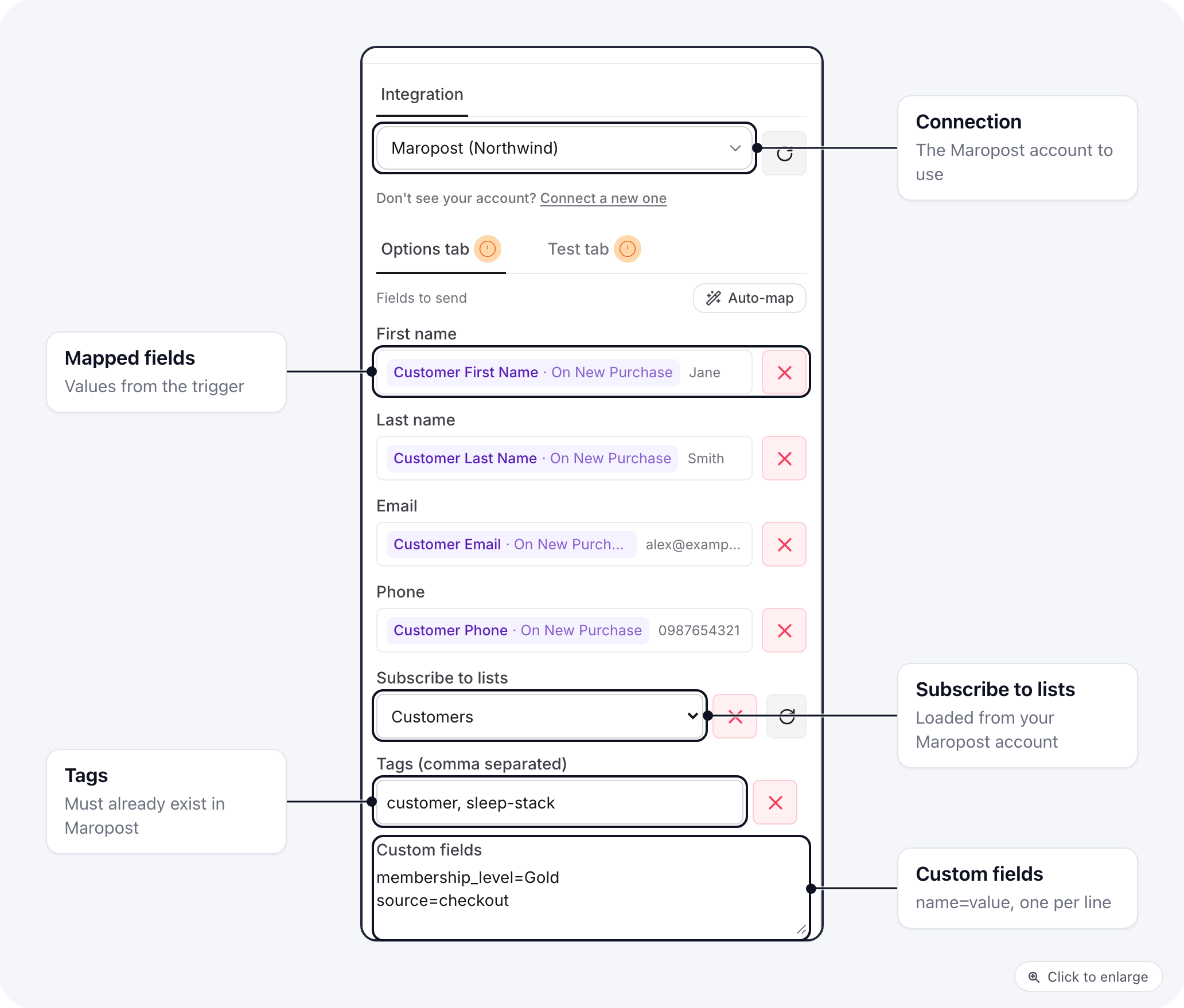 A Maropost contact only receives your list campaigns once it is subscribed to a list. Pick a list in **Subscribe to lists** and the step subscribes the contact to it every time it runs. Leave it empty to save the contact without changing its subscriptions. To subscribe the contact to a second list, add another Create / Update Contact step with that list.
The step never takes a contact off Maropost's Do Not Mail list, so a contact on it stays suppressed.
## Tags and custom fields
Tags and custom fields must already exist in your Maropost account. Create custom fields in Maropost first, then fill them from the step using the field's name in Maropost, one per line:
```
membership_level=Gold
source=quiz
```
Values can use variables from earlier steps, the same way as the other fields. A JSON object (`{"membership_level": "Gold", "isMember": true}`) works too, and keeps true/false and numbers as they are.
If Maropost does not know one of the custom fields, the contact is still saved without them, and the step's run log lists `custom_field` under **dropped\_fields**. The same happens with a phone number Maropost refuses.
## Send Email
A Maropost contact only receives your list campaigns once it is subscribed to a list. Pick a list in **Subscribe to lists** and the step subscribes the contact to it every time it runs. Leave it empty to save the contact without changing its subscriptions. To subscribe the contact to a second list, add another Create / Update Contact step with that list.
The step never takes a contact off Maropost's Do Not Mail list, so a contact on it stays suppressed.
## Tags and custom fields
Tags and custom fields must already exist in your Maropost account. Create custom fields in Maropost first, then fill them from the step using the field's name in Maropost, one per line:
```
membership_level=Gold
source=quiz
```
Values can use variables from earlier steps, the same way as the other fields. A JSON object (`{"membership_level": "Gold", "isMember": true}`) works too, and keeps true/false and numbers as they are.
If Maropost does not know one of the custom fields, the contact is still saved without them, and the step's run log lists `custom_field` under **dropped\_fields**. The same happens with a phone number Maropost refuses.
## Send Email
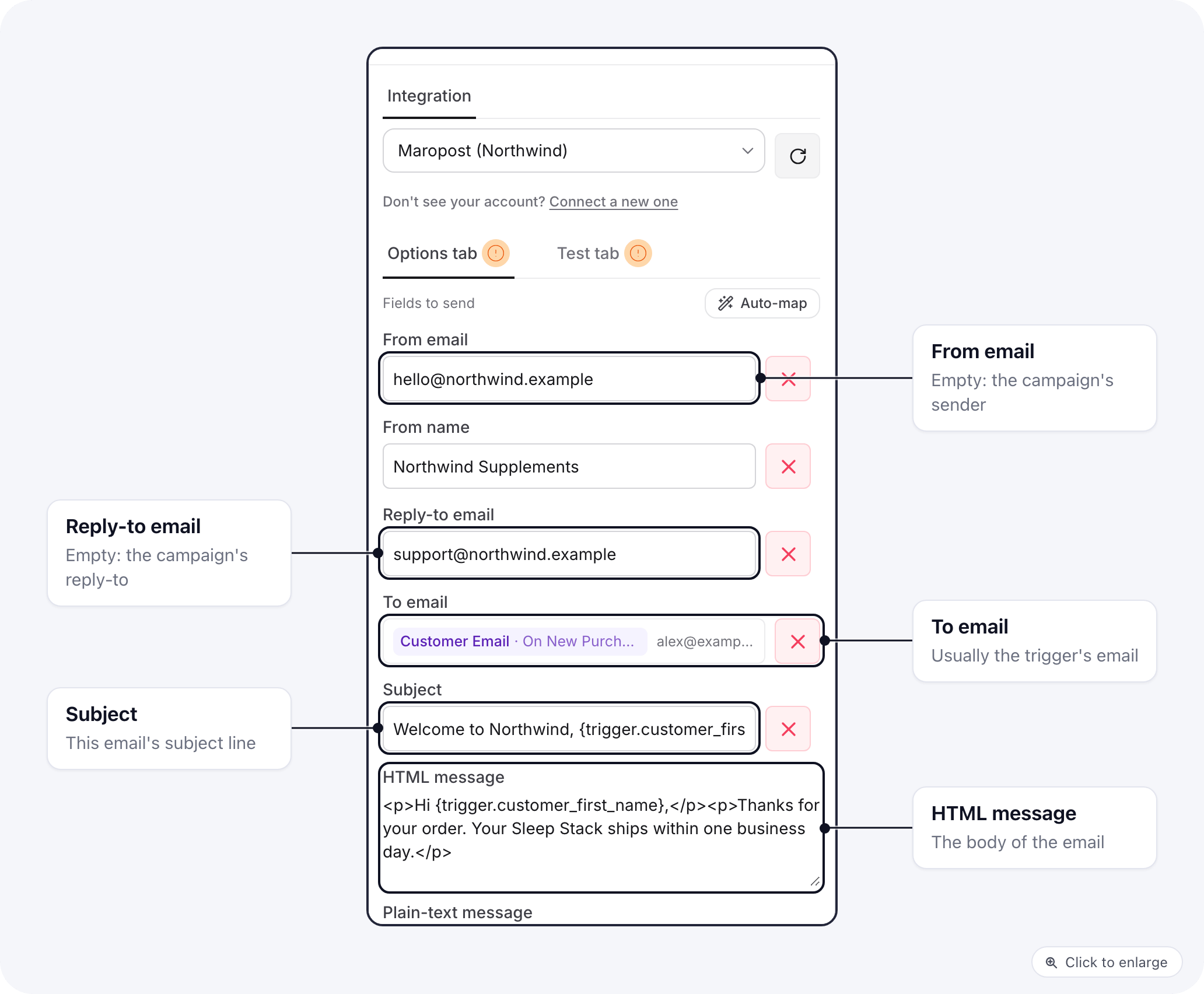 Send Email delivers one email through a transactional campaign. The campaign ID comes from the step's **Transactional campaign ID**, or from the default saved on the integration when the step leaves it empty. Optional fields you have not filled in are folded under the **more fields** link at the end of the step.
| Field | What it does |
| - | - |
| From email | The sender address for this email. Empty: the campaign's from address. `Store ` also works |
| From name | The sender name. Empty: the campaign's from name, or the name inside From email |
| Reply-to email | Where replies go. Empty: the campaign's reply-to |
| To email | The recipient, usually a variable such as the trigger's email |
| Subject | The subject line of this email |
| HTML message / Plain-text message | The body |
The from address must be one Maropost lets your account send from.
## Troubleshooting
Check the account ID, the API key and the API region. A key with addresses in its IP whitelist refuses calls from ElasticFunnels: remove the addresses or create a new key.
The connection was saved with an address that is not a Maropost API host. Open the Maropost integration, pick the API region again and save.
The step has no list under **Subscribe to lists**, or the contact is on Maropost's Do Not Mail list. Pick the list on the step, or check the contact in Maropost.
Neither the step nor the integration has a transactional campaign ID. Create a transactional campaign in Maropost and save its ID on the integration.
This documentation is built and hosted on [Mintlify](https://mintlify.com), a developer documentation platform.
Send Email delivers one email through a transactional campaign. The campaign ID comes from the step's **Transactional campaign ID**, or from the default saved on the integration when the step leaves it empty. Optional fields you have not filled in are folded under the **more fields** link at the end of the step.
| Field | What it does |
| - | - |
| From email | The sender address for this email. Empty: the campaign's from address. `Store ` also works |
| From name | The sender name. Empty: the campaign's from name, or the name inside From email |
| Reply-to email | Where replies go. Empty: the campaign's reply-to |
| To email | The recipient, usually a variable such as the trigger's email |
| Subject | The subject line of this email |
| HTML message / Plain-text message | The body |
The from address must be one Maropost lets your account send from.
## Troubleshooting
Check the account ID, the API key and the API region. A key with addresses in its IP whitelist refuses calls from ElasticFunnels: remove the addresses or create a new key.
The connection was saved with an address that is not a Maropost API host. Open the Maropost integration, pick the API region again and save.
The step has no list under **Subscribe to lists**, or the contact is on Maropost's Do Not Mail list. Pick the list on the step, or check the contact in Maropost.
Neither the step nor the integration has a transactional campaign ID. Create a transactional campaign in Maropost and save its ID on the integration.
This documentation is built and hosted on [Mintlify](https://mintlify.com), a developer documentation platform.