> ## Documentation Index
> Fetch the complete documentation index at: https://docs.elasticfunnels.io/llms.txt
> Use this file to discover all available pages before exploring further.
# Explodely
> Sell your own products through Explodely: payment links, the seller IPN, webhooks, the callback secret, and attribution
Explodely is a hosted checkout. Your funnel owns the sales pages, and buyers leave them for an Explodely payment link where Explodely takes the payment and runs its own upsell sequence. ElasticFunnels sends the buyer there with their click code attached, then records the order when Explodely reports it back.
## What you need
* An Explodely seller account with at least one product, and one Explodely funnel (the webhook form asks for a funnel)
* Your Explodely seller **username**
* The Explodely **product ID** of each product you sell
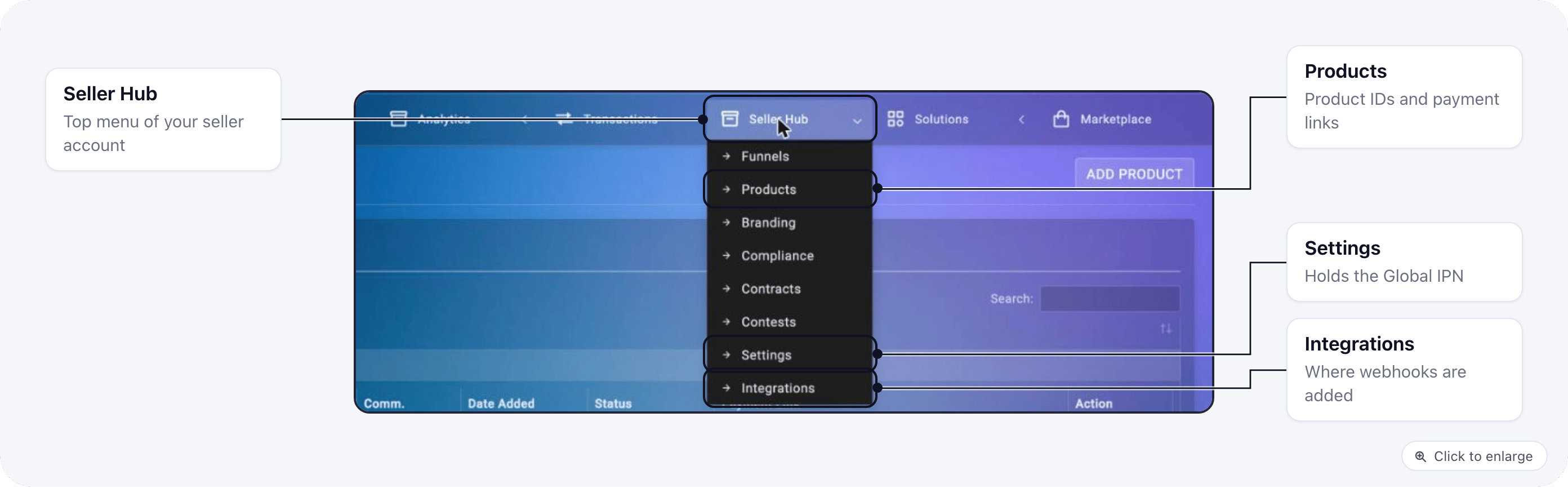
Everything in your Explodely account used below sits under **Seller Hub** in the top menu: **Products**, **Settings** and **Integrations**.
 ## Step 1: Create the Explodely merchant
1. Go to **Settings** → **Merchants** and click **Create Merchant**
2. Select **Gateway**: Explodely, give the merchant a name, and click **Create & Configure**. The merchant's settings open on **General information**.
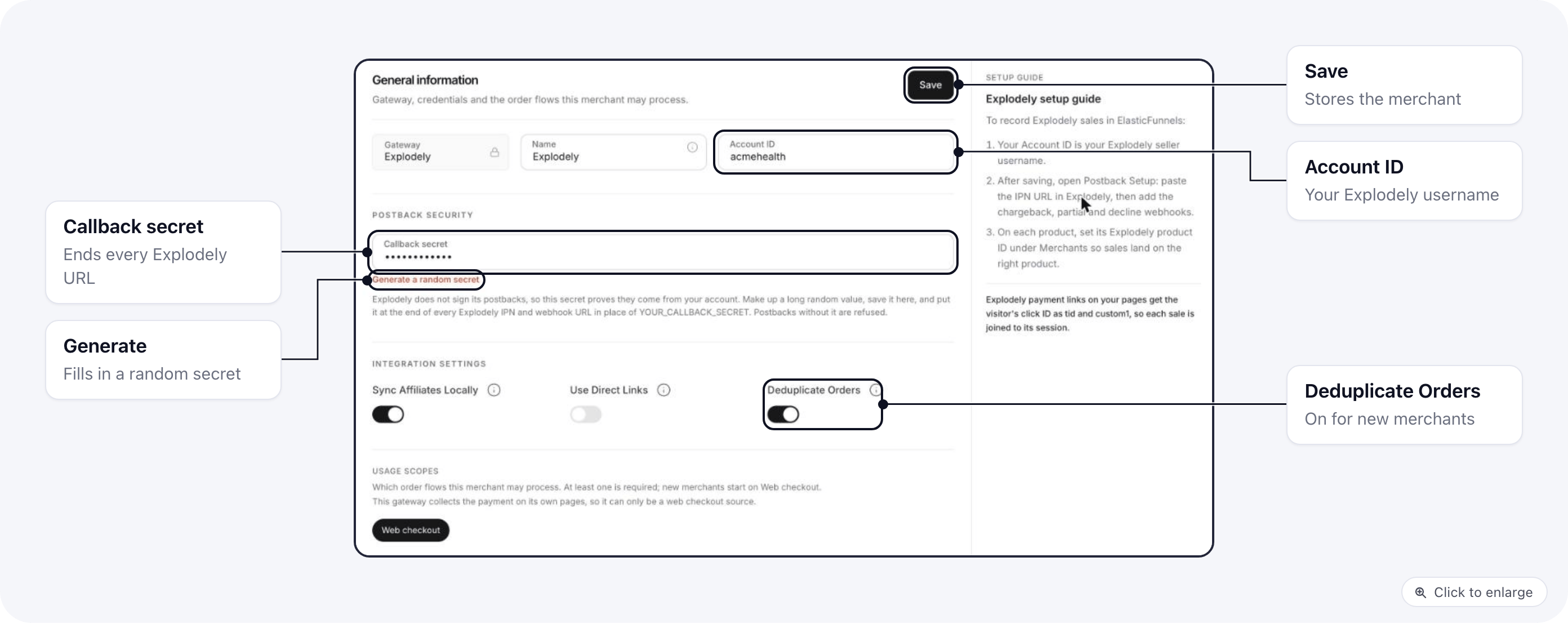
3. Enter your Explodely seller username as the **Account ID**
4. In **Callback secret**, enter a random string of 24 to 128 characters (letters, digits, `-` or `_`), or click **Generate a random secret**. Keep a copy: it goes at the end of every URL you paste into Explodely in Step 3.
5. Click **Save**
## Step 1: Create the Explodely merchant
1. Go to **Settings** → **Merchants** and click **Create Merchant**
2. Select **Gateway**: Explodely, give the merchant a name, and click **Create & Configure**. The merchant's settings open on **General information**.
3. Enter your Explodely seller username as the **Account ID**
4. In **Callback secret**, enter a random string of 24 to 128 characters (letters, digits, `-` or `_`), or click **Generate a random secret**. Keep a copy: it goes at the end of every URL you paste into Explodely in Step 3.
5. Click **Save**
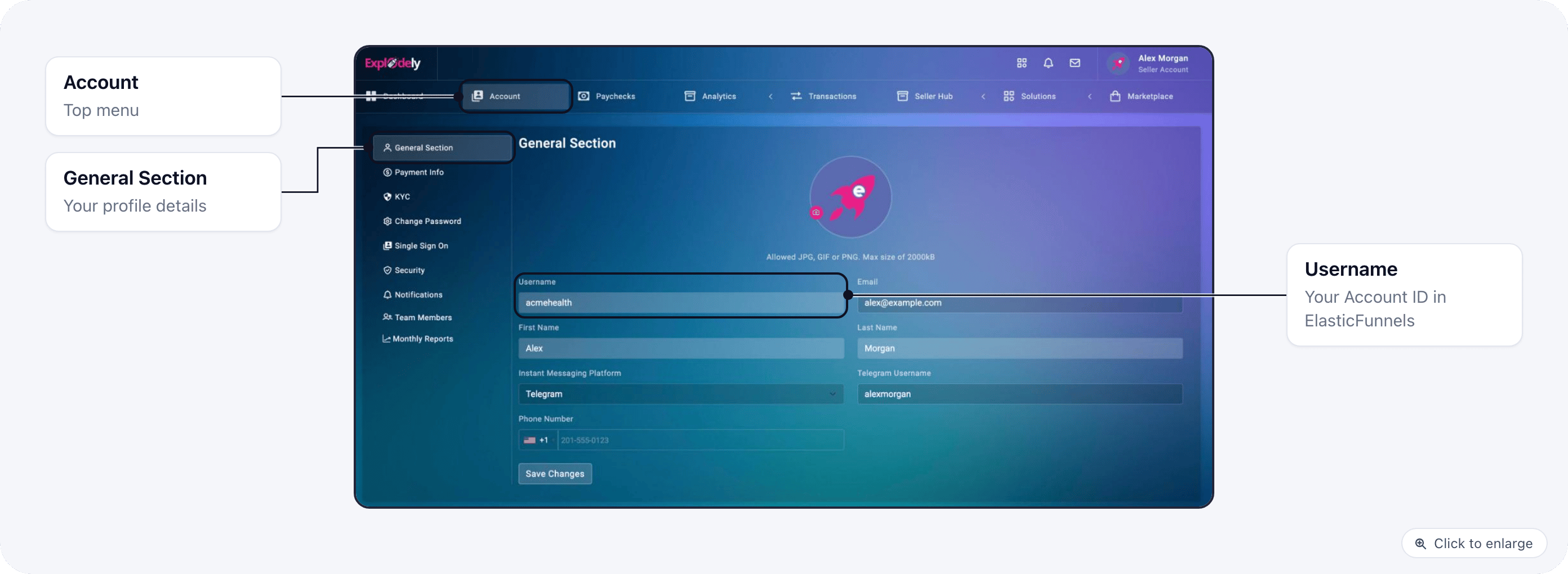
 Your username is in Explodely under **Account** → **General Section** → **Username**.
 Explodely does not sign its IPN or its webhooks, so the callback secret is what proves a postback came from your account. It is stored encrypted and shown masked after you save. A postback with a missing or wrong secret is refused with `401`.
New Explodely merchants have **Deduplicate Orders** on, so a retried IPN makes one order.
## Step 2: Map your products
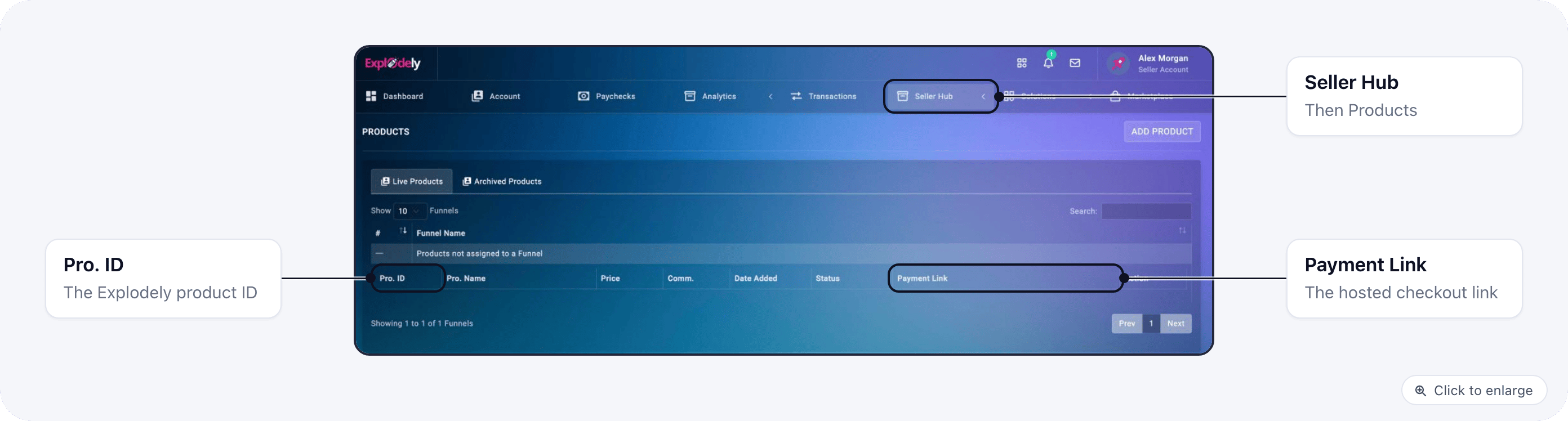
1. In Explodely, open **Seller Hub** → **Products** and note each product's ID in the **Pro. ID** column
2. In ElasticFunnels, go to **Products** → edit the product
3. Under **Merchant Product IDs**, set the **explodely** value to that ID
Explodely does not sign its IPN or its webhooks, so the callback secret is what proves a postback came from your account. It is stored encrypted and shown masked after you save. A postback with a missing or wrong secret is refused with `401`.
New Explodely merchants have **Deduplicate Orders** on, so a retried IPN makes one order.
## Step 2: Map your products
1. In Explodely, open **Seller Hub** → **Products** and note each product's ID in the **Pro. ID** column
2. In ElasticFunnels, go to **Products** → edit the product
3. Under **Merchant Product IDs**, set the **explodely** value to that ID
 Without a mapping, the ElasticFunnels product code is sent as the product ID, which Explodely will only recognise if the two happen to match.
## Step 3: Set up postbacks in Explodely
In **Settings** → **Merchants**, click **Postback Setup** on the Explodely merchant's row. The row shows **Needs Setup** until the first postback arrives (Step 4).
Without a mapping, the ElasticFunnels product code is sent as the product ID, which Explodely will only recognise if the two happen to match.
## Step 3: Set up postbacks in Explodely
In **Settings** → **Merchants**, click **Postback Setup** on the Explodely merchant's row. The row shows **Needs Setup** until the first postback arrives (Step 4).
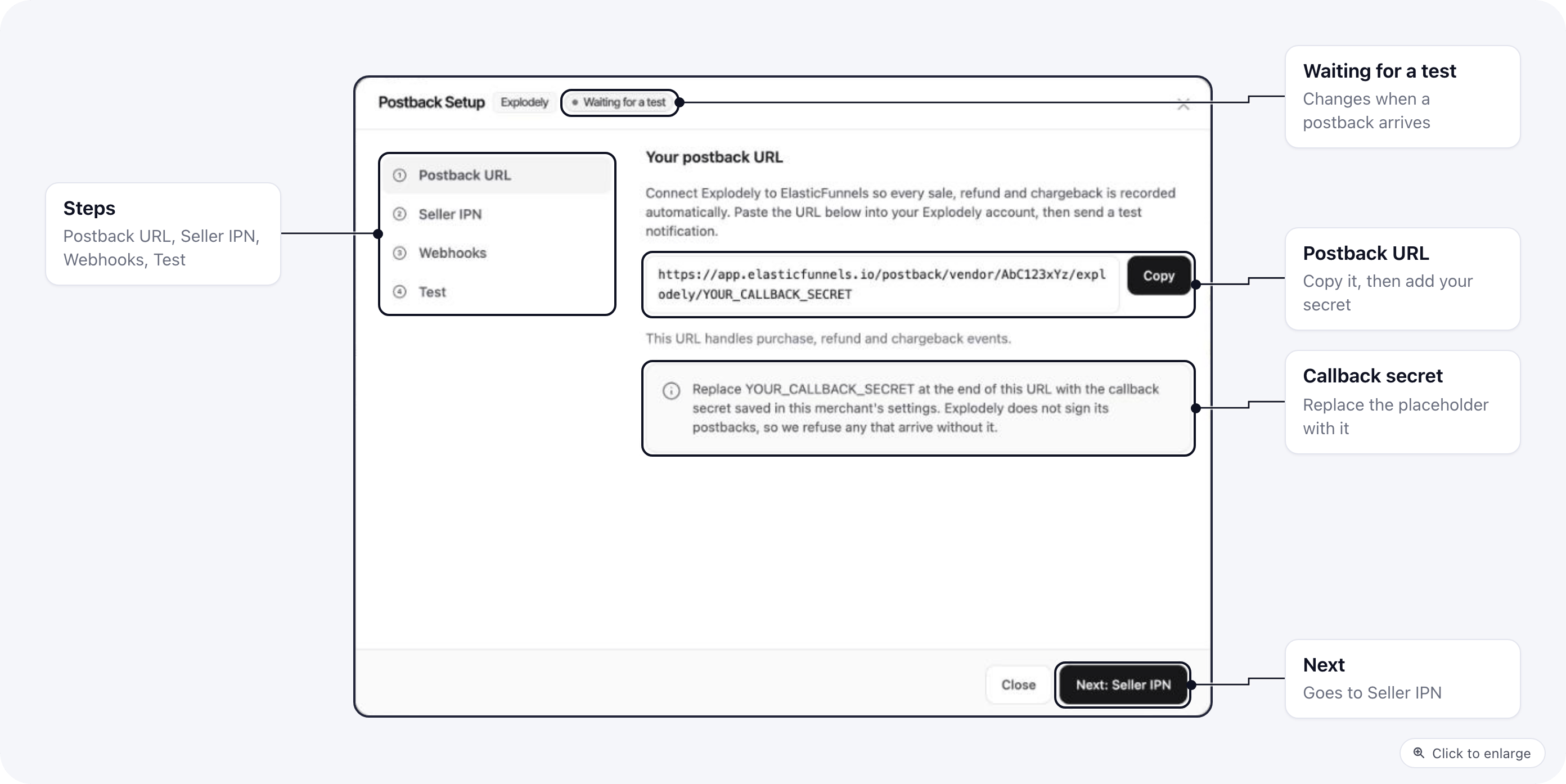
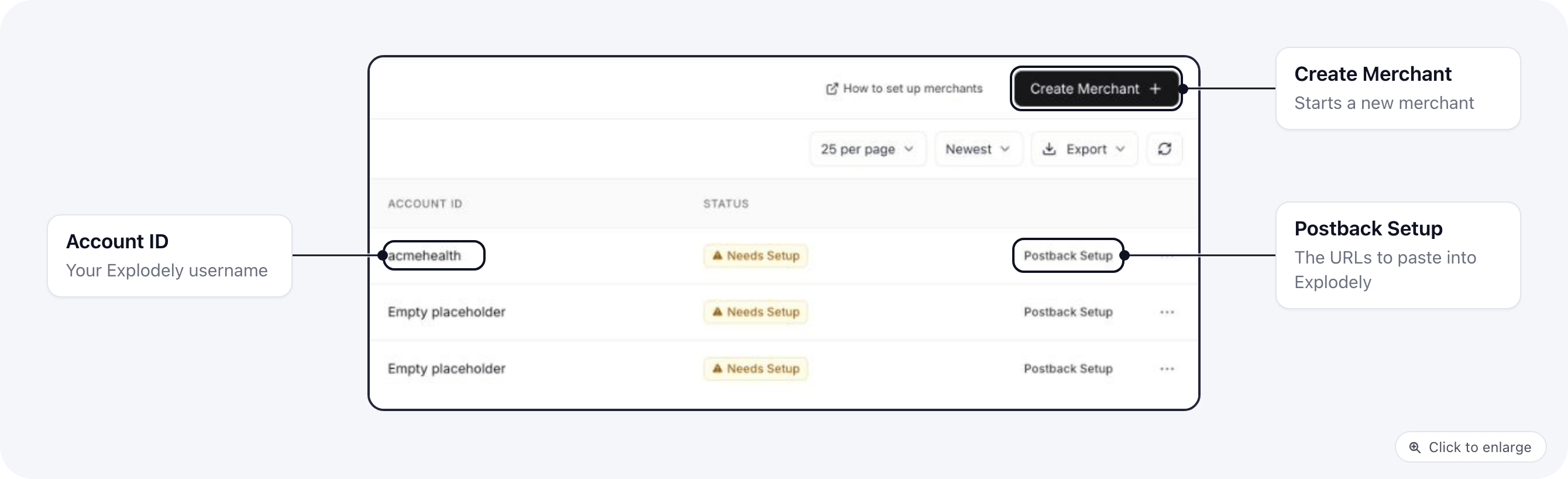 Postback Setup lists its steps on the left: **Postback URL**, **Seller IPN**, **Webhooks** and **Test**. Use **Next** to move through them. Every URL has its own **Copy** button and looks like this:
```
https://app.elasticfunnels.io/postback/vendor//explodely/YOUR_CALLBACK_SECRET
```
Replace `YOUR_CALLBACK_SECRET` with the secret you saved in Step 1, in every URL.
Postback Setup lists its steps on the left: **Postback URL**, **Seller IPN**, **Webhooks** and **Test**. Use **Next** to move through them. Every URL has its own **Copy** button and looks like this:
```
https://app.elasticfunnels.io/postback/vendor//explodely/YOUR_CALLBACK_SECRET
```
Replace `YOUR_CALLBACK_SECRET` with the secret you saved in Step 1, in every URL.
 ### Seller IPN
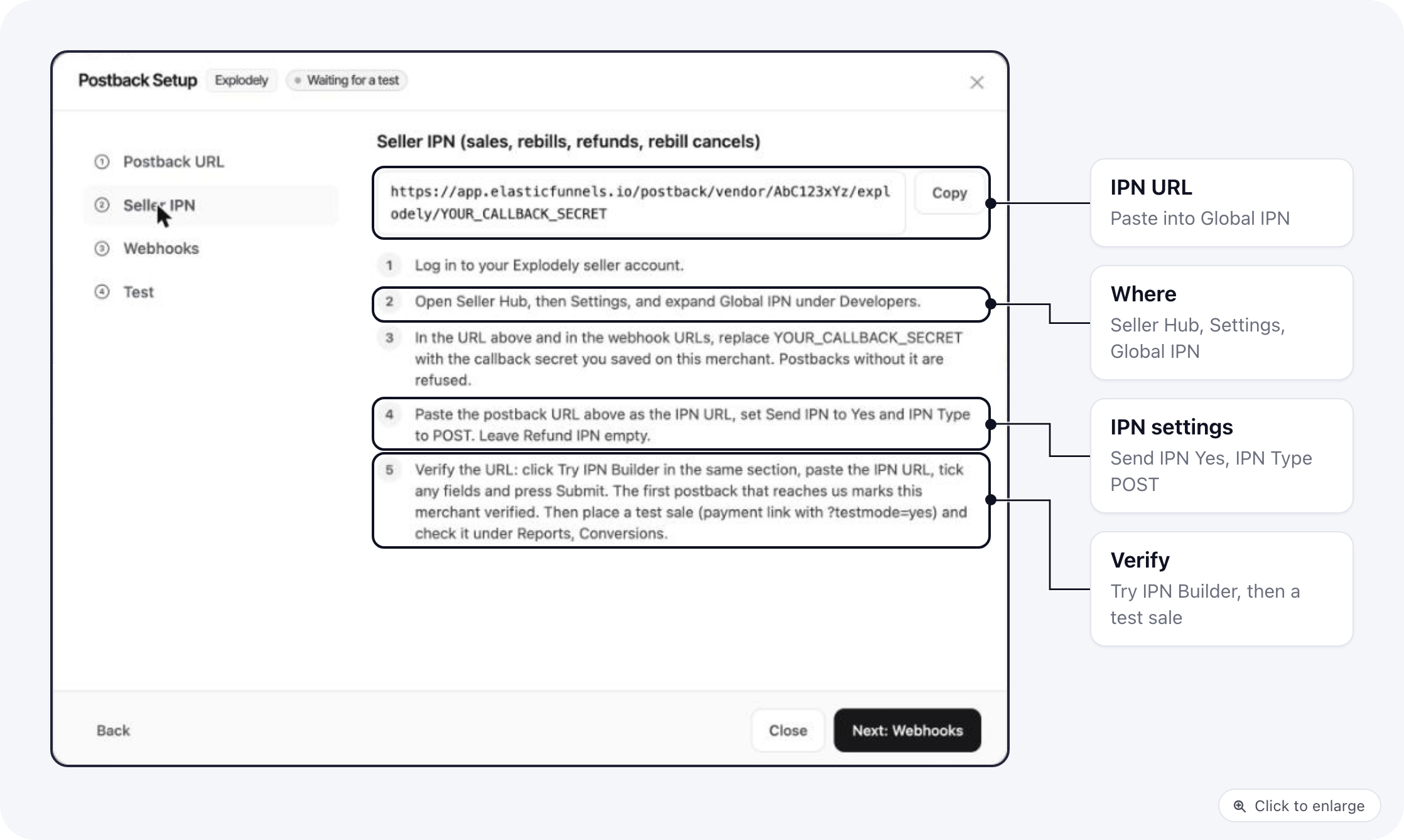
The IPN sends sales, rebills, refunds and rebill cancels. The **Seller IPN** step in Postback Setup has the URL and these steps.
### Seller IPN
The IPN sends sales, rebills, refunds and rebill cancels. The **Seller IPN** step in Postback Setup has the URL and these steps.
 1. Log in to your Explodely seller account
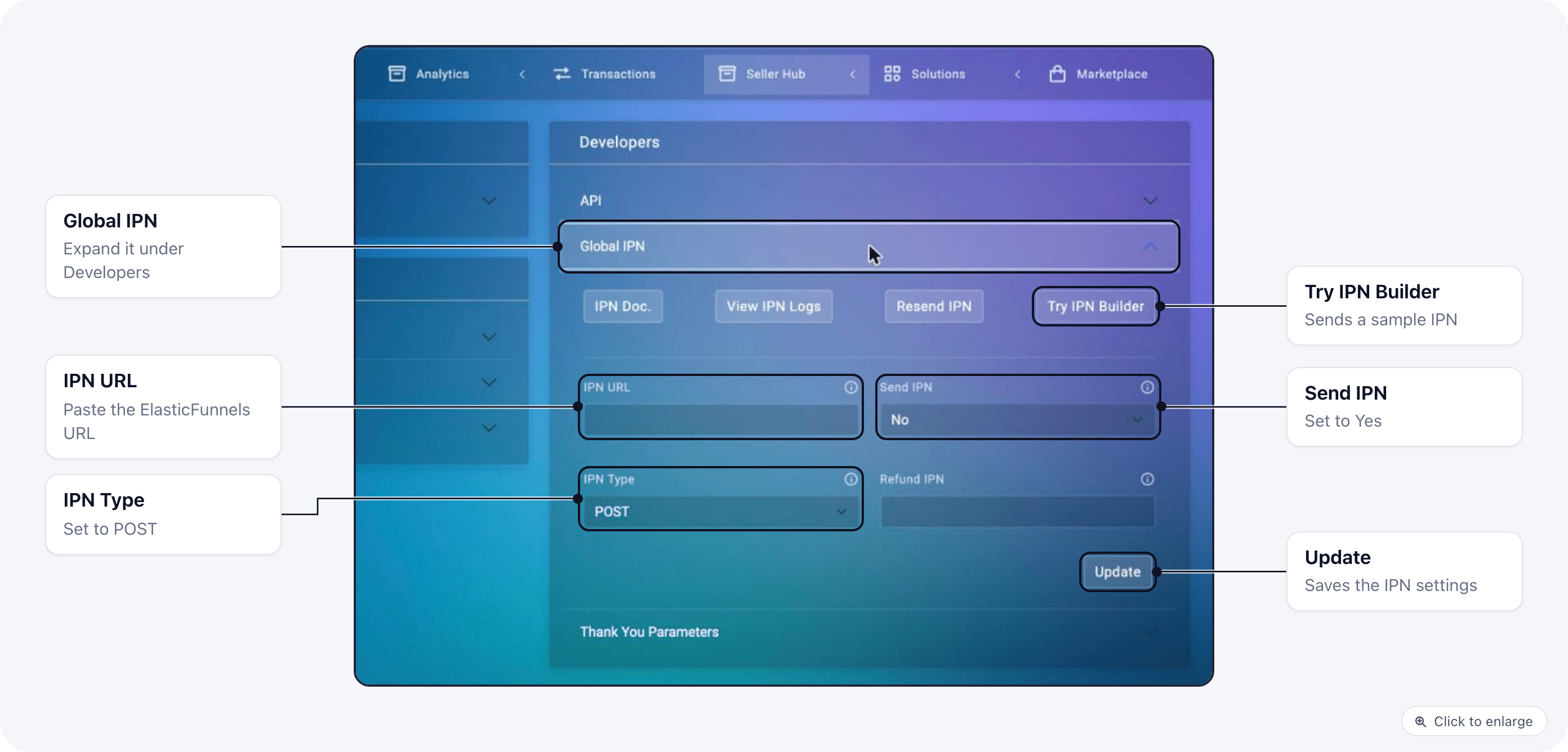
2. Open **Seller Hub** → **Settings** and expand **Global IPN** under **Developers**
3. Paste the IPN URL (with your secret) into **IPN URL**, set **Send IPN** to Yes and **IPN Type** to POST. Leave **Refund IPN** empty.
4. Click **Update**
1. Log in to your Explodely seller account
2. Open **Seller Hub** → **Settings** and expand **Global IPN** under **Developers**
3. Paste the IPN URL (with your secret) into **IPN URL**, set **Send IPN** to Yes and **IPN Type** to POST. Leave **Refund IPN** empty.
4. Click **Update**
 ### Webhooks
Webhooks cover the events the IPN does not send. In Explodely, open **Seller Hub** → **Integrations**, go to the **Webhook** tab and click **Add Webhook**.
### Webhooks
Webhooks cover the events the IPN does not send. In Explodely, open **Seller Hub** → **Integrations**, go to the **Webhook** tab and click **Add Webhook**.
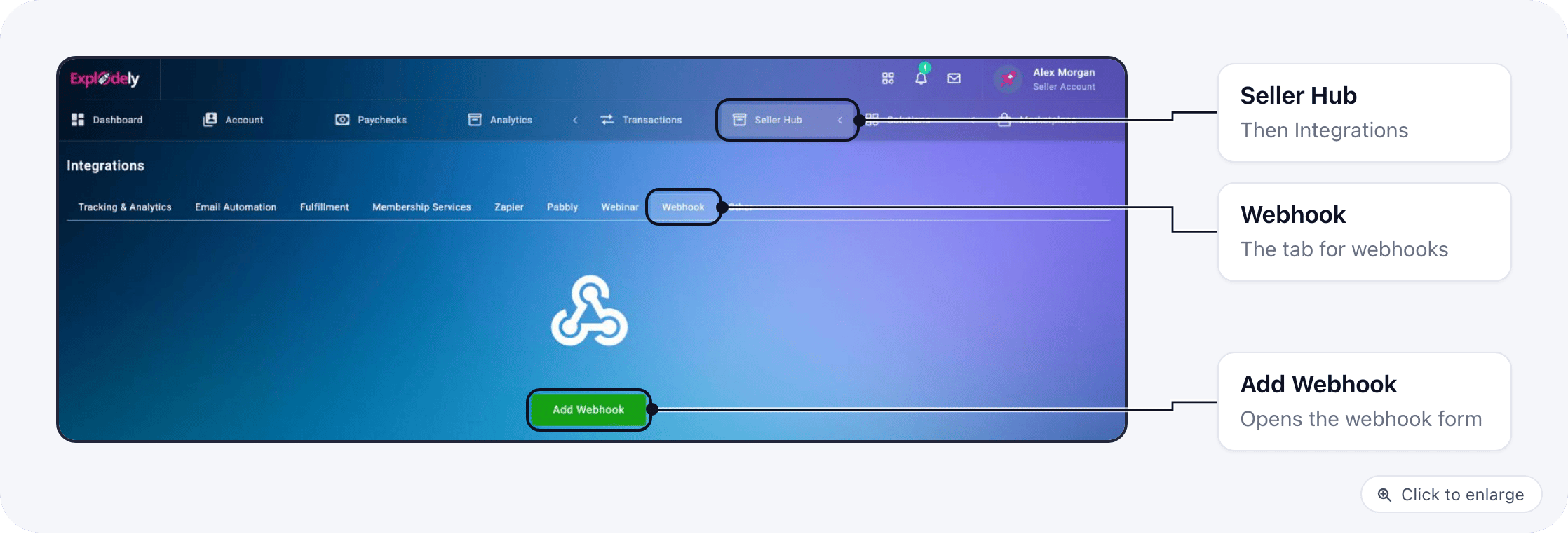 Add three webhooks, one per row below. For each one:
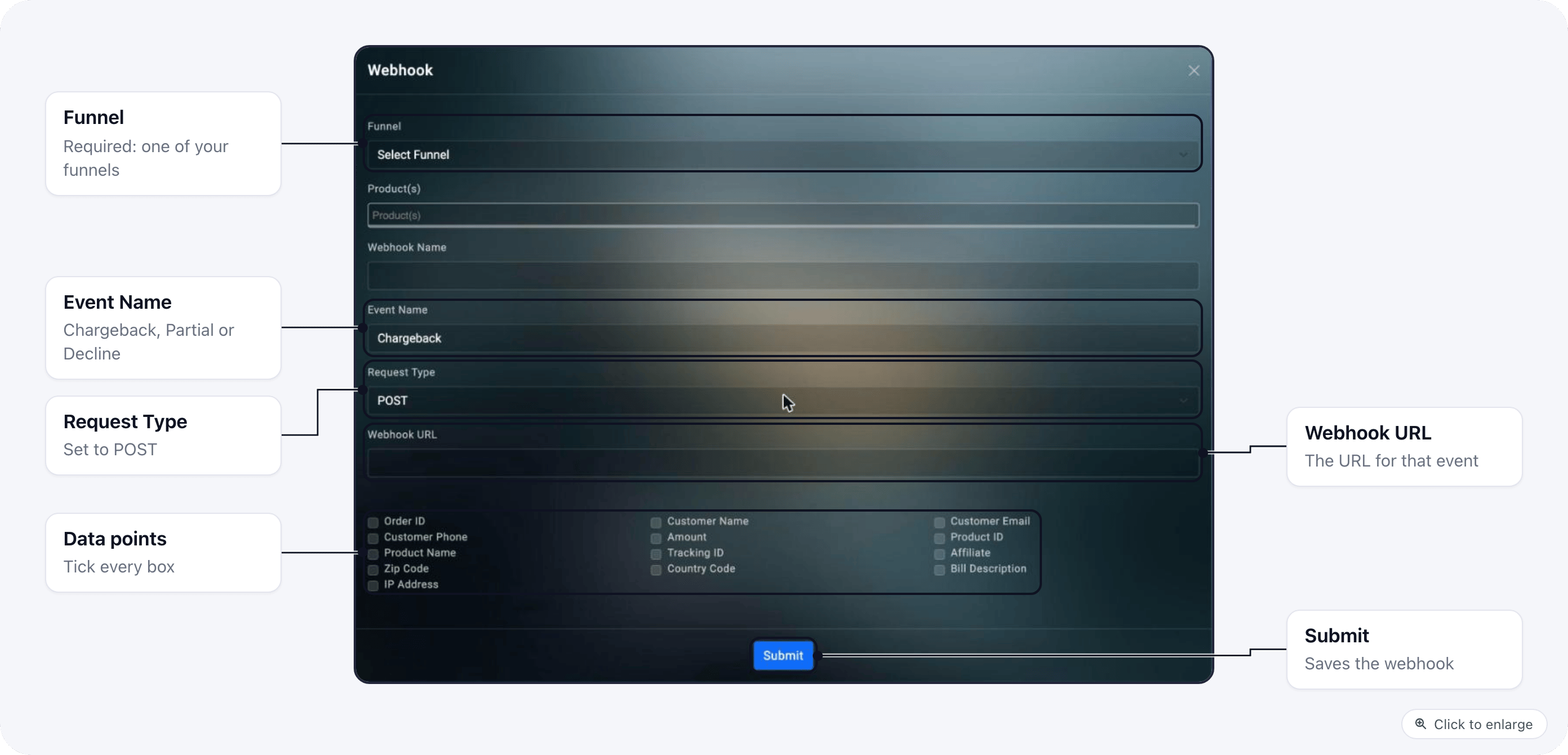
1. Choose your **Funnel** (required) and leave **Product(s)** on all products
2. Give it a **Webhook Name** and pick the **Event Name**
3. Set **Request Type** to POST and paste that event's URL from Postback Setup into **Webhook URL**
4. Tick every data point that appears under the form, then click **Submit**
Add three webhooks, one per row below. For each one:
1. Choose your **Funnel** (required) and leave **Product(s)** on all products
2. Give it a **Webhook Name** and pick the **Event Name**
3. Set **Request Type** to POST and paste that event's URL from Postback Setup into **Webhook URL**
4. Tick every data point that appears under the form, then click **Submit**
 | Event Name | URL ends with | Recorded as |
| - | - | - |
| Chargeback | `?event=chargeback` | A chargeback linked to the original order |
| Partial | `?event=partial` | An abandoned checkout, when no purchase follows within 20 minutes |
| Decline | `?event=decline` | A failed payment |
The **Webhooks** step in Postback Setup has the three URLs, each with its own **Copy**.
| Event Name | URL ends with | Recorded as |
| - | - | - |
| Chargeback | `?event=chargeback` | A chargeback linked to the original order |
| Partial | `?event=partial` | An abandoned checkout, when no purchase follows within 20 minutes |
| Decline | `?event=decline` | A failed payment |
The **Webhooks** step in Postback Setup has the three URLs, each with its own **Copy**.
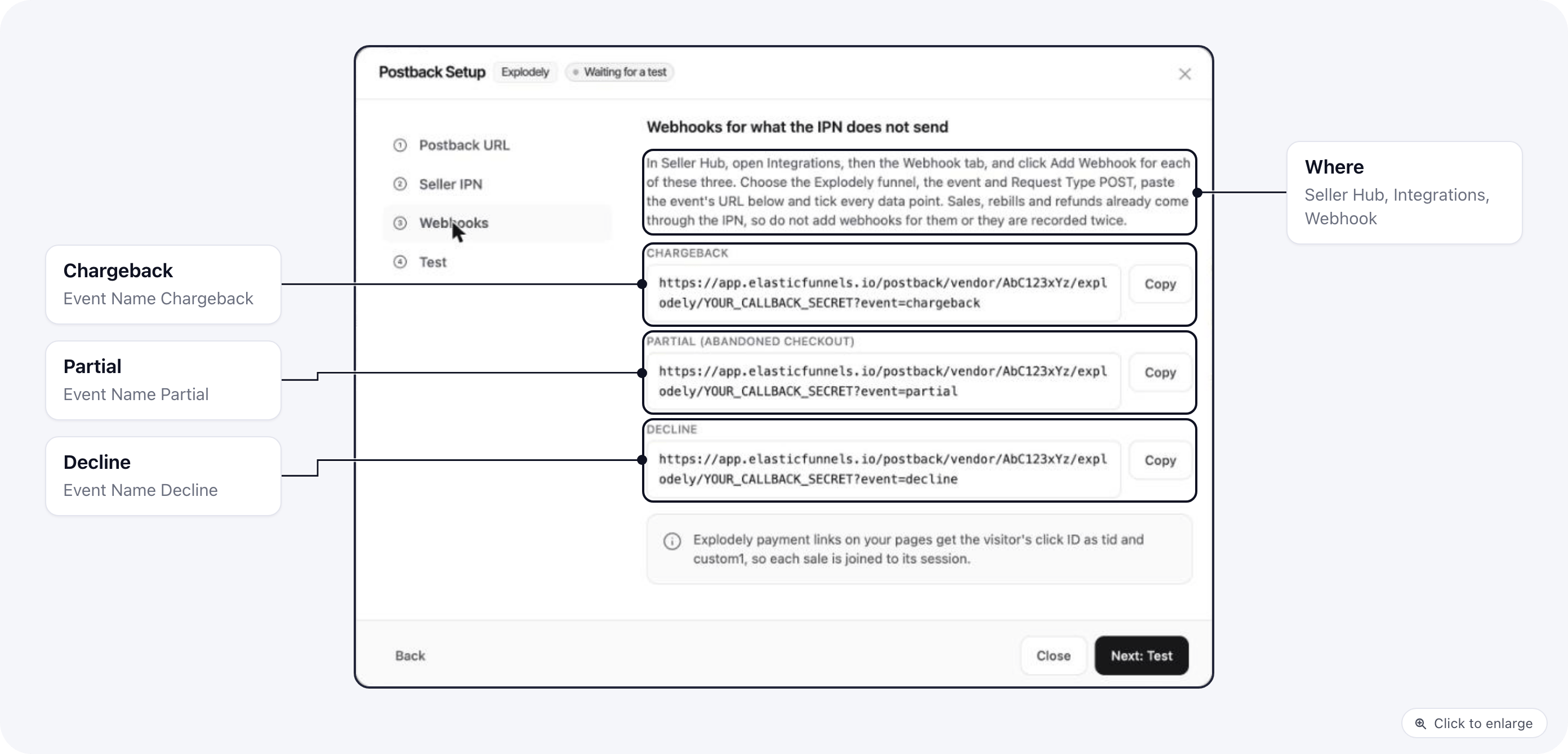 Explodely webhooks carry no event name, which is why each one needs its own `?event=` URL. Do not add webhooks for Sale, Rebill, Refund or Rebill Cancel: the IPN already sends those, and a webhook for them records each one twice.
## Step 4: Test the connection
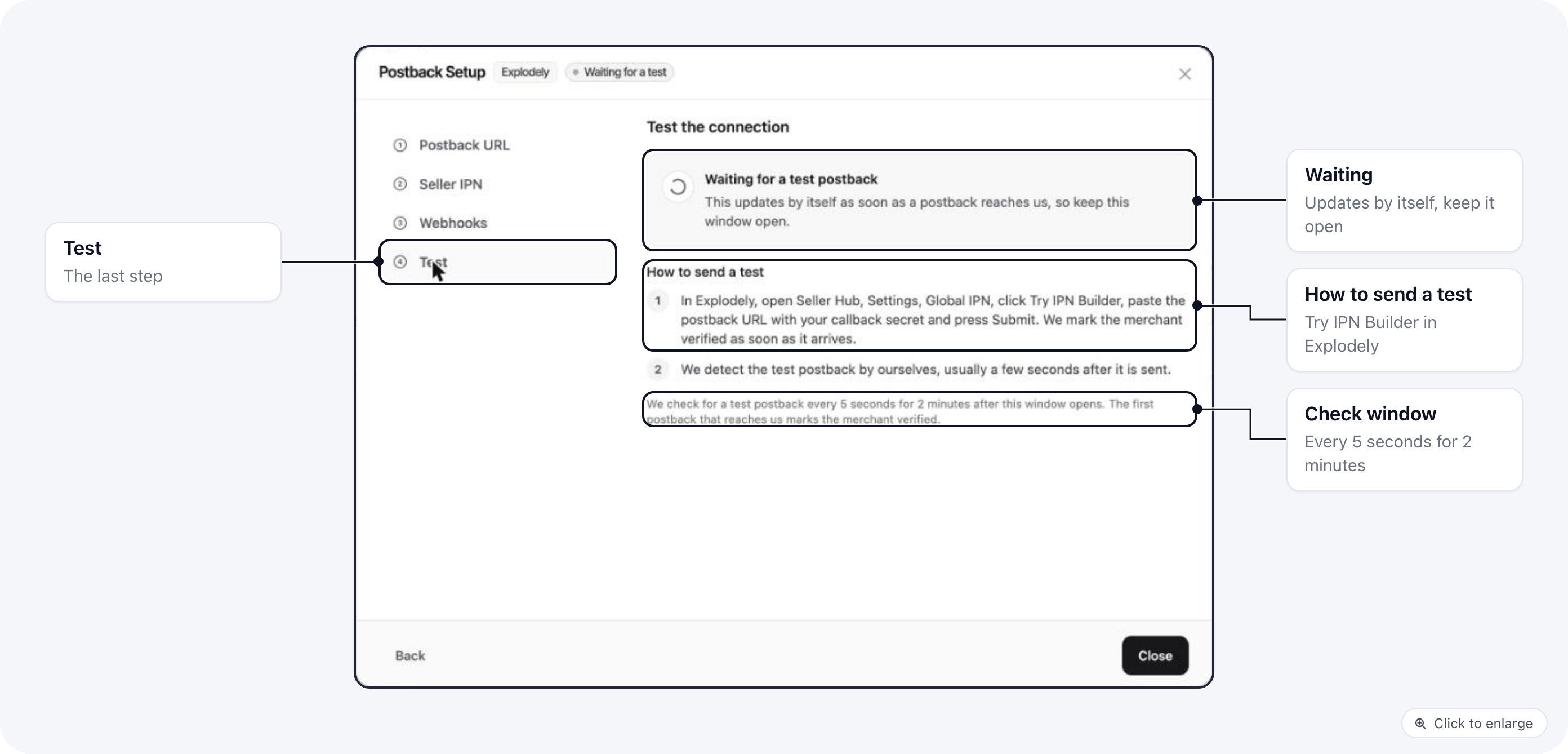
1. In ElasticFunnels, open the **Test** step of **Postback Setup** and leave it open. It shows **Waiting for a test postback** and checks every 5 seconds for 2 minutes.
2. In Explodely, go back to **Seller Hub** → **Settings** → **Global IPN** and click **Try IPN Builder**
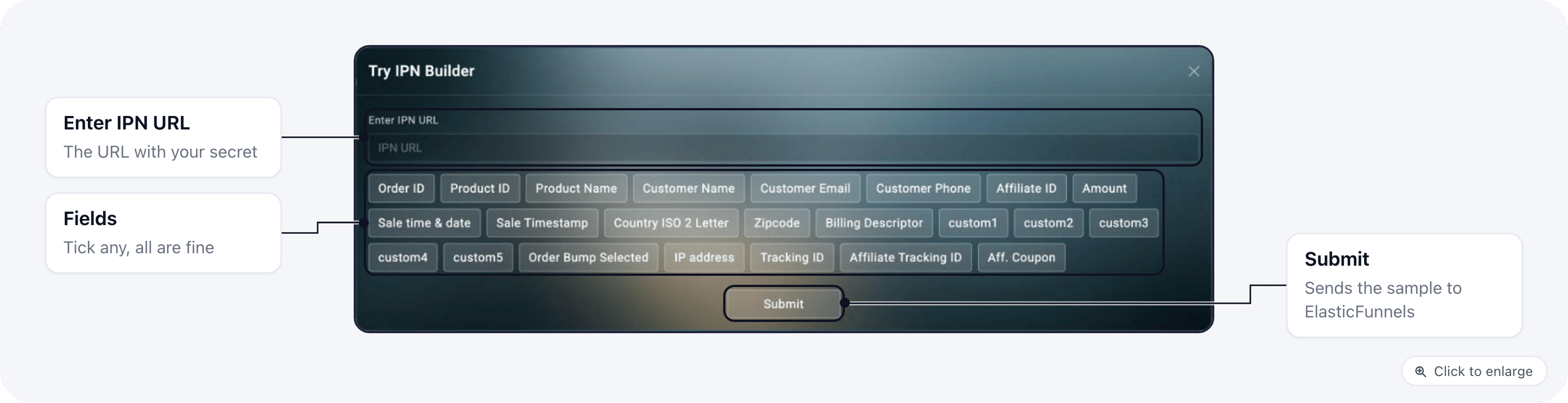
3. Paste the IPN URL (with your secret) into **Enter IPN URL**, pick any fields and click **Submit**. Explodely sends a sample IPN to that URL.
4. The first postback that reaches ElasticFunnels with the right secret marks the merchant verified, even a sample like this one. The status next to the dialog's title changes to **Verified** and **Needs Setup** clears from the merchant's row. If nothing arrives in 2 minutes, it shows **No test yet** with **Check again**.
Explodely webhooks carry no event name, which is why each one needs its own `?event=` URL. Do not add webhooks for Sale, Rebill, Refund or Rebill Cancel: the IPN already sends those, and a webhook for them records each one twice.
## Step 4: Test the connection
1. In ElasticFunnels, open the **Test** step of **Postback Setup** and leave it open. It shows **Waiting for a test postback** and checks every 5 seconds for 2 minutes.
2. In Explodely, go back to **Seller Hub** → **Settings** → **Global IPN** and click **Try IPN Builder**
3. Paste the IPN URL (with your secret) into **Enter IPN URL**, pick any fields and click **Submit**. Explodely sends a sample IPN to that URL.
4. The first postback that reaches ElasticFunnels with the right secret marks the merchant verified, even a sample like this one. The status next to the dialog's title changes to **Verified** and **Needs Setup** clears from the merchant's row. If nothing arrives in 2 minutes, it shows **No test yet** with **Check again**.
 Then place a real test sale: open one of your payment links with `?testmode=yes` added, complete the order, and check it under **Reports** → **Conversions**.
## Payment links
Use the standard tag on your sales page:
```html theme={null}
Buy Now
```
It becomes an Explodely payment link with the visitor's click code attached:
```
https://explodely.com/p/?custom1=&tid=
```
| Parameter | What it carries |
| - | - |
| `custom1` | The ElasticFunnels click code. Explodely returns it on the seller IPN. |
| `tid` | The click code again, on visits that did not come from an affiliate. Affiliates use `tid` for their own tracking, so it is left to them on affiliate traffic. |
| `custom2` to `custom4` | `subid`, `subid2` and `subid3` from the page URL, when present |
ElasticFunnels never adds `tpa` to a payment link, because a third-party affiliate ID sets that product's Explodely commission to 0%.
A payment link you paste by hand (`https://explodely.com/p/...`) gets `custom1` added when the page renders. A `custom1` you set yourself is kept.
## How orders are recorded
* **Matching to the visit:** the postback is joined to the click by `tid`, then `custom1` to `custom5`, then the buyer's IP address.
* **Rebills** arrive on the IPN as a sale with `rebill=yes` and are recorded as subscription rebills.
* **Upsells** are recognised by the classification of the mapped product, since the Explodely IPN has no front-end flag.
* **Refunds and chargebacks** link to the purchase by order ID. One for an order ElasticFunnels never recorded, for an order already fully reversed, or for more than the amount left is acknowledged with `200` and not recorded, so Explodely stops retrying it. Explodely can send one chargeback both as an IPN refund and as a chargeback webhook; only the first is recorded.
* **Currency** is recorded as USD.
## Troubleshooting
The URL is missing the callback secret, or the secret does not match the one saved on the merchant. Copy the URL again from **Postback Setup** and replace `YOUR_CALLBACK_SECRET` with the saved value. If you no longer have it, enter a new secret on the merchant and update every Explodely IPN and webhook URL.
No postback with the right secret has reached ElasticFunnels yet. Check that **Send IPN** is Yes and the IPN URL ends with your callback secret, then send a sample with **Try IPN Builder**.
A refund webhook was added in Seller Hub as well as the IPN. Remove the webhook: refunds come through the IPN.
The payment link reached Explodely without `custom1` or `tid`, for example a link built in a script that runs after the page renders. Use a `[BUY=...]` tag, or a plain `explodely.com/p/` link in the page HTML. Inbound payloads are recorded under **Logs** → **Inbound Postbacks**.
Check the product's **Merchant Product ID** for explodely. With no mapping, the ElasticFunnels product code is sent as the product ID.
This documentation is built and hosted on [Mintlify](https://mintlify.com), a developer documentation platform.
Then place a real test sale: open one of your payment links with `?testmode=yes` added, complete the order, and check it under **Reports** → **Conversions**.
## Payment links
Use the standard tag on your sales page:
```html theme={null}
Buy Now
```
It becomes an Explodely payment link with the visitor's click code attached:
```
https://explodely.com/p/?custom1=&tid=
```
| Parameter | What it carries |
| - | - |
| `custom1` | The ElasticFunnels click code. Explodely returns it on the seller IPN. |
| `tid` | The click code again, on visits that did not come from an affiliate. Affiliates use `tid` for their own tracking, so it is left to them on affiliate traffic. |
| `custom2` to `custom4` | `subid`, `subid2` and `subid3` from the page URL, when present |
ElasticFunnels never adds `tpa` to a payment link, because a third-party affiliate ID sets that product's Explodely commission to 0%.
A payment link you paste by hand (`https://explodely.com/p/...`) gets `custom1` added when the page renders. A `custom1` you set yourself is kept.
## How orders are recorded
* **Matching to the visit:** the postback is joined to the click by `tid`, then `custom1` to `custom5`, then the buyer's IP address.
* **Rebills** arrive on the IPN as a sale with `rebill=yes` and are recorded as subscription rebills.
* **Upsells** are recognised by the classification of the mapped product, since the Explodely IPN has no front-end flag.
* **Refunds and chargebacks** link to the purchase by order ID. One for an order ElasticFunnels never recorded, for an order already fully reversed, or for more than the amount left is acknowledged with `200` and not recorded, so Explodely stops retrying it. Explodely can send one chargeback both as an IPN refund and as a chargeback webhook; only the first is recorded.
* **Currency** is recorded as USD.
## Troubleshooting
The URL is missing the callback secret, or the secret does not match the one saved on the merchant. Copy the URL again from **Postback Setup** and replace `YOUR_CALLBACK_SECRET` with the saved value. If you no longer have it, enter a new secret on the merchant and update every Explodely IPN and webhook URL.
No postback with the right secret has reached ElasticFunnels yet. Check that **Send IPN** is Yes and the IPN URL ends with your callback secret, then send a sample with **Try IPN Builder**.
A refund webhook was added in Seller Hub as well as the IPN. Remove the webhook: refunds come through the IPN.
The payment link reached Explodely without `custom1` or `tid`, for example a link built in a script that runs after the page renders. Use a `[BUY=...]` tag, or a plain `explodely.com/p/` link in the page HTML. Inbound payloads are recorded under **Logs** → **Inbound Postbacks**.
Check the product's **Merchant Product ID** for explodely. With no mapping, the ElasticFunnels product code is sent as the product ID.
This documentation is built and hosted on [Mintlify](https://mintlify.com), a developer documentation platform.