> ## Documentation Index
> Fetch the complete documentation index at: https://docs.elasticfunnels.io/llms.txt
> Use this file to discover all available pages before exploring further.
# Product Folders
> Group products into folders and subfolders, filter the Products list by folder, and move products between folders
Folders keep a long product list manageable. File each product into a folder (for example one folder per
offer, with its upsells and bonuses inside), then open a folder to see only its products. Folders work the
same way as page folders: they nest to any depth and each can have a color.
Folders only organize the list. A product's code, price, buy links, checkouts and funnels stay exactly the
same wherever it is filed. They are separate from [product categories](/products/product-management),
which your storefront pages can read.
 ## Where the folders are
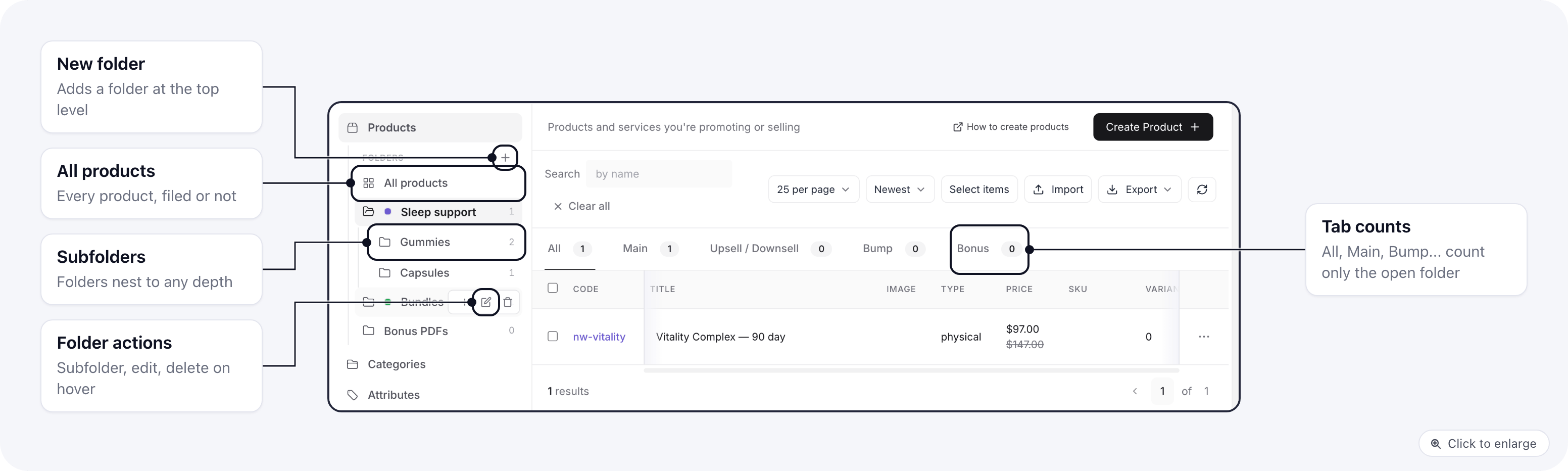
Go to **Settings** → **Products**. The folder tree sits in the side menu, under **Products**:
* **All products** lists every product, filed or not.
* Each folder below it lists only the products filed directly in it, not the ones in its subfolders. The
number next to a folder counts those products.
* The **All**, **Main**, **Upsell / Downsell**, **Bump** and **Bonus** tabs above the list count the products
of the open folder.
The open folder is kept in the page address (`?folder_id=`), so you can bookmark it or share the link with
your team. On a phone the tree is a drop-down under the section menu.
## Create a folder
1. Click **+** next to **Folders**.
2. Enter a **Folder name**.
3. Optionally pick a **Parent folder** to put it inside another folder, and a **Color**.
4. Click **Save**.
To create a folder inside an existing one, hover over the folder and click **+** on its row.
## Rename, recolor or move a folder
Hover over the folder and click the pencil. You can change its name, its color and its parent folder. A folder
cannot be moved inside itself or inside one of its own subfolders.
## Delete a folder
Hover over the folder and click the bin, then confirm. Nothing inside it is deleted: its products and its
subfolders move up to the folder above it. Deleting a top-level folder takes its products out of every folder
and turns its subfolders into top-level folders.
## Move products into a folder
A product is in one folder at most.
* **One product:** open the **⋯** menu on its row and choose **Move to folder**.
* **Several products:** click **Select items**, tick the products, then choose **Move to folder** in the bar
at the bottom of the list.
## Where the folders are
Go to **Settings** → **Products**. The folder tree sits in the side menu, under **Products**:
* **All products** lists every product, filed or not.
* Each folder below it lists only the products filed directly in it, not the ones in its subfolders. The
number next to a folder counts those products.
* The **All**, **Main**, **Upsell / Downsell**, **Bump** and **Bonus** tabs above the list count the products
of the open folder.
The open folder is kept in the page address (`?folder_id=`), so you can bookmark it or share the link with
your team. On a phone the tree is a drop-down under the section menu.
## Create a folder
1. Click **+** next to **Folders**.
2. Enter a **Folder name**.
3. Optionally pick a **Parent folder** to put it inside another folder, and a **Color**.
4. Click **Save**.
To create a folder inside an existing one, hover over the folder and click **+** on its row.
## Rename, recolor or move a folder
Hover over the folder and click the pencil. You can change its name, its color and its parent folder. A folder
cannot be moved inside itself or inside one of its own subfolders.
## Delete a folder
Hover over the folder and click the bin, then confirm. Nothing inside it is deleted: its products and its
subfolders move up to the folder above it. Deleting a top-level folder takes its products out of every folder
and turns its subfolders into top-level folders.
## Move products into a folder
A product is in one folder at most.
* **One product:** open the **⋯** menu on its row and choose **Move to folder**.
* **Several products:** click **Select items**, tick the products, then choose **Move to folder** in the bar
at the bottom of the list.
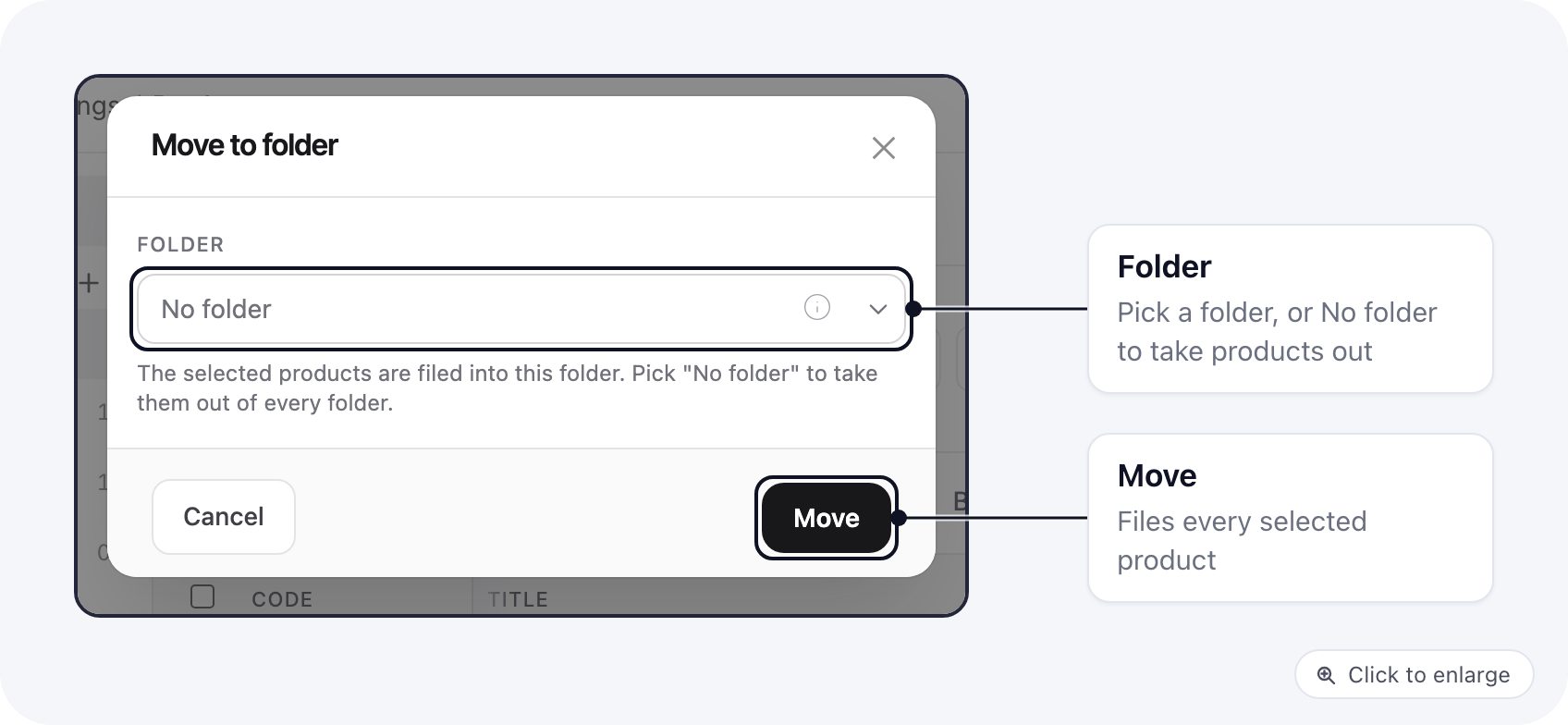 Pick the folder and click **Move**. Pick **No folder** to take the products out of every folder.
## For developers: the product list API
The product list endpoint returns each product's `folder_id` (`null` when it is not filed) and accepts a
`folder_id` filter: a folder id lists that folder's own products, and `folder_id=null` lists the products
that are in no folder.
This documentation is built and hosted on [Mintlify](https://mintlify.com), a developer documentation platform.
Pick the folder and click **Move**. Pick **No folder** to take the products out of every folder.
## For developers: the product list API
The product list endpoint returns each product's `folder_id` (`null` when it is not filed) and accepts a
`folder_id` filter: a folder id lists that folder's own products, and `folder_id=null` lists the products
that are in no folder.
This documentation is built and hosted on [Mintlify](https://mintlify.com), a developer documentation platform.