> ## Documentation Index
> Fetch the complete documentation index at: https://docs.elasticfunnels.io/llms.txt
> Use this file to discover all available pages before exploring further.
# After applying a kit
> Where the kit pages, funnel and products land, and what to check before you publish.
A kit arrives as drafts. Visitors cannot see any of it until you publish the pages and connect a domain. This page lists where each part lands and the checks to make before you go live.
## Where everything lands
| Part | Where to find it | State after apply |
| - | - | - |
| Pages | **Pages** | Draft, no domain, at the URLs shown on the review |
| Funnel | **Funnels** | A new funnel, with no domain. It is never made your default funnel |
| Products | **Products** | New products under the names and codes you chose, or the products you linked |
| Page events | On each page's **Page events** | New event flows that point at the new pages and products |
| Components | **Pages** > **Components** | New components, or yours where the kit reused them |
| Variables | Your project variables | New variables only. Variables you had keep their value |
| Files | Your project's files | Copied in the background right after the apply |
Applying a kit never edits or deletes your existing pages, funnels or products. The one exception is a course portal: when a kit's members pages land on course pages that the project created for you and you never edited, the kit replaces them and keeps the old version as a revision.
## Check the kit before you publish
Work through these steps once for each kit you apply.
### 1. Find the kit pages
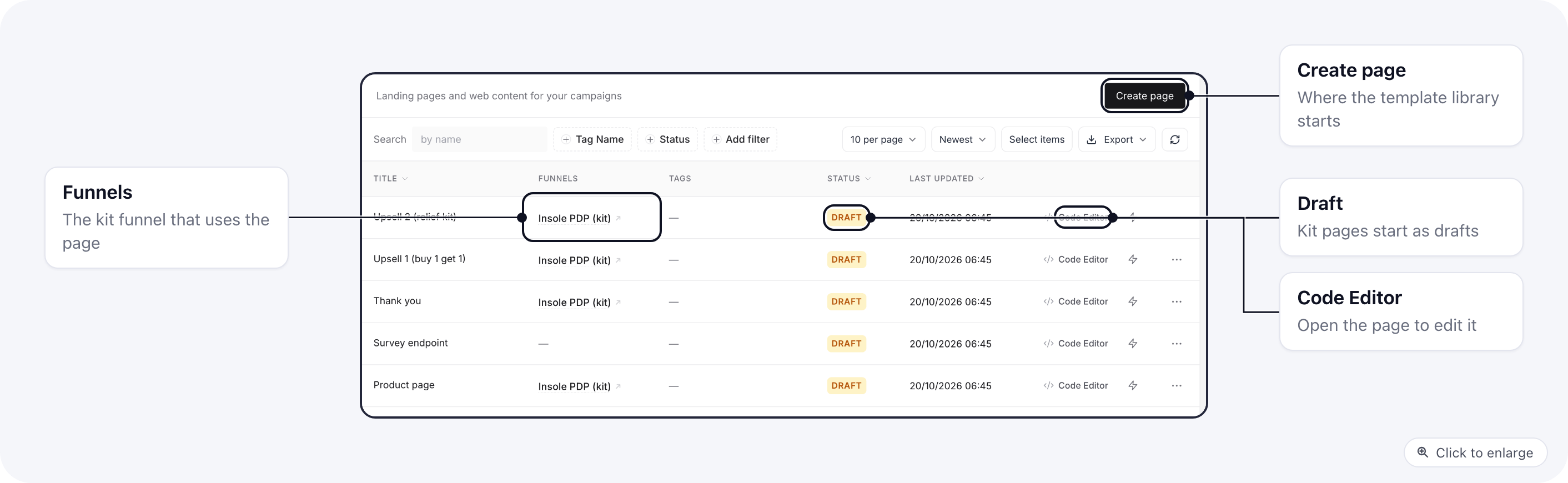
1. Open **Pages**.
2. Find the kit pages at the top of the list. Each one is marked **Draft**, and the **Funnels** column shows the kit's funnel.
 ### 2. Open the funnel
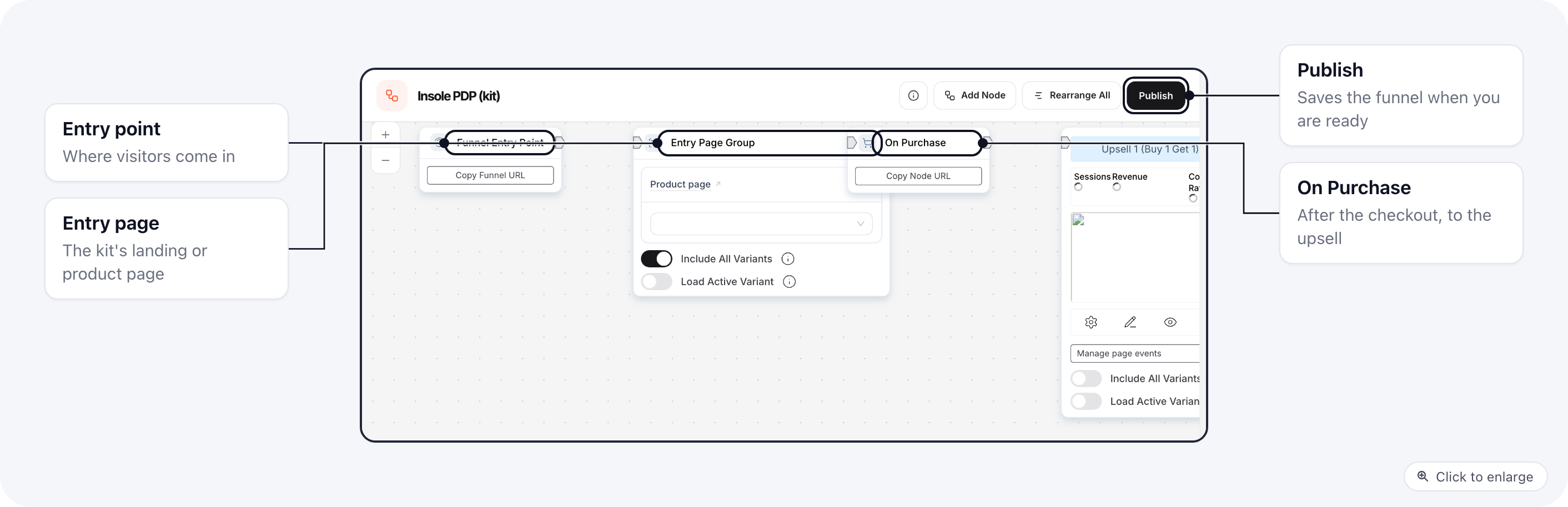
1. Open **Funnels** and click the kit's funnel.
2. Check the path from **Funnel Entry Point** through the entry page, **On Purchase** and the upsells.
3. Connect a domain to the funnel and publish it when the pages are ready.
### 2. Open the funnel
1. Open **Funnels** and click the kit's funnel.
2. Check the path from **Funnel Entry Point** through the entry page, **On Purchase** and the upsells.
3. Connect a domain to the funnel and publish it when the pages are ready.
 See [Create a funnel](/funnels/create-funnel) for the funnel builder.
### 3. Check each product's titles
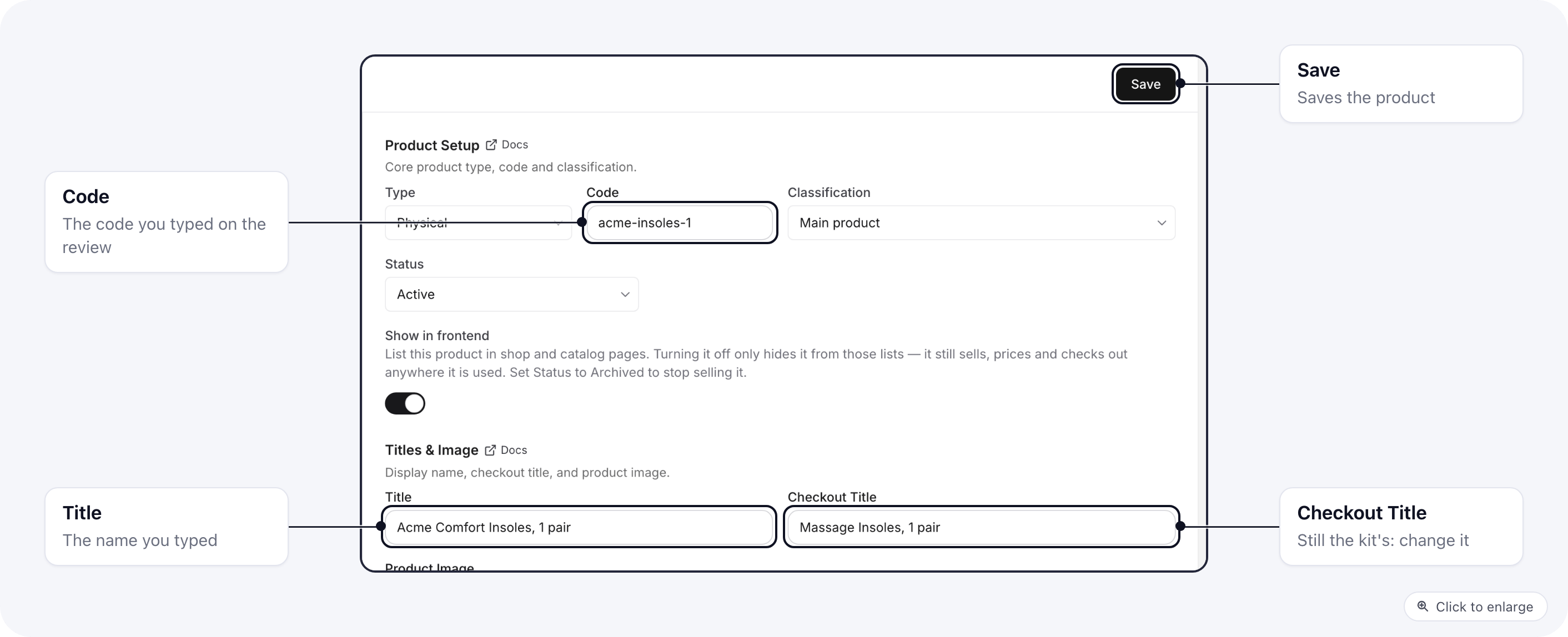
1. Open **Products** and click a product the kit created.
2. Check **Code** and **Title**. They are the ones you typed on the review.
3. Change **Checkout Title**. It still holds the kit's wording, and it is the name customers see on the checkout.
4. Set the price, and the cost of goods if you report on profit.
5. Click **Save**.
See [Create a funnel](/funnels/create-funnel) for the funnel builder.
### 3. Check each product's titles
1. Open **Products** and click a product the kit created.
2. Check **Code** and **Title**. They are the ones you typed on the review.
3. Change **Checkout Title**. It still holds the kit's wording, and it is the name customers see on the checkout.
4. Set the price, and the cost of goods if you report on profit.
5. Click **Save**.
 ### 4. Check the stock
Products created by a kit start with **Stock Quantity** blank. A blank box means stock is not tracked: the product is always in stock and sells without counting.
1. On the same product, scroll to **Inventory**.
2. If you do not track stock, leave **Stock Quantity** blank.
3. If you do track stock, type the number you have, then pick the **Out-of-Stock Policy**: **Stop selling** shows the product as sold out at 0 and no new checkout is charged for it, **Continue selling** keeps taking orders. A paid order is never cancelled for stock (see [How stock moves](/products/product-management#how-stock-moves)). The policy only applies once a quantity is set.
4. Click **Save**.
5. Repeat for every product and variant the kit created that you want to track, including free gifts.
### 4. Check the stock
Products created by a kit start with **Stock Quantity** blank. A blank box means stock is not tracked: the product is always in stock and sells without counting.
1. On the same product, scroll to **Inventory**.
2. If you do not track stock, leave **Stock Quantity** blank.
3. If you do track stock, type the number you have, then pick the **Out-of-Stock Policy**: **Stop selling** shows the product as sold out at 0 and no new checkout is charged for it, **Continue selling** keeps taking orders. A paid order is never cancelled for stock (see [How stock moves](/products/product-management#how-stock-moves)). The policy only applies once a quantity is set.
4. Click **Save**.
5. Repeat for every product and variant the kit created that you want to track, including free gifts.
 ### 5. Connect your merchant and fulfillment
Kit products arrive with no merchant product IDs, no fulfillment integration, no category, no shipping profile and no folder. Set the ones you use:
1. On each product, add your merchant's product ID in the merchant tab if your merchant needs one. See [Set up a new merchant](/guides/how-to-set-up-a-new-merchant).
2. Pick your fulfillment integration and shipping profile if you ship physical goods.
### 6. Check the page events
Open each page's page events. If the apply panel said **Check these before you publish**, a step that chose a merchant or an automation in the kit was cleared, because those belong to the kit's own project. Pick yours in that step.
### 7. Replace the kit's copy and images
The pages still carry the kit's sample product, brand and claims. Edit each page in the editor or the code editor, and replace the images with your own. [Kit images](/template-kits/kit-images) shows how to make your own version of each kit image from its prompt.
### 8. Publish
Publish each page when it is ready, and connect a domain. See [Create a landing page](/pages/create-landing-page) and [Page settings](/pages/page-settings).
This documentation is built and hosted on [Mintlify](https://mintlify.com), a developer documentation platform.
### 5. Connect your merchant and fulfillment
Kit products arrive with no merchant product IDs, no fulfillment integration, no category, no shipping profile and no folder. Set the ones you use:
1. On each product, add your merchant's product ID in the merchant tab if your merchant needs one. See [Set up a new merchant](/guides/how-to-set-up-a-new-merchant).
2. Pick your fulfillment integration and shipping profile if you ship physical goods.
### 6. Check the page events
Open each page's page events. If the apply panel said **Check these before you publish**, a step that chose a merchant or an automation in the kit was cleared, because those belong to the kit's own project. Pick yours in that step.
### 7. Replace the kit's copy and images
The pages still carry the kit's sample product, brand and claims. Edit each page in the editor or the code editor, and replace the images with your own. [Kit images](/template-kits/kit-images) shows how to make your own version of each kit image from its prompt.
### 8. Publish
Publish each page when it is ready, and connect a domain. See [Create a landing page](/pages/create-landing-page) and [Page settings](/pages/page-settings).
This documentation is built and hosted on [Mintlify](https://mintlify.com), a developer documentation platform.