> ## Documentation Index
> Fetch the complete documentation index at: https://docs.elasticfunnels.io/llms.txt
> Use this file to discover all available pages before exploring further.
# Customise a kit with AI
> Give the AI your brief, your Drive folder and your product pictures, and it rewrites the kit pages for your product.
After you apply a kit, its pages still sell the kit's sample product. **Customise with AI** rewrites them for yours: it reads your brief, your Drive folder and your pictures, and changes the copy, product names, prices and images on the kit pages. The pages stay unpublished until you publish them.
## What the AI uses
| You give | Used for |
| - | - |
| A brief: text you type, and one file (`.txt`, `.md`, `.pdf` or `.docx`, up to 10 MB) | Headlines, claims, testimonials, prices, guarantee, ingredients and the voice of the pages |
| A Google Drive folder link (optional) | Your pictures and documents, read from the folder when the AI starts |
| Product pictures | Each one tagged with a product and what it shows: packshot, label, logo or lifestyle |
Your copy goes in as you wrote it. The AI does not soften, remove or fact-check your headlines, claims, testimonials or numbers; you are responsible for them. Where your brief has nothing for a section, the AI writes it from the brief and the kit.
## Add your brief and pictures
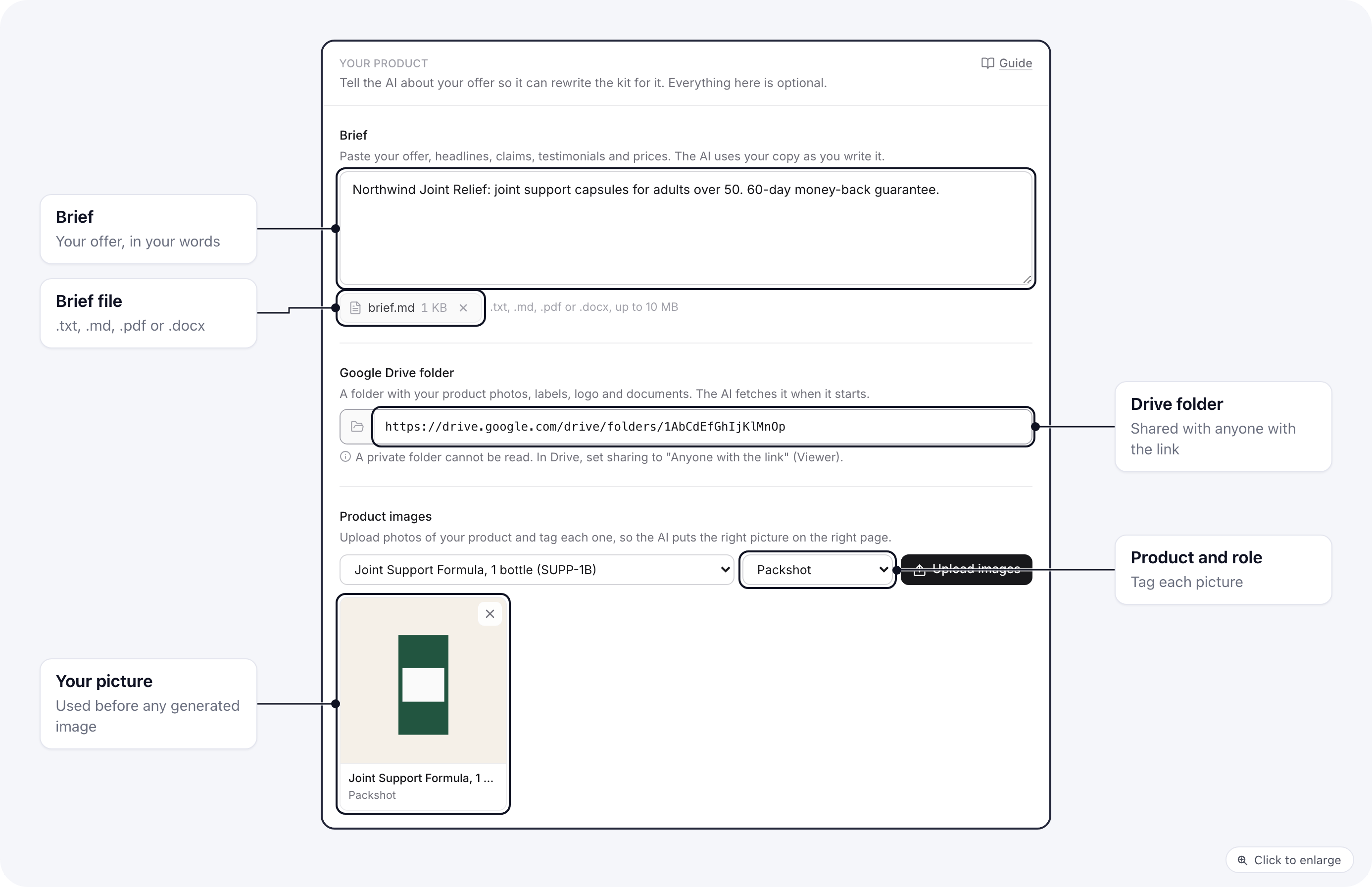
On the kit review, below **Products**, the **Your product** section holds everything the AI reads. All of it is optional.
1. Type your brief in the **Brief** box. To add a document, click **Attach a brief file**.
2. Optional: paste the link to a folder under **Google Drive folder**. ElasticFunnels does not sign in to Google, so the folder must be shared as **Anyone with the link** (Viewer). A private folder cannot be read.
3. Under **Product images**, pick the product and what the picture shows, then click **Upload images**. You can upload several at once. A logo is not tied to a product.
 From a Drive folder the AI reads images (JPG, PNG, WebP, AVIF, GIF), documents (PDF, DOCX, Markdown, text), spreadsheets (CSV, XLSX) and Google Docs, Sheets and Slides. Other files are skipped.
## Turn on Customise with AI
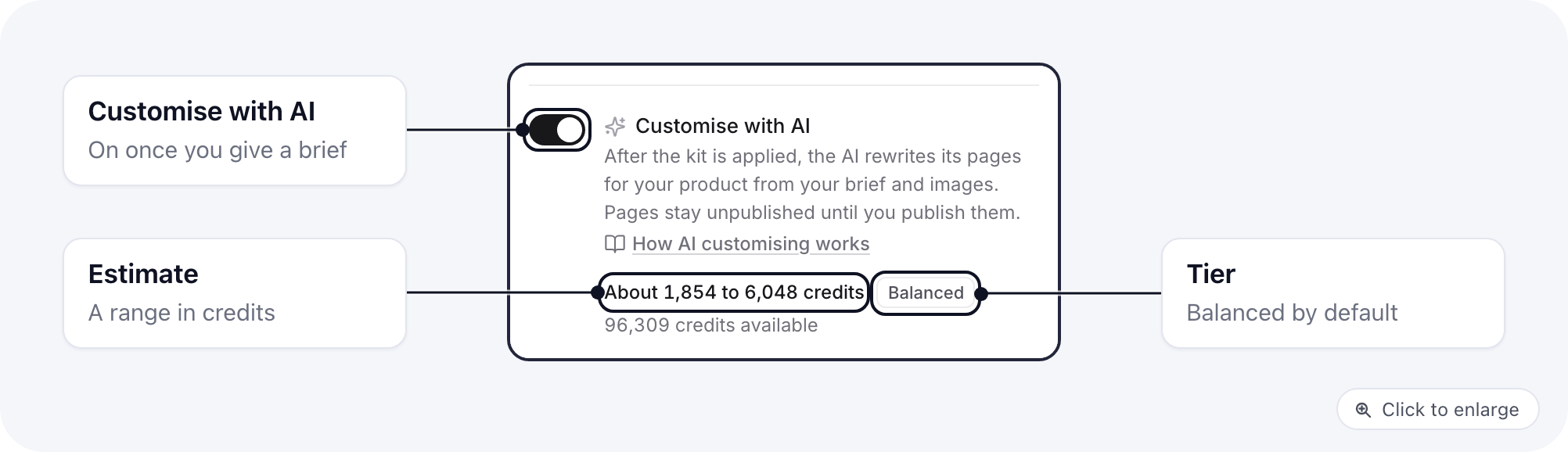
**Customise with AI** sits in the options panel, above **Apply kit**. It turns on by itself once you give a brief, a brief file or a Drive link; you can switch it on or off yourself.
* The estimate is a range, for example **About 1,854 to 6,048 credits**: the pages to rewrite, plus each kit image that may need generating. Your own pictures lower the cost.
* The tier is **Balanced**. Hover it to see how the estimate is worked out.
* The job stops at the top of the range plus a margin. You pay only for what it uses.
From a Drive folder the AI reads images (JPG, PNG, WebP, AVIF, GIF), documents (PDF, DOCX, Markdown, text), spreadsheets (CSV, XLSX) and Google Docs, Sheets and Slides. Other files are skipped.
## Turn on Customise with AI
**Customise with AI** sits in the options panel, above **Apply kit**. It turns on by itself once you give a brief, a brief file or a Drive link; you can switch it on or off yourself.
* The estimate is a range, for example **About 1,854 to 6,048 credits**: the pages to rewrite, plus each kit image that may need generating. Your own pictures lower the cost.
* The tier is **Balanced**. Hover it to see how the estimate is worked out.
* The job stops at the top of the range plus a margin. You pay only for what it uses.
 Then click **Apply kit**. The AI starts once the kit is applied.
### Not enough credits
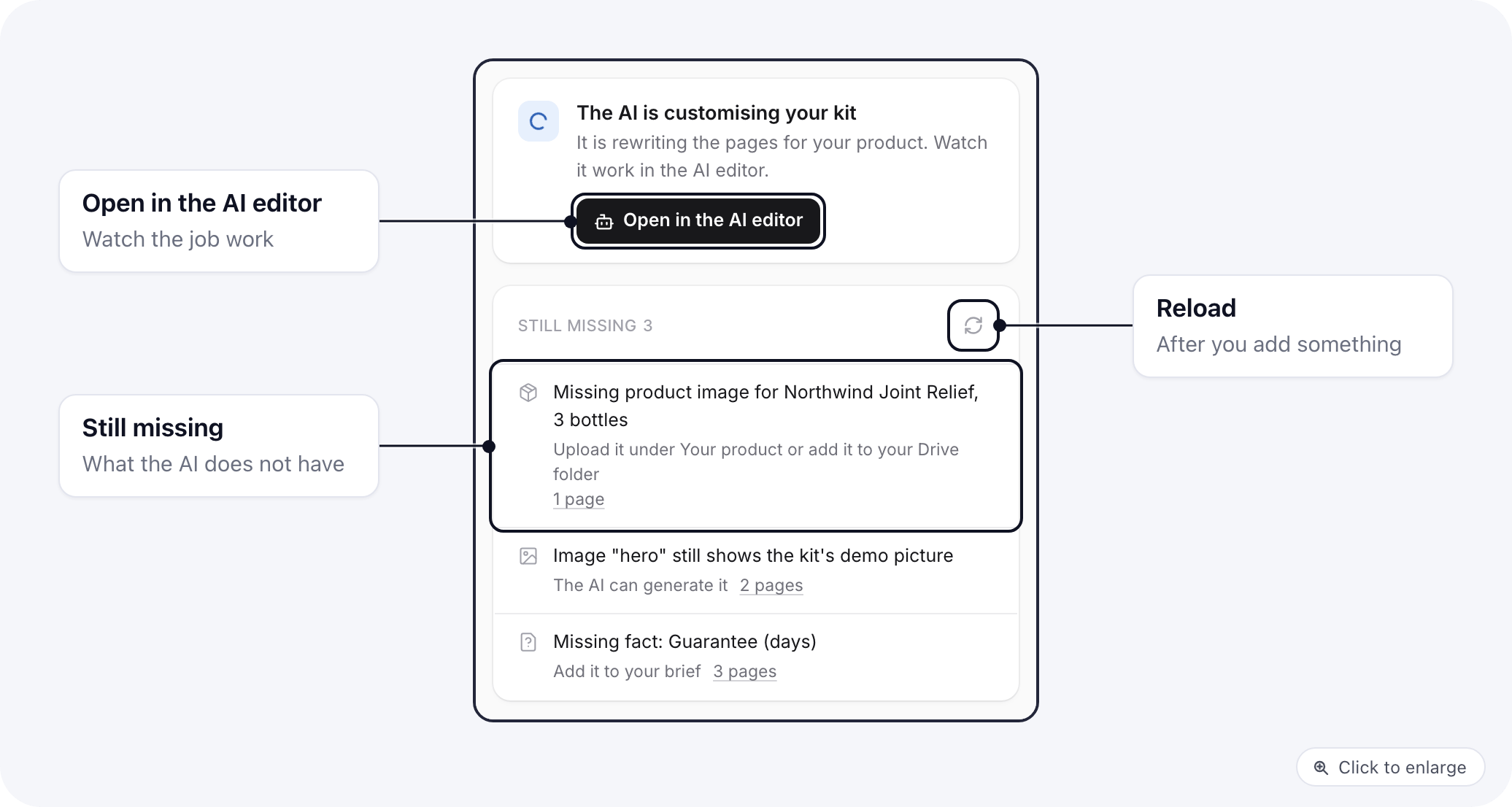
If the project holds fewer credits than the top of the estimate, a warning says so. You can still apply the kit: it is applied as usual, but the AI does not start, and you edit the pages yourself. Top up and start the AI later from the result screen or the AI editor.
Then click **Apply kit**. The AI starts once the kit is applied.
### Not enough credits
If the project holds fewer credits than the top of the estimate, a warning says so. You can still apply the kit: it is applied as usual, but the AI does not start, and you edit the pages yourself. Top up and start the AI later from the result screen or the AI editor.
 ## Follow the job and see what is missing
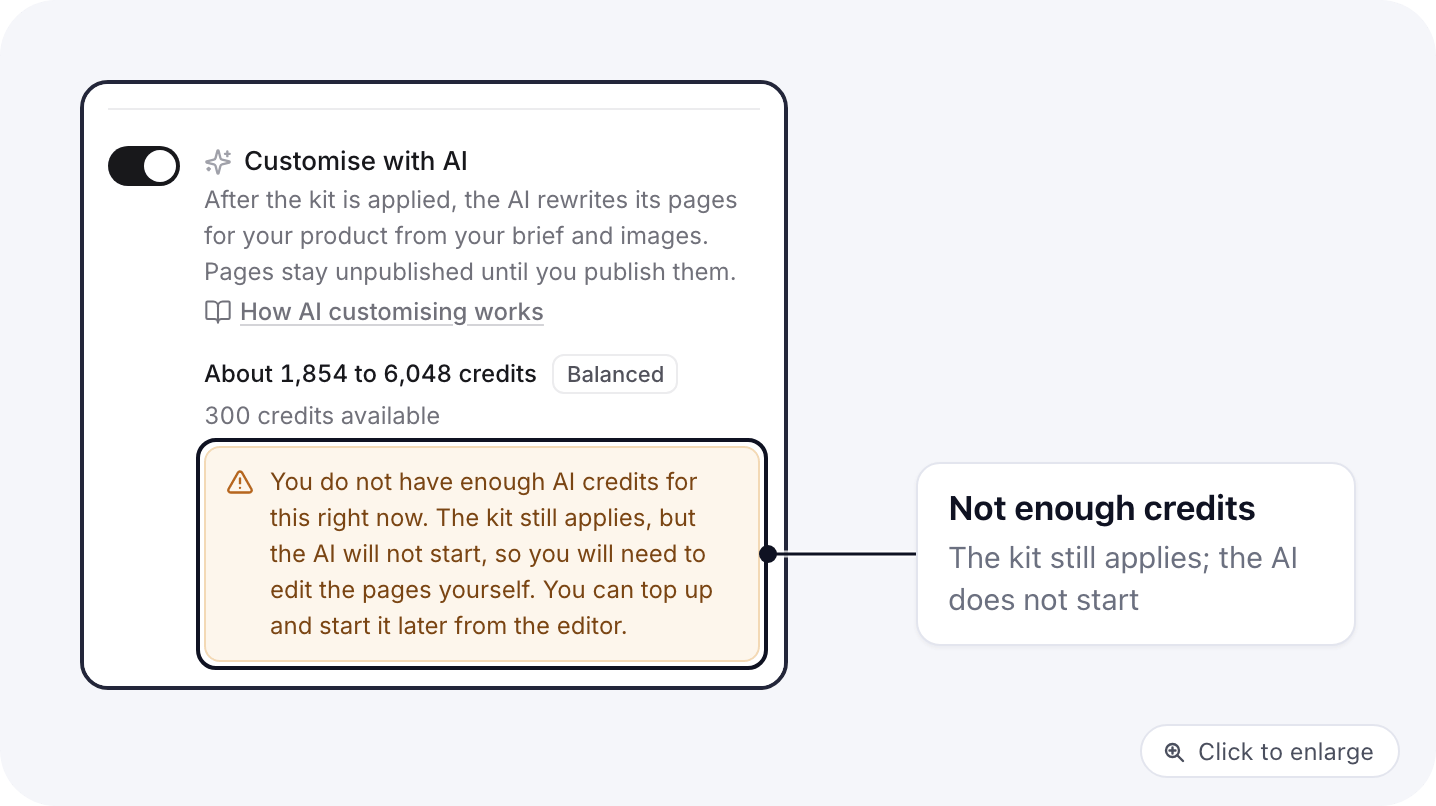
After the apply, the result screen shows the AI job: queued, running, finished or stopped. **Open in the AI editor** opens the job's own conversation in the AI editor, where you can watch it work. If you left the switch off, or credits were short, **Customise with AI** starts it from here.
Below it, **Still missing** lists what the AI does not have:
* a kit product with no product picture;
* a kit image that still shows the kit's demo picture;
* a fact the kit pages need that your brief does not give, such as the guarantee days;
* a Drive folder that has not been read yet, or files that could not be read.
Each row says how to fix it (upload a picture, let the AI generate it, or add it to your brief) and which pages it affects. Missing items do not stop the AI, except a Drive folder that has not been read yet: the AI reads it first. **Your product** stays open on the result screen, so you can add a picture or change the brief there; click the reload button to update the list.
## Follow the job and see what is missing
After the apply, the result screen shows the AI job: queued, running, finished or stopped. **Open in the AI editor** opens the job's own conversation in the AI editor, where you can watch it work. If you left the switch off, or credits were short, **Customise with AI** starts it from here.
Below it, **Still missing** lists what the AI does not have:
* a kit product with no product picture;
* a kit image that still shows the kit's demo picture;
* a fact the kit pages need that your brief does not give, such as the guarantee days;
* a Drive folder that has not been read yet, or files that could not be read.
Each row says how to fix it (upload a picture, let the AI generate it, or add it to your brief) and which pages it affects. Missing items do not stop the AI, except a Drive folder that has not been read yet: the AI reads it first. **Your product** stays open on the result screen, so you can add a picture or change the brief there; click the reload button to update the list.
 ## What the AI changes
* **Products:** renames and reprices the kit products from your brief. Product codes stay the ones you chose on the review.
* **Pages:** rewrites the copy on each kit page and swaps product names, prices, guarantee and images. It keeps the kit's layout, buy links, checkout and template tags.
* **Images:** your own pictures first. For a kit image with no picture, it generates one from the kit prompt, within the estimate.
* **Publishing:** nothing. The pages stay unpublished.
When it finishes, it lists what it changed on each page and what is still missing.
## Start it later from the AI editor
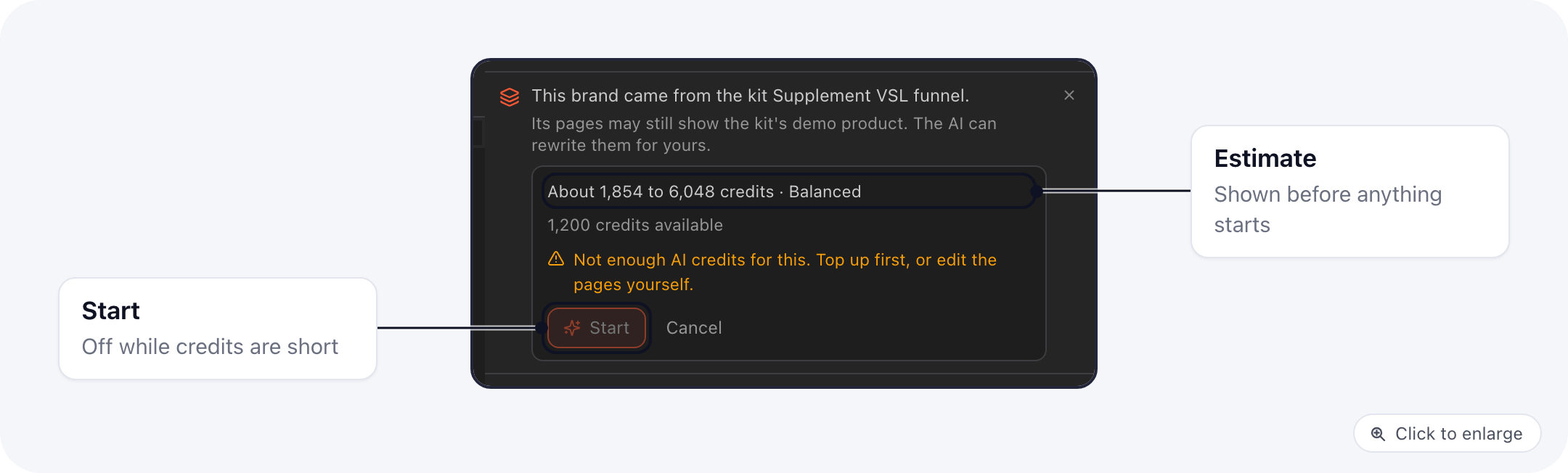
In the code editor's AI panel, a project built from a kit shows **This brand came from the kit** with the kit's name. **Customise with AI** there shows the estimate and the tier before anything starts, and **Start** queues the job. Only one job runs at a time; while it runs, the banner opens it instead.
## What the AI changes
* **Products:** renames and reprices the kit products from your brief. Product codes stay the ones you chose on the review.
* **Pages:** rewrites the copy on each kit page and swaps product names, prices, guarantee and images. It keeps the kit's layout, buy links, checkout and template tags.
* **Images:** your own pictures first. For a kit image with no picture, it generates one from the kit prompt, within the estimate.
* **Publishing:** nothing. The pages stay unpublished.
When it finishes, it lists what it changed on each page and what is still missing.
## Start it later from the AI editor
In the code editor's AI panel, a project built from a kit shows **This brand came from the kit** with the kit's name. **Customise with AI** there shows the estimate and the tier before anything starts, and **Start** queues the job. Only one job runs at a time; while it runs, the banner opens it instead.
 The AI editor also knows the project came from a kit in every later chat: it reads the kit, your brief and your pictures before it changes kit copy or images, so you do not have to explain them again.
## Review and publish
1. Open each kit page and read it.
2. Fix anything you want to word differently, in the editor or by asking the AI editor.
3. Check the titles and stock of each product (see [After applying](/template-kits/after-applying)).
4. Publish the pages.
This documentation is built and hosted on [Mintlify](https://mintlify.com), a developer documentation platform.
The AI editor also knows the project came from a kit in every later chat: it reads the kit, your brief and your pictures before it changes kit copy or images, so you do not have to explain them again.
## Review and publish
1. Open each kit page and read it.
2. Fix anything you want to word differently, in the editor or by asking the AI editor.
3. Check the titles and stock of each product (see [After applying](/template-kits/after-applying)).
4. Publish the pages.
This documentation is built and hosted on [Mintlify](https://mintlify.com), a developer documentation platform.