> ## Documentation Index
> Fetch the complete documentation index at: https://docs.elasticfunnels.io/llms.txt
> Use this file to discover all available pages before exploring further.
# Kit images
> Make your own version of every kit image from its written prompt, with your product photo and logo, paid with AI credits.
Every image in a kit started as a written prompt. The **Images** section of the kit review shows each image slot with its prompt, the pages that use it and the pictures it needs. From there you can copy a prompt to use in another tool, or have ElasticFunnels make your own version with your product and logo, paid with [AI credits](/account/ai-credits).
## Open the Images section
There are two ways in:
* **Right after you apply a kit:** on the **Kit added** panel, click **See the prompts**. Images you make from here can go straight onto the pages the kit just created.
* **From the library:** open a kit with **What's inside** and scroll to **Images**. From here you can make and download images, and copy prompts. To put an image on your pages, place it in the editor yourself.
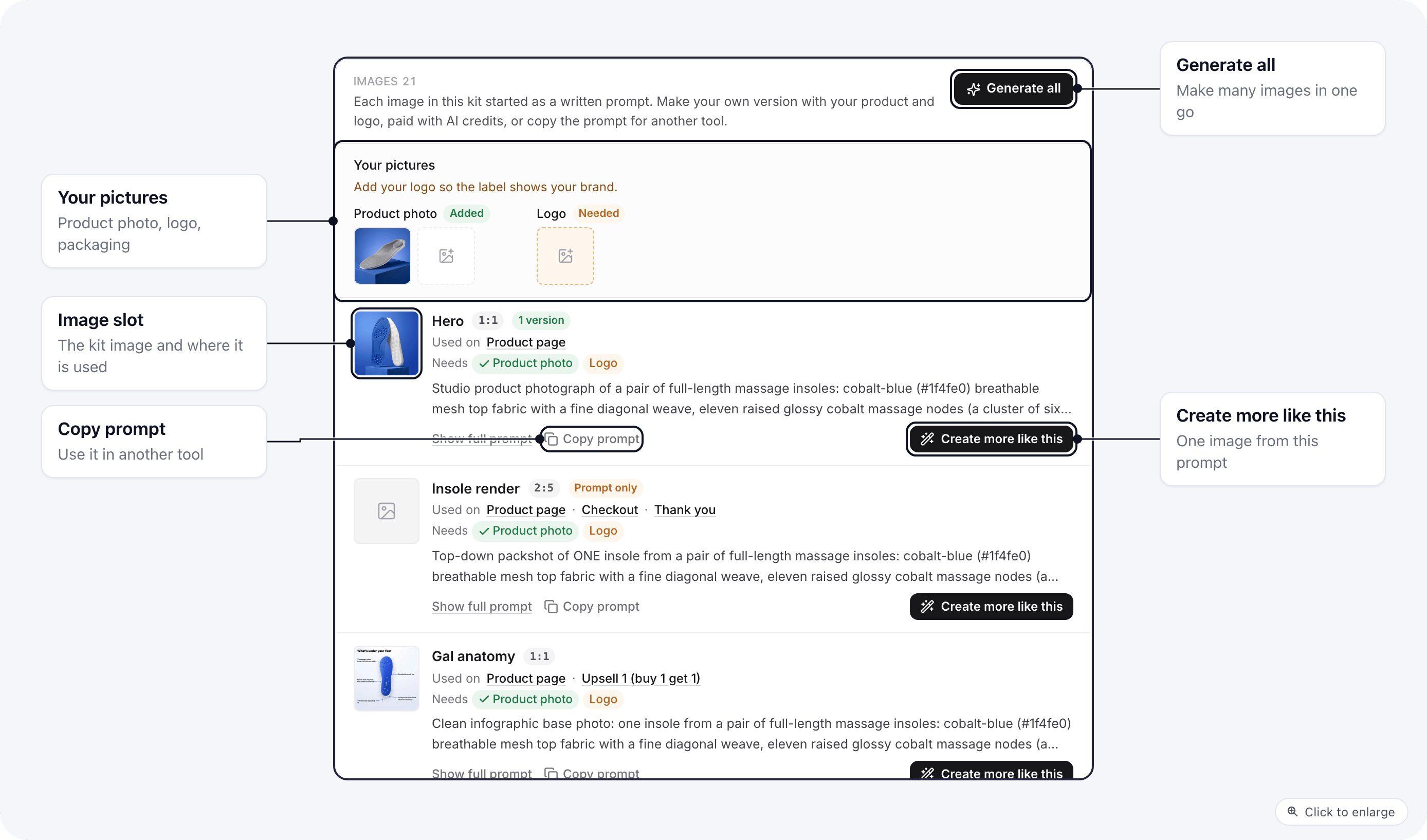 Each image slot shows:
* the kit's image and its aspect ratio (`1:1`, `4:5`, `2:5`);
* **Used on**: the kit pages that show it;
* **Needs**: the pictures of yours it works best with, such as **Product photo** and **Logo**;
* the prompt, with **Show full prompt** and **Copy prompt**.
A slot marked **Prompt only** has no image in the kit, only the prompt.
## Add your pictures
Your pictures are sent along with the prompt so the image shows your product and brand.
1. In **Your pictures**, click the empty box under the kind of picture: **Product photo**, **Packaging**, **Logo**, **Person** or **Style**.
2. Choose a file: JPG, PNG or WebP, up to 10 MB.
3. Add the rest the same way. A kind marked **Needed** is one that the kit's prompts ask for and you have not added yet.
Each image uses up to 6 of your pictures. A project can keep up to 200.
## Make one image
1. On an image slot, click **Create more like this**.
2. Check **Your brand name**. It replaces the kit's brand name everywhere in the prompt.
3. Pick an **Aspect ratio**: square, portrait or wide.
4. Edit the **Prompt** if you want something different.
5. Read the estimate at the bottom: the credits per image and your balance.
6. Click **Generate** (or **Generate again** for another version).
7. Confirm the credits in the window that opens.
Each image slot shows:
* the kit's image and its aspect ratio (`1:1`, `4:5`, `2:5`);
* **Used on**: the kit pages that show it;
* **Needs**: the pictures of yours it works best with, such as **Product photo** and **Logo**;
* the prompt, with **Show full prompt** and **Copy prompt**.
A slot marked **Prompt only** has no image in the kit, only the prompt.
## Add your pictures
Your pictures are sent along with the prompt so the image shows your product and brand.
1. In **Your pictures**, click the empty box under the kind of picture: **Product photo**, **Packaging**, **Logo**, **Person** or **Style**.
2. Choose a file: JPG, PNG or WebP, up to 10 MB.
3. Add the rest the same way. A kind marked **Needed** is one that the kit's prompts ask for and you have not added yet.
Each image uses up to 6 of your pictures. A project can keep up to 200.
## Make one image
1. On an image slot, click **Create more like this**.
2. Check **Your brand name**. It replaces the kit's brand name everywhere in the prompt.
3. Pick an **Aspect ratio**: square, portrait or wide.
4. Edit the **Prompt** if you want something different.
5. Read the estimate at the bottom: the credits per image and your balance.
6. Click **Generate** (or **Generate again** for another version).
7. Confirm the credits in the window that opens.
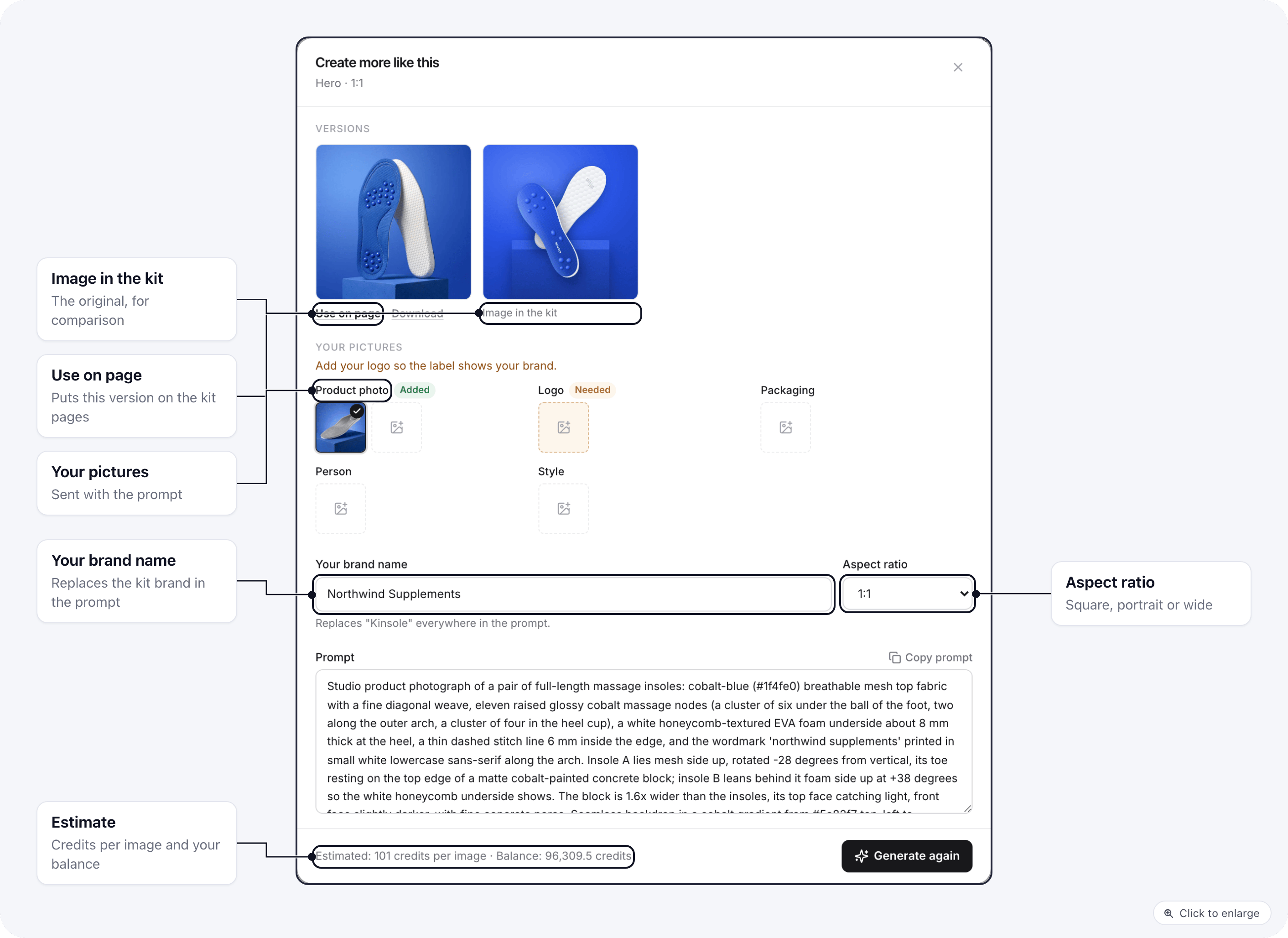 An image takes about 30 seconds. Each finished version appears under **Versions**, next to **Image in the kit** for comparison. Under a version:
* **Use on page** puts that version on the kit pages in place of the kit's image (only when you opened the section from **See the prompts**, see below).
* **Download** saves the file.
## Make many images at once
1. At the top of **Images**, click **Generate all**.
2. Tick the images you want. Rows marked **Missing** name a picture you have not added; the image is still made, without it.
3. Leave **Put each image on its pages when it is ready** ticked if you want each image placed on the kit pages as soon as it is done.
4. Read the estimate: number of images times credits per image.
5. Click **Generate N images**.
An image takes about 30 seconds. Each finished version appears under **Versions**, next to **Image in the kit** for comparison. Under a version:
* **Use on page** puts that version on the kit pages in place of the kit's image (only when you opened the section from **See the prompts**, see below).
* **Download** saves the file.
## Make many images at once
1. At the top of **Images**, click **Generate all**.
2. Tick the images you want. Rows marked **Missing** name a picture you have not added; the image is still made, without it.
3. Leave **Put each image on its pages when it is ready** ticked if you want each image placed on the kit pages as soon as it is done.
4. Read the estimate: number of images times credits per image.
5. Click **Generate N images**.
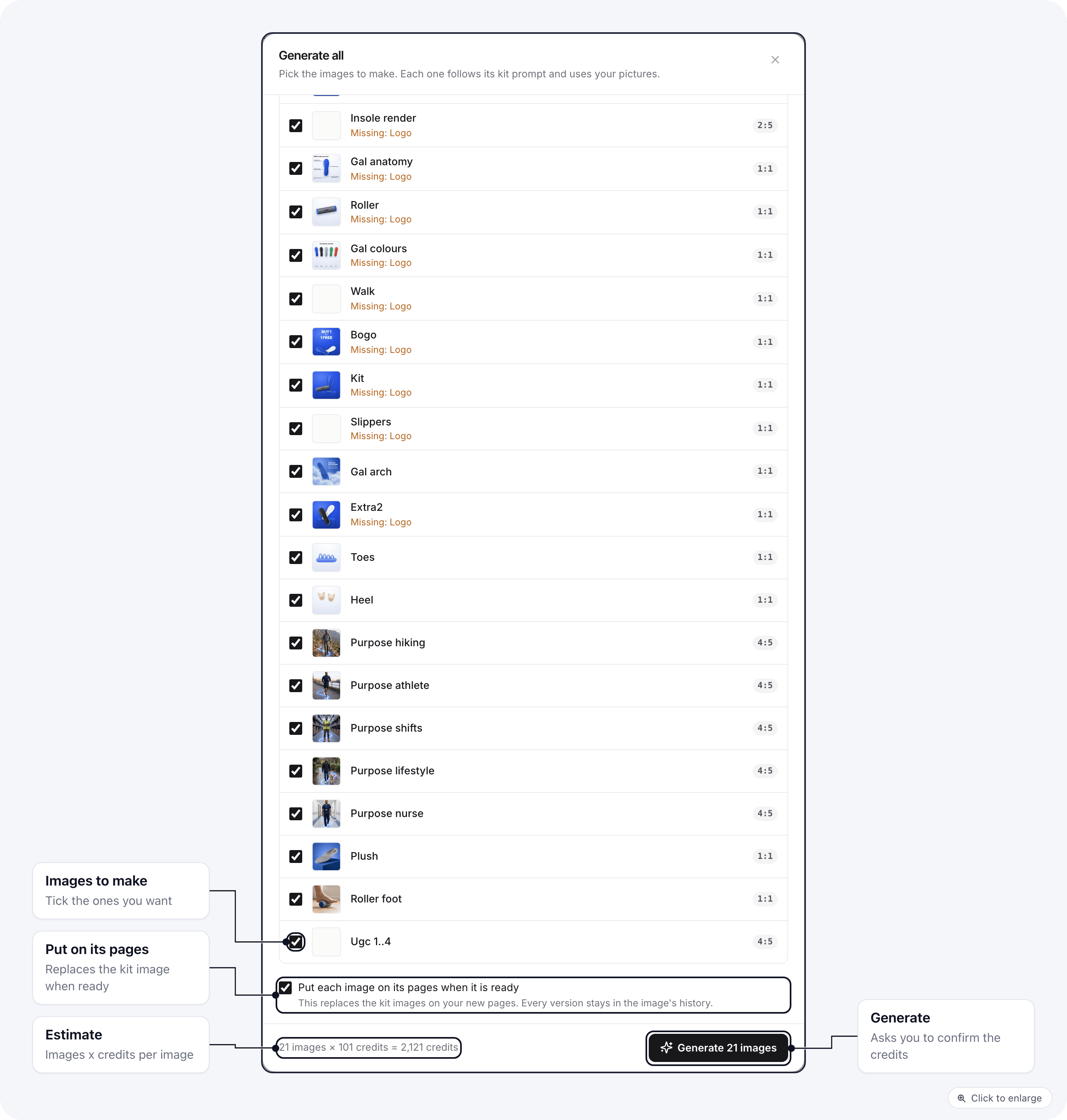 You can make up to 40 images in one go.
## Confirm the credits
Before anything is made, a window shows what it costs.
1. Check **Per image**, **Total** and **Balance after**.
2. Click **Generate** (**Generate N images** for a batch) to go ahead, or **Cancel**.
You can make up to 40 images in one go.
## Confirm the credits
Before anything is made, a window shows what it costs.
1. Check **Per image**, **Total** and **Balance after**.
2. Click **Generate** (**Generate N images** for a batch) to go ahead, or **Cancel**.
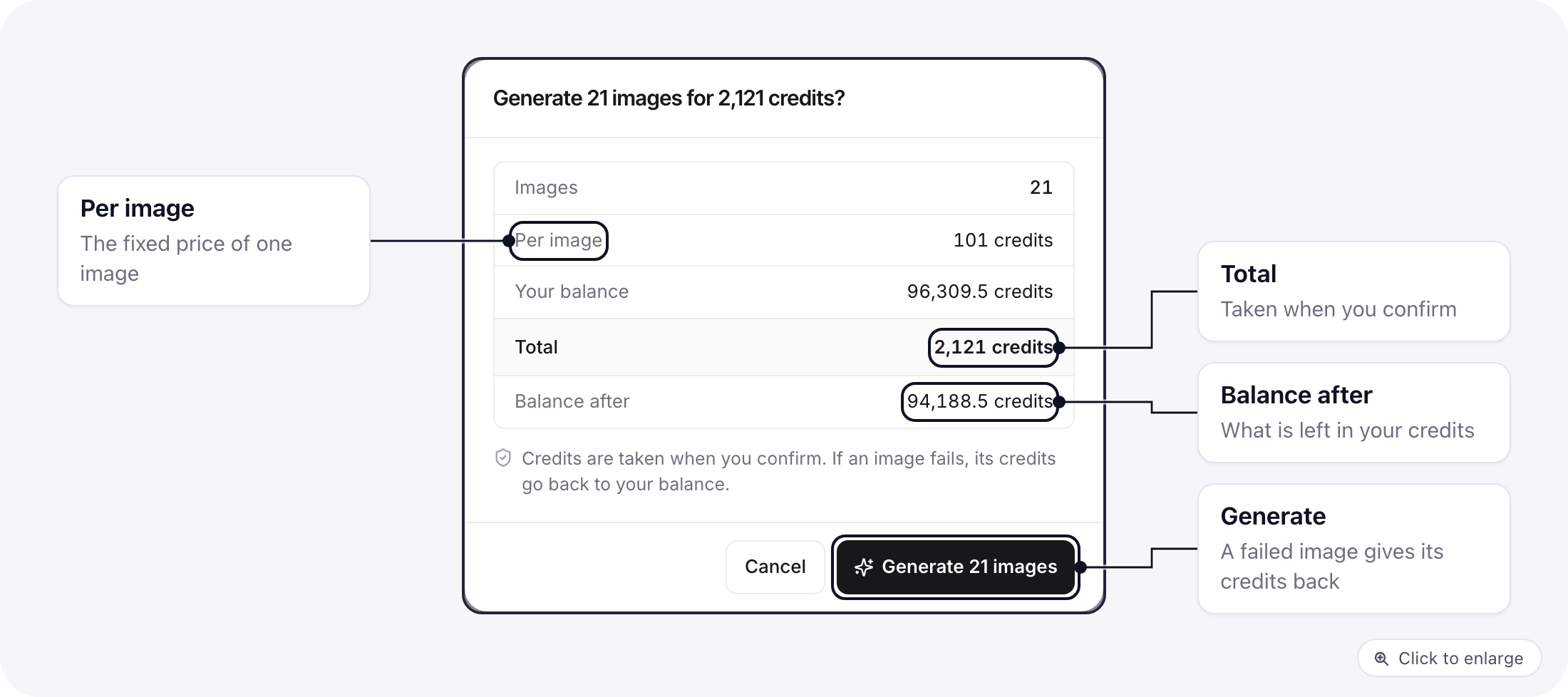 Credits are taken when you confirm. If an image fails, its credits go back to your balance. The price per image is shown in this window and in the estimate before you start.
## Put an image on your pages
**Use on page** and **Put each image on its pages when it is ready** replace the kit's image, and any earlier version you placed, on the pages that kit apply created for that slot. They work on the pages from the apply you just ran, so open the section with **See the prompts** on the **Kit added** panel. Every version stays in the image's history, so you can switch back.
You need permission to edit pages in the project to place images.
If you opened the kit from the library, download the image and place it in the editor.
## Copy a prompt for another tool
Click **Copy prompt** on a slot, or in the **Create more like this** window, and paste it into any image tool you use. This costs no credits.
This documentation is built and hosted on [Mintlify](https://mintlify.com), a developer documentation platform.
Credits are taken when you confirm. If an image fails, its credits go back to your balance. The price per image is shown in this window and in the estimate before you start.
## Put an image on your pages
**Use on page** and **Put each image on its pages when it is ready** replace the kit's image, and any earlier version you placed, on the pages that kit apply created for that slot. They work on the pages from the apply you just ran, so open the section with **See the prompts** on the **Kit added** panel. Every version stays in the image's history, so you can switch back.
You need permission to edit pages in the project to place images.
If you opened the kit from the library, download the image and place it in the editor.
## Copy a prompt for another tool
Click **Copy prompt** on a slot, or in the **Create more like this** window, and paste it into any image tool you use. This costs no credits.
This documentation is built and hosted on [Mintlify](https://mintlify.com), a developer documentation platform.