> ## Documentation Index
> Fetch the complete documentation index at: https://docs.elasticfunnels.io/llms.txt
> Use this file to discover all available pages before exploring further.
# Template kits
> Start a funnel, store, site or members area from a ready-made kit: pages, funnel, products and components in one step.
A template kit is a complete, working set of pages from the ElasticFunnels template library. One kit can hold a sales funnel (landing page, checkout, upsells, downsells, thank-you page), the products it sells, the funnel steps and page events that join the pages, shared components such as headers and footers, and the images the pages use. You apply a kit to a project and everything arrives as drafts you can edit.
Use a kit when you want a tested structure to build on. Use a single page template when you only need one page.
## What a kit can contain
| Part | What you get in your project |
| - | - |
| Pages | Every page of the kit, as drafts, at the URLs you choose |
| Funnel | A new funnel with the kit's steps, Yes and No paths, checkout and starting page |
| Products | New products under codes you choose, or links to products you already sell |
| Page events | The kit's page event flows, pointing at your new pages and products |
| Components | Headers, footers, reviews, guarantee seals and other shared pieces |
| Collections and forms | Any collections or forms the pages use |
| Variables | Project variables the pages read. A variable you already have keeps its value |
| Files | The kit's images and other files, copied into your project's files |
| Image prompts | The written prompt behind each kit image, so you can make your own version |
Not every kit has every part. The review screen lists exactly what a kit adds before you apply it.
## Kinds of kits
The library sorts kits by type and audience.
* **Type:** Funnel, Store, Website or Members area.
* **Audience:** Vendor (you sell your own product), Affiliate (you promote someone else's offer), Lead generation, or Website.
* **Niche:** health, beauty, fitness and others, shown as a filter.
## Choose and preview a kit
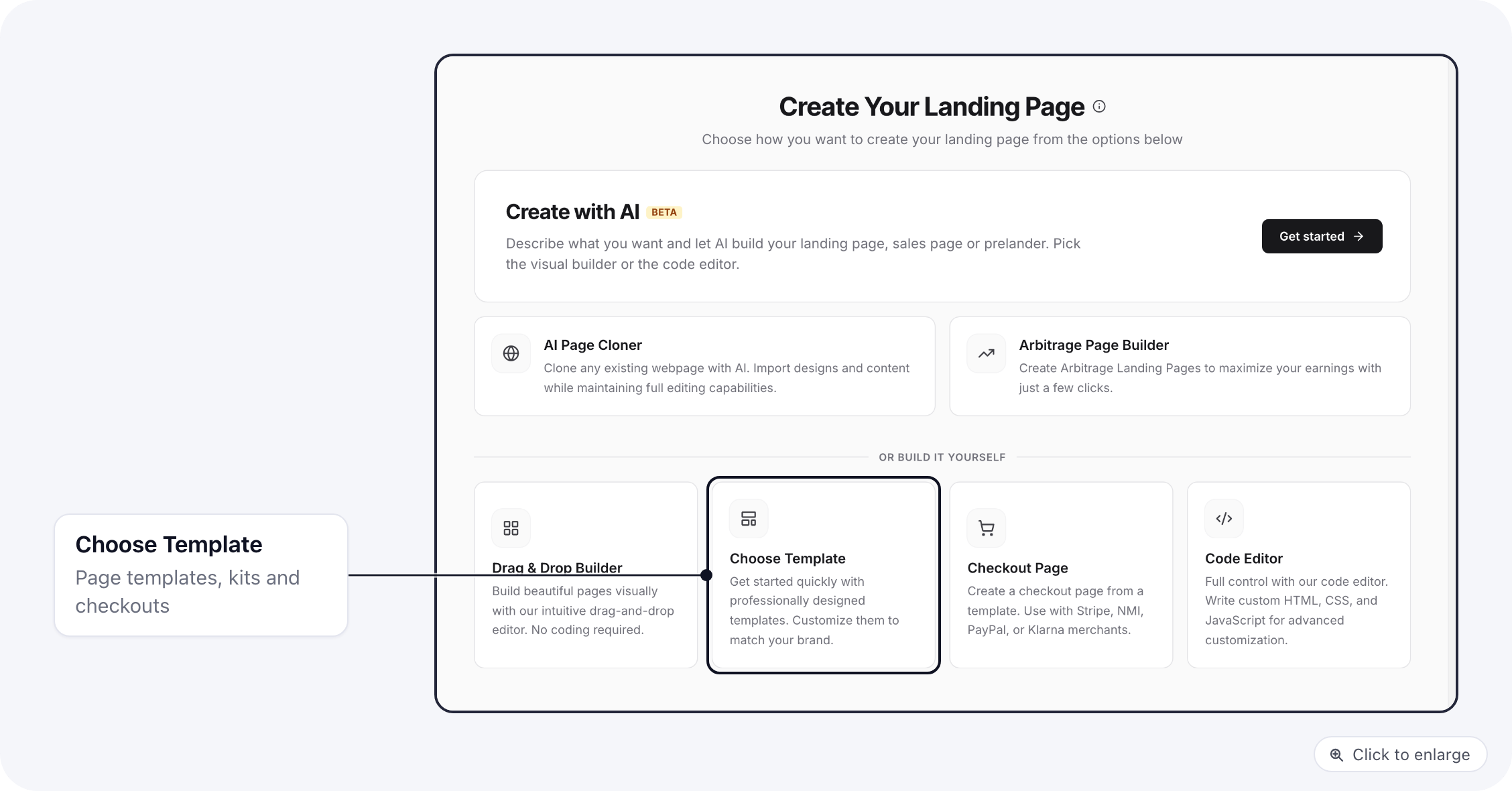
1. Open **Pages** and click **Create page**.
2. Click **Choose Template**.
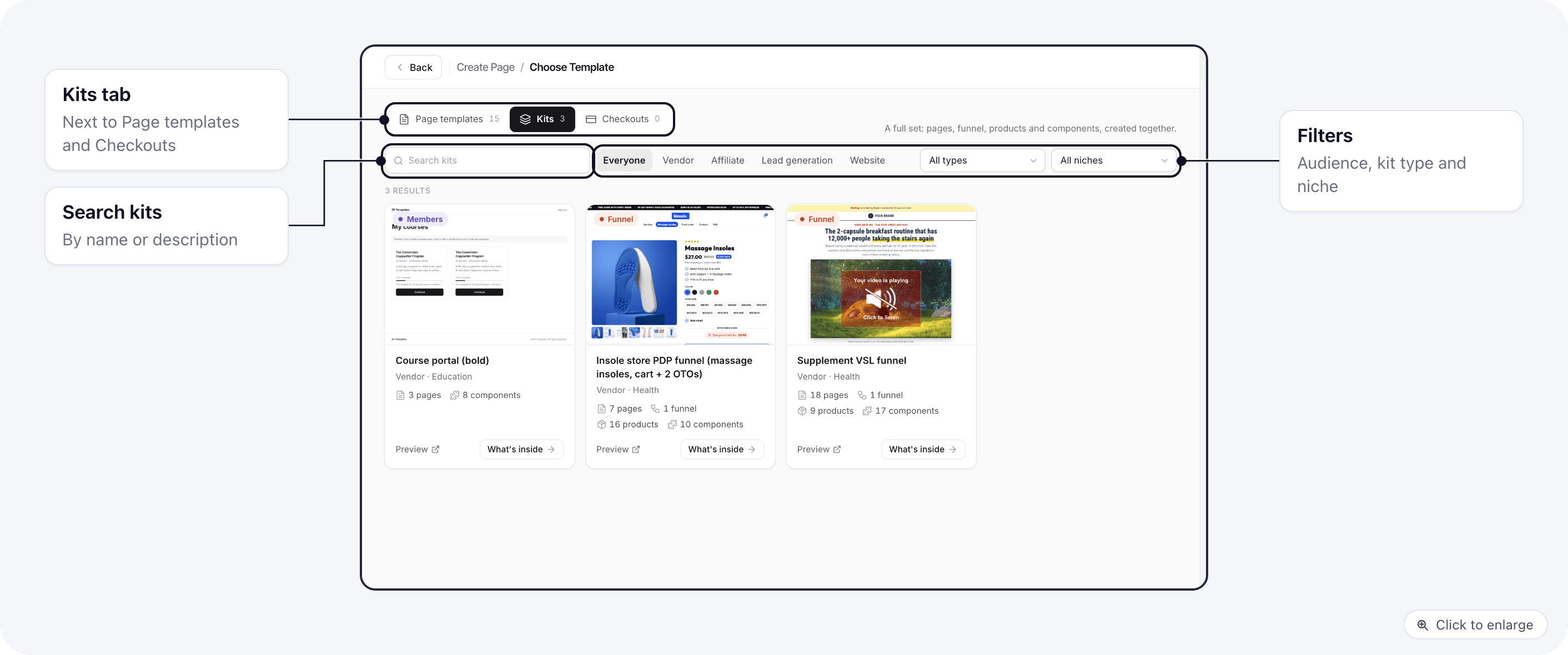
 3. Open the **Kits** tab.
4. Narrow the list: type in the search box, click an audience chip, or pick a type and niche in the filters.
3. Open the **Kits** tab.
4. Narrow the list: type in the search box, click an audience chip, or pick a type and niche in the filters.
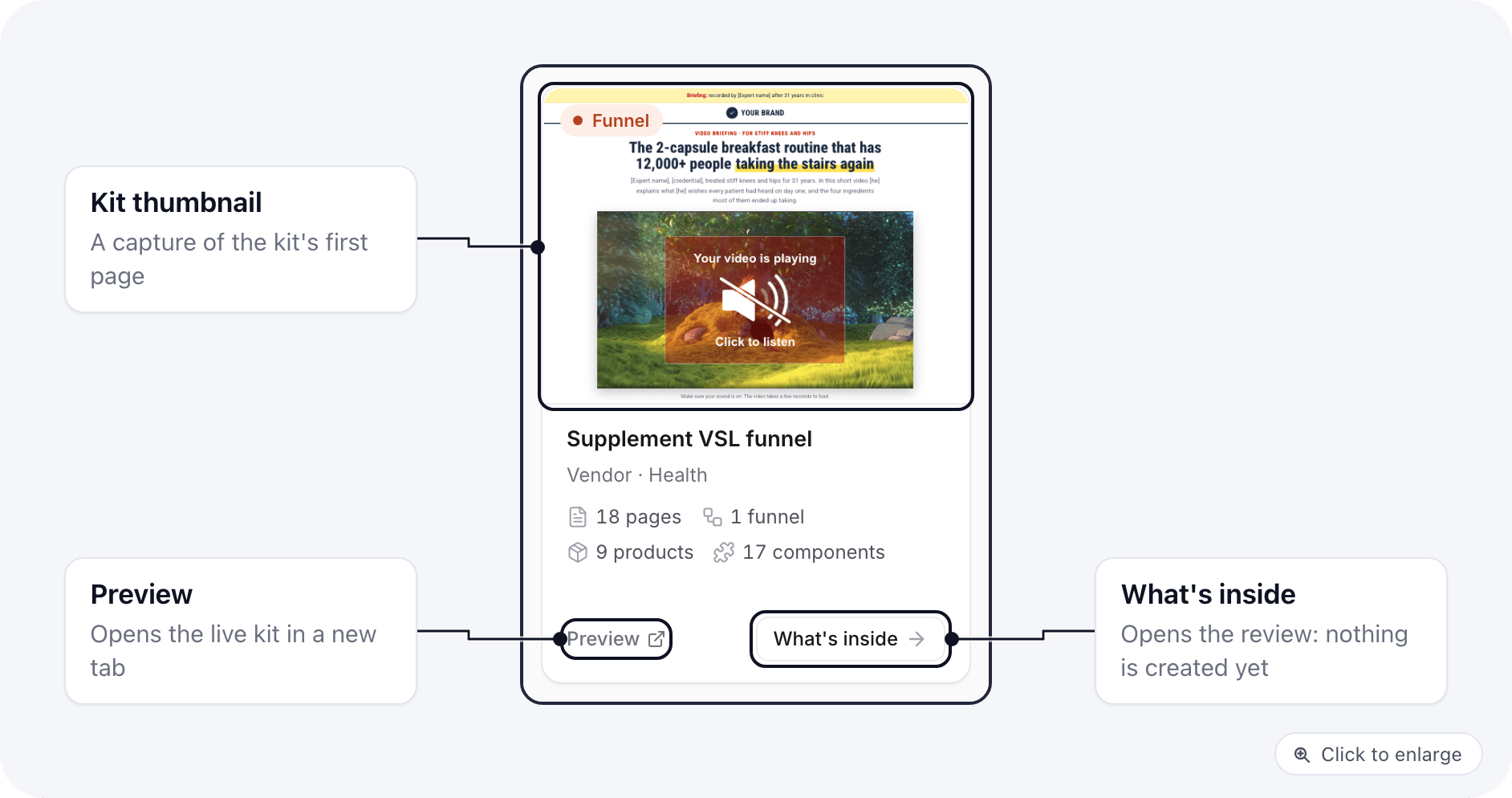
 5. On a kit card, click **Preview** to open the live kit in a new tab and click through it the way a visitor would.
6. Back in ElasticFunnels, click **What's inside** to open the kit review.
5. On a kit card, click **Preview** to open the live kit in a new tab and click through it the way a visitor would.
6. Back in ElasticFunnels, click **What's inside** to open the kit review.
 Nothing is created until you click **Apply kit** at the end of the review. You can open as many kits as you like to compare them.
## Start a new project from a kit
When you create a new project, the **Start from a kit** option lets you pick a kit in the same step. The project is created first, then the kit is applied to it, and you get the same review screen described in [Apply a kit](/template-kits/apply-a-kit).
## Next steps
The review screen step by step: folder, products, codes and Apply kit.
Where everything lands and what to check before you publish.
Make your own version of every kit image with your product and logo.
Give the AI your brief and pictures, and it rewrites the kit pages for your product.
Every message the kit screens can show, and what to do.
This documentation is built and hosted on [Mintlify](https://mintlify.com), a developer documentation platform.
Nothing is created until you click **Apply kit** at the end of the review. You can open as many kits as you like to compare them.
## Start a new project from a kit
When you create a new project, the **Start from a kit** option lets you pick a kit in the same step. The project is created first, then the kit is applied to it, and you get the same review screen described in [Apply a kit](/template-kits/apply-a-kit).
## Next steps
The review screen step by step: folder, products, codes and Apply kit.
Where everything lands and what to check before you publish.
Make your own version of every kit image with your product and logo.
Give the AI your brief and pictures, and it rewrites the kit pages for your product.
Every message the kit screens can show, and what to do.
This documentation is built and hosted on [Mintlify](https://mintlify.com), a developer documentation platform.