
At a glance
Set it up
- Open Automations and edit the automation (or create one with a trigger such as On Abandoned Cart).
- Add a Split Test step from the General group of steps.
- Add an arm for each path and give it a weight. Weights are percentages of contacts, so two arms at 50 split contacts evenly.
- Connect each arm to the steps that path should run.
- Save the automation.
An arm is identified by its name. Renaming an arm starts a new arm with no results; the old one stays in the report marked “(removed)” so its numbers are not lost.
How contacts are split
- One arm per contact. A contact is recognised by email, or by phone when there is no email. When the same contact enters the step again (a second abandon, for example), it goes down the same arm as before.
- Weights apply to new contacts. Contacts already in the test keep their arm when you change the weights.
- Paused test: every contact goes down the first arm and nothing is counted.
- Winner declared: every contact goes down the winning arm.
- Step deleted: the split test is marked deleted and keeps its results.
- Test runs from the builder and orders from a merchant in test mode are never counted.
How results are counted
An order counts for an arm when the contact places it within the attribution window after entering the step:- Every order in the window counts, upsells included. The order that started the automation does not.
- Refunds and chargebacks of a counted order are taken off that arm’s revenue when they arrive.
- A contact counts in its arm even when nobody reached them. That keeps the arms comparable: an arm that only counted the contacts it reached would look better than it is.
Reading the report
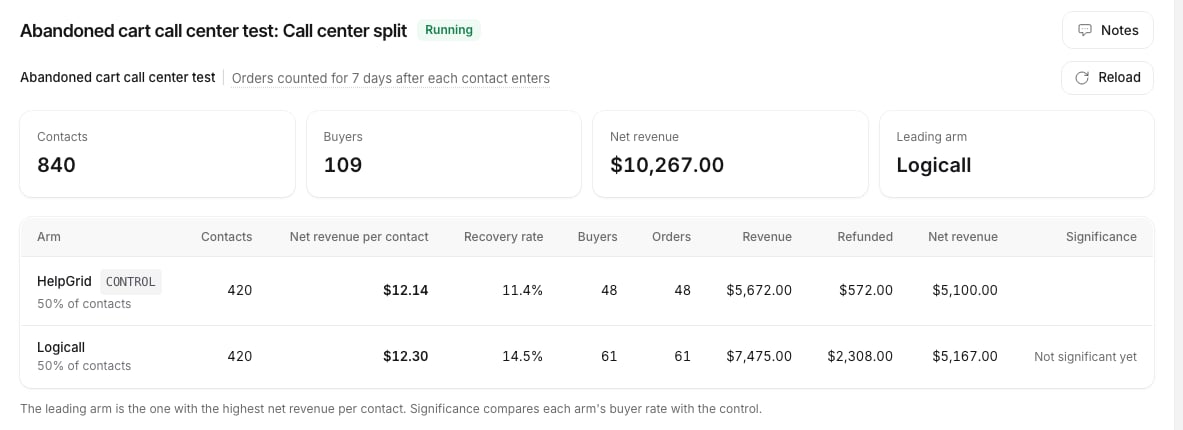
Recovery rate is shown next to net revenue per contact on purpose. An arm that wins more orders but loses more of them to refunds can have the higher recovery rate and still bring in less money.
Related
- Split Test Analytics: significance, sample size and when to stop a test
- Split testing pages