
Imports need contacts switched on for the brand. Until they are, the page says Imports are off for this
brand and New import does nothing. Imports made earlier stay listed. Contact support to switch contacts
on.
1. File
Choose a CSV with a header row and one contact per row: up to 50 MB and 200,000 rows. Split a bigger file into several. ElasticFunnels reads the file first. If the same file was imported before, it says so and links to that import.2. Columns
Your columns are matched to the contact fields: Email, Phone, First name, Last name, Country, State or region, Postal code, Time zone, Tags, SMS consent, SMS consent date, SMS consent source, Email consent and Email consent date. Check each one and fix any that are wrong. Pick Not in this file for a field the file does not have. Every row needs an email or a phone. Rows with neither are skipped.3. Consent and defaults
Only import opt-ins you can prove. People without consent are still added as contacts, but they get no marketing. Set SMS consent and Email consent separately:
How a consent column is read:
When you import opt-ins, fill in Where consent was collected (for example Website signup form). It is
saved with each opt-in as proof of where it came from.
Default country is the two-letter country used for phone numbers written without a country code.
Tags are optional, separated by commas, and added to every imported contact.
4. What will happen
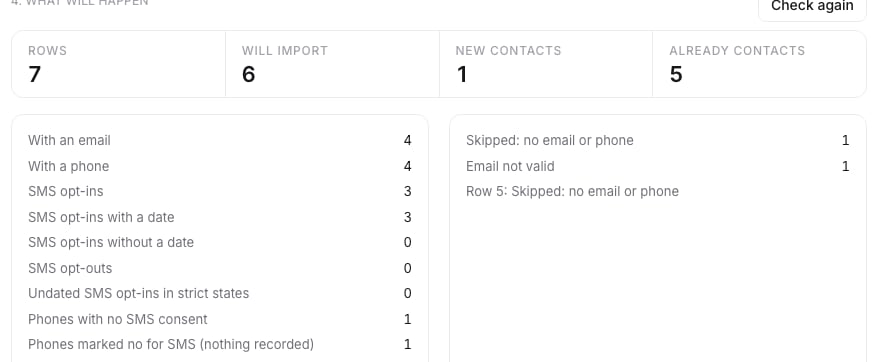
5. Import
If you import opt-ins, confirm the consent statement with I confirm the statement above is true. Then click Import contacts. The import runs in the background. Its page has two tabs: Progress, which updates by itself while the import runs and shows every count (new, updated, unchanged, skipped and why), and Settings, with the choices you made. If an import stops before the end, the rows done so far are kept. Start the same file again to resume it. A row that matches an existing contact updates it and counts as Updated or Unchanged. A person who opted out earlier is not opted in again by an import: the count shows SMS consent not saved: opted out earlier (or the email equivalent).Related
- Contacts: the Contacts list and a contact’s record
- Merge and duplicates: how matching contacts are joined
- SMS compliance: the consent checks every text goes through