
Before your first text
1
Connect Twilio
Connect your Twilio account in Integrations. See Twilio.
2
Add a sender
In Settings -> SMS -> Senders, click Add sender and pick a number or messaging
service from your Twilio account. Then click Configure webhooks. See Senders.
3
Accept the marketing consent statement
On the Compliance tab, read the statement and accept it. Until someone on the brand does,
marketing texts are skipped. Transactional texts are not affected.
4
Send yourself a test
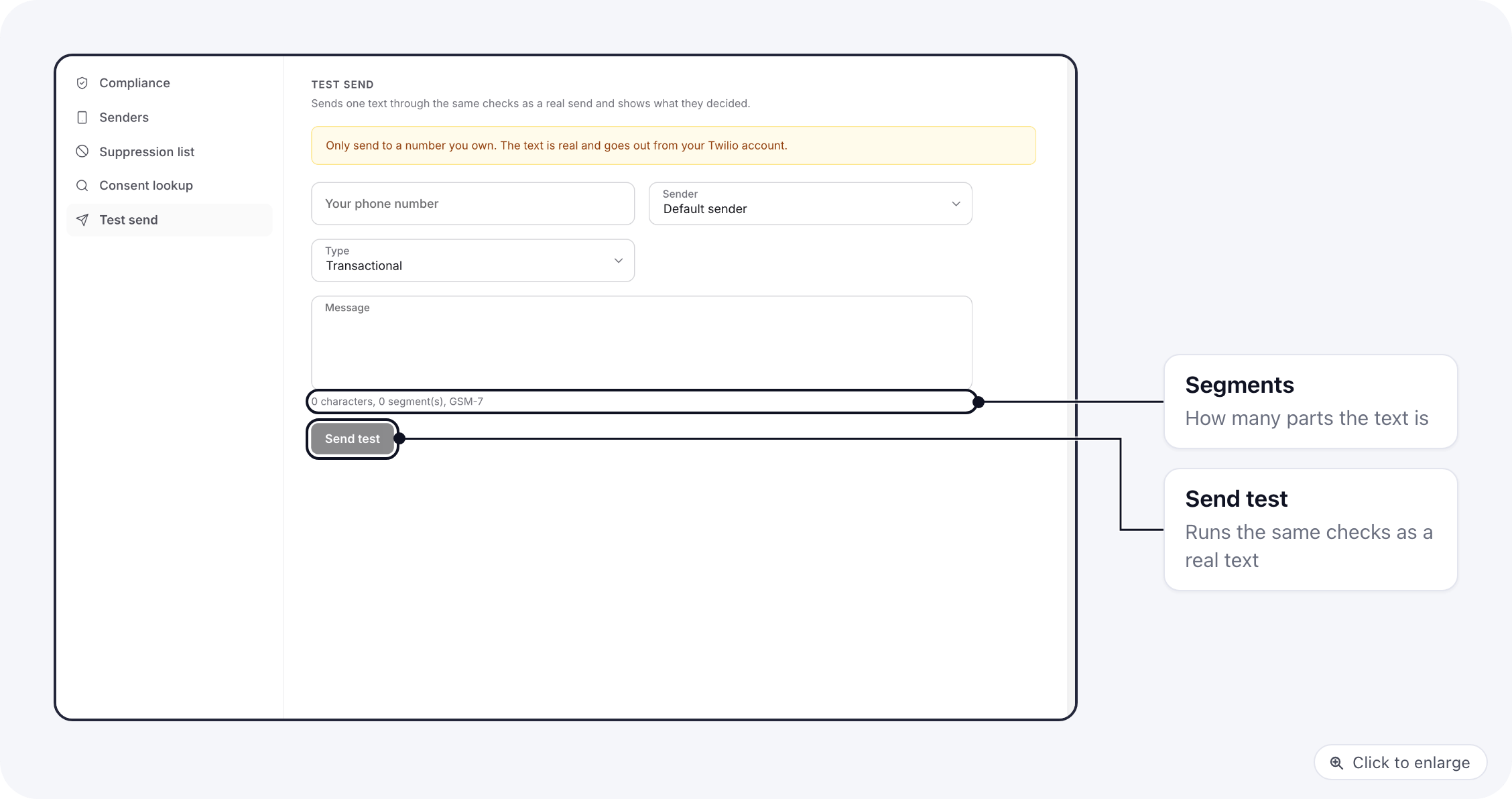
On the Test send tab, text your own number and check the result. See Test send.
What happens to each text
A text ends in one of three ways, and the log shows which:
A skipped text is a normal result. In an automation, the run goes on to the next step.
Compliance tab
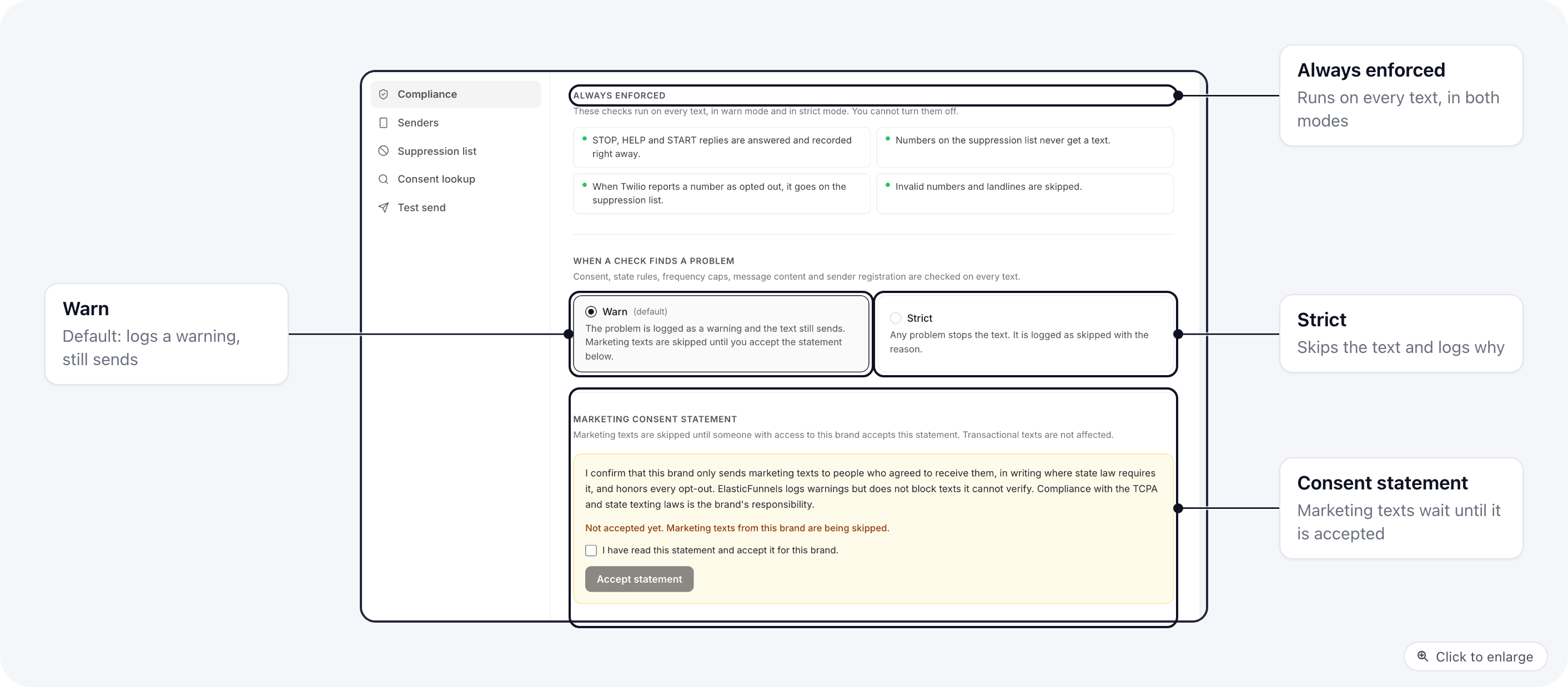
Always enforced
These checks run on every text, in warn mode and in strict mode. You cannot turn them off.- STOP, HELP and START. A reply of STOP suppresses the number, records the opt-out and sends one confirmation (only the first time). START lifts the suppression. HELP gets your help reply.
- The suppression list. A number on it gets no texts at all, transactional ones included.
- Opt-outs reported by Twilio. When Twilio refuses a text because the person opted out with the carrier (error 21610, for example), the number goes on the suppression list.
- Invalid numbers are skipped.
- States you excluded under Where you send get no marketing texts.
- A sender must be set up. Without one, nothing is sent.
Warn or strict
Consent, state rules, frequency caps, message content and sender registration are checked on every text too. When a check finds a problem decides what happens next:
What these checks look at:
- Consent: whether the number has an SMS consent record. A purchase records consent for transactional texts. A ticked SMS box on a checkout records consent for marketing texts (see Consent from your checkout).
- State rules: extra rules in the recipient’s state, for example Florida needs written consent.
- Frequency caps: by default, at most 3 marketing texts per person in 24 hours. A state limit applies when it is lower.
- Content: restricted topics carriers filter (such as cannabis or CBD, gambling, alcohol), public link shorteners like bit.ly, too many capital letters, long messages, special characters that raise the cost, and promotional words in a transactional text.
- Sender registration: whether the sender has 10DLC or toll-free registration.
- Country: only US numbers can be texted for now.
Marketing consent statement
In both modes, marketing texts are skipped until someone with access to the brand accepts the statement. It says the brand only texts people who agreed to it, in writing where state law requires it, and honors every opt-out. The tab shows who accepted it and when. Withdraw turns marketing texts off again.Quiet hours
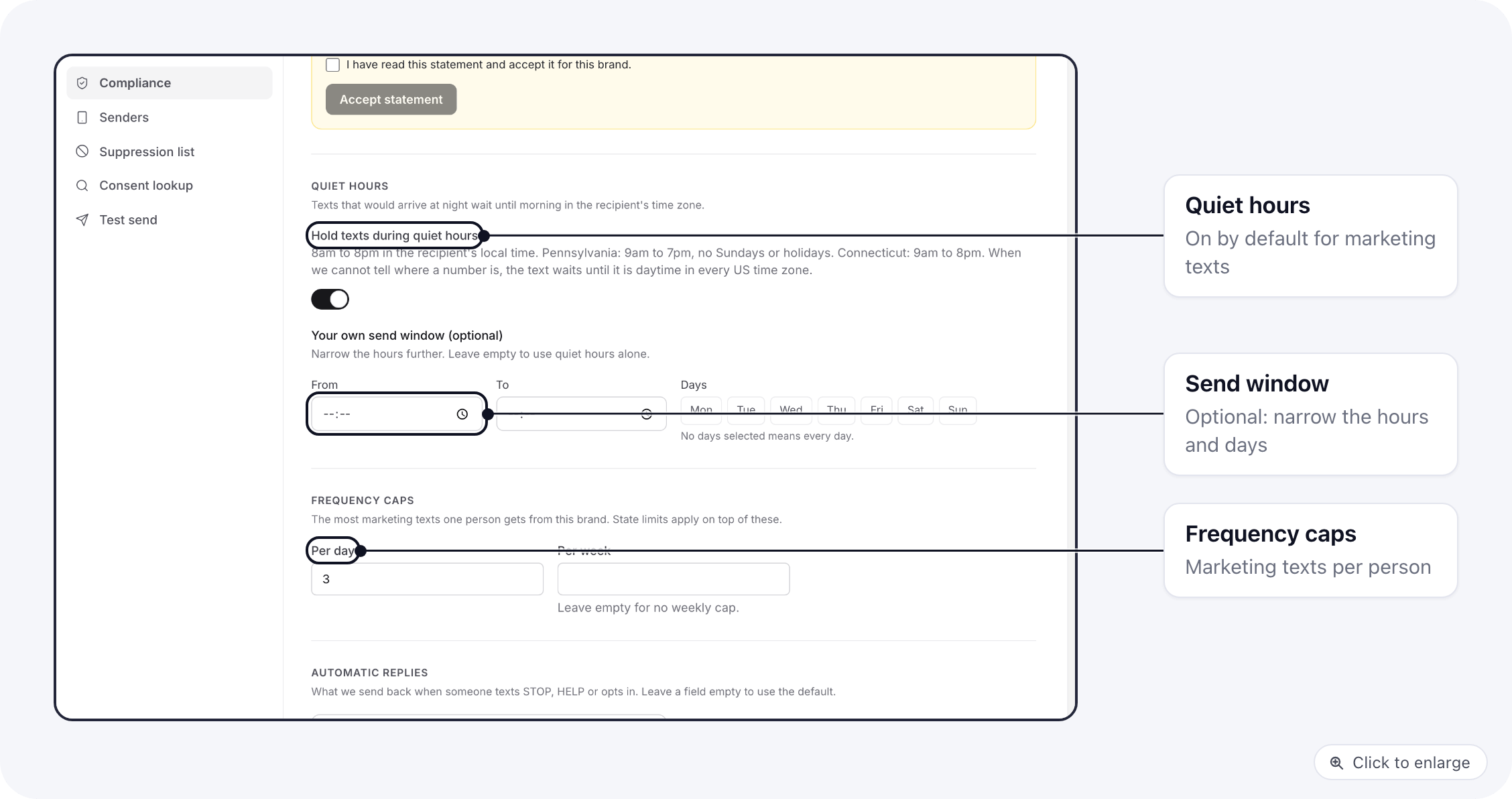
- Texts go out between 8am and 8pm in the recipient’s local time, read from the number’s area code.
- Pennsylvania: 9am to 7pm, and no texts on Sundays or federal holidays. Connecticut: 9am to 8pm.
- When the state is unknown, the text waits until those hours are open in every mainland US time zone.
- A held text goes out at the next open time, in 15-minute steps. If it is still held when it expires (48 hours by default), it is skipped with Quiet hours lasted past the send deadline.
Automatic replies
The texts sent back for STOP, HELP and an opt-in. Leave a field empty to use the default:Where you send and state texting rules
Where you send lets you exclude states you do not want to text at all. Excluded states get no marketing texts, in both modes. The quick presets add the Strictest, Strict or Moderate states to the list; save to apply. Skip numbers when we cannot tell the state is off by default. State texting rules lists what is checked for each state: its strictness level, hours and daily limits, and what it requires (written consent, seller registration, an existing relationship). Tick Registered once you have registered where a state requires it, or Exclude to stop texting it.Webhook addresses
The Status and Replies addresses Twilio calls to report delivery and pass on replies. Each brand has its own address with a secret token in it. Configure webhooks on the Senders tab sets them on your Twilio number for you; they are shown here so you can check by hand. Calls without the right token are refused. When the Twilio integration also holds your account’s Auth Token, each call is checked against Twilio’s signature as well.Senders
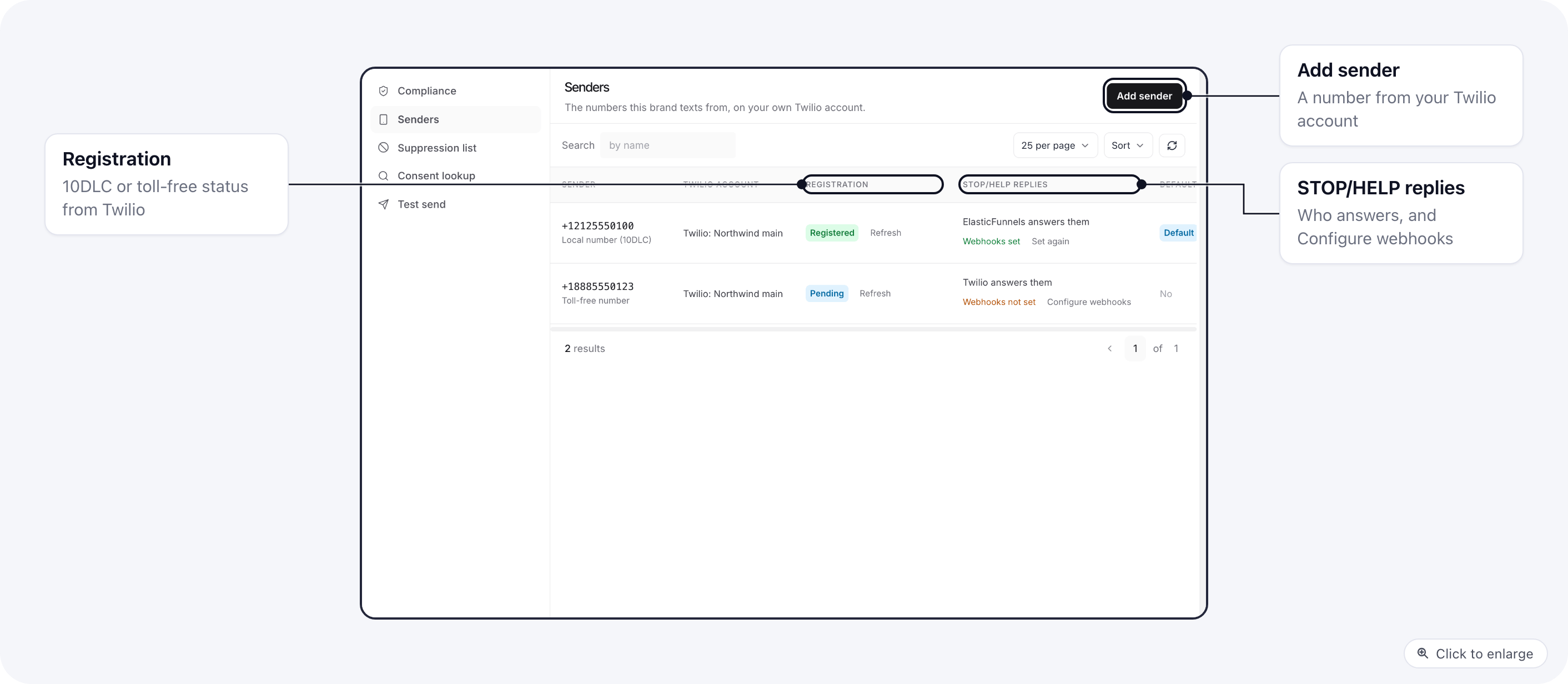
- Click Add sender, choose the Twilio account (a Twilio integration connected to the brand) and a Number. The list shows the numbers and messaging services on that account.
- Turn on Default sender for the one used when a step does not pick a sender.
- Turn on Twilio already answers STOP/HELP for this number only if Twilio Advanced Opt-Out is set up for it. ElasticFunnels then records the reply and the opt-out without sending its own reply.
- Save, then click Configure webhooks so replies and delivery reports reach ElasticFunnels.
Suppression list
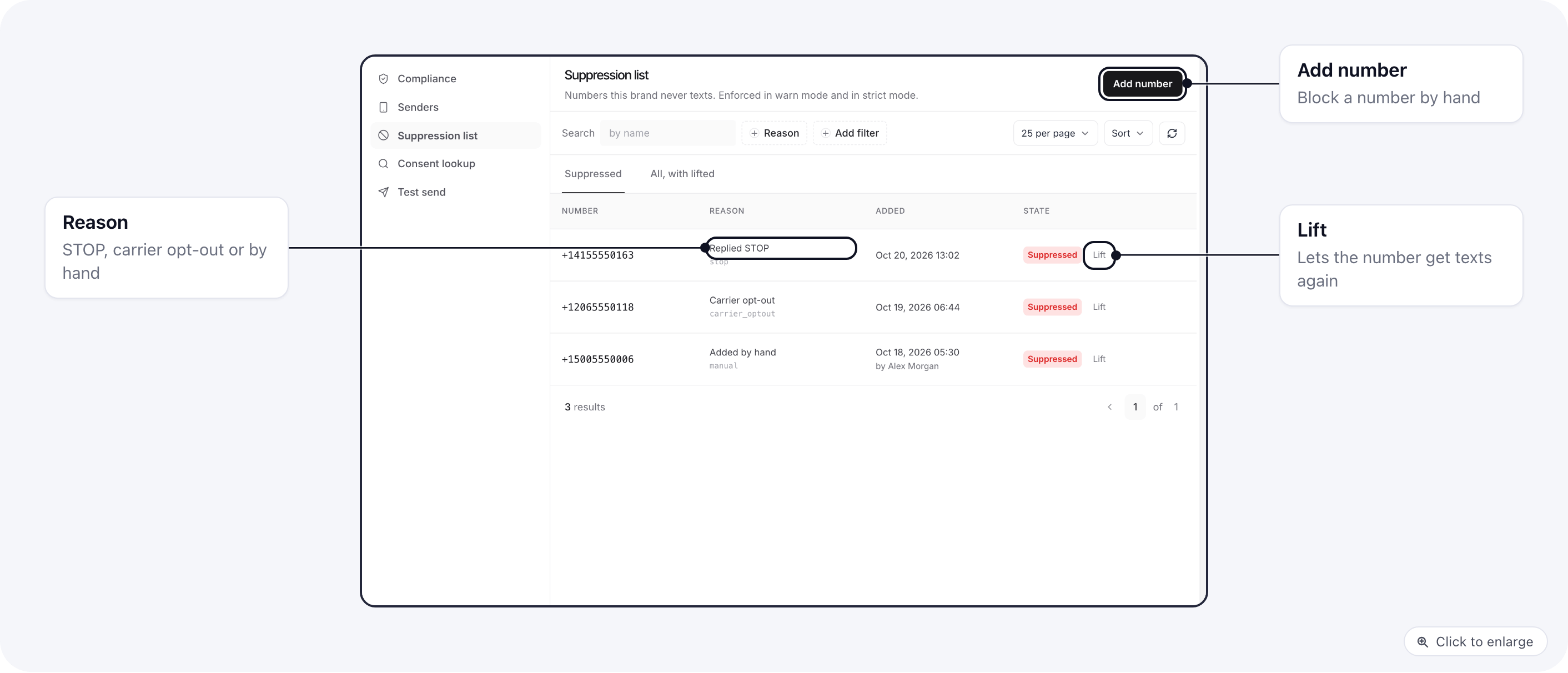
- Add number blocks a number by hand, with the reason Added by hand or Complaint. Include the country code, for example +1 for the US.
- Lift lets the number get texts again. A person who texts START lifts it too.
- Search by number, and switch to All, with lifted to see past entries.
Consent lookup
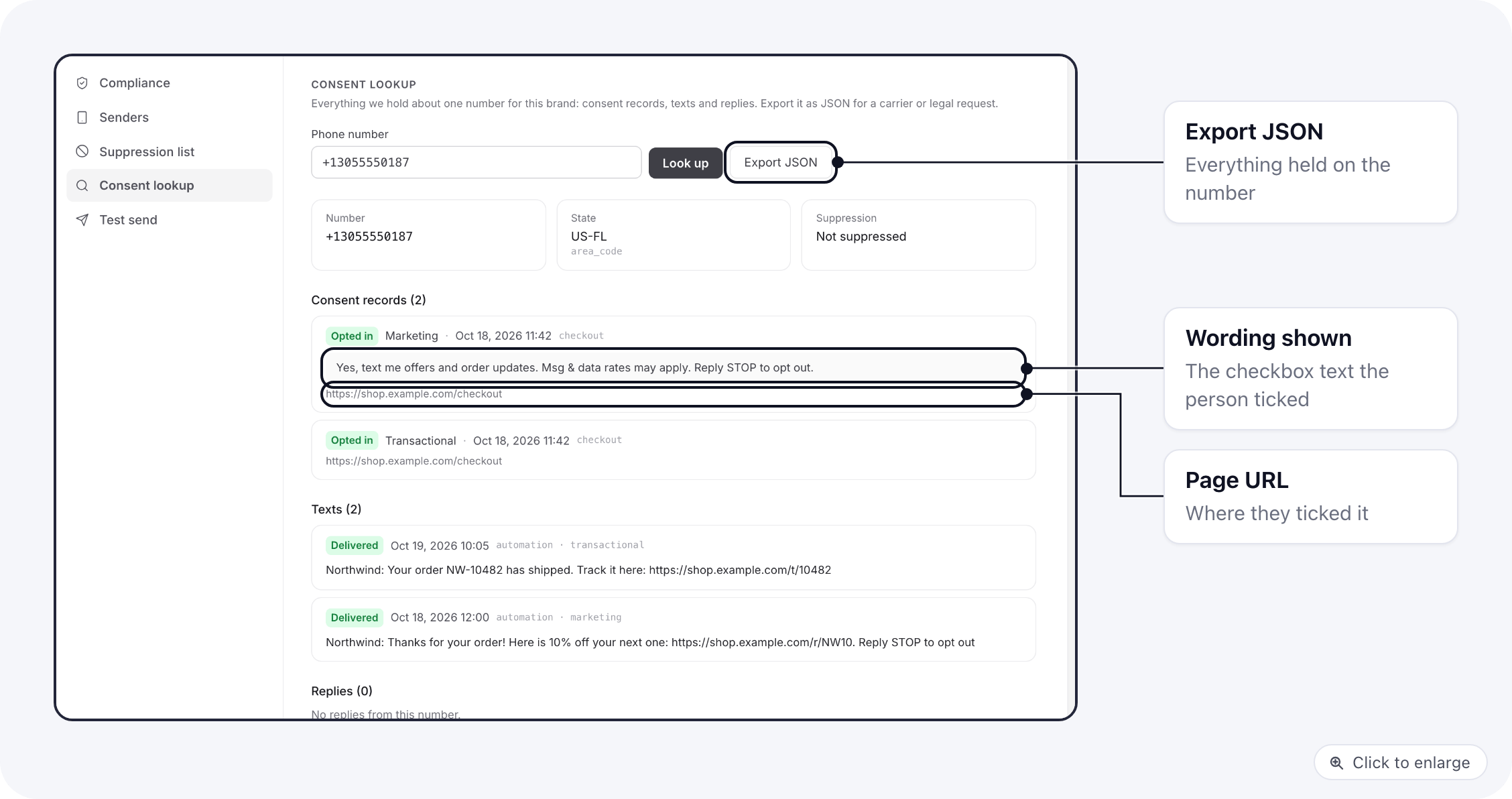
- the state it was placed in, and whether it is suppressed,
- each consent record: opted in or out, marketing or transactional, where it came from, the wording the person saw and the page URL,
- the texts sent to it and the replies from it.
Test send
The SMS log
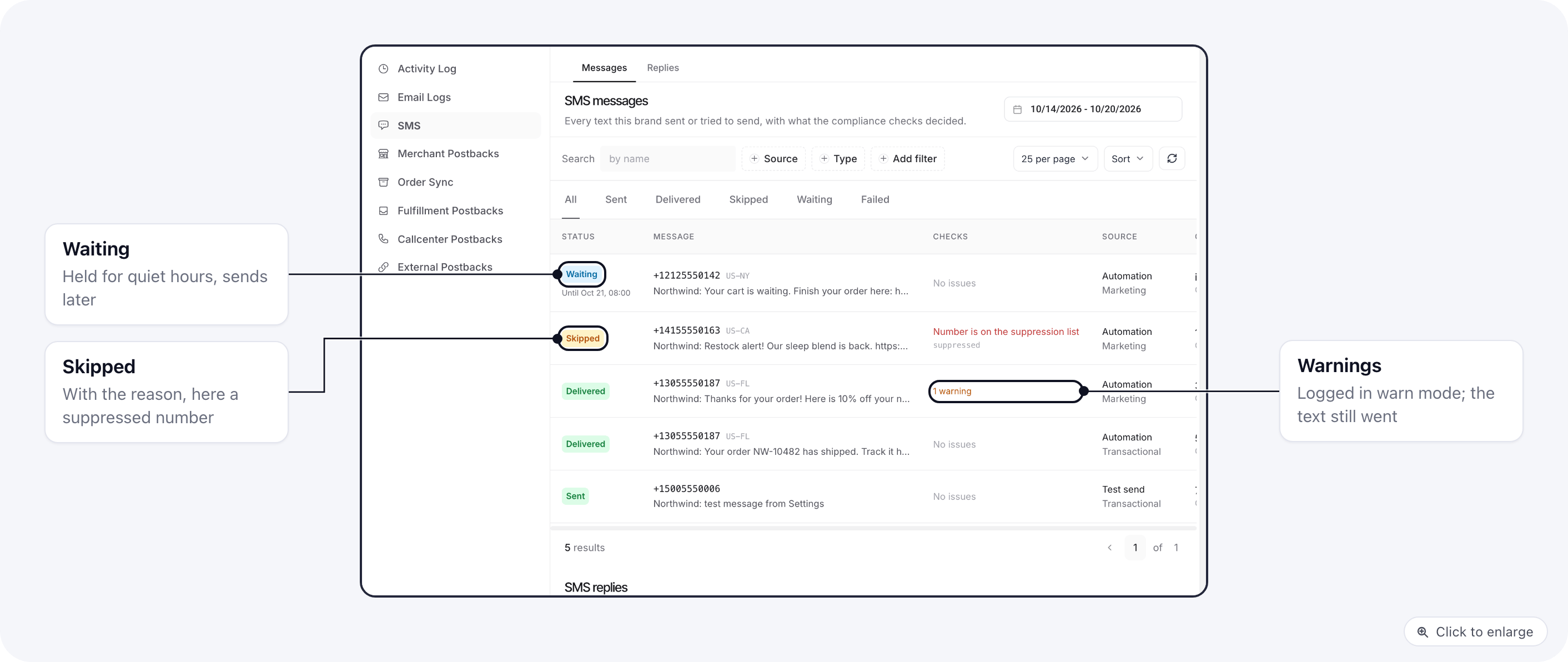
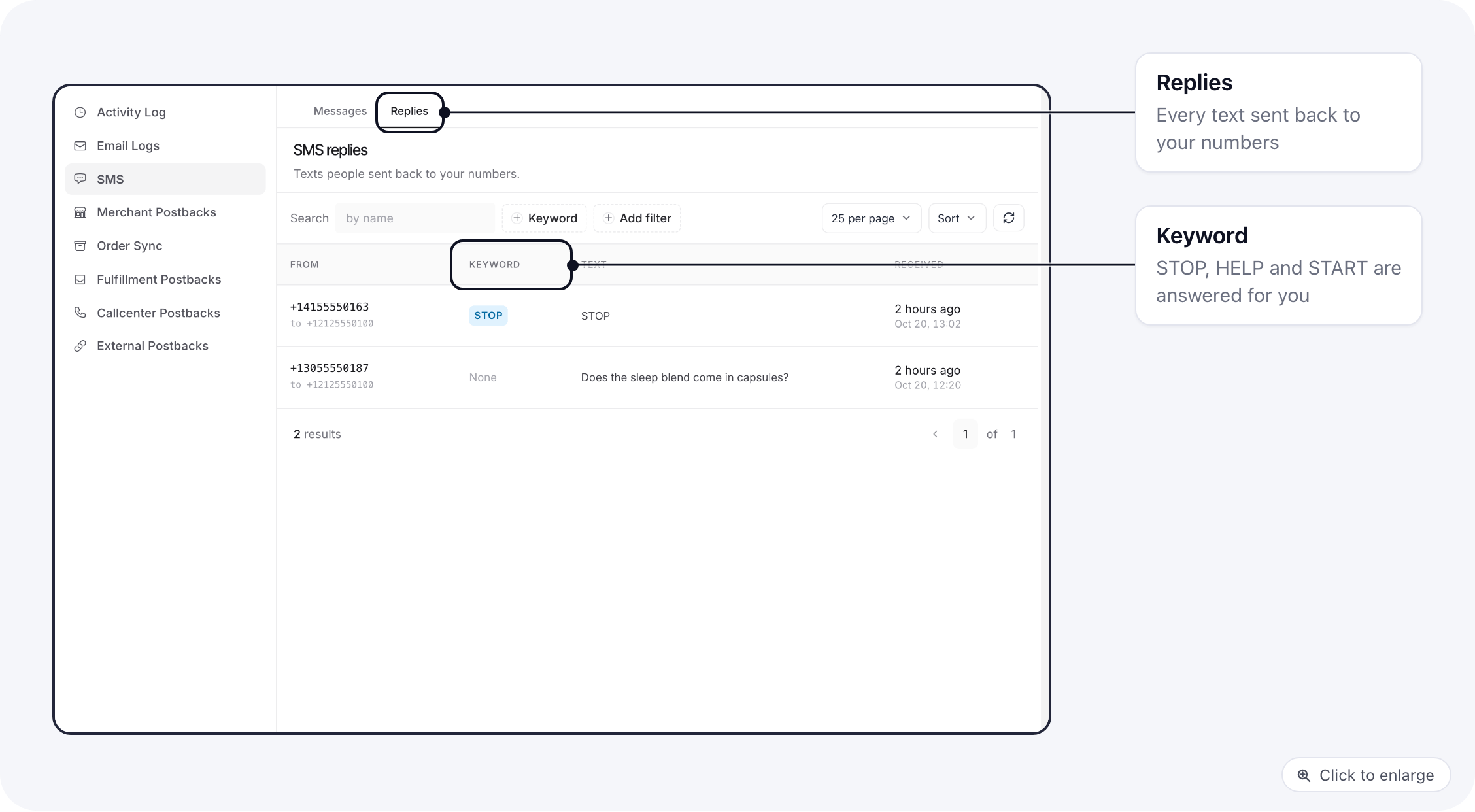
Why a text was skipped
In strict mode, the warning reasons (no consent, state rule, content, sender registration, country) also
skip the text.
Consent from your checkout
When a shopper ticks the SMS opt-in box (allow_sms) on a checkout or upsell page, the order stores
marketing consent together with the wording next to the box and the page URL. Both show in
Consent lookup. A purchase records consent for transactional texts. See
SMS and email opt-in boxes.
Related docs
- Send SMS step: text customers from an automation
- Twilio: connect the account your texts go out from
- Privacy and consent: opt-in boxes on checkout pages