
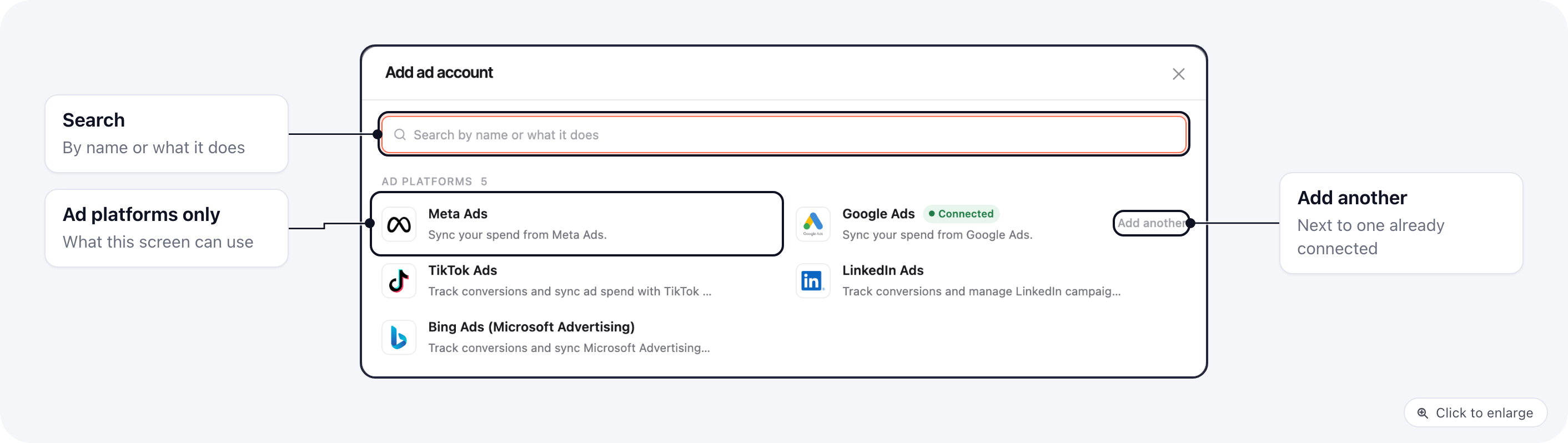
Connect from the screen you are on
- Click the screen’s connect button (the table below lists them).
- Pick the integration. An integration that is already connected shows Connected, and Add another when it allows more than one account.
- Its setup form opens in the same window. Fill it in and click Connect.
When the screen asks for exactly one integration, the window skips the list and opens its setup form.
Integrations that sign in on the platform
Meta, Google, TikTok and other platforms that sign you in on their own site still take you there to approve access. When you come back, the integration’s page shows Back to and the name of the screen you started from (for example Back to Campaign settings). Click it, or save the page, and you return to that screen. The way back is kept for 30 minutes. If you pick an integration that allows only one connection and it is already connected, its page opens with the same Back to button.Remove a connection
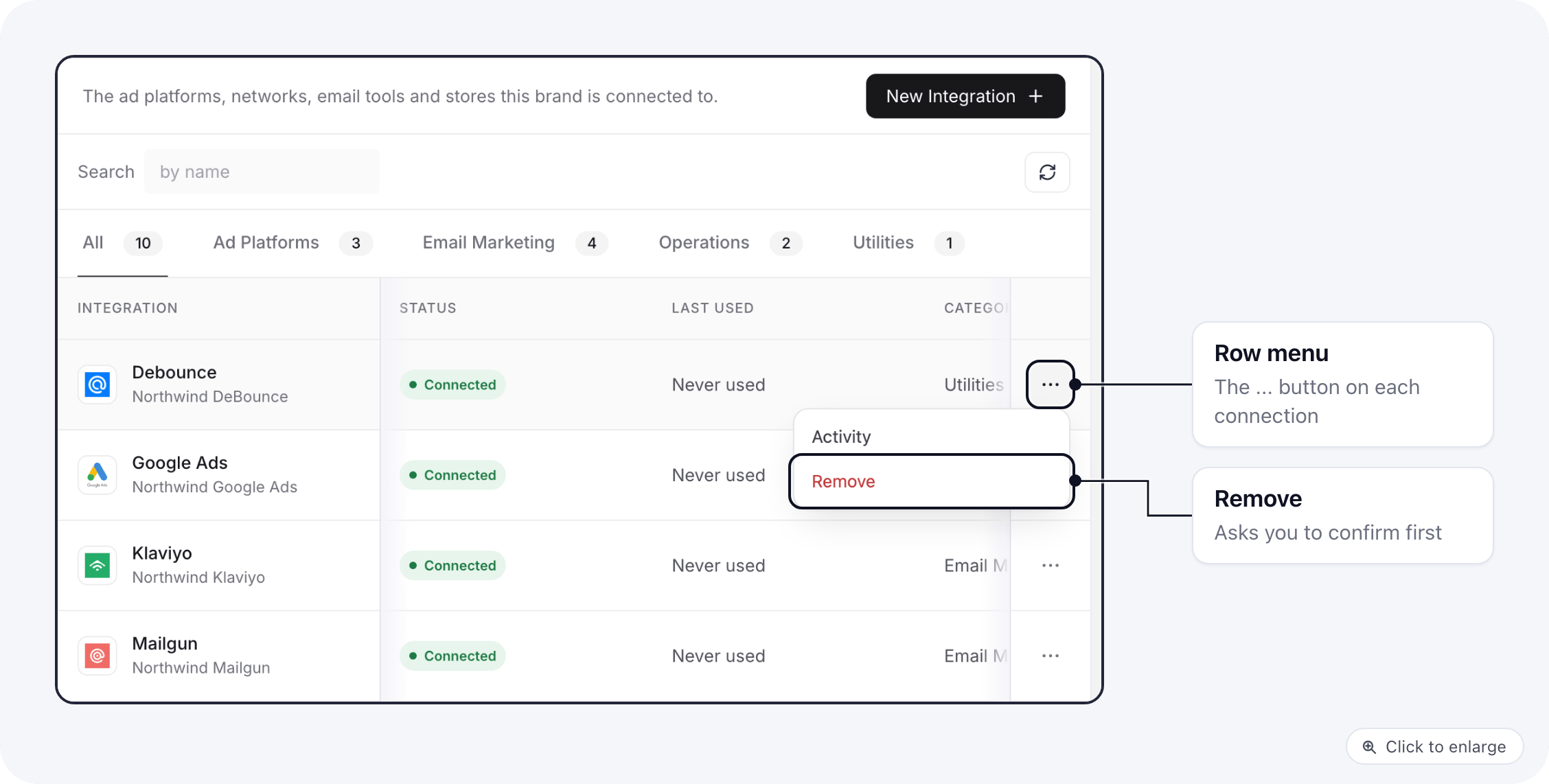
- Go to Apps → Integrations.
- Click … at the end of the connection’s row.
- Click Remove (Disconnect for Meta Ads) and confirm.