
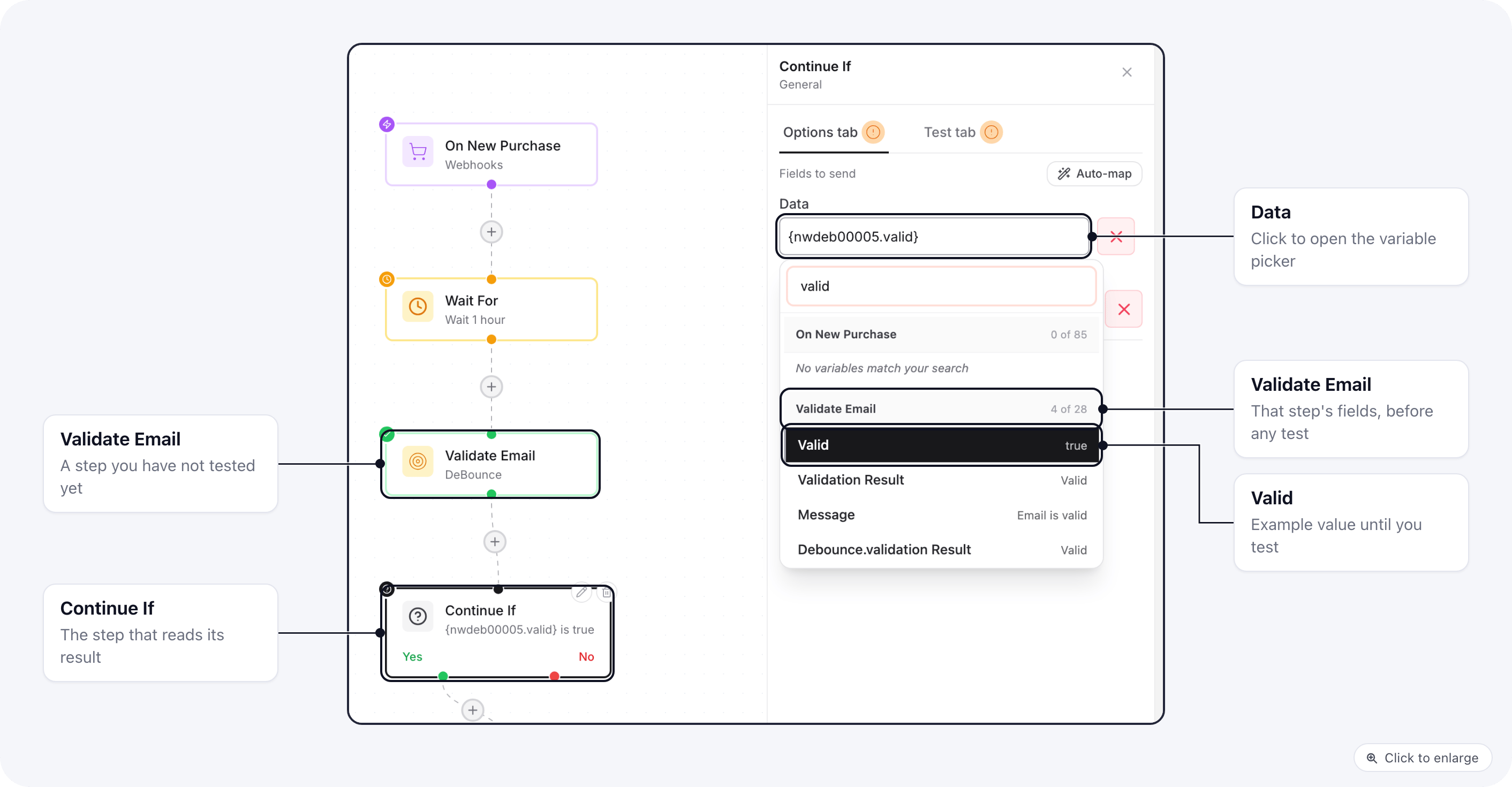
Pick a field
- In the automation builder, click the step you want to set up.
- On its Options tab, click a field (for example Data on a Continue If step).
- The picker lists each earlier step with its fields and an example value. Type in the search box to filter by name or value.
- Click a field to use it.
{nwdeb00005.valid}: the step’s code, then the field.
Steps you have not tested yet
You do not need to test a step before the next one can use its fields. Integration steps come with an example of what they return, so the picker lists their fields straight away. In the image, the Validate Email (DeBounce) step has never been tested and the Continue If after it can already check its Valid field.- The example values are made up (
jane.doe@example.com,true). They show the shape of the data only. - Once you test a step on its Test tab, its real result replaces the example in the picker.
- A test of a later step sends only real tested data to the provider, never the example values.
When a field shows a warning
A field shown in amber with Not in that step’s data points at a field the step does not return, or at a step that is no longer in the automation. Pick the field again from the picker. If the step returns different fields for different inputs, test it once so the picker lists the fields it really returned.Related
- Automation run history: see what each step received and returned on a real run.
- Connect and remove integrations: connect an account from a step with Don’t see your account?