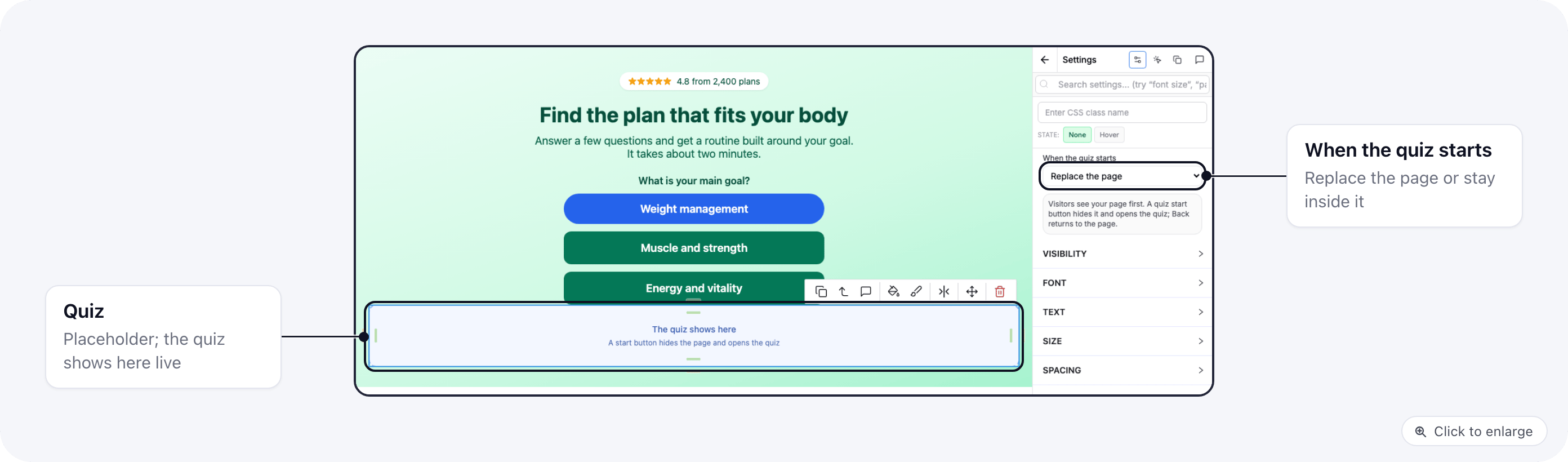
A quiz page can open with a page you design yourself: a hero, proof, reviews and buttons, built in the page editor like any other page. The quiz shows where you place it, and the buttons on your page can start it with an answer already picked. To build the quiz itself, see Build and publish a quiz.
Quizzes are in beta.

Turn on the page intro
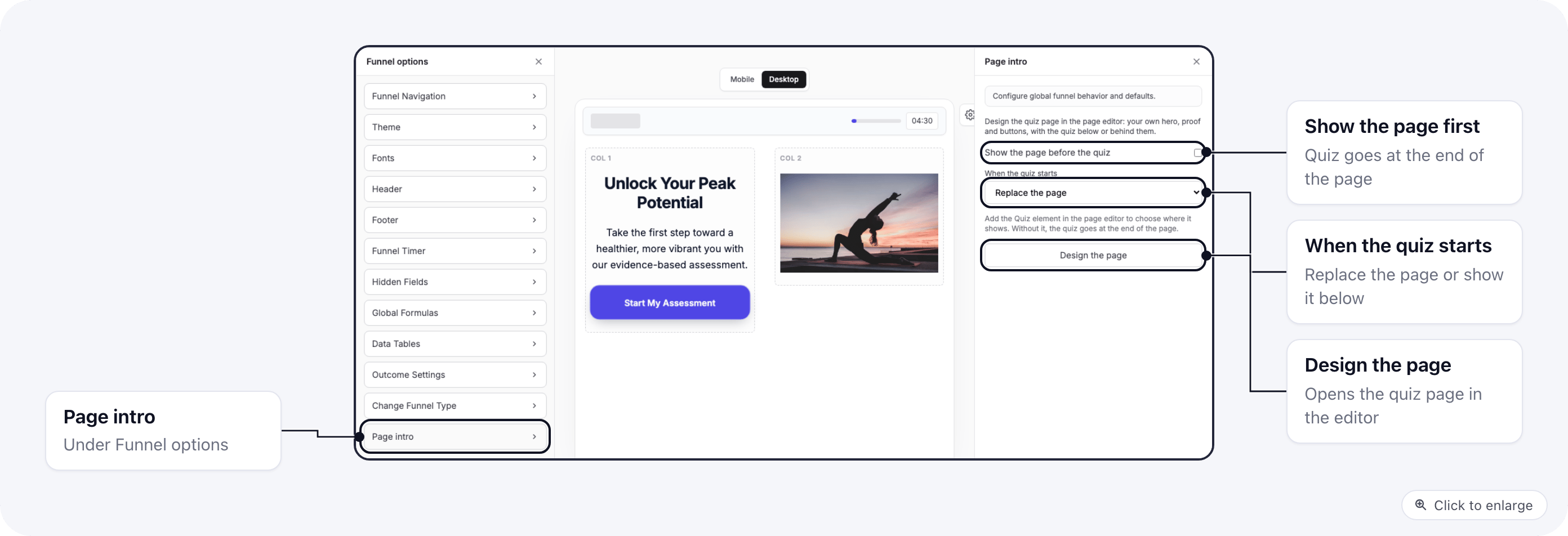
Quiz builder, Funnel options, Page intro: show the page before the quiz, when the quiz starts, and Design the page
  1. Open the quiz in the quiz builder.
  2. Open Funnel options, then Page intro.
  3. Tick Show the page before the quiz.
  4. Pick what happens When the quiz starts (see When the quiz starts).
  5. Click Design the page. The quiz’s page opens in the page editor.
With the setting on and no Quiz element on the page, the quiz shows at the end of your page.

Add the Quiz and Quiz start button elements
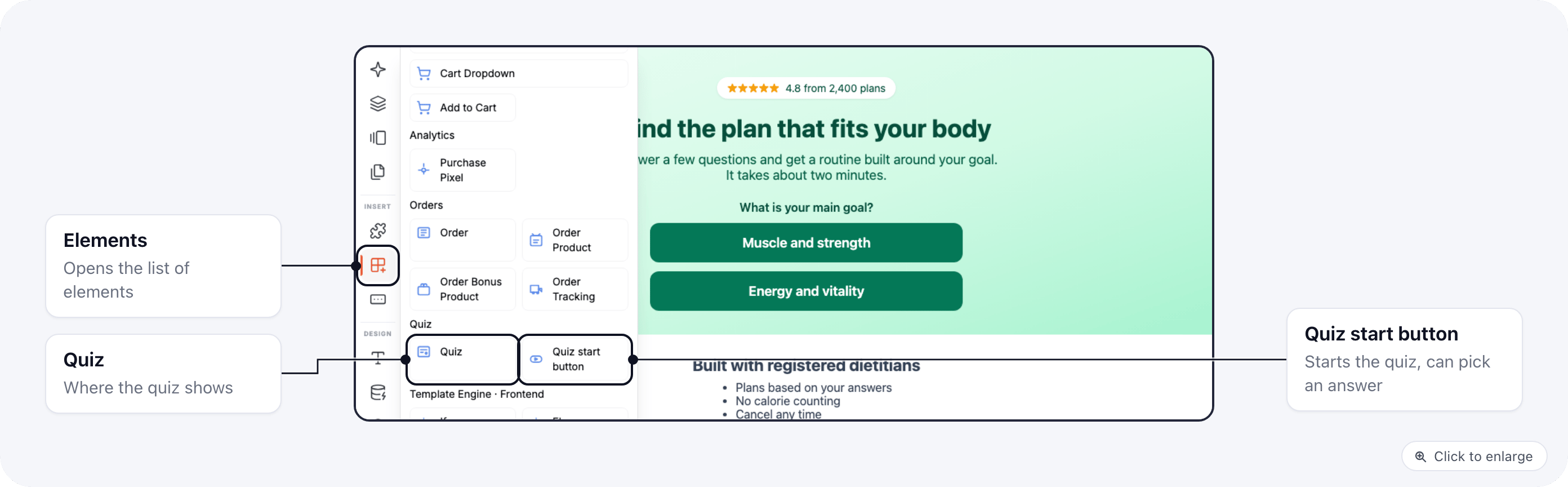
The page editor's Elements panel on a quiz page, with the Quiz and Quiz start button elements under Quiz On a quiz’s page, the Elements panel has a Quiz group with two elements: Drag them onto the page like any other element. Use one Quiz element per page. A page with a Quiz element shows the intro even if Show the page before the quiz is off.

Set up a Quiz start button
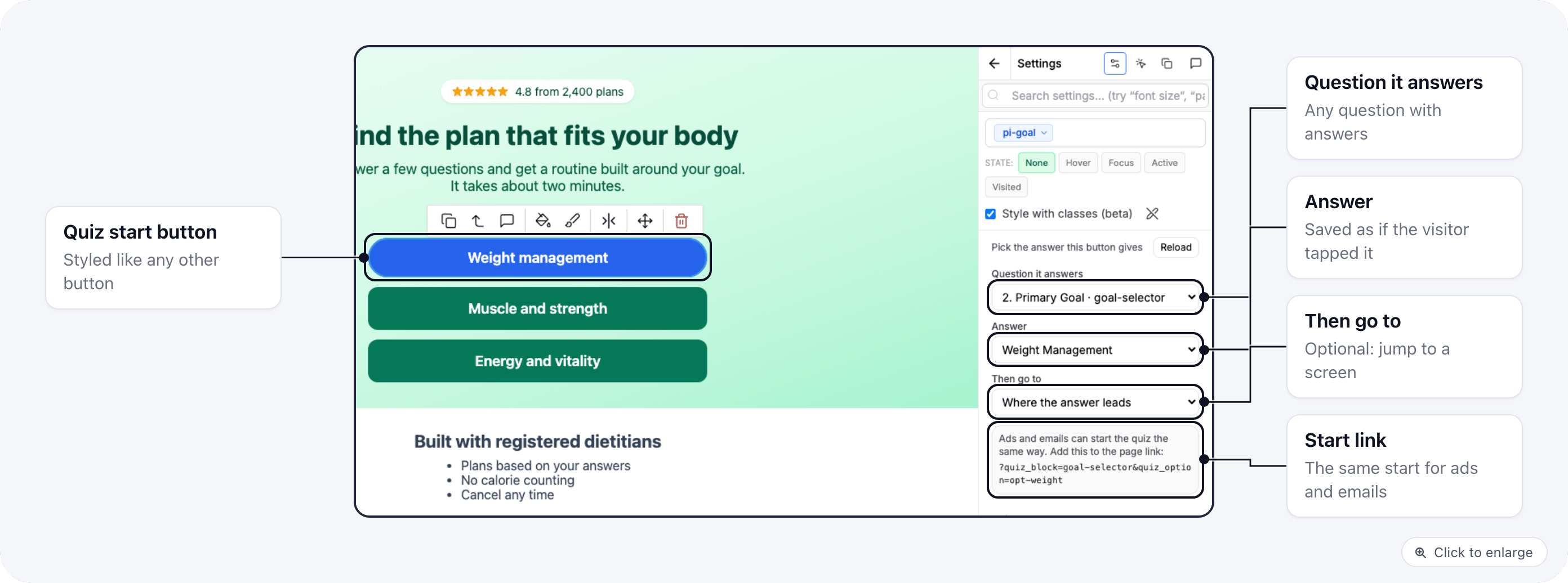
A Quiz start button selected in the page editor, with its question, answer, next screen and start link in the settings panel Select the button on the page. Style it like any other button, then set the quiz fields in Settings: Click Reload after you change the quiz’s questions, so the lists show the new ones. A common layout is one button per answer to the quiz’s first question, for example three goal buttons in the hero. The visitor taps one and lands on the next question with the first already answered. The box under the settings shows the start link for the button, for example:
Add it to the quiz page’s URL in an ad or an email and the quiz starts the same way the button does. The parameters are:

When the quiz starts

The Quiz element on the page with its When the quiz starts setting Select the Quiz element to set When the quiz starts. The quiz builder’s Page intro has the same setting. A page set to Replace the page that has no start button shows the quiz inside the page, so visitors always have a way in.

What the visitor sees
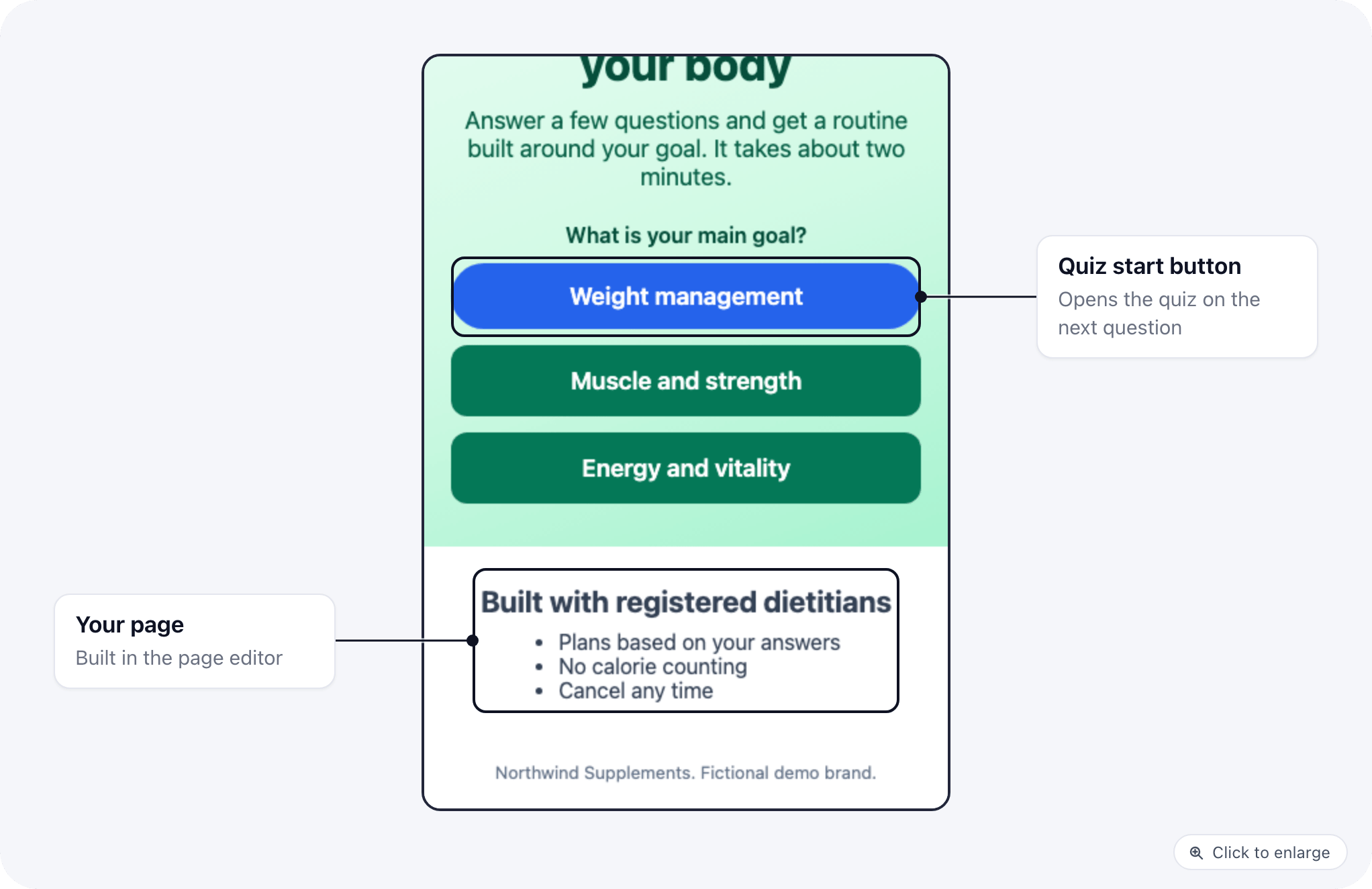
The quiz page on a phone: the designed intro with three goal buttons that start the quiz The visitor lands on your page. Tapping a start button opens the quiz on the next question, with the answer already recorded. Your page’s SEO title and description, tracking, and consent banner work as on any other quiz page.

Notes

  • The page editor removes <script> tags from page HTML. Add scripts in the page’s or brand’s custom code.
  • Page views and answers are tracked as on a quiz without an intro. The answer from a start button counts as a normal answer.
  • A quiz page with neither the setting nor a Quiz element works as before: the quiz alone.