Read the review
1. Check what the kit adds
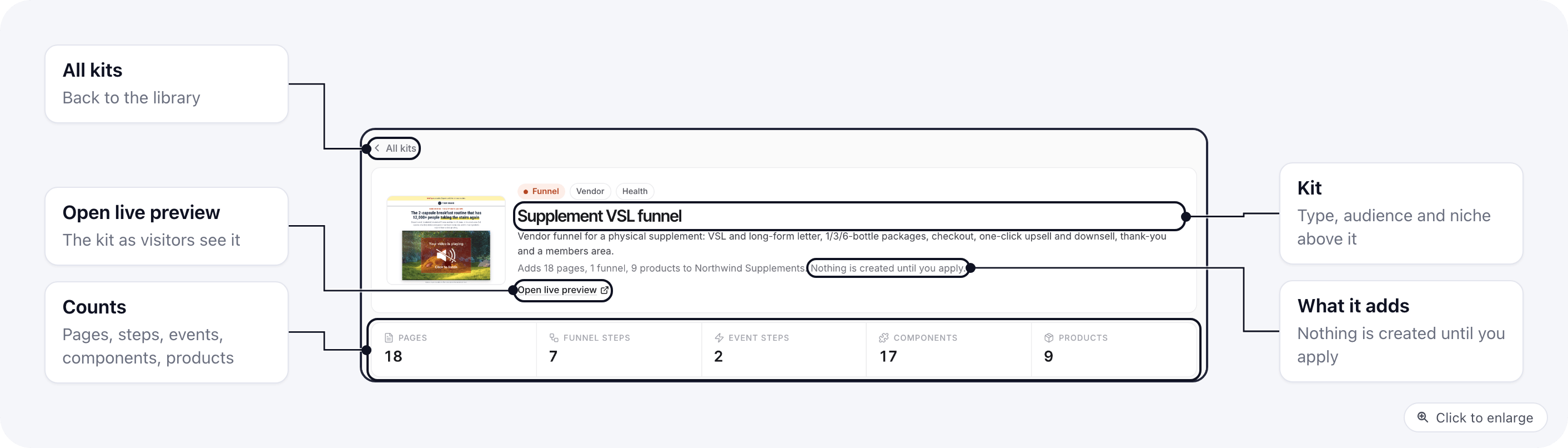
The header names the kit, its type, audience and niche, and counts what it adds: pages, funnel steps, event steps, components and products.- Read the line under the kit name. It says what the kit adds and to which project.
- Click Open live preview if you want to see the kit as visitors see it.
2. Follow the funnel journey
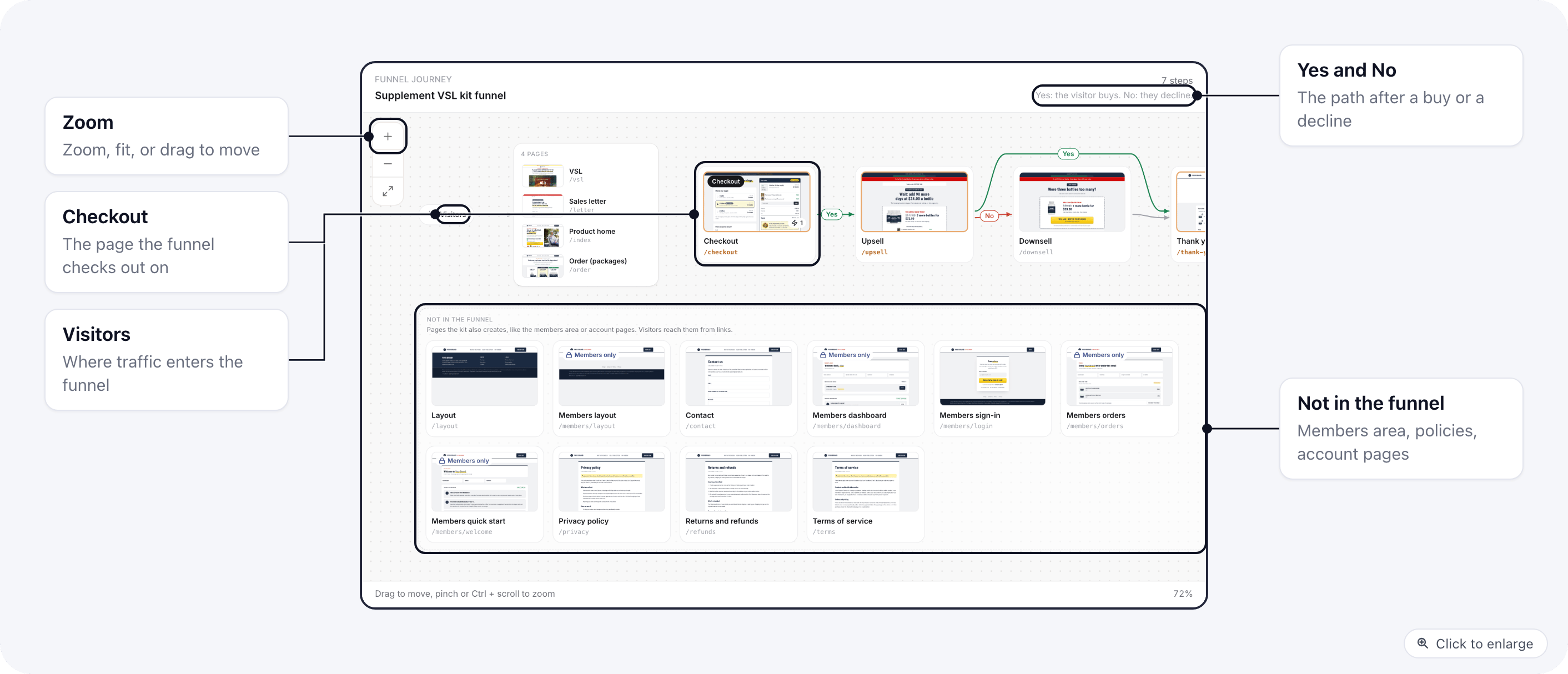
The Funnel journey map shows the path a visitor takes: the landing pages, the checkout, then the upsell, downsell and thank-you pages along the Yes and No paths. Pages that are not part of the funnel, such as policy pages or a members area, sit below it under Not in the funnel.- Drag the map or use the zoom buttons to see every step.
3. Look at what already exists
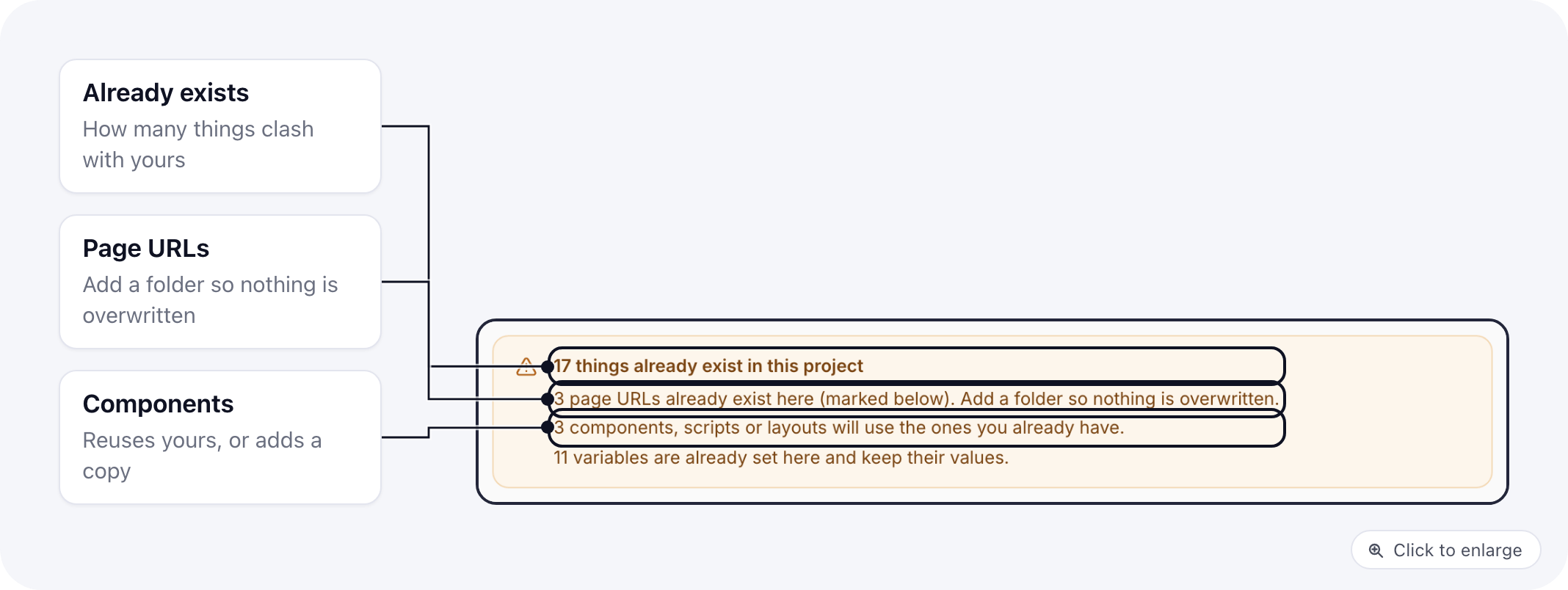
If your project already has some of what the kit brings, a box near the top lists it:- Page URLs that are already taken. The kit cannot create these pages until you pick a folder (step 5).
- Components with the same code as one of yours. By default the kit uses yours.
- Variables you already have. They keep their value.
4. Check the pages
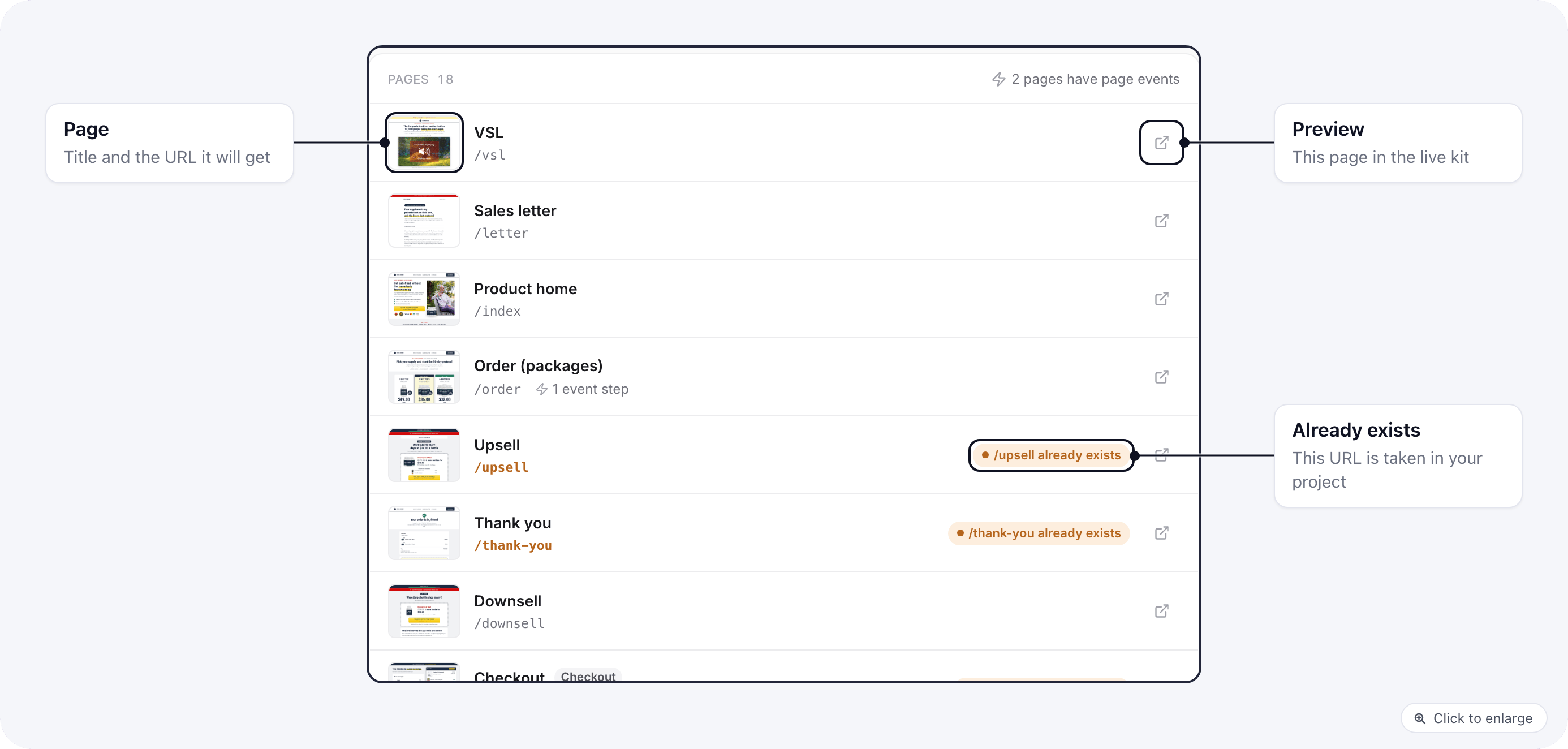
The Pages list shows each page with the URL it will get. Badges mark special pages:
A URL that is already taken shows /url already exists in orange. Click the preview icon on a row to open that page of the kit.
Choose where the pages go
5. Pick a folder
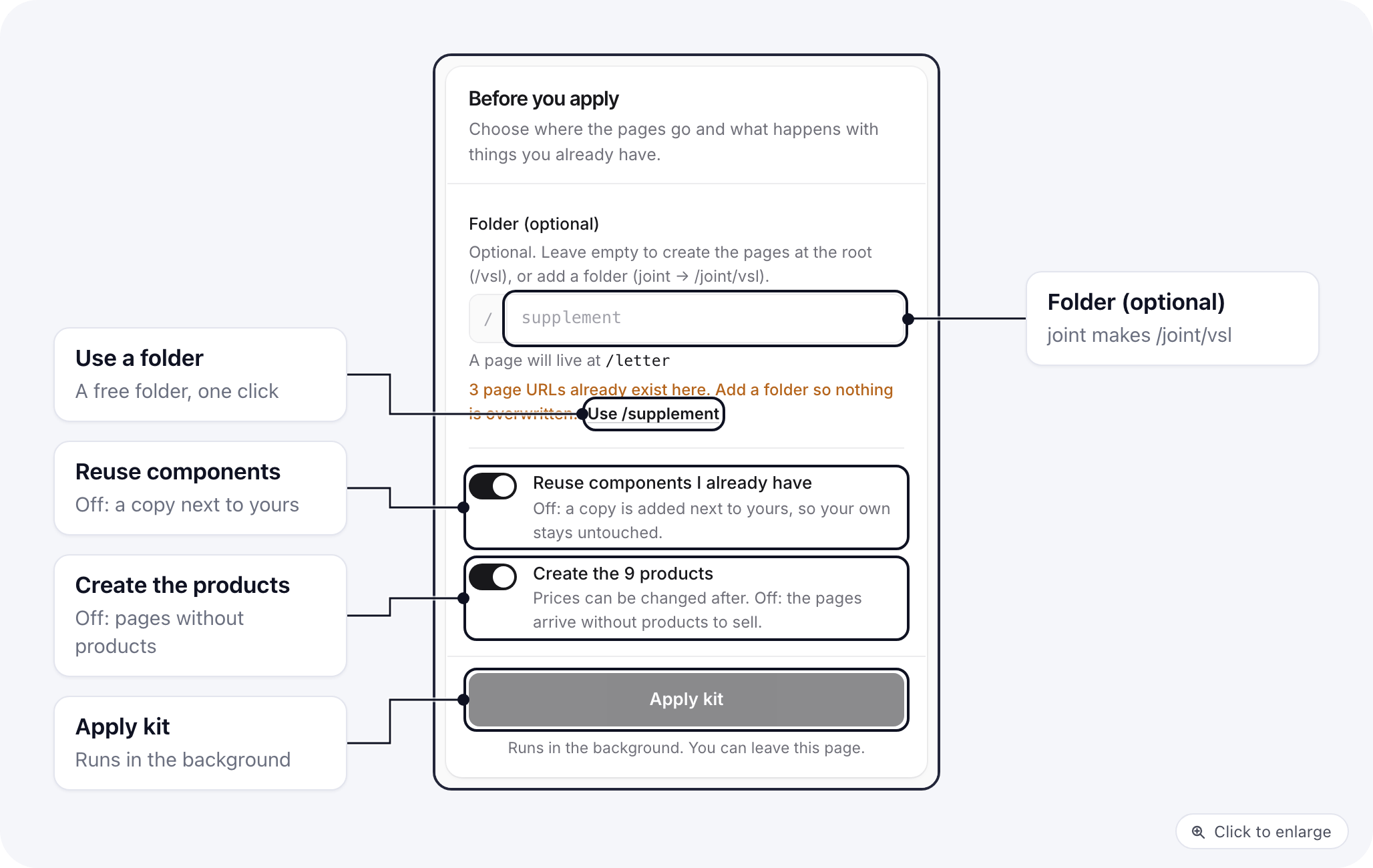
The Before you apply panel decides where the pages live and what happens with things you already have.- In Folder (optional), leave the box empty to create the pages at the root of your project (
/vsl), or type a folder (jointputs the page at/joint/vsl). - Read the line under the box. It shows one page’s final URL, and either None of these page URLs exist yet or how many are taken.
- If URLs are taken, click the suggested Use /folder button to pick a folder that is free.
Joint Care becomes /joint-care. You can type more than one level (offers/joint).
Pages you deleted no longer block a URL. If a URL is still reported as taken, a live page in the project uses it, either as its URL or as the URL of one of its variants.
6. Decide about components
Reuse components I already have is on by default. When it is on, kit pages use your component wherever the codes match, so your header and footer stay as they are. Turn it off to add the kit’s components as copies under new codes; your own stay untouched.7. Decide about products
Create the N products is on by default. Turn it off if you want the pages without products; the buy links then have nothing to sell until you add products yourself.Set up the products
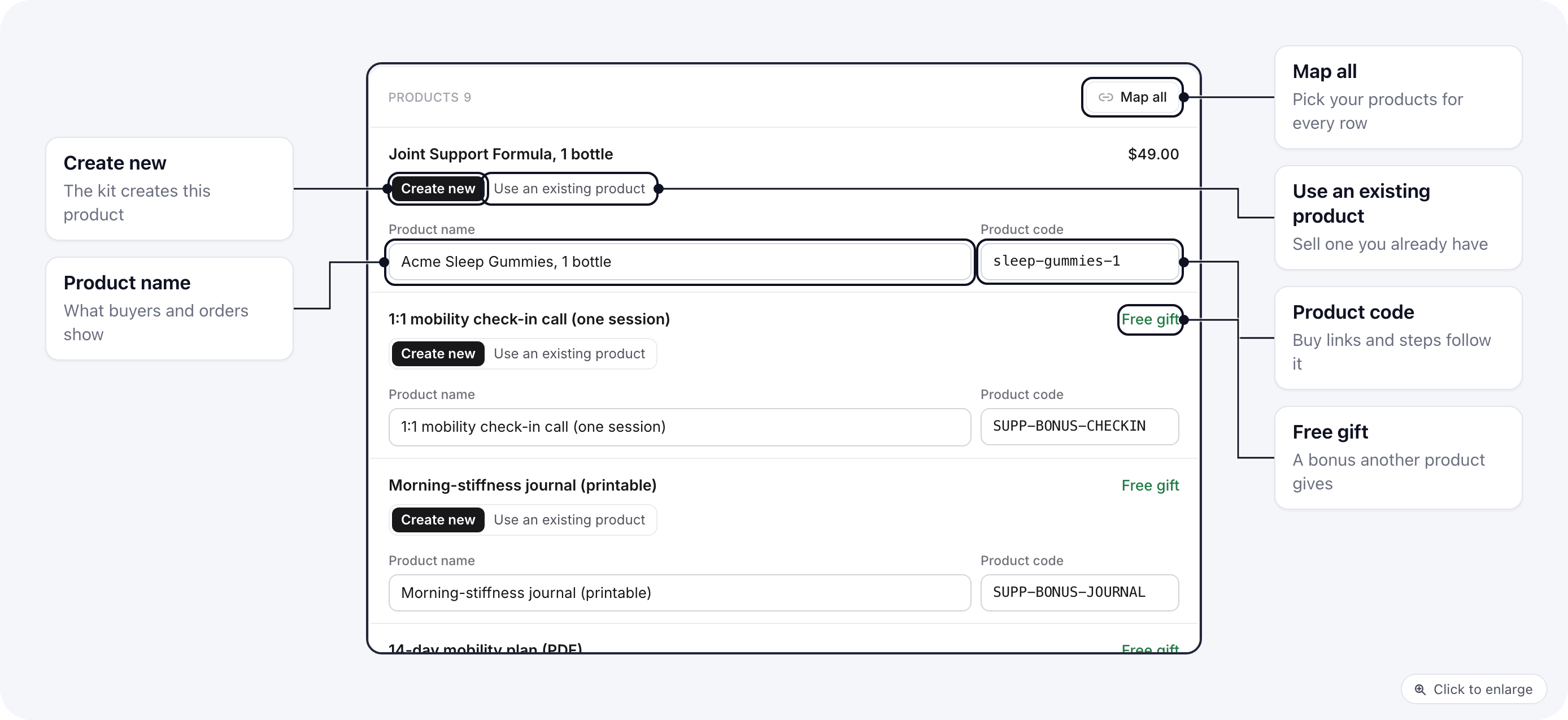
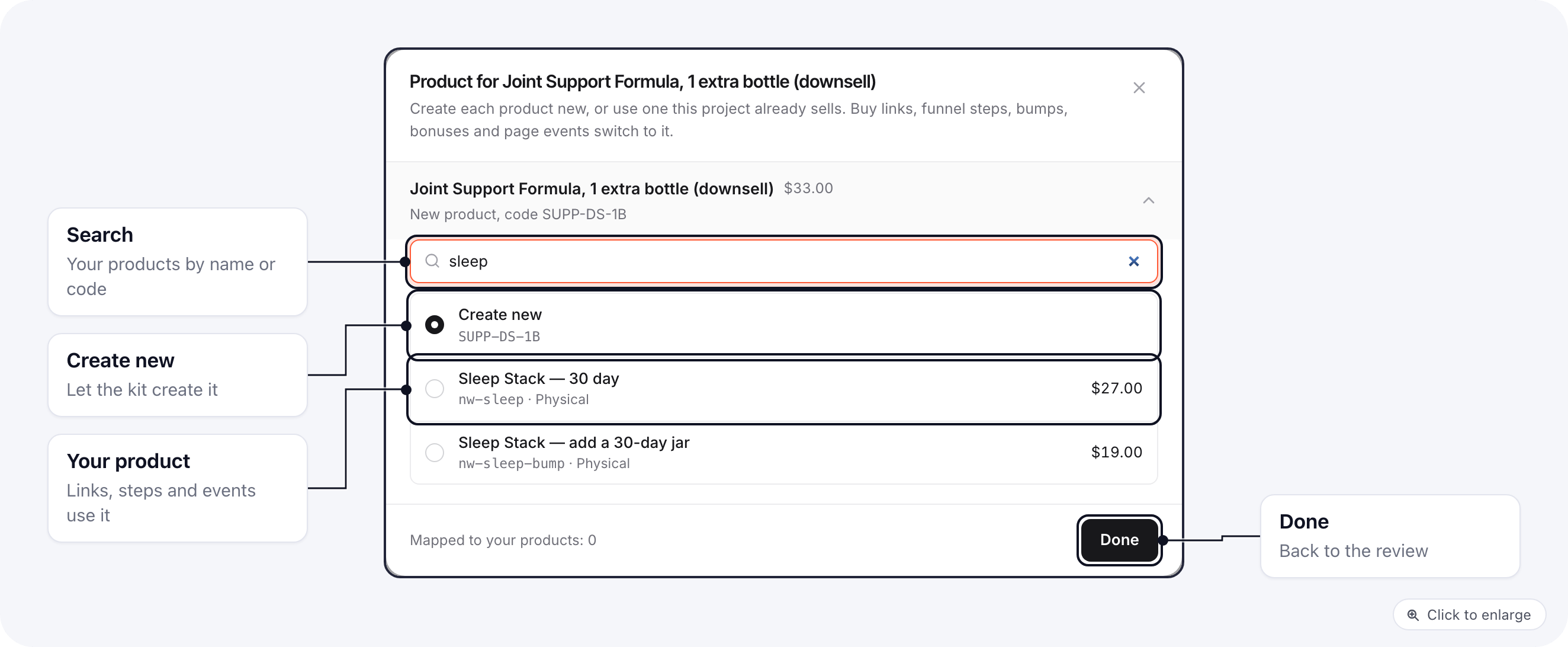
Every product the kit sells has a row in Products. For each one you either create it new, with your own name and code, or point the kit at a product your project already sells.8. Name a new product
- Leave the row on Create new.
- In Product name, type the name your customers will see, for example
Acme Sleep Gummies, 1 bottle. - In Product code, type the code you want, for example
sleep-gummies-1.
-2 at the end and the row says Copied as that code.
9. Fix a code the review refuses
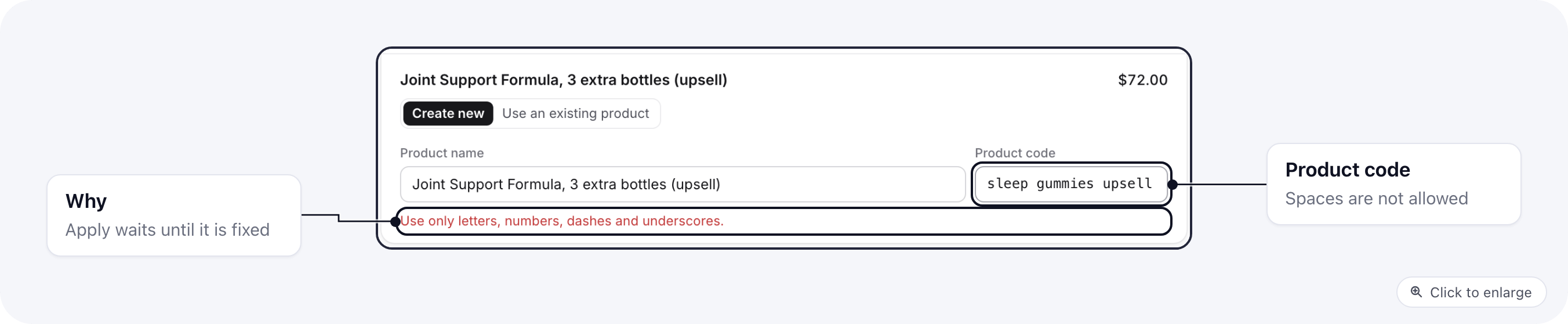
If a code breaks a rule, the row shows why and Apply kit waits until it is fixed.- Read the red line under the row.
- Change the code, for example replace spaces with dashes:
sleep-gummies-upsell.
10. Use a product you already sell
If your project already sells the product, point the kit at it instead of creating a copy.- On the row, click Use an existing product.
- In the window, type part of the product’s name or code in the search box.
- Click your product.
- Click Done.

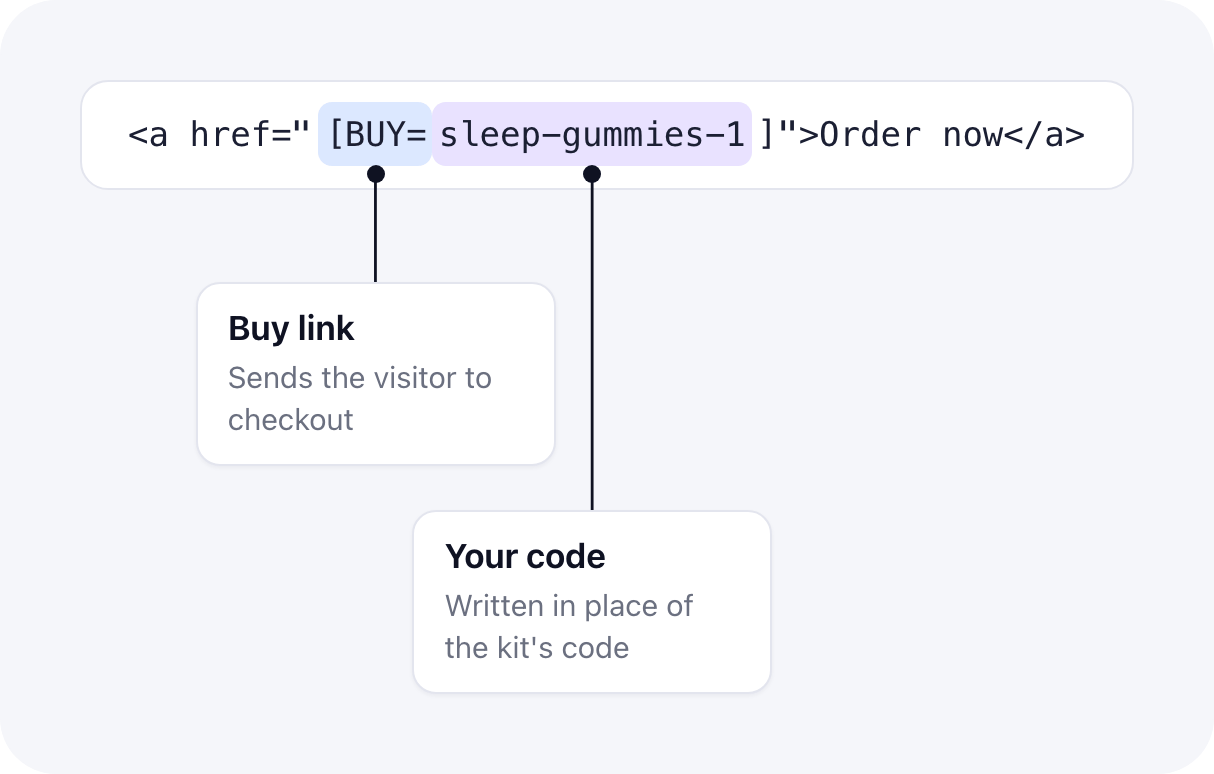
How your codes reach the pages
Whatever you choose, the kit rewrites every place its pages refer to a product so they point at yours: buy links ([BUY=...], [UPSELL=...]), checkout carts and order bumps, funnel steps that check a product, page events that set checkout bumps or bonuses, product bonuses, and product variants.
11. Check what else is added
The Also added column lists the components, collections and forms, exit popups, backend scripts, layouts, variables and files the kit brings. Uses yours marks a component the kit takes from your project; Kept marks a variable that keeps your value.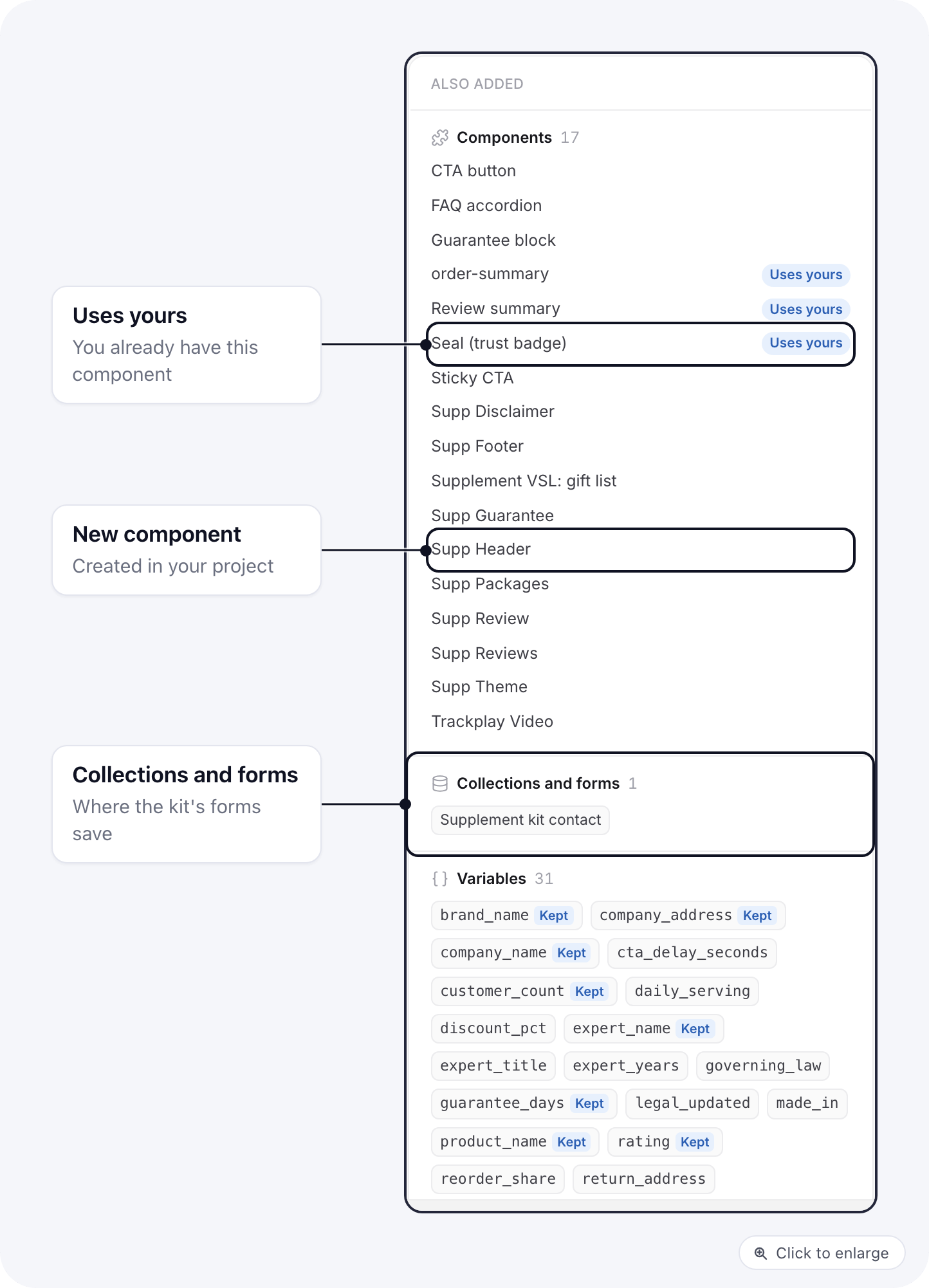
Apply the kit
12. Click Apply kit
- Click Apply kit.
13. Open what was created
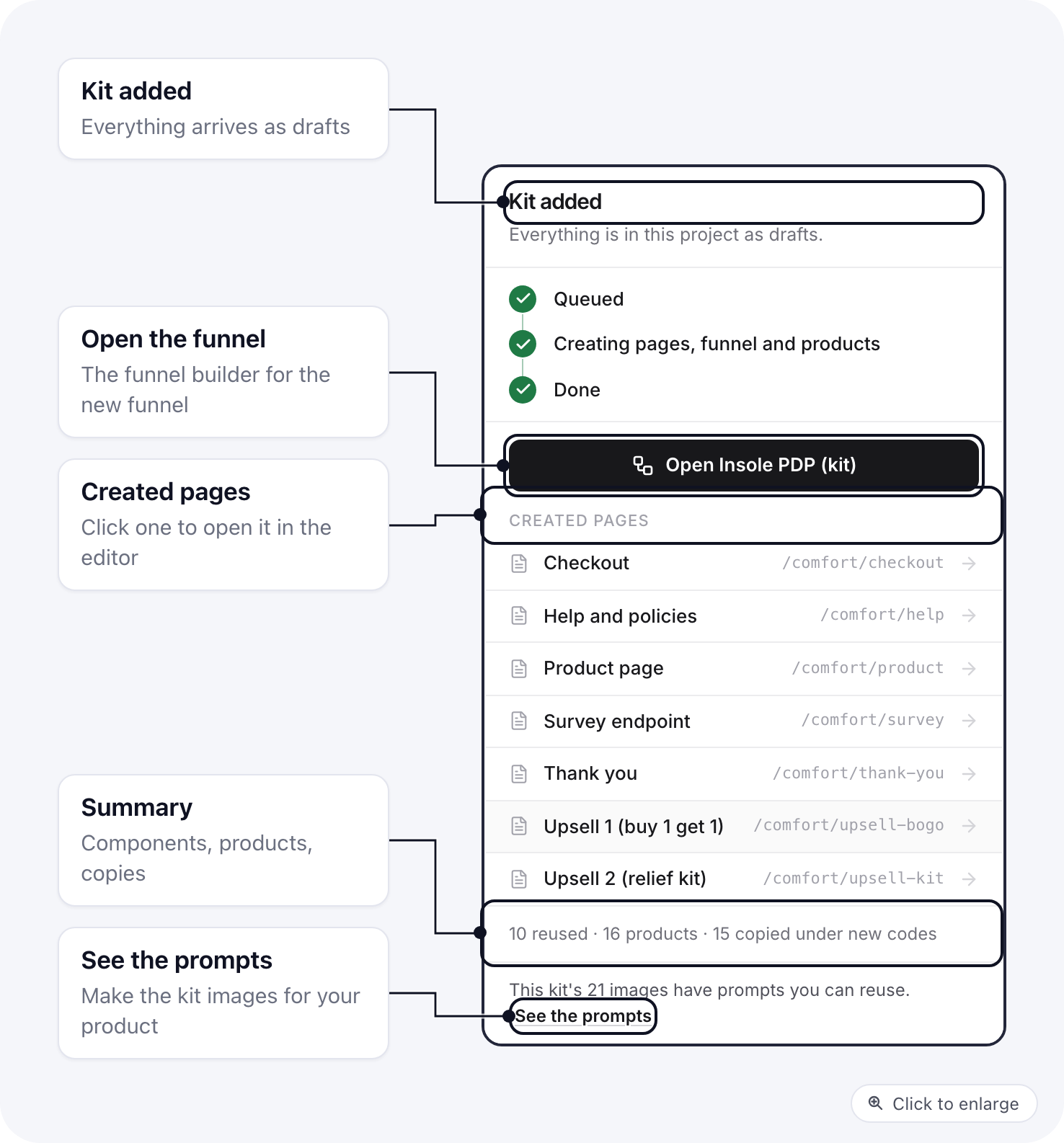
When it finishes, the panel says Kit added and Everything is in this project as drafts.- Click Open and the funnel name to open the new funnel.
- Or click a page under Created pages to open it in the editor.
- Read the summary: how many components were created or reused, and how many products were created, copied under new codes or linked to yours.
- If the kit has images, click See the prompts to make your own versions (see Kit images).
If it did not finish
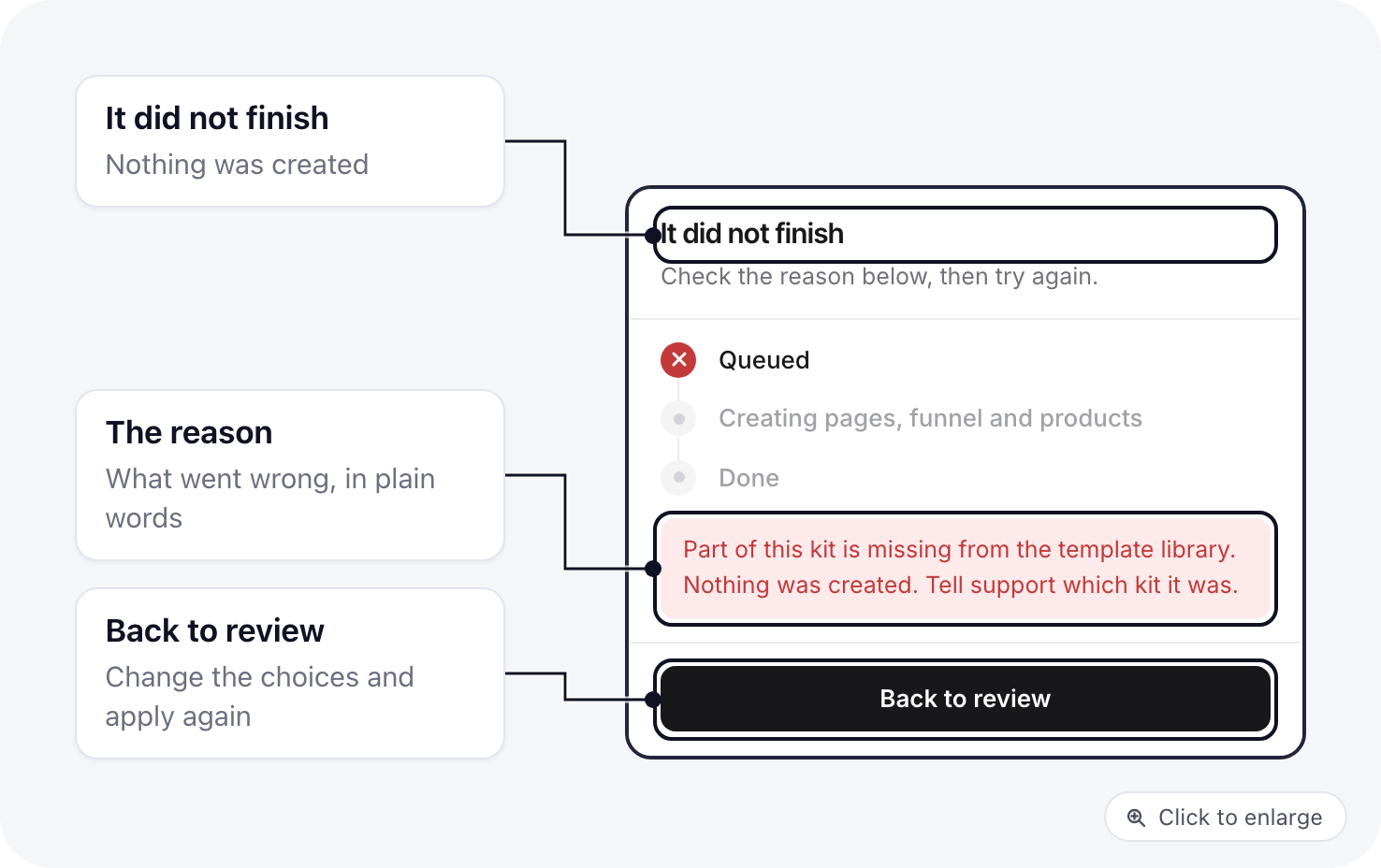
The panel says It did not finish and shows the reason in a red box. Nothing was created.- Read the reason. Troubleshooting lists each one and what to do.
- Click Back to review, change what the reason names, and apply again.