
What a kit can contain
Not every kit has every part. The review screen lists exactly what a kit adds before you apply it.
Kinds of kits
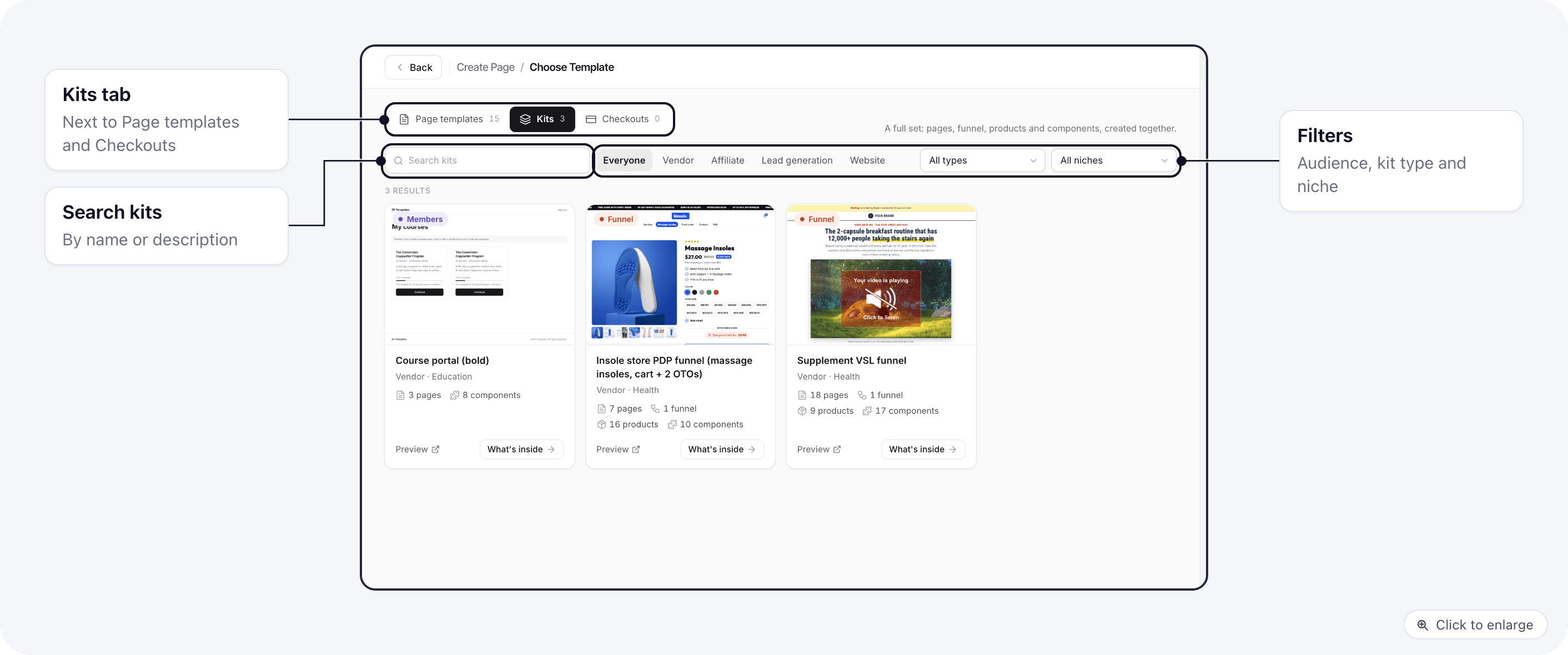
The library sorts kits by type and audience.- Type: Funnel, Store, Website or Members area.
- Audience: Vendor (you sell your own product), Affiliate (you promote someone else’s offer), Lead generation, or Website.
- Niche: health, beauty, fitness and others, shown as a filter.
Choose and preview a kit
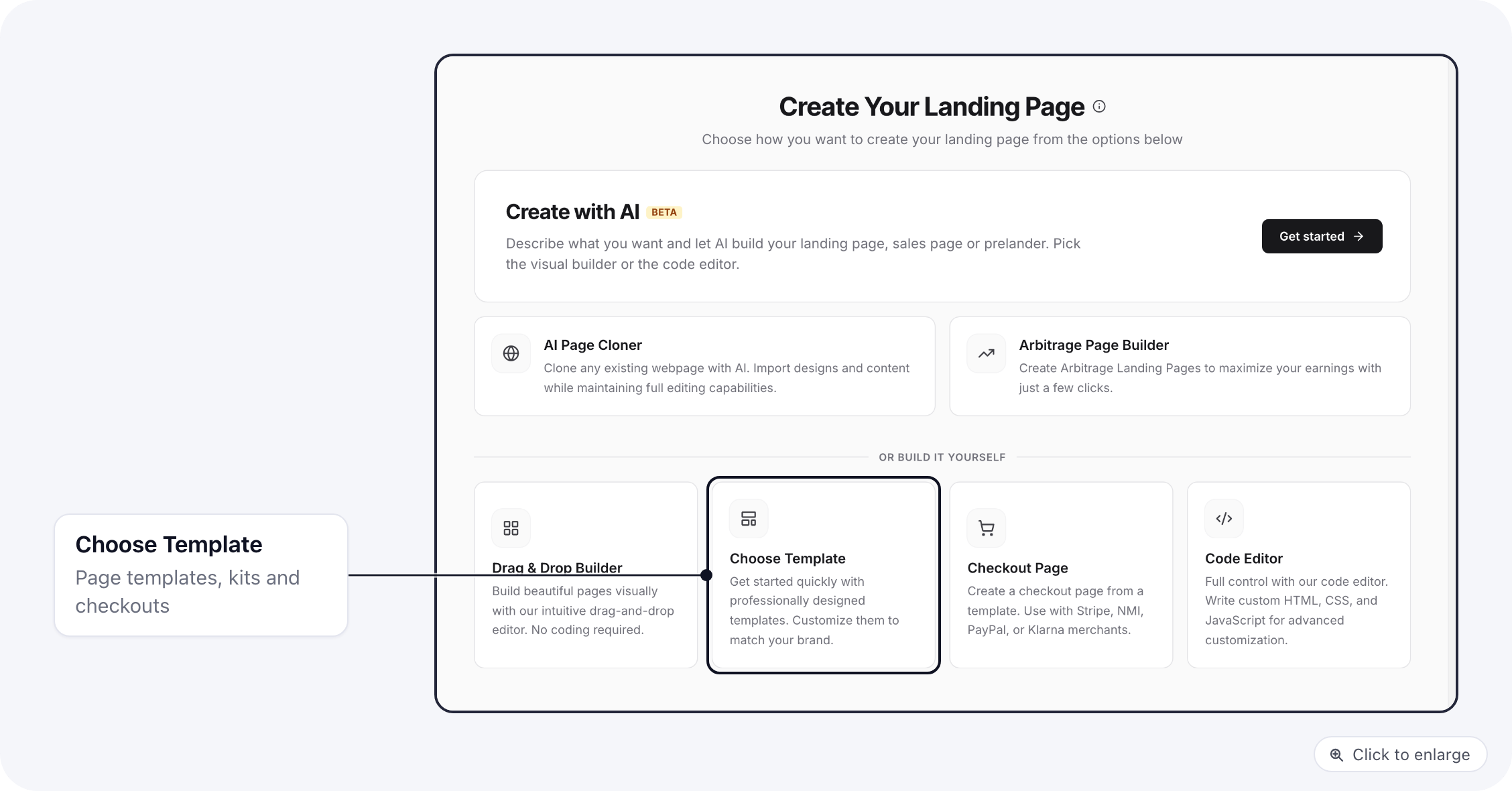
- Open Pages and click Create page.
- Click Choose Template.
- Open the Kits tab.
- Narrow the list: type in the search box, click an audience chip, or pick a type and niche in the filters.
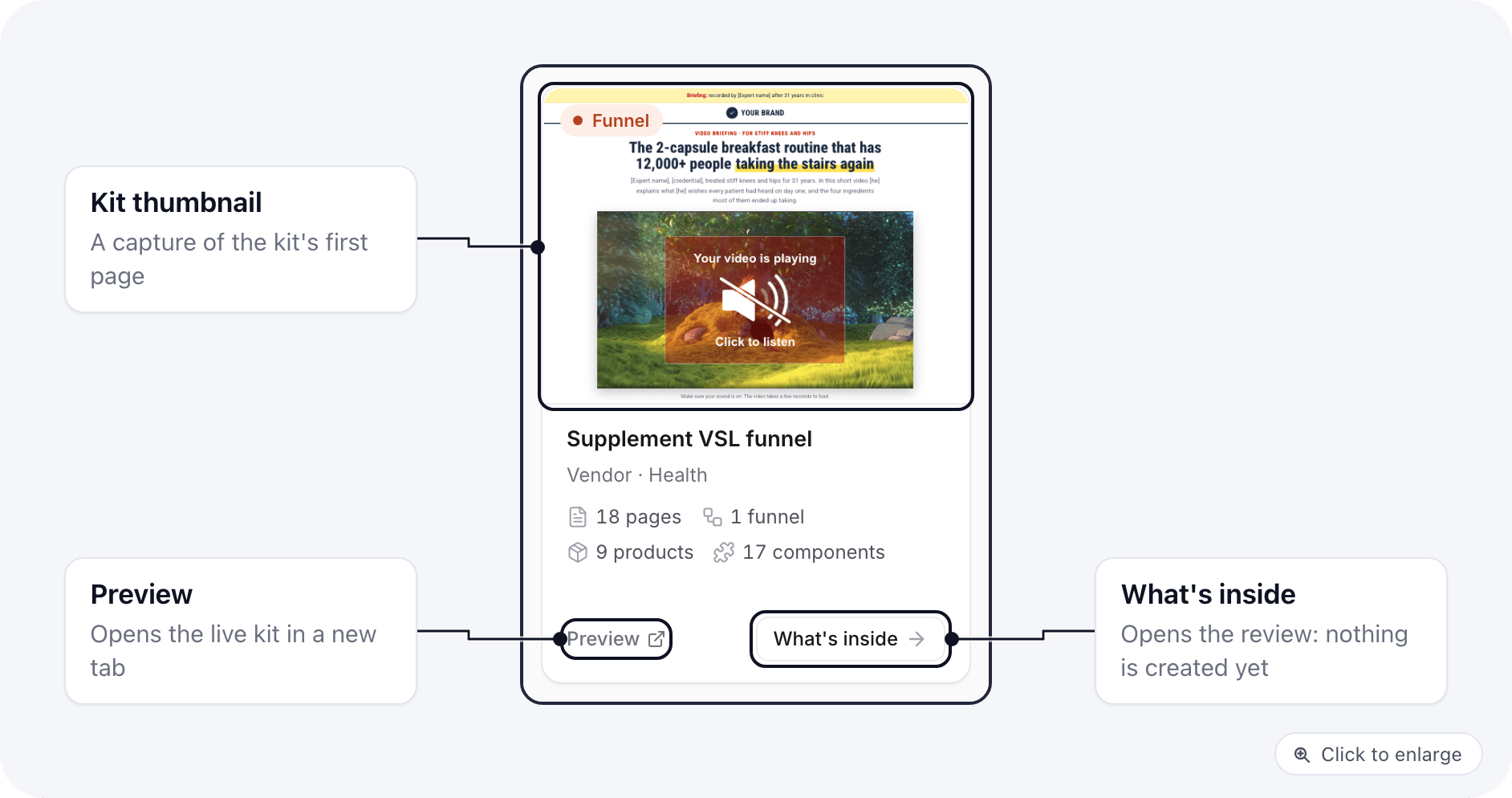
- On a kit card, click Preview to open the live kit in a new tab and click through it the way a visitor would.
- Back in ElasticFunnels, click What’s inside to open the kit review.
Start a new project from a kit
When you create a new project, the Start from a kit option lets you pick a kit in the same step. The project is created first, then the kit is applied to it, and you get the same review screen described in Apply a kit.Next steps
Apply a kit
The review screen step by step: folder, products, codes and Apply kit.
After applying
Where everything lands and what to check before you publish.
Kit images
Make your own version of every kit image with your product and logo.
AI customising
Give the AI your brief and pictures, and it rewrites the kit pages for your product.
Troubleshooting
Every message the kit screens can show, and what to do.