
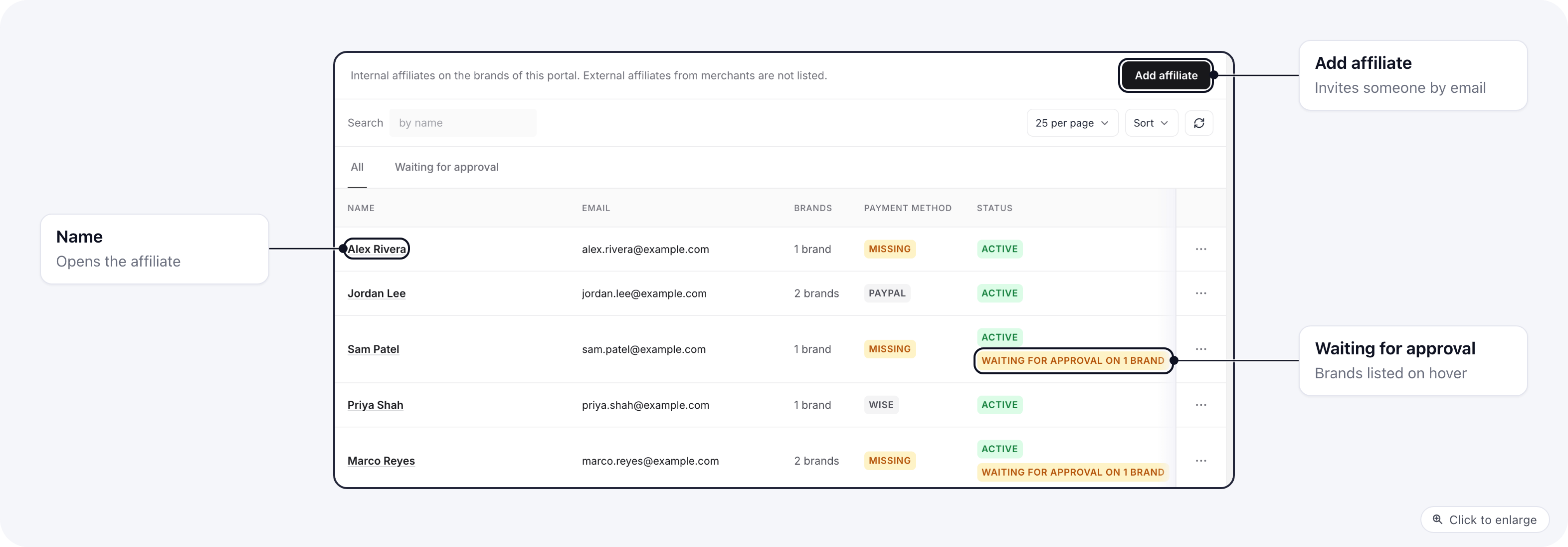
Invite an affiliate
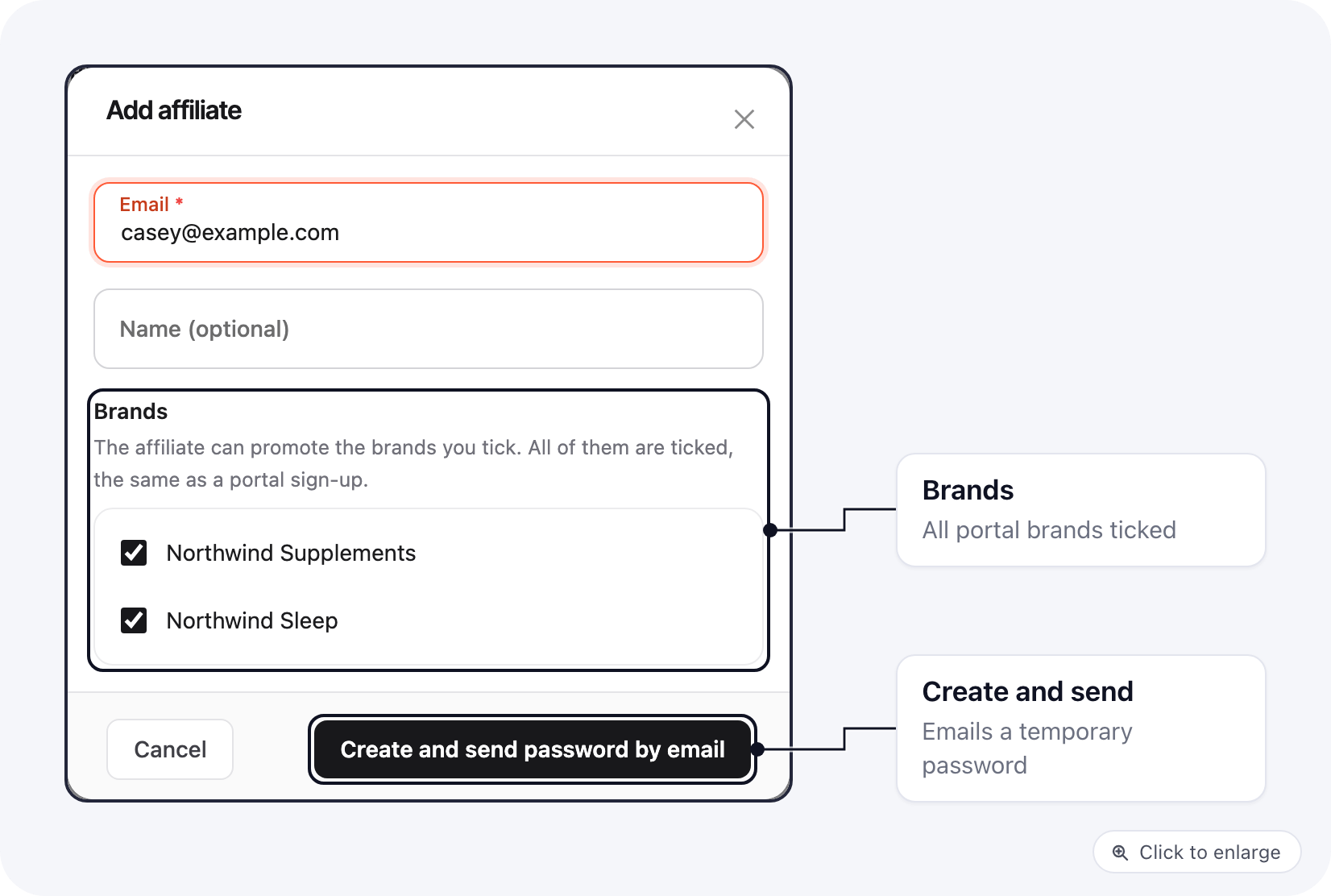
Affiliates usually sign up on the portal. To add one yourself:- Click Add affiliate.
- Enter their Email and, if you like, a Name.
- Under Brands, untick any brand they should not promote. Every brand on the portal is ticked, the same as a portal sign-up.
- Click Create and send password by email.
The affiliate’s page
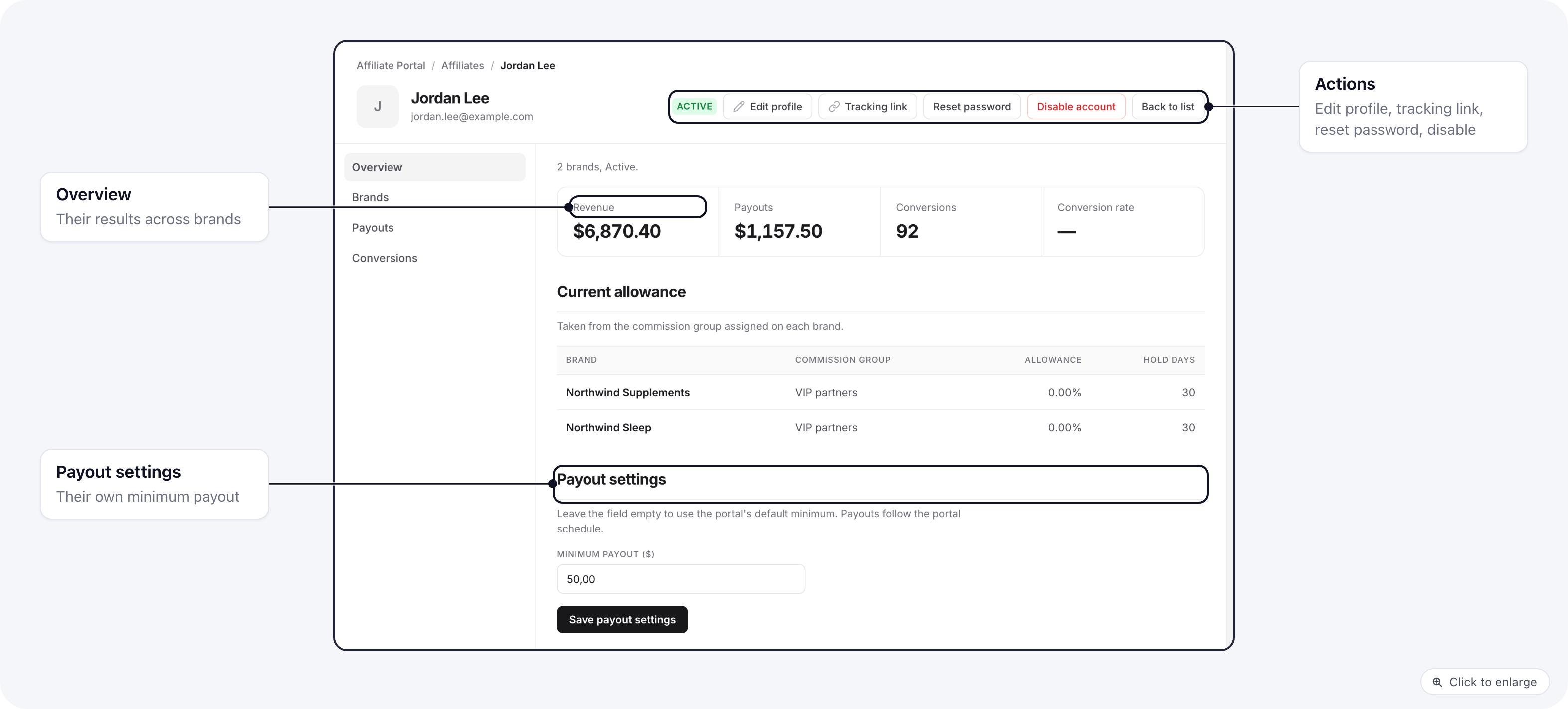
Click a name to open the affiliate. The header shows their email, phone and status, with these actions:- Edit profile: name, nickname, phone and email.
- Tracking link: build a tracking link for them, see below.
- Reset password: emails them a new temporary password.
- Disable account / Enable account.
Approve an affiliate
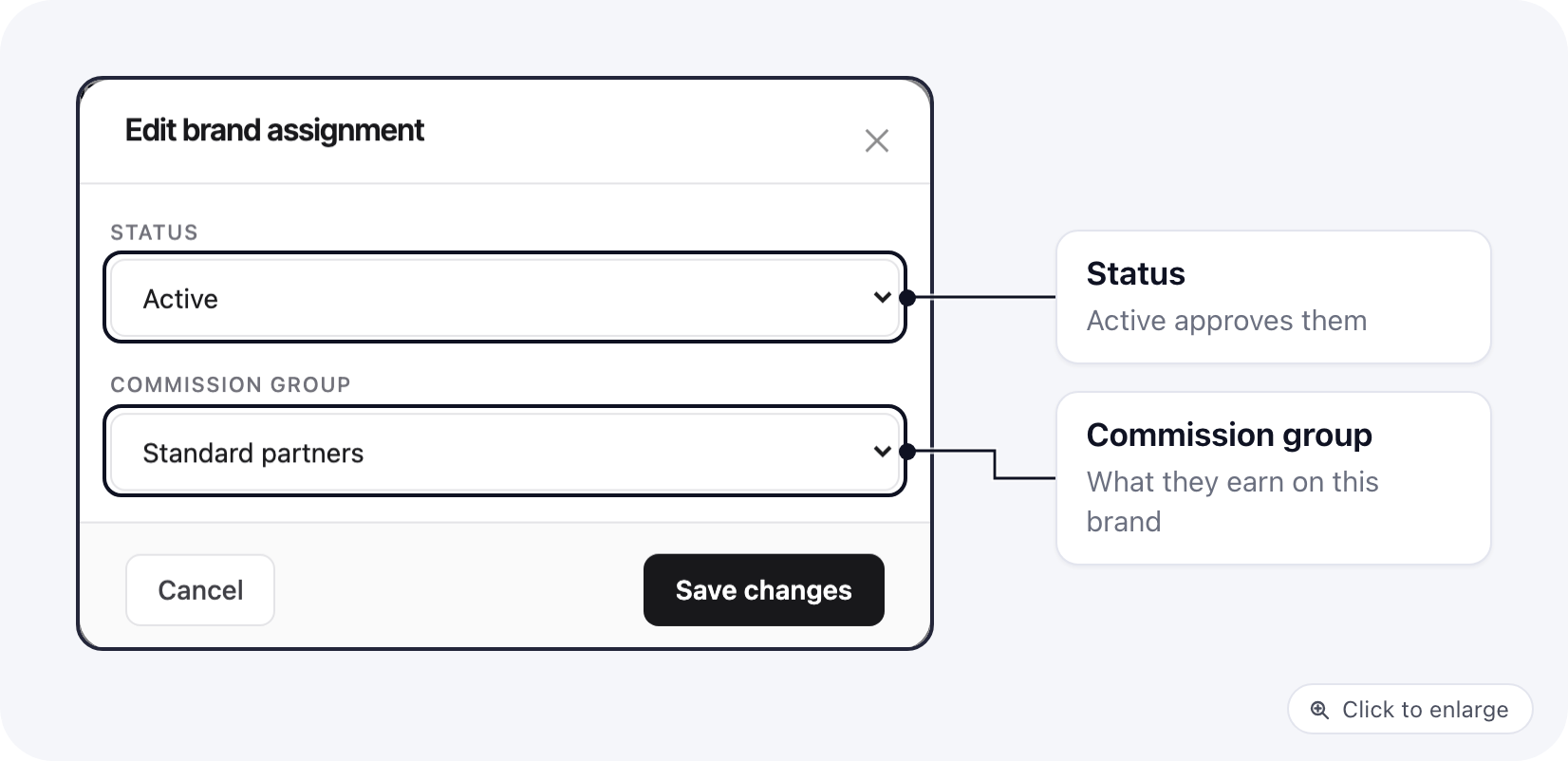
An affiliate who signs up on a brand set to Pending approval waits on that brand until you approve them. They can sign in while they wait, and they can fill in their profile and payout details.- Open the affiliate and go to the Brands tab.
- Open the menu on the brand’s row and pick Edit assignment.
- Set Status to Active. Pick a Commission group if they should not get the brand’s default.
- Save.
Add or remove a brand
Add brand, on the Brands tab, puts the affiliate on another portal brand with the status and commission group you pick. Remove brand in a row’s menu takes them off that brand.Build a tracking link for an affiliate
Tracking link (on the affiliate’s page, or Copy tracking link in the list’s row menu) builds the link an affiliate would build on the portal:- Enter URL: paste a page on one of your brand’s domains. The modal shows the final link for the brand that owns that domain, marked matched. A URL on a domain none of their brands owns cannot be tracked, and the modal says so.
- Select offer page: pick one of the offer pages you published in Assets.
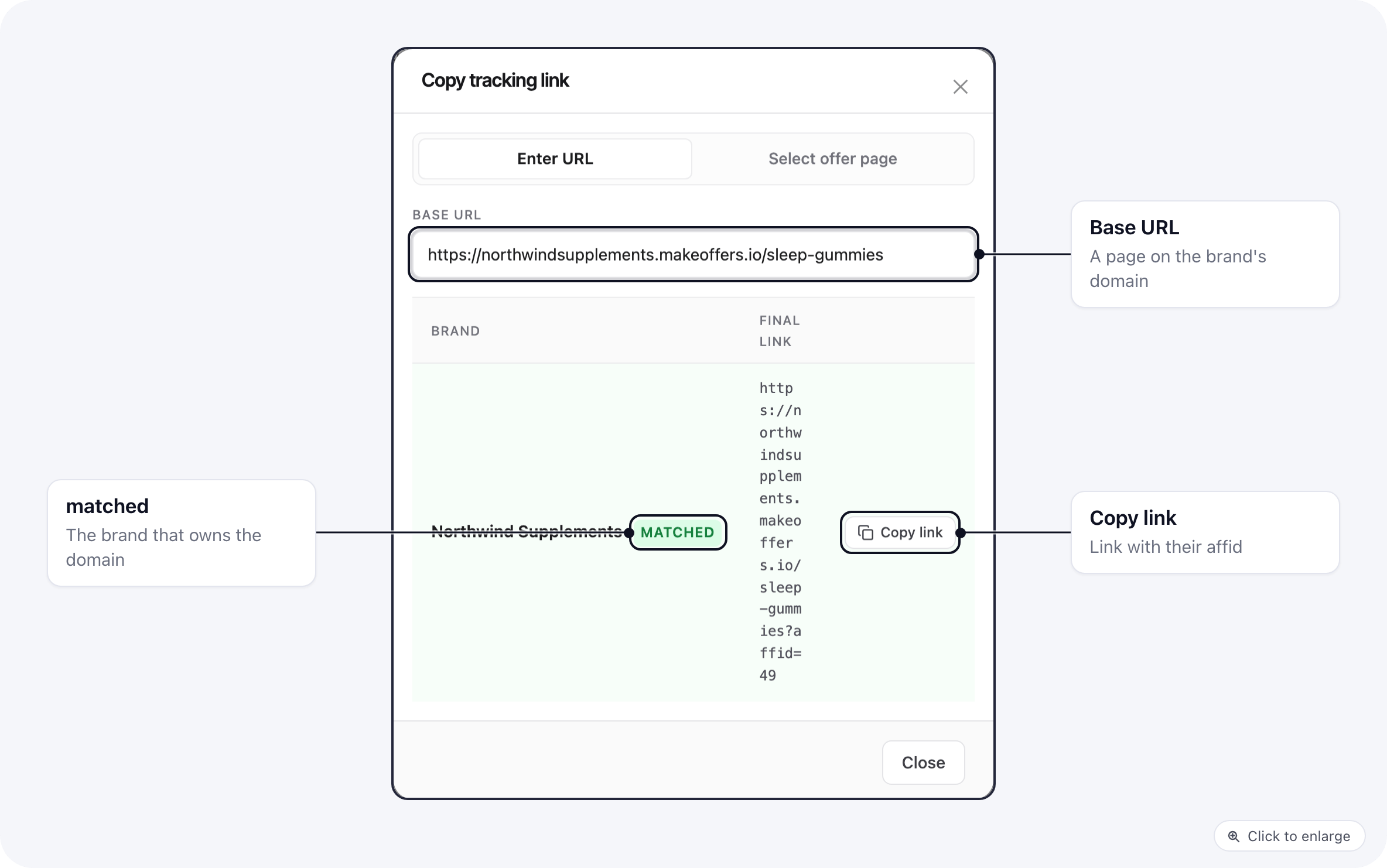
affid set to the affiliate’s id on that brand. Click Copy link.