
Before your first campaign
- A sending account. Campaigns only go out through an account you own: Amazon SES, Postmark, Brevo, Resend, Mailgun, SendGrid, Mailrelay, or your own SMTP server from Settings → Emailing. ElasticFunnels never falls back to its own servers for a campaign. See Email Sending Accounts.
- Delivery stats (optional). Opens, clicks and bounces are counted only when the account reports them back. See Delivery stats below.
- Your postal address (recommended). It goes in the footer of every campaign email.
1. Audience
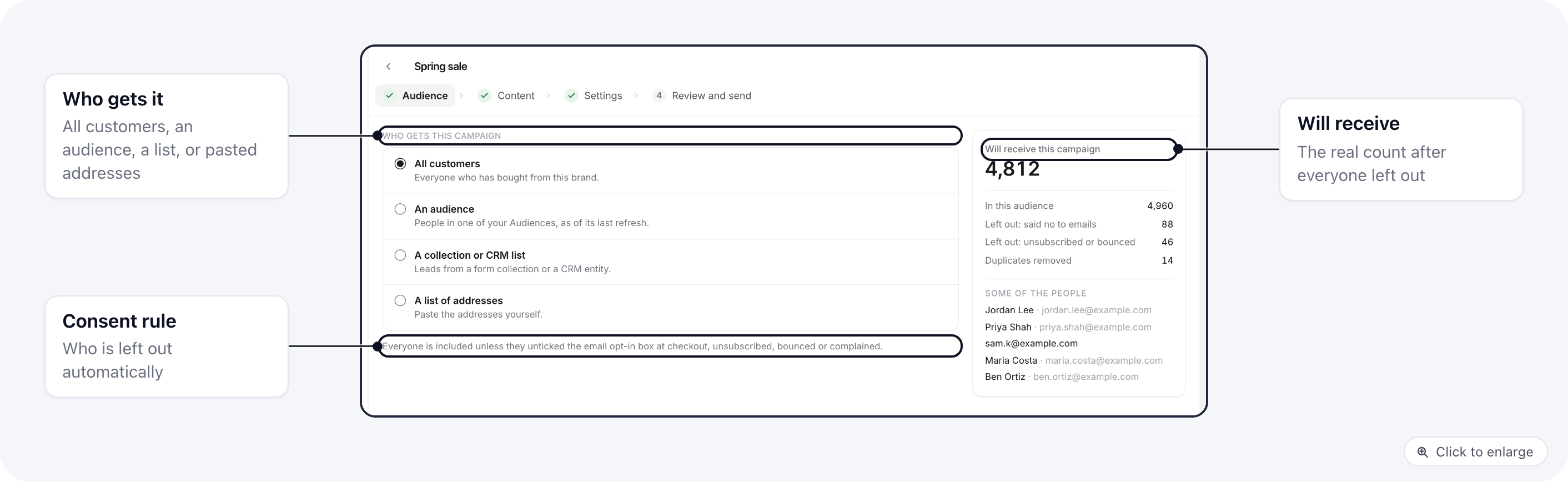
The Will receive this campaign card counts who is left once ElasticFunnels removes:
- Left out: said no to emails: people who saw the email opt-in box at checkout and left it unticked.
- Left out: unsubscribed or bounced: everyone on your suppression list.
- Duplicates removed: the same address twice.
The suppression list and the opt-in record are checked again for each person at the moment their email goes
out, so someone who unsubscribes from an earlier email after you launch is still skipped.
2. Content
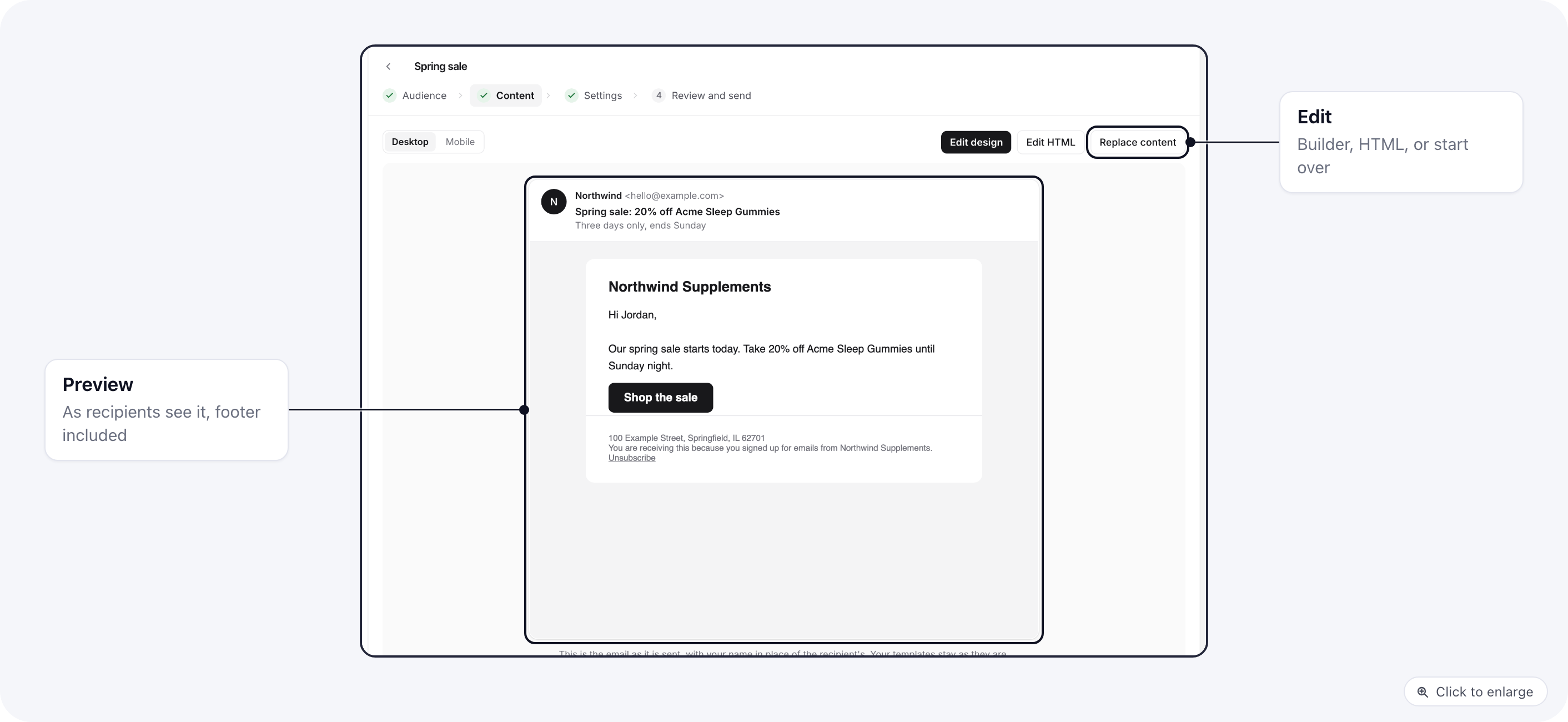
The footer and unsubscribe link
ElasticFunnels adds a footer to every campaign email with your postal address, the line “You are receiving this because you signed up for emails from (your brand).” and an Unsubscribe link. It is left out only when your template already prints both the unsubscribe link and the postal address. Every email also carries theList-Unsubscribe and one-click List-Unsubscribe-Post headers, so Gmail, Apple
Mail and other inboxes can show their own unsubscribe button.
The link opens a page in your brand’s colour with one confirm button. Opening the page changes nothing; the
person is unsubscribed when they confirm (or when their inbox uses one-click unsubscribe). From then on they get
no campaigns and no marketing automations from your brand. Receipts and other transactional emails still go out.
3. Settings
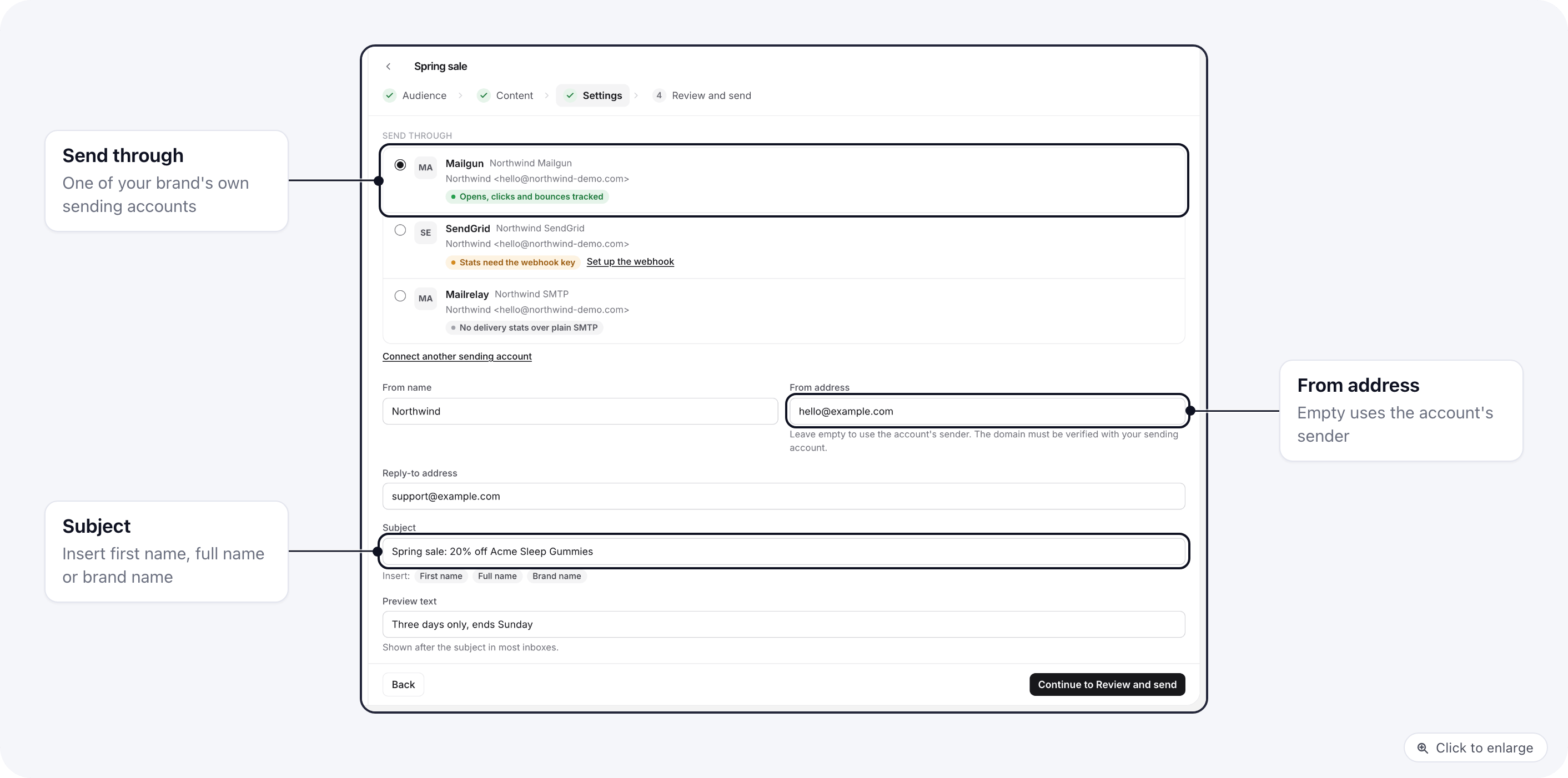
The same step holds the optional A/B test panel, which sends several subjects or versions to a test group
and the best one to everyone else. See A/B testing a campaign.
4. Review and send
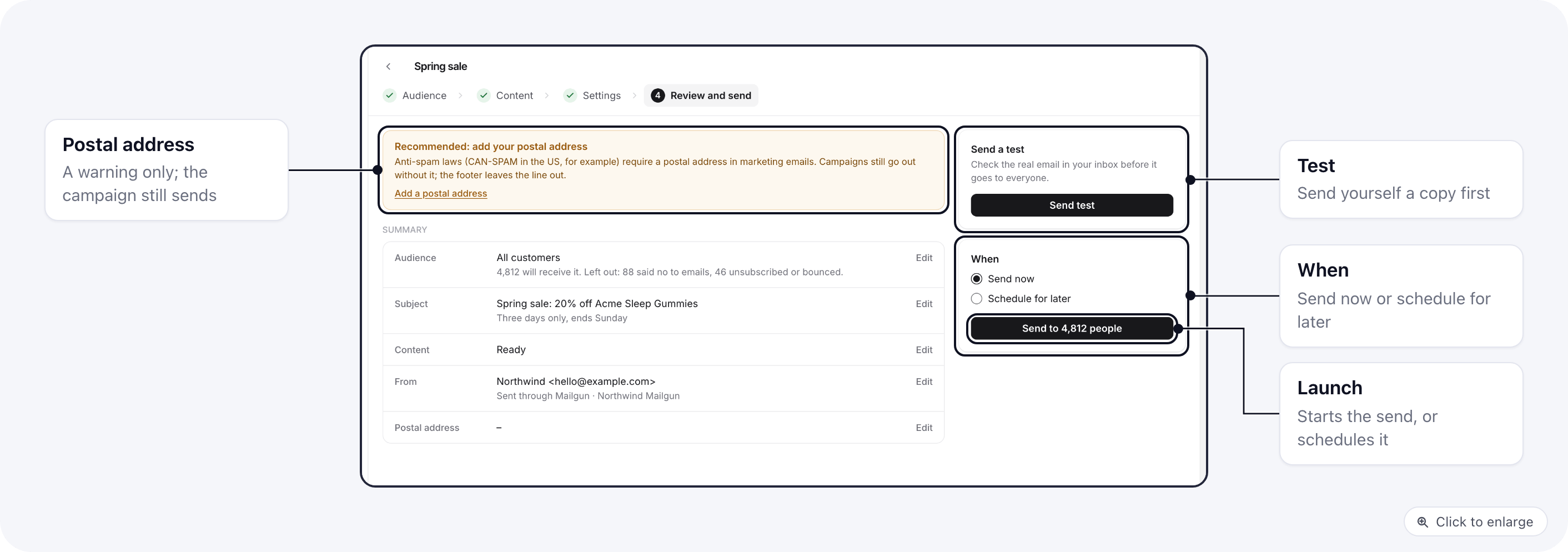
- Fix anything the step lists as missing: a subject, the content, an audience, a sending account, or a from address when the account has no default sender.
- Under Send a test, enter one address (yours is filled in) and click Send test. The test is the real email, footer included. Clicking its unsubscribe link changes nothing. You can send 10 tests per campaign per hour.
- Under When, pick Send now, or Schedule for later with a date and time in the brand’s time zone. The time must be at least a minute ahead.
- Click Send to (number) people and confirm.
How fast it sends
Recipients go out in batches of 250, paced to your sending account’s limit per minute:The report
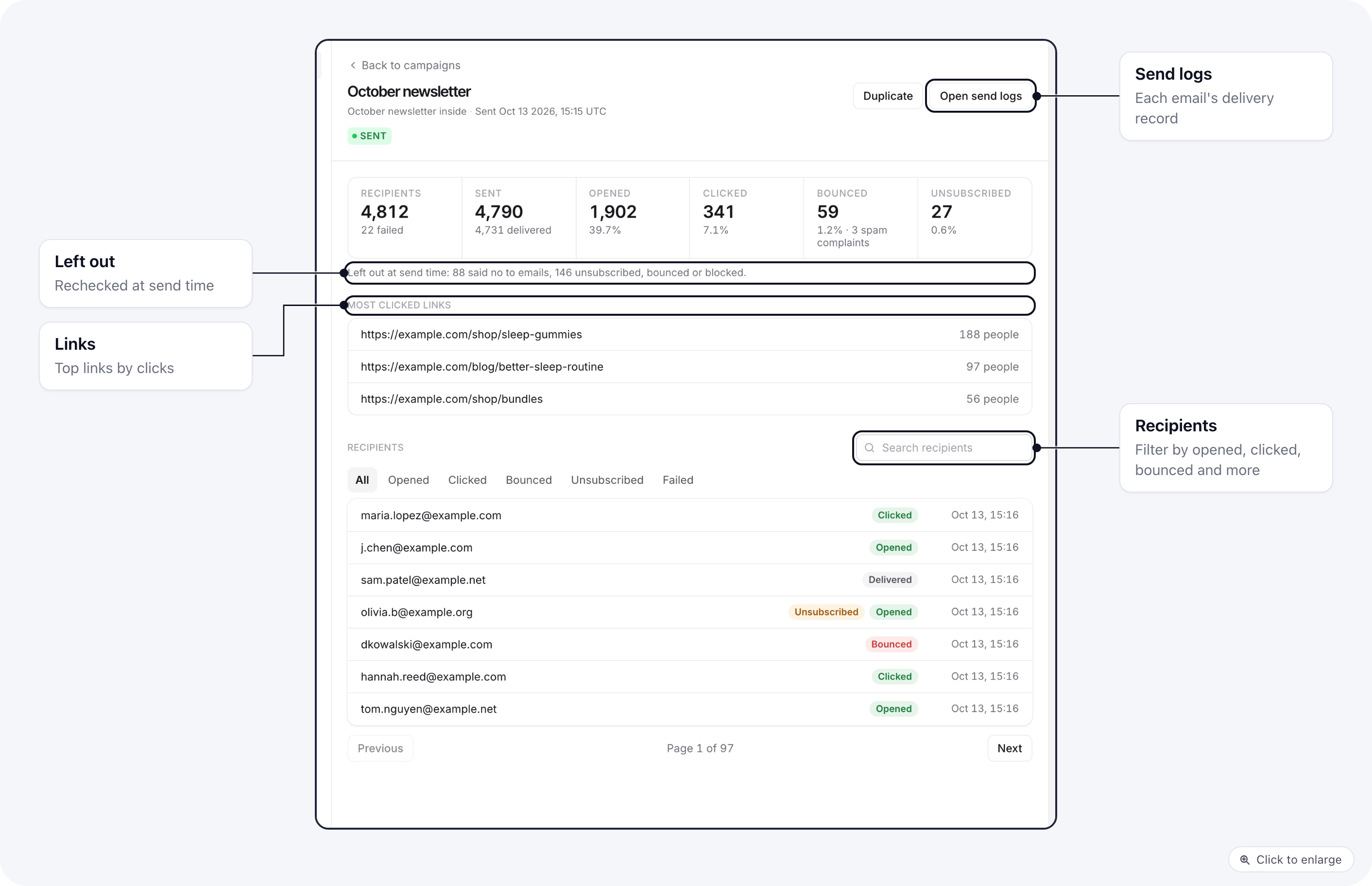
Below the cards you see who was left out and why, the Most clicked links (top 10) and the recipients list.
Filter recipients by All, Opened, Clicked, Bounced, Unsubscribed or Failed, or search
for an address. Open send logs shows the delivery log for each email. Duplicate copies the campaign
into a new draft.
The email report does not show revenue. To see sales from a campaign, add UTM tags to its links and read them
in your analytics.
Delivery stats and the campaign settings page
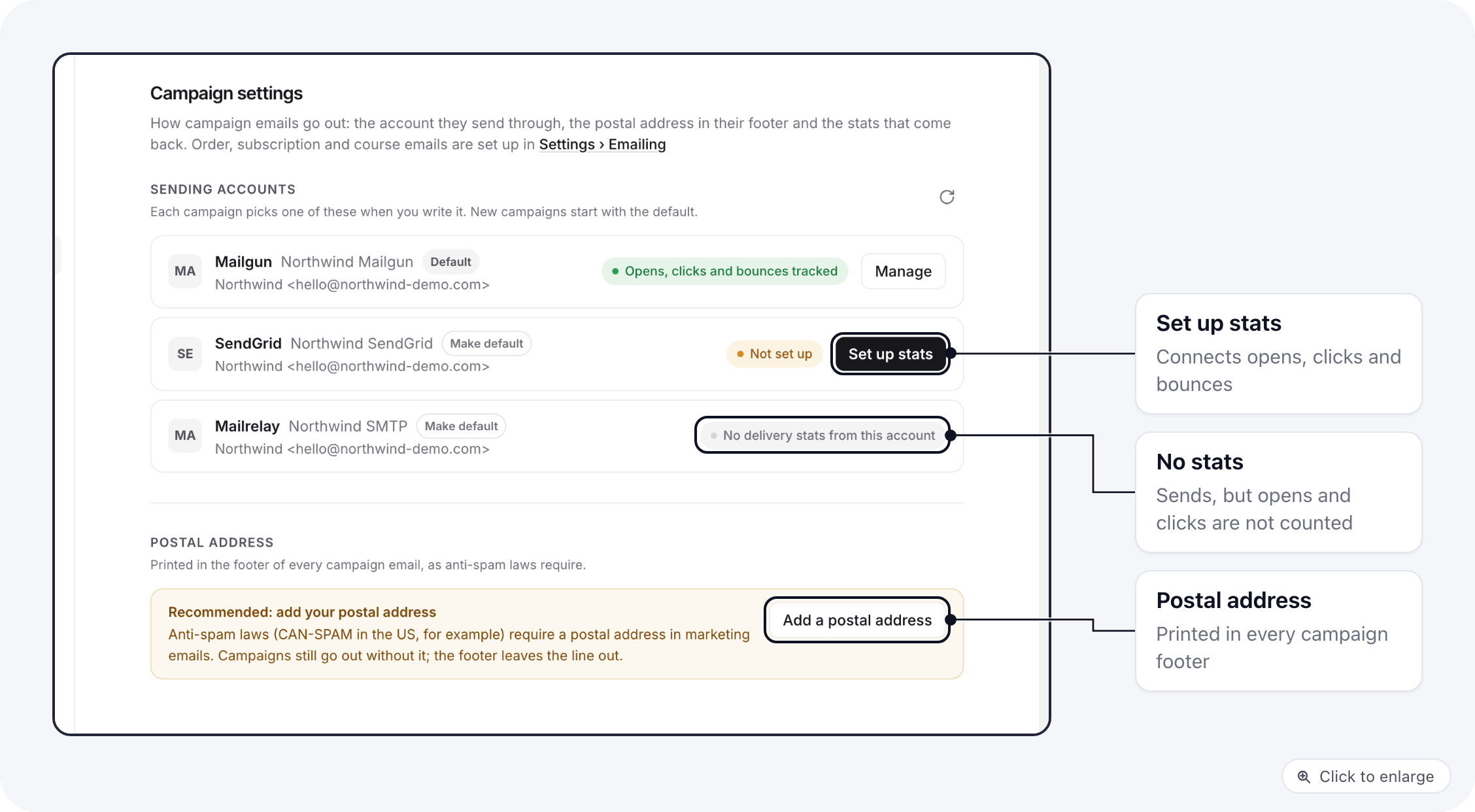
- Sending accounts lists each account. Make default sets the one new campaigns start with.
- Set up stats on Mailgun and SendGrid connects the webhook for you, or lets you paste the key by hand. Postmark, Resend, Brevo and Amazon SES get their webhook when you save the account.
- Mailrelay and SMTP servers show No delivery stats from this account: emails go out, but opens and clicks are not counted.
- Postal address is printed in the footer of every campaign email.
Suppression list
Open Suppression list under Email in the Campaigns menu. No campaign is ever sent to these addresses.
The list covers the whole brand, so it also keeps these people out of marketing automations.
Statuses
Related docs
- SMS campaigns: text a segment from your own Twilio, Plivo or Telnyx number
- A/B testing a campaign: test subjects or versions on a small group first
- Email Sending Accounts: connect the account campaigns go out through
- Emails overview: transactional emails, templates and who sends what