
SMS campaigns are for US numbers at launch. The brand’s allowed countries are set to the US. In Warn mode a
number outside the US is still texted and flagged with a warning; in Strict mode it is skipped.
Before your first campaign
Set these up in Settings → SMS (the SMS group in the Campaigns menu links to each tab). Full details are on SMS compliance.- SMS on for the brand. Until it is, you can write a campaign but it cannot go out.
- A sender. Connect your Twilio, Plivo or Telnyx account and add a number under Senders.
- The marketing consent statement. On the Compliance tab, tick “I have read this statement and accept it for this brand.” and click Accept statement. Without it, every marketing text is skipped, whichever mode you use.
- A link domain, if your texts have links. Links are blocked until the brand has one.
- Contacts. The audience comes from Analytics segments of your contacts, so contacts must be set up for the brand.
1. Setup
- Campaign name: only you see it.
- Send from: pick one of your senders. The default active sender is picked for you.
-
Compliance shows the mode your brand uses:
- Strict mode: texts that break a rule are not sent.
- Warning mode: texts that break a rule are sent and flagged.
2. Audience
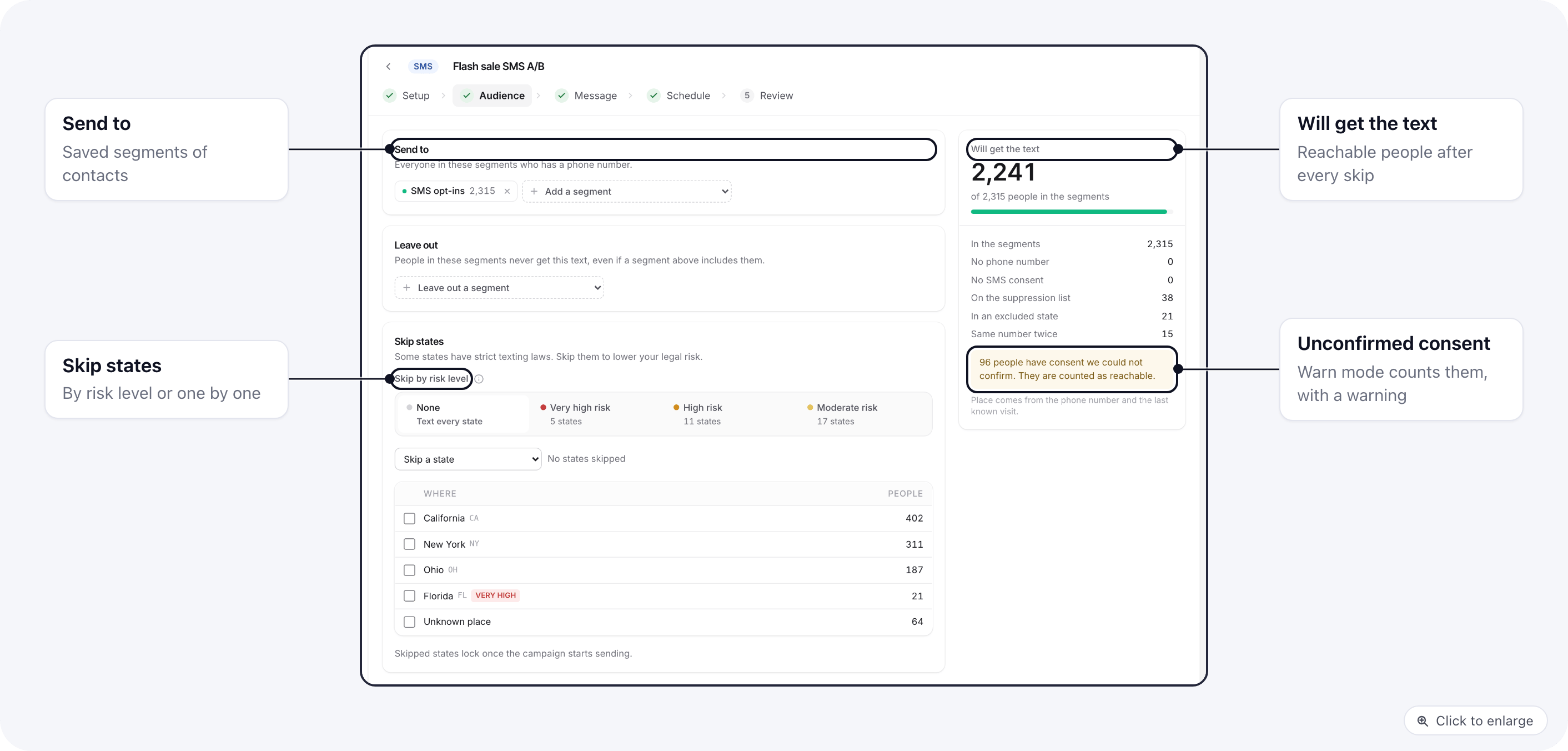
Only contacts who have not opted out of SMS are listed. The Will get the text card counts who is left after
ElasticFunnels removes people with no phone number, the same number twice, numbers on the suppression list and
numbers in a skipped state.
How consent is counted depends on your mode:
- Warn: people whose consent could not be confirmed are counted as reachable, with a note saying how many. Their texts go out with a warning.
- Strict: they are left out as No SMS consent.
3. Message
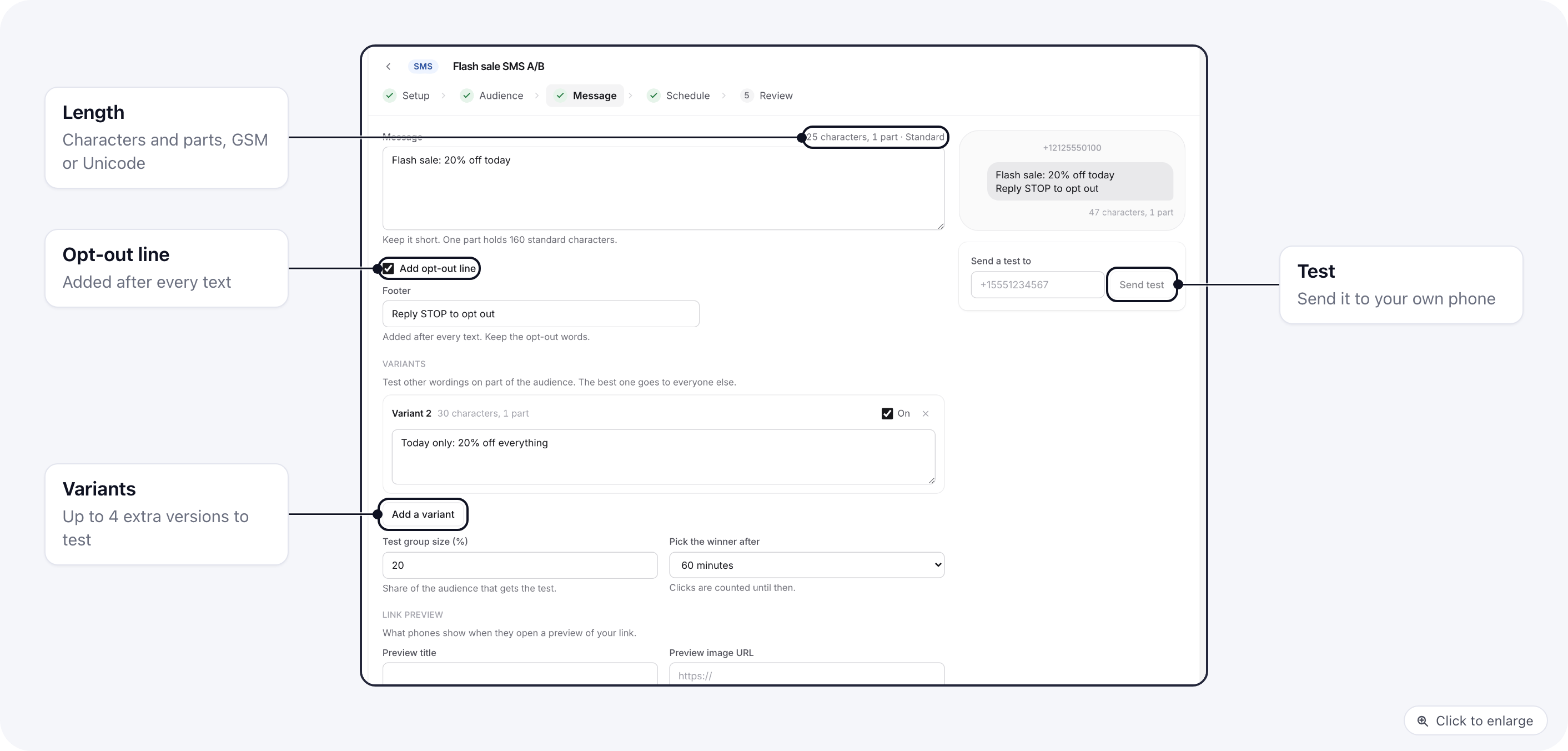
{first_name|there} to add the person’s first
name, with “there” when it is missing.
The counter under the box shows characters and parts. One part holds 160 standard characters, or 153 each when
the text runs to several parts. An emoji or special character switches the text to Unicode, which cuts each
part to 70 characters (67 when split), so the text costs more.
Add opt-out line is on by default and adds the Footer (“Reply STOP to opt out”) on a new line after
every text. You can change the wording, up to 80 characters, but it must keep the word STOP. If your message
already says STOP, the footer is not added twice. Turn the switch off and the review step warns that carriers
may filter the texts more often; you can still send.
Links. Each link in the text becomes a short link on your link domain (https://your-domain/s/code), one per
person, tagged with utm_source=sms, utm_medium=sms and utm_campaign=sms-(campaign id). That is how the
report ties clicks and orders to the campaign. Under Link preview, set the Preview title and Preview
image URL that phones show for the link.
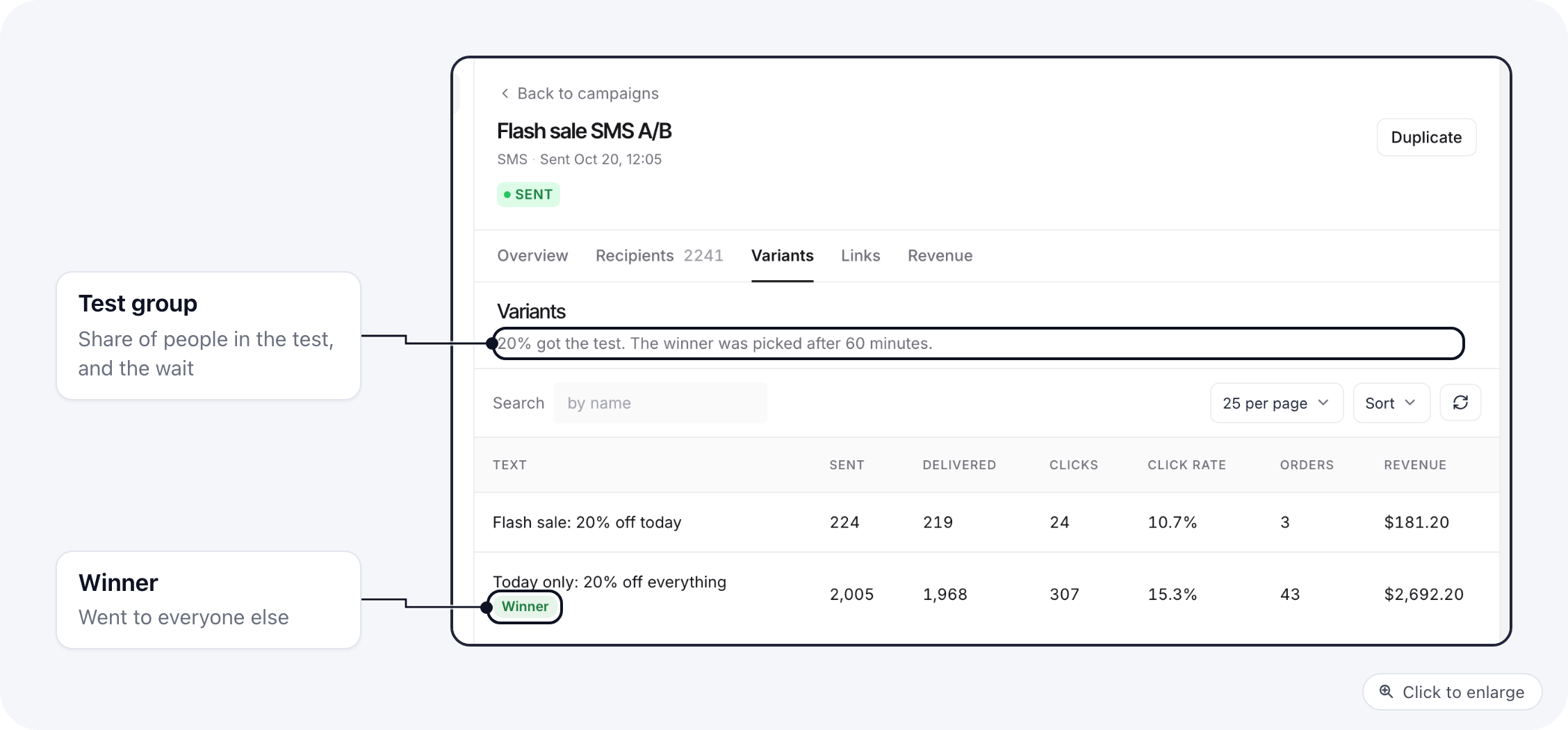
Variants. Click Add a variant to test up to four more wordings. Test group size (%) (20% by default)
gets all the versions; after Pick the winner after (60 minutes by default), the winner goes to everyone
else. How the winner is scored: A/B testing a campaign.
Send a test to a phone number and click Send test. The test passes the same compliance checks as the
real send.
4. Schedule
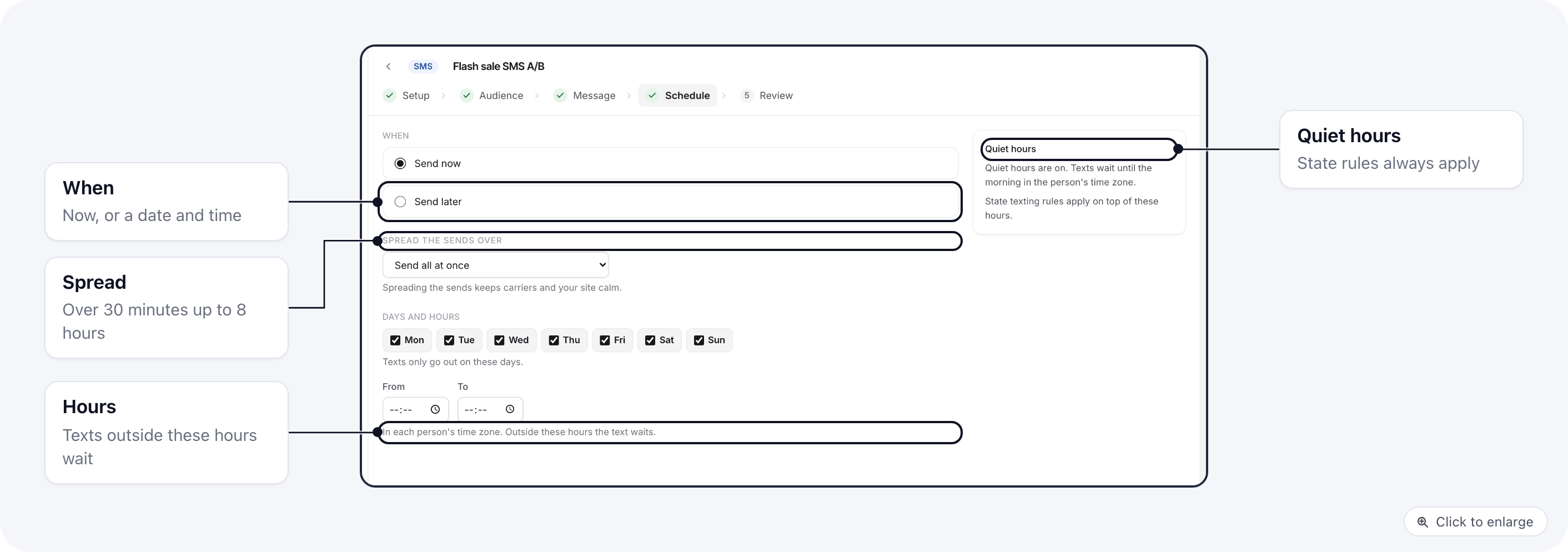
Quiet hours from your SMS settings apply on top of the campaign’s own hours. With them on, a text that falls
outside the allowed window waits until the morning in the person’s time zone (8am to 8pm by default, with
stricter rules in states such as Pennsylvania and Connecticut). A text that has waited 48 hours is skipped. With
quiet hours off, the text goes out and is flagged with a warning.
5. Review
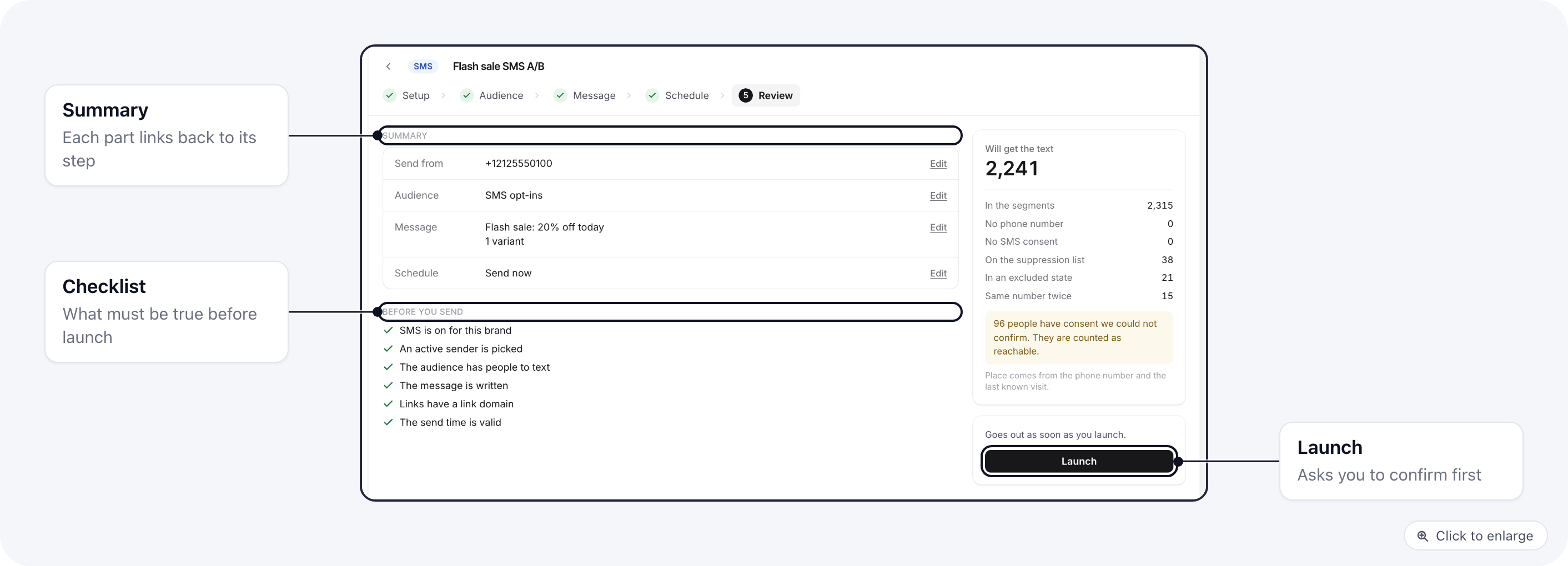
- SMS is on for this brand
- An active sender is picked
- The audience has people to text
- The message is written
- Links have a link domain
- The send time is valid
The report
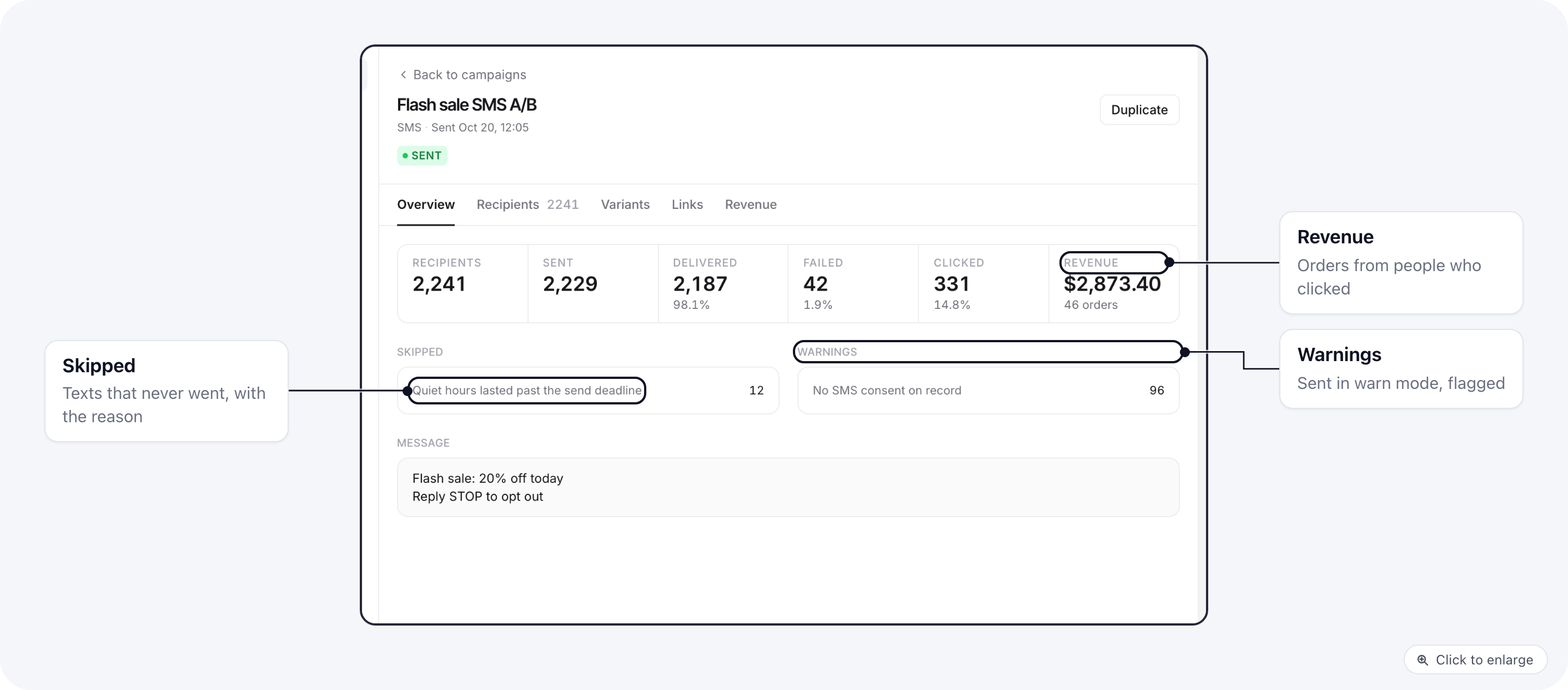
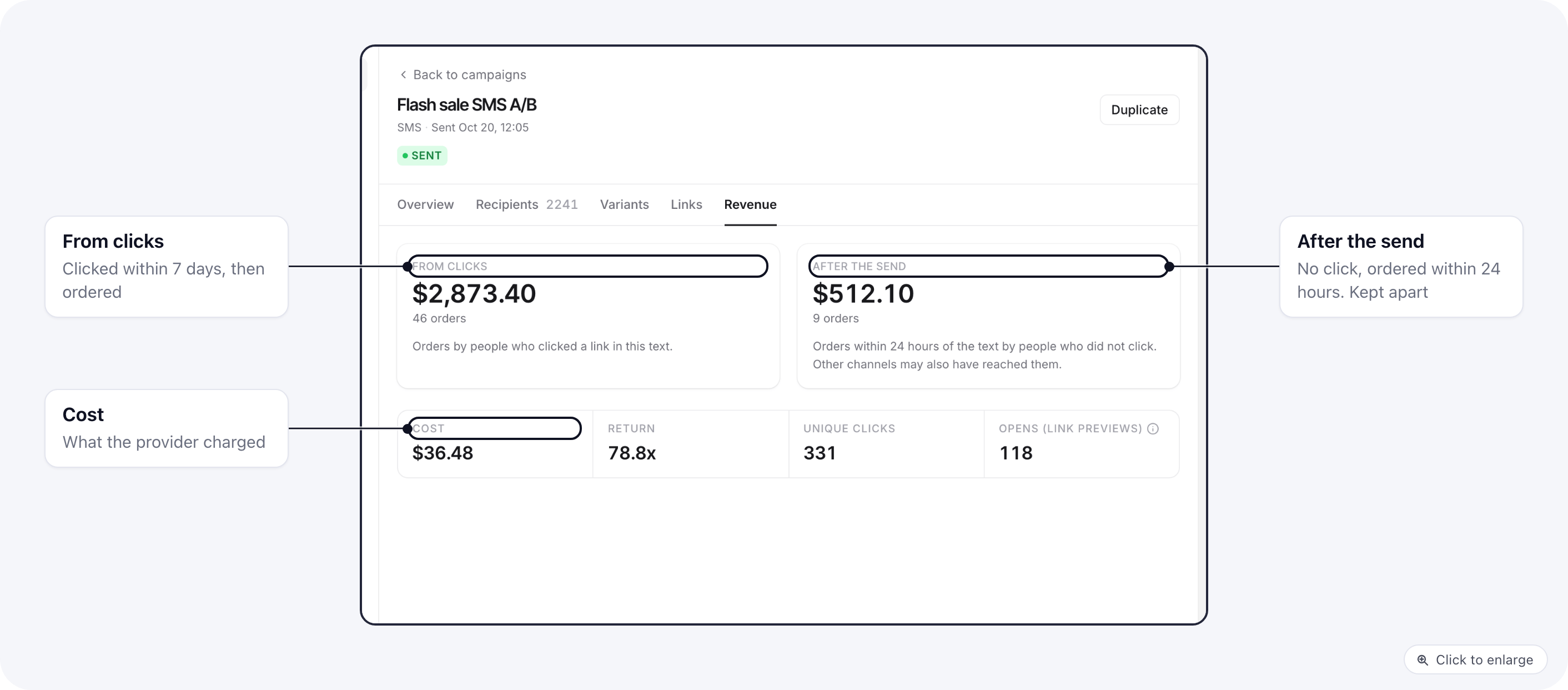
- From clicks: orders by people who clicked a link in this text in the 7 days before they bought, or orders
that carry the campaign’s
utm_campaign. - After the send: orders within 24 hours of the text by people who did not click. Other channels may also have reached them, so this is never added to From clicks.
Pause, stop and duplicate
A sending campaign pauses on its own after 10 carrier rejections in a row or an error from your provider
account. Check your sender and provider, then click Resume.
STOP and opt-outs
When someone replies STOP (or STOPALL, UNSUBSCRIBE, CANCEL, END, QUIT and similar words), their number goes on the brand’s SMS suppression list, the opt-out is logged, and they get one confirmation reply. START takes them off the list. Suppressed numbers are left out when the campaign starts and checked again as each text goes out. More on the automatic replies: SMS compliance.Related docs
- SMS compliance: senders, consent, quiet hours, state rules and the SMS log
- A/B testing a campaign: how SMS variants are scored
- Email campaigns: send an email to customers or an audience
- Send SMS step: text one person from an automation