
Overview
Plivo can be the carrier behind your brand’s texts. Once you connect a Plivo account and add one of its numbers as a sender, texts from the Send SMS step, test sends and the automatic STOP, HELP and START replies go out through Plivo. They pass the same checks as every other text first (suppression list, quiet hours, consent, state rules), set up in Settings -> SMS. Plivo has no automation steps of its own. It is a sender, like a Twilio number. You pay Plivo directly for every text, and ElasticFunnels adds nothing on top. Only US numbers can be texted for now.What you need in Plivo
- A Plivo account with credit on it. A Plivo trial account can only text numbers you have verified in the Plivo console.
- A number that can send SMS, or a Powerpack. You can use any of these:
- Your Auth ID and Auth Token. Both are on the overview page of the
Plivo console. The Auth ID is 20 characters and starts with
MA(orSAfor a subaccount).
Connect Plivo
1
Open Plivo in Integrations
Go to Apps -> Integrations and open Plivo. Click Add connection.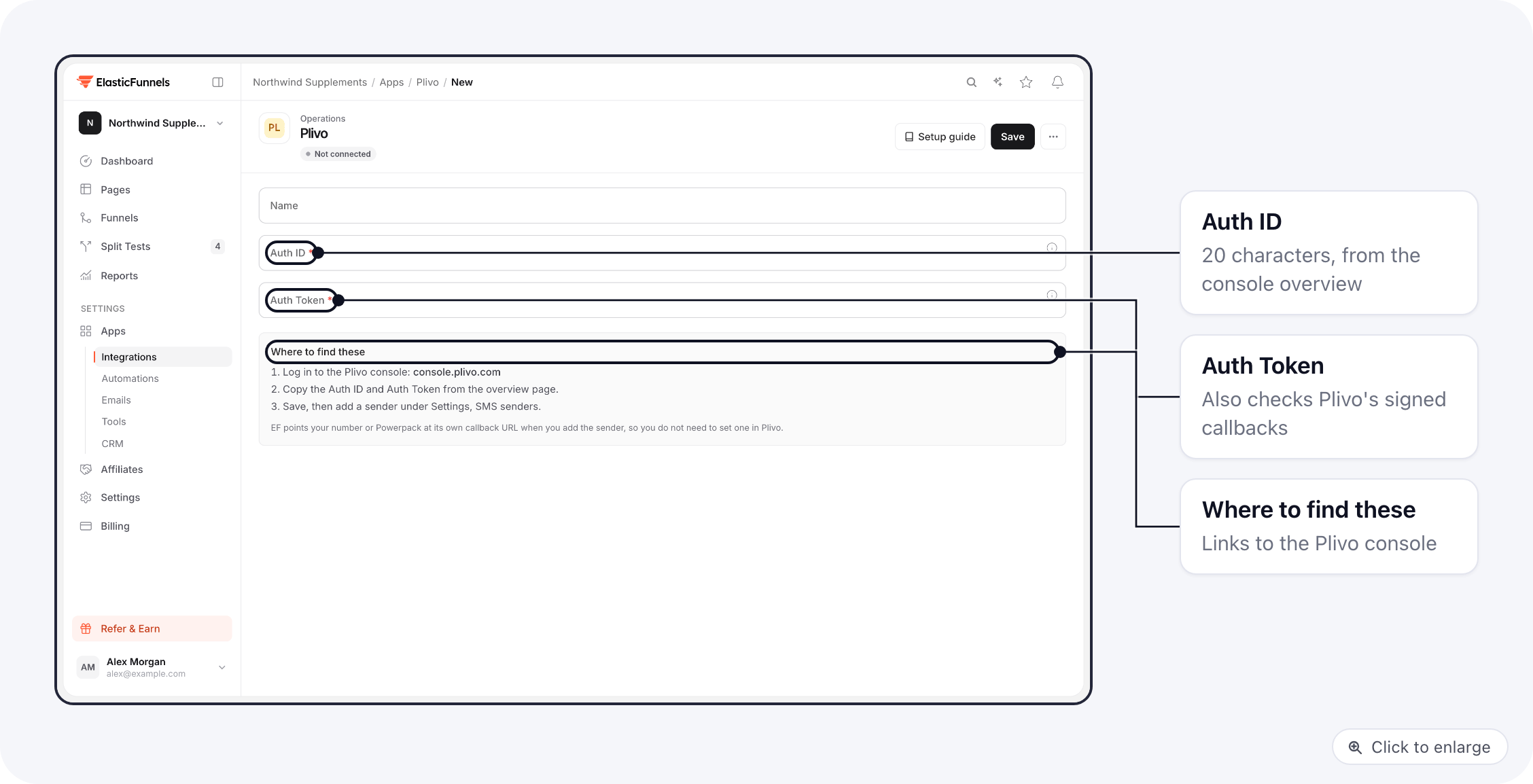
2
Paste your credentials
Give the connection a Name (for example “Plivo main account”), then paste the Auth ID and the
Auth Token from the Plivo console. Save.The Auth Token is stored encrypted. ElasticFunnels also uses it to check that replies and delivery
reports really come from Plivo, so keep it current here if you ever change it in Plivo.
3
Add a sender
Open Settings -> SMS -> Senders and click Add sender. Choose your Plivo connection under
SMS provider account, then pick a Number. The list shows the SMS-enabled numbers and the
Powerpacks on that account; a Powerpack shows as a messaging service.Turn on Default sender if this is the number a step should use when it does not pick one. Save.
4
Click Configure webhooks
In the sender’s row, click Configure webhooks. ElasticFunnels sets up Plivo to send replies to it.
See Replies and delivery reports for what this changes in your Plivo
account.
5
Check the registration
Click Refresh in the Registration column. ElasticFunnels reads the 10DLC status (local numbers)
or the toll-free verification status from Plivo and shows Registered, Pending, Rejected or
Unknown. A Powerpack stays at Unknown, so check its numbers in Plivo.
6
Accept the consent statement
On the Compliance tab, accept the marketing consent statement. Marketing texts are skipped until
someone on the brand does. See SMS compliance.
Replies and delivery reports
There is no URL to copy into Plivo. Configure webhooks does it for you:- Replies (STOP, HELP, START and anything else people text back). ElasticFunnels creates a Plivo
application named
elasticfunnels-brand-<your brand ID>whose message URL points at your brand’s ElasticFunnels address (it contains/api/webhook/sms/plivo/), and attaches it to the number or Powerpack. Clicking it again later reuses the same application. - Delivery reports. Every text ElasticFunnels sends carries its own report address, so nothing needs to be set in Plivo for them.
Send a test
- Open Settings -> SMS -> Test send.
- Enter a number you own, pick the Plivo sender, choose the type and write a short message.
- Send. The tab shows what the checks decided: sent, waiting or skipped, with the reason.
- Open Settings -> Logs -> SMS. The text should move from Sent to Delivered within a minute or so.
- Reply STOP from your phone. It shows under Replies, your number lands on the Suppression list, and you get the STOP reply. Text START to lift it again.
Troubleshooting
No replies and no delivery reports
No replies and no delivery reports
Click Configure webhooks (or Set again) on the sender. If you changed the Auth Token in Plivo,
paste the new one into the Plivo integration first: requests signed with a token ElasticFunnels does
not have are refused. Also check in the Plivo console that the number still uses the
elasticfunnels-brand-... application."This number is not in the connected Plivo account"
"This number is not in the connected Plivo account"
The number was released or moved to another Plivo account or subaccount. Remove the sender and add a
number from the account the integration uses.
"Could not reach Plivo" or the number list is empty
"Could not reach Plivo" or the number list is empty
The Auth ID or Auth Token is wrong, or Plivo did not answer. Check both on the Plivo console overview
page and save the integration again. The list shows the first 20 numbers and the first 20 Powerpacks
on the account, and leaves out numbers without SMS.
Auth ID is refused when saving
Auth ID is refused when saving
The Auth ID is exactly 20 letters and digits, starting with MA or SA. Copy it from the console
overview, not the Auth Token.
A text failed: what the Plivo error means
A text failed: what the Plivo error means
Click the text in Settings -> Logs -> SMS to see Plivo’s error code and its meaning.
A number on the suppression list gets no more texts until the person texts START or you lift it.
The log says Twilio for a Plivo text
The log says Twilio for a Plivo text
Some reasons in the log are still worded for Twilio, for example “Twilio rejected the text”. For a
Plivo sender they mean Plivo. The error code next to them is Plivo’s.
Related docs
- SMS compliance: the checks every text passes, senders and the SMS log
- Send SMS step: text customers from an automation
- Telnyx and Twilio: the other providers you can send through