
The brands list
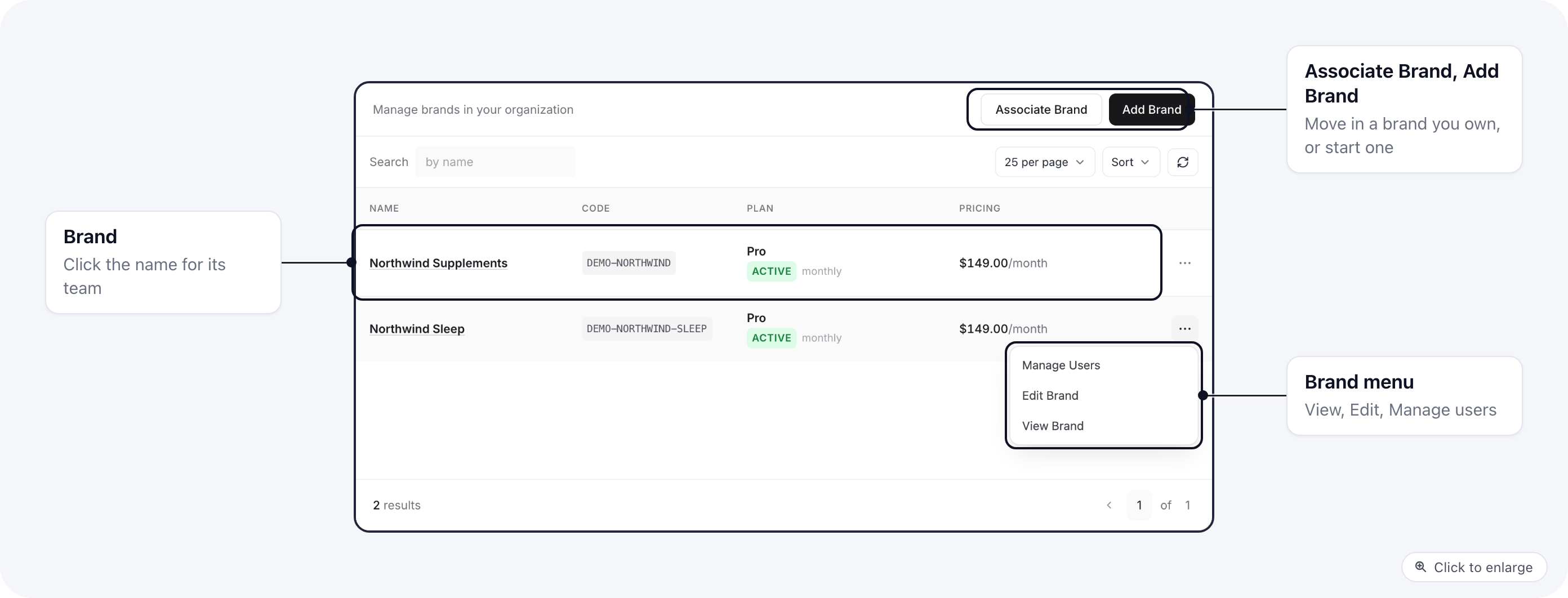
- Add Brand and Associate Brand show for owners and for roles with Organization > Brands, Create.
- The Plan and Pricing columns show only to people who can see Billing or organization Settings.
- Manage Users changes a brand’s team for roles with Organization > Members, Update. Others see it read-only.
Add a new brand
- Click Add Brand.
- Enter the brand’s name (3 to 64 characters) and save.
Bring in an existing brand
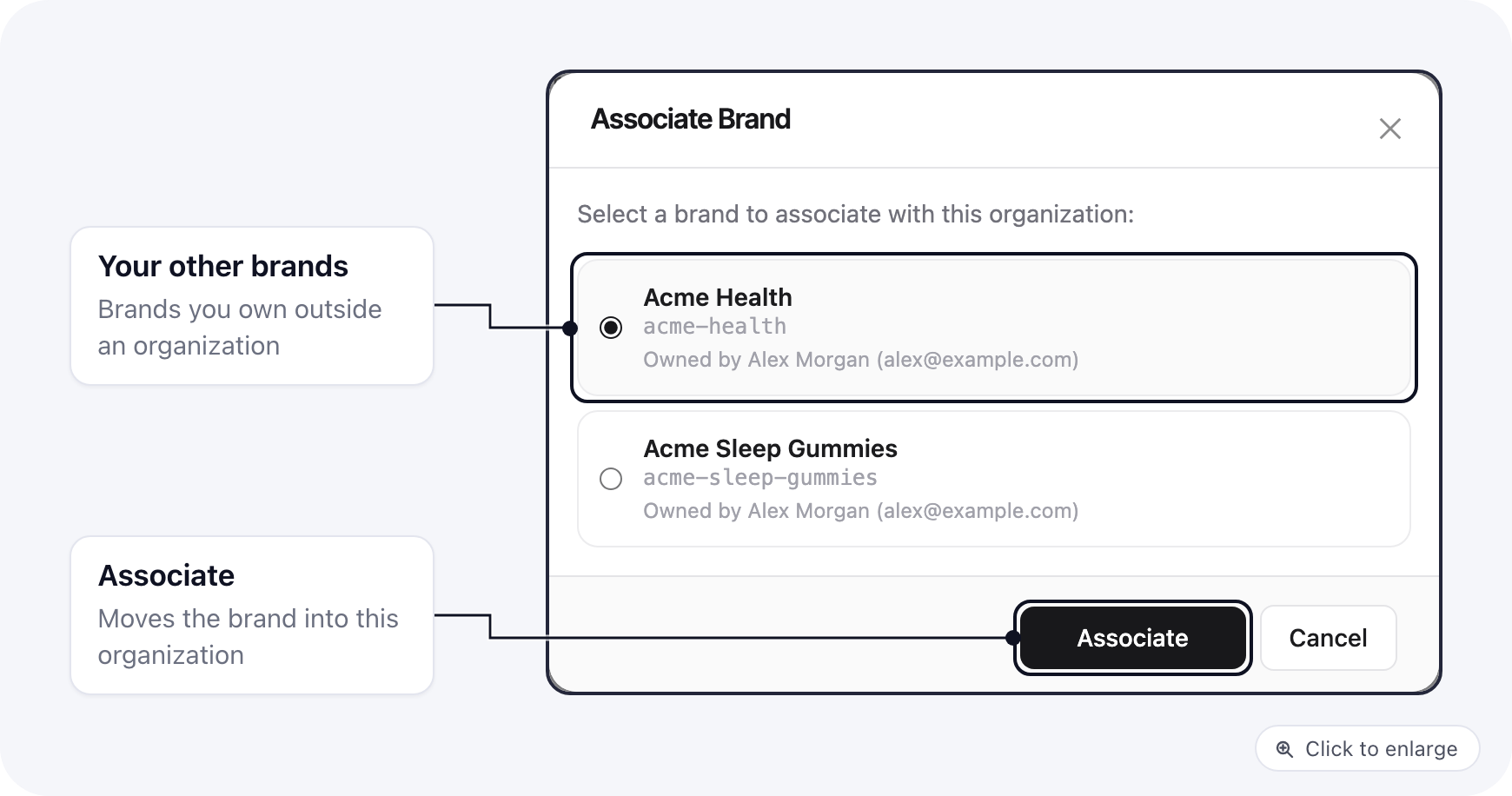
Use Associate Brand for a brand a teammate already owns that is not part of the organization yet.- Click Associate Brand. The window lists brands owned by people in the organization, with the owner’s name and email.
- Pick the brand and click Associate.
Who can reach a brand
Click Manage Users in a brand’s row to open its Users and roles tab.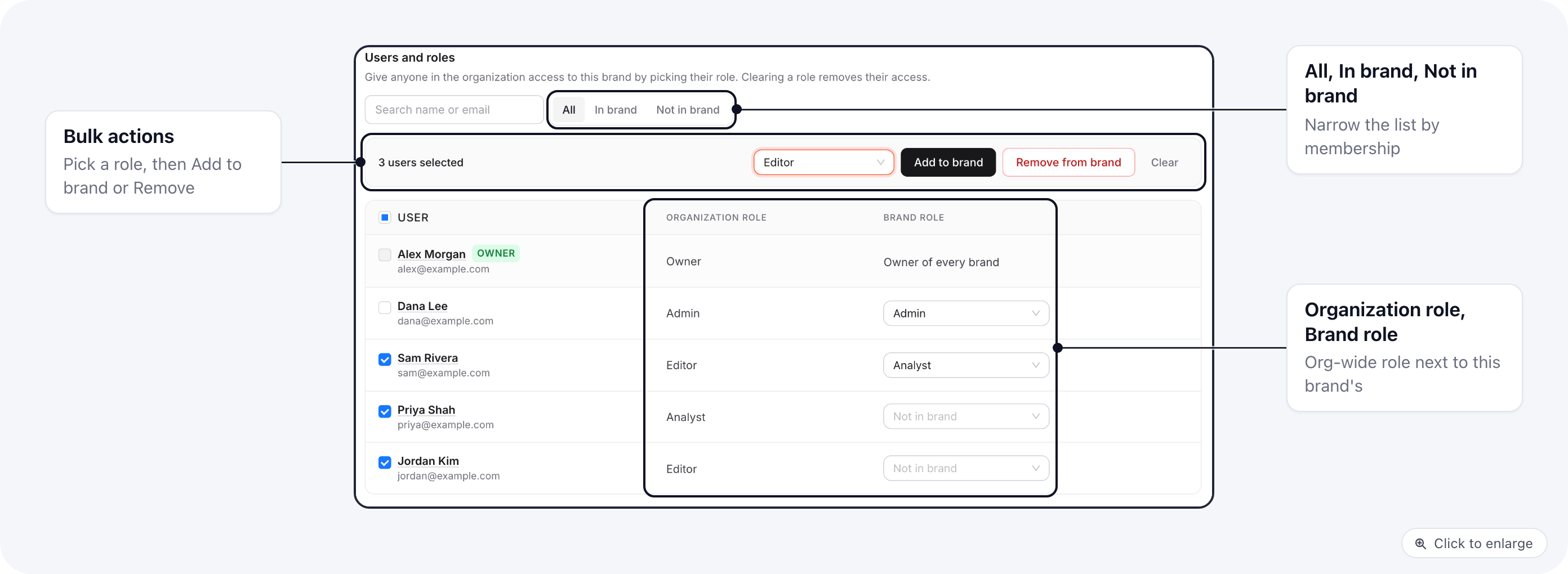
- Organization role: their role in the organization, set on the Users page.
- Brand role: the role they have on this brand. This is the one that decides what they can do inside it. Not in brand means they cannot open it.
- Use the filter (All, In brand, Not in brand) or the search to find them, and tick their rows.
- Pick a role, then click Add to brand. Or click Remove from brand to take them all out.