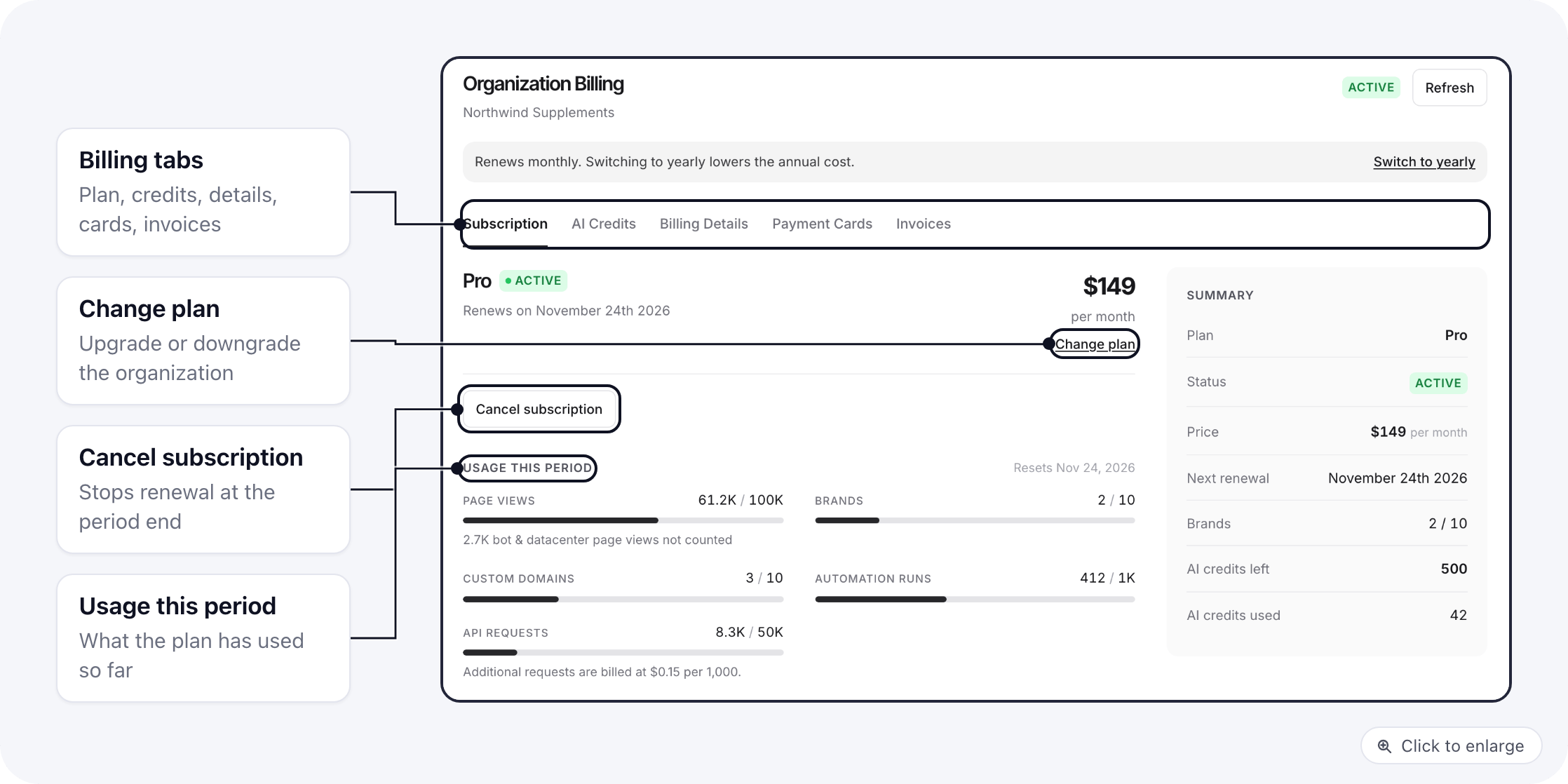
One organization pays for all of its brands. Settings > Billing opens Organization Billing, with five tabs: Subscription, AI Credits, Billing Details, Payment Cards and Invoices. Click Refresh at the top to reload everything.

Who can open Billing

Owners always can. Anyone else needs a role with the Billing rows ticked (the Finance preset has them all), or Organization > Settings. The exact boxes, and a finance role to copy, are in Give someone Billing. Someone without that access who opens the page sees “Billing managed by another team”.

Subscription

The Subscription tab of Organization Billing: plan name and status, renewal date, price, and the Change plan and Cancel subscription buttons The tab shows your plan, its status, the renewal date or the trial end date, the price and your usage.
  • Change plan opens the plan picker. Upgrading takes effect right away and charges the prorated difference. Downgrading is scheduled: you keep the current plan until the date shown, and Cancel downgrade keeps you on it.
  • Switch to monthly or Switch to yearly changes the billing cycle.
  • Cancel subscription ends the plan. A canceled plan shows Reactivate subscription instead.
During a trial, a banner shows when the trial ends, with a link to add a payment card. Once a card is on file, billing starts automatically when the trial ends.

Payment Cards

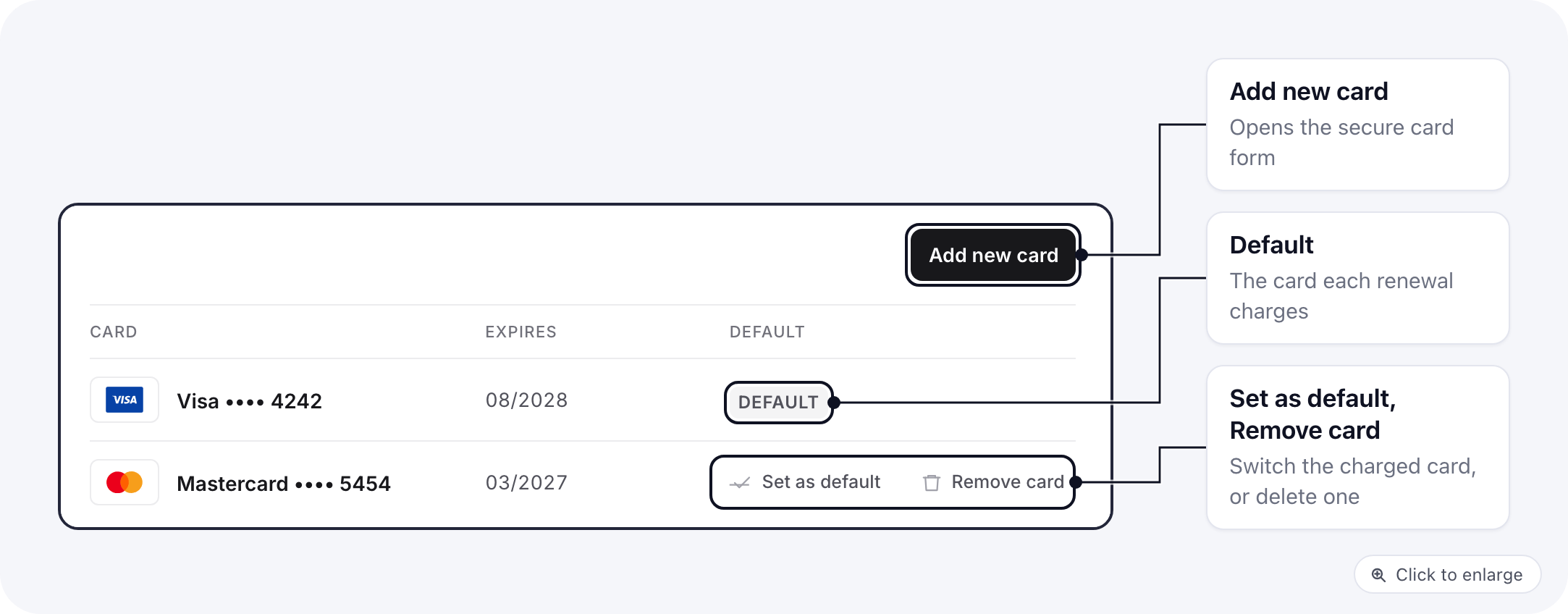
The Payment Cards tab: saved cards with their expiry and the Default badge, Set as default and Remove card in the row menu, and the Add new card button
  • Add new card adds a card.
  • Set as default makes a card the one charged for renewals.
  • Remove card removes a card that is not the default.
The default card can only be removed once the subscription is canceled and nothing is left unpaid. The same rule applies to Delete all cards.

Invoices and credit notes

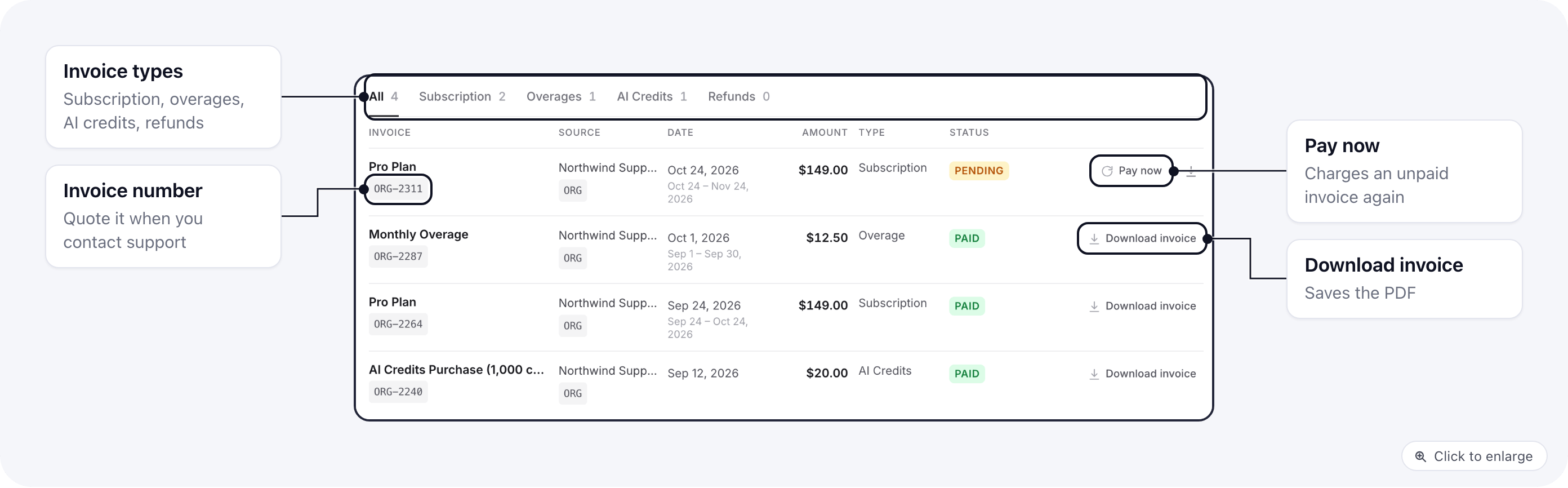
The Invoices tab: tabs for All, Subscription, Overages, AI Credits and Refunds, and the invoice list with date, amount, type and status Invoices are listed with their Source, Date, Amount, Type and Status. Filter with the tabs All, Subscription, Overages, AI Credits and Refunds. A refund appears as a credit note. Use Download invoice, or Download credit note for a refund, to get the document.

Pay a failed invoice

When an organization invoice failed, or is still open or pending, its row shows Pay now. It charges your cards on file, starting with the default card. You need at least one saved card. A success message confirms the payment and the invoice turns paid. If the card is declined you see “Payment did not go through”; add or choose another card under Payment Cards, then try again.

AI Credits

The AI Credits tab shows the credits left and used. Click the purchase button, pick a package and confirm; the credits are added as soon as the card is charged, and the purchase appears under Invoices > AI Credits. You need a saved card first. If the charge fails, nothing is added. What credits pay for and the package prices are in AI credits.

Billing Details

Enter the name, email, tax ID and address that should appear on invoices, then save.