
Identity
- Organization name: the name shown wherever the organization appears.
- Organization code (URL slug): used in organization URLs such as
/acme-corp/callcenter. Lowercase letters, digits and hyphens. Changing it breaks links that use the old code.
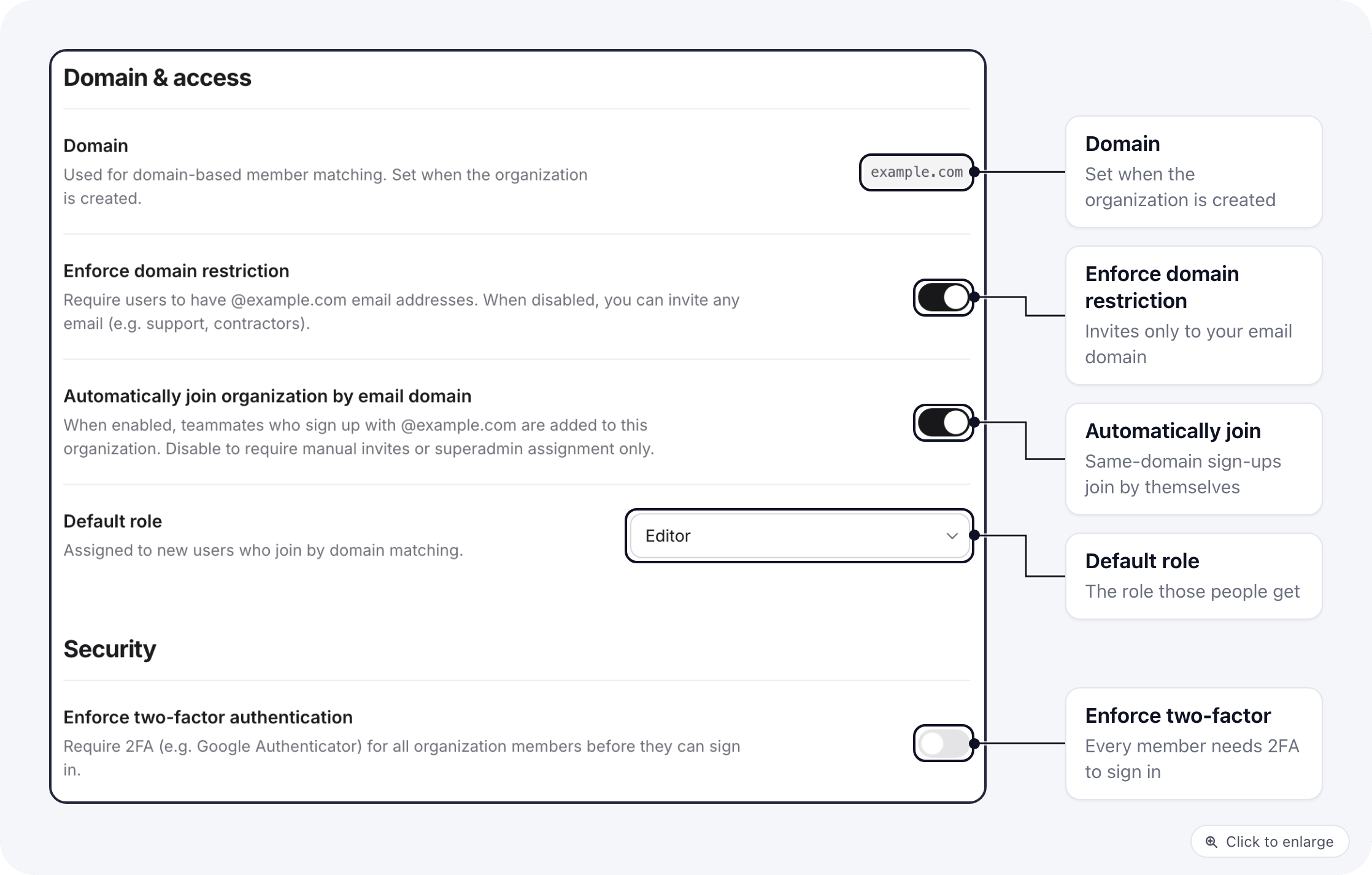
Domain and access
- Domain: the email domain set when the organization was created. It is shown here and cannot be changed on this page. To verify it, see Verify the domain.
- Enforce domain restriction: when on, only brands that belong to members with an
@yourdomainemail address come into the organization. A brand created by someone on another email domain stays outside it, and Associate Brand only offers brands owned by people on your domain. Turn it off when people outside your company, such as an agency or a contractor, create brands that should be part of the organization. - Automatically join organization by email domain: when on, people who sign up with your verified domain are added to the organization. Turn it off if every new member should come in through an invitation.
- Default role: the role those people get when they join by domain. Owner cannot be the default role. Pick a role with little access; people who join this way have no brands until you give them some.
Security
Enforce two-factor authentication requires every member to use a second factor when they sign in. Members who have not set one up are taken to the setup screen at their next sign-in, and nobody in the organization can turn two-factor authentication off while this is on. The Users list shows each member’s second-factor status, so you can see who still needs to set it up. Members set it up as described in Two-factor authentication.Emailing (SMTP)
The Emailing block sets the SMTP server ElasticFunnels uses for organization-level transactional emails. Owners and admins can change it.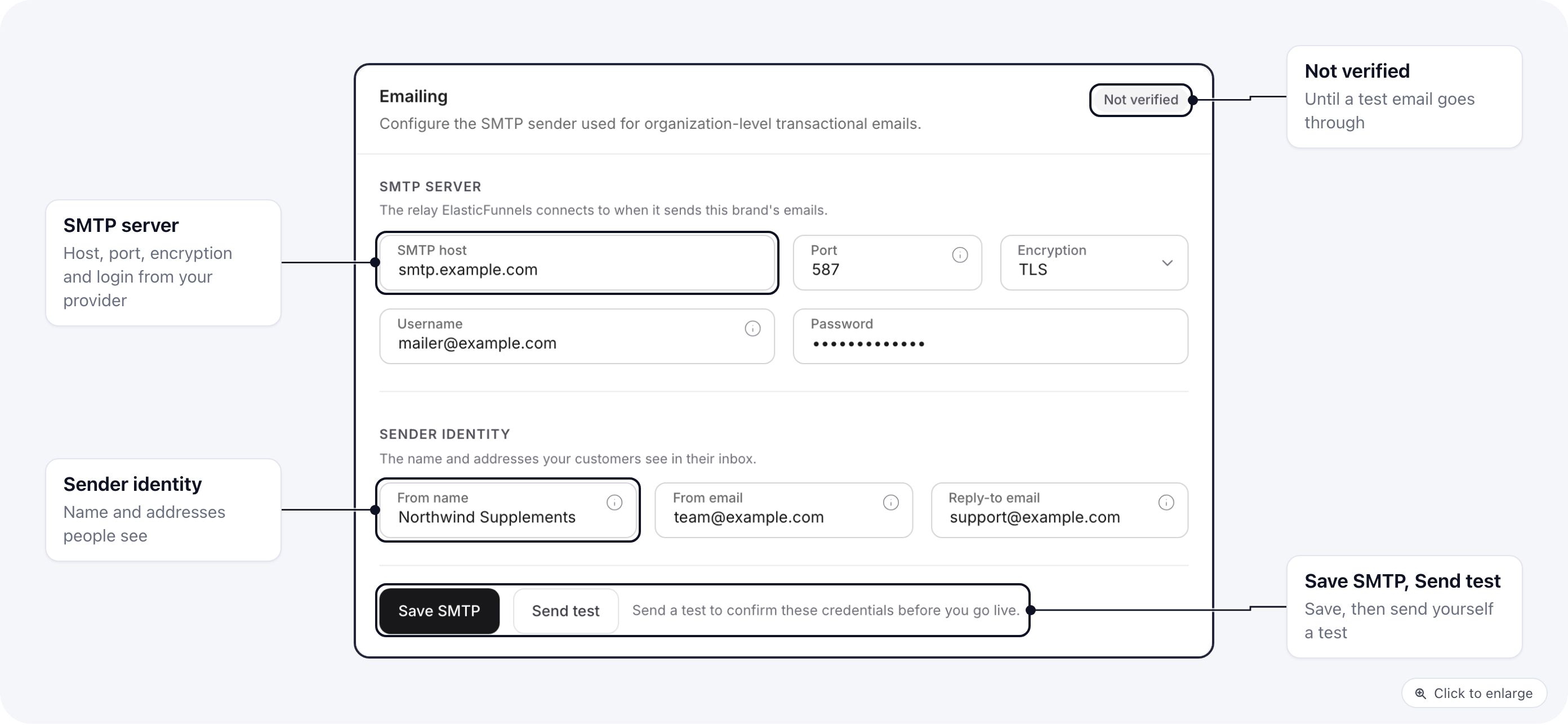
Click Save SMTP, then Send test. The block shows Verified with the date of the last successful test.
To change the wording of the organization’s emails, click Open emails under Email templates.