
Create the organization
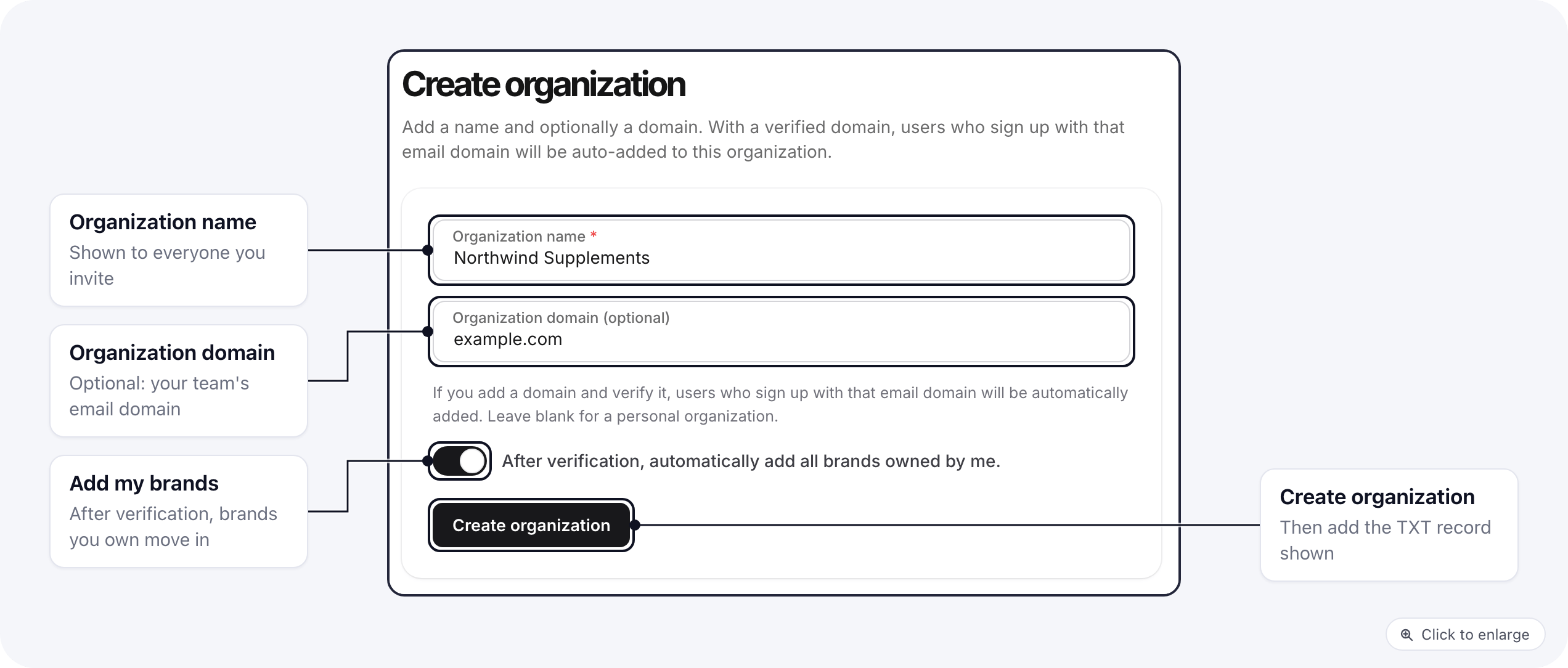
If you do not belong to an organization yet, Settings shows Create Organization in the sidebar.- Enter the Organization name.
- Optionally enter the Organization domain, for example
example.com. This is the email domain your team uses. Leave it blank for a personal organization. - Turn on After verification, automatically add all brands owned by me. if your brands should move into the organization once the domain is verified.
- Click Create organization.
Verify the domain
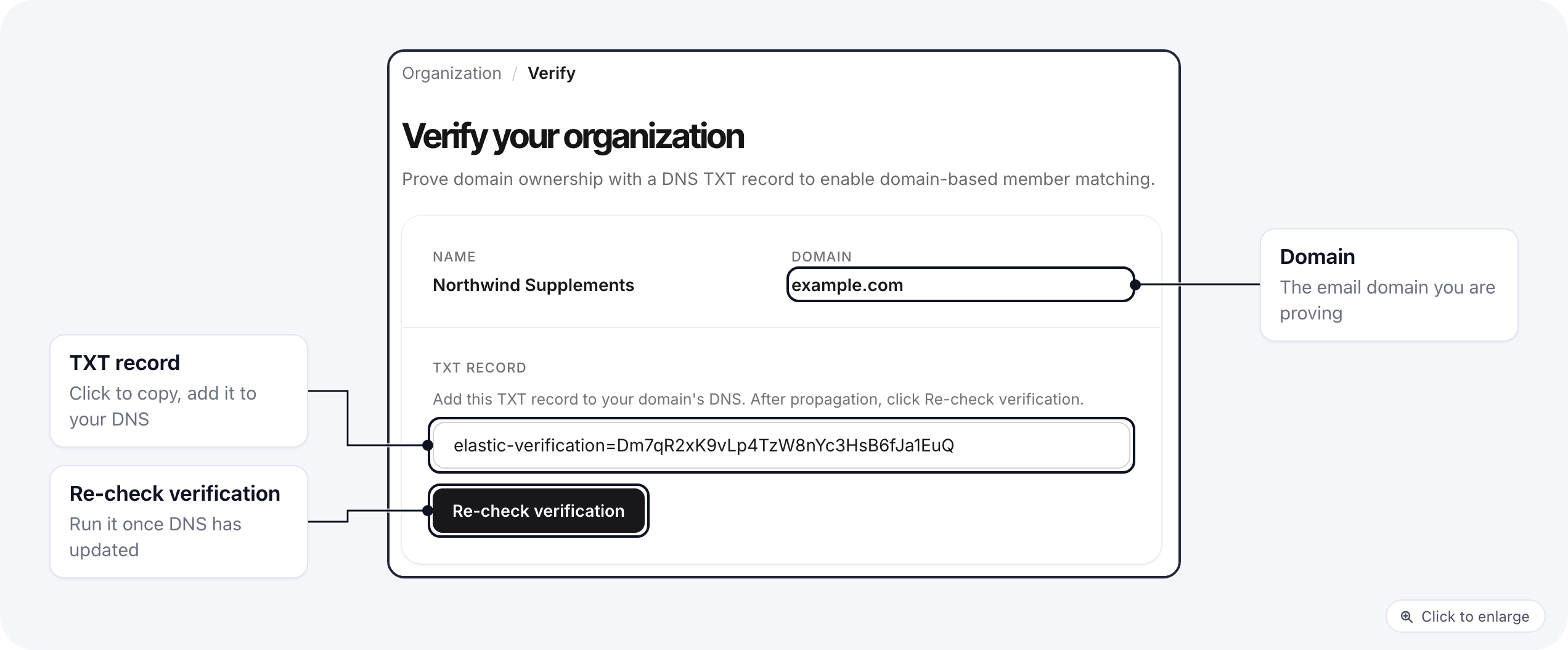
If you entered a domain, the confirmation shows a TXT record. Click it to copy it.- In your DNS provider, add a TXT record on the domain itself (the root, for example
example.com), with the copied value. It starts withelastic-verification=. - Wait for DNS to update. ElasticFunnels checks the record automatically every 30 minutes for the first 3 days.
- To check sooner, open Settings > Verify and click Re-check verification.
What happens after verification
- Teammates join by email domain. Everyone with an account on
@example.com, and everyone who signs up with that domain later, is added to the organization with its default role. You can turn this off or change the default role in organization settings. - Your brands move in, if you turned on the switch when creating the organization. Each brand you own becomes part of the organization.