
Where the folders are
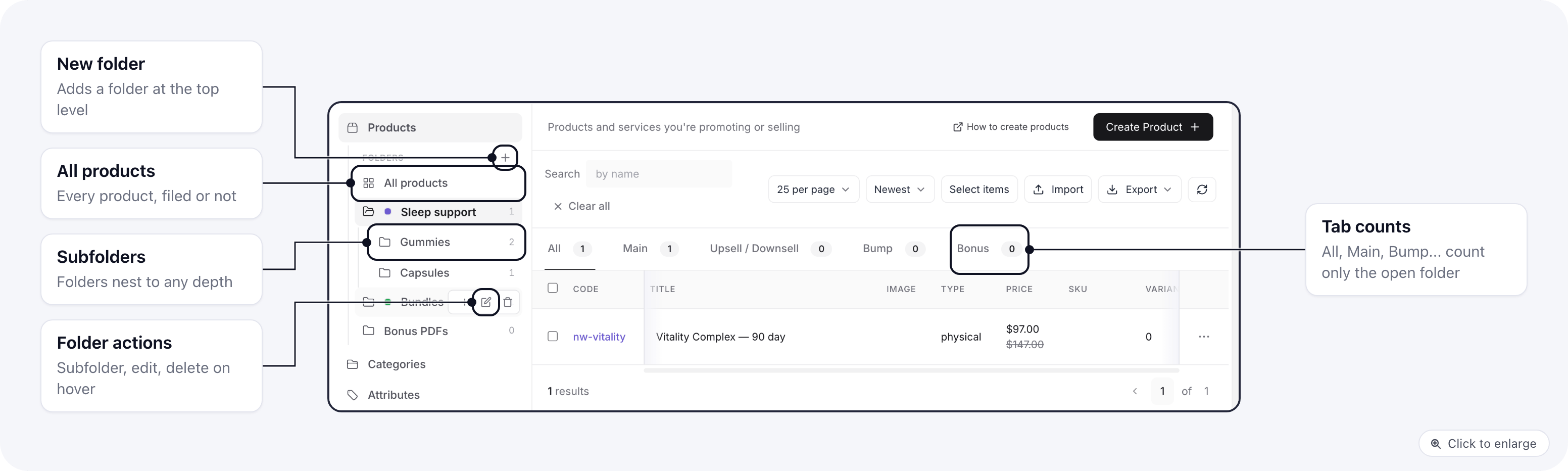
Go to Settings → Products. The folder tree sits in the side menu, under Products:- All products lists every product, filed or not.
- Each folder below it lists only the products filed directly in it, not the ones in its subfolders. The number next to a folder counts those products.
- The All, Main, Upsell / Downsell, Bump and Bonus tabs above the list count the products of the open folder.
?folder_id=), so you can bookmark it or share the link with
your team. On a phone the tree is a drop-down under the section menu.
Create a folder
- Click + next to Folders.
- Enter a Folder name.
- Optionally pick a Parent folder to put it inside another folder, and a Color.
- Click Save.
Rename, recolor or move a folder
Hover over the folder and click the pencil. You can change its name, its color and its parent folder. A folder cannot be moved inside itself or inside one of its own subfolders.Delete a folder
Hover over the folder and click the bin, then confirm. Nothing inside it is deleted: its products and its subfolders move up to the folder above it. Deleting a top-level folder takes its products out of every folder and turns its subfolders into top-level folders.Move products into a folder
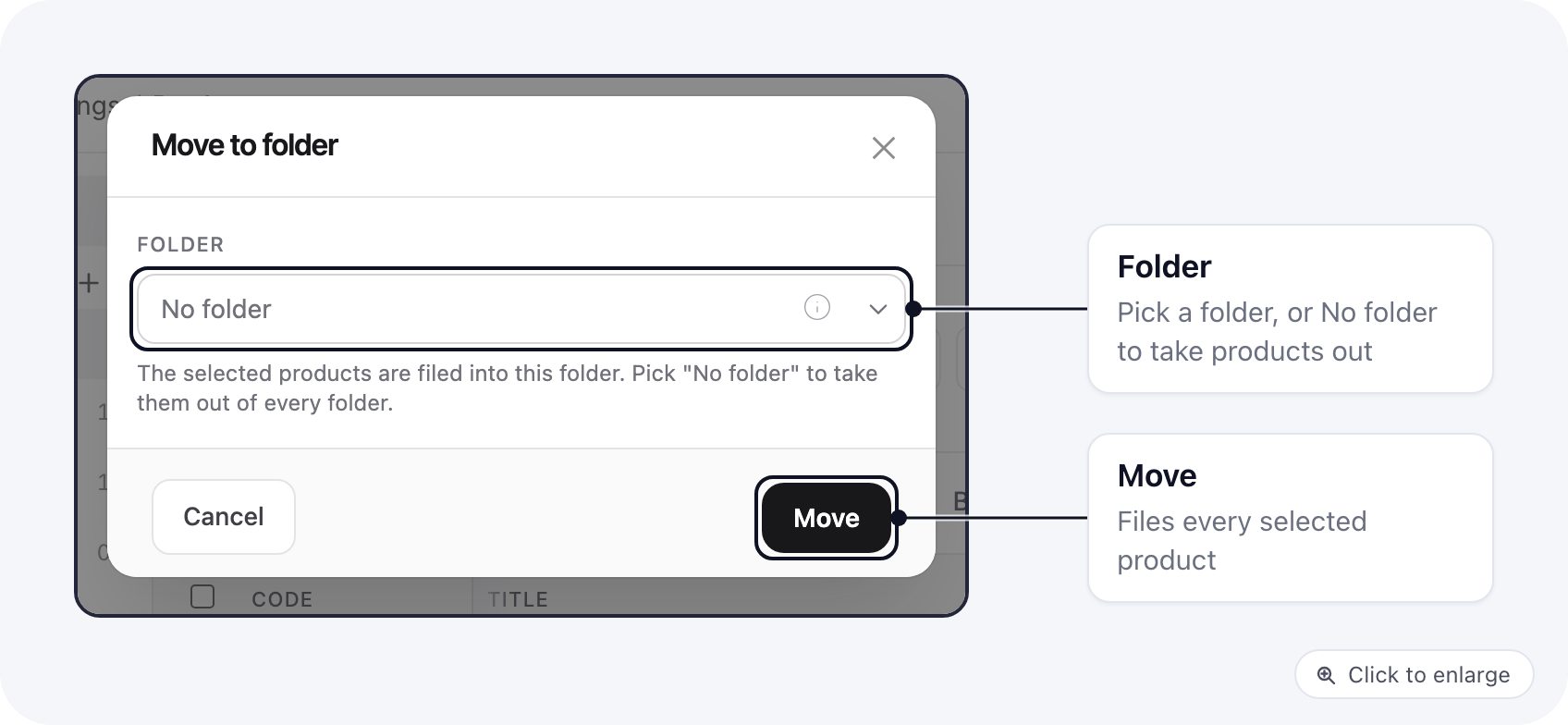
A product is in one folder at most.- One product: open the ⋯ menu on its row and choose Move to folder.
- Several products: click Select items, tick the products, then choose Move to folder in the bar at the bottom of the list.
For developers: the product list API
The product list endpoint returns each product’sfolder_id (null when it is not filed) and accepts a
folder_id filter: a folder id lists that folder’s own products, and folder_id=null lists the products
that are in no folder.