
Overview
The Maropost integration connects your Maropost Marketing Cloud account to ElasticFunnels automations. When someone buys, signs up or fills in a form, an automation step can create or update their Maropost contact, subscribe them to your lists, set tags and custom fields, or send them a transactional email through one of your Maropost transactional campaigns.What you get
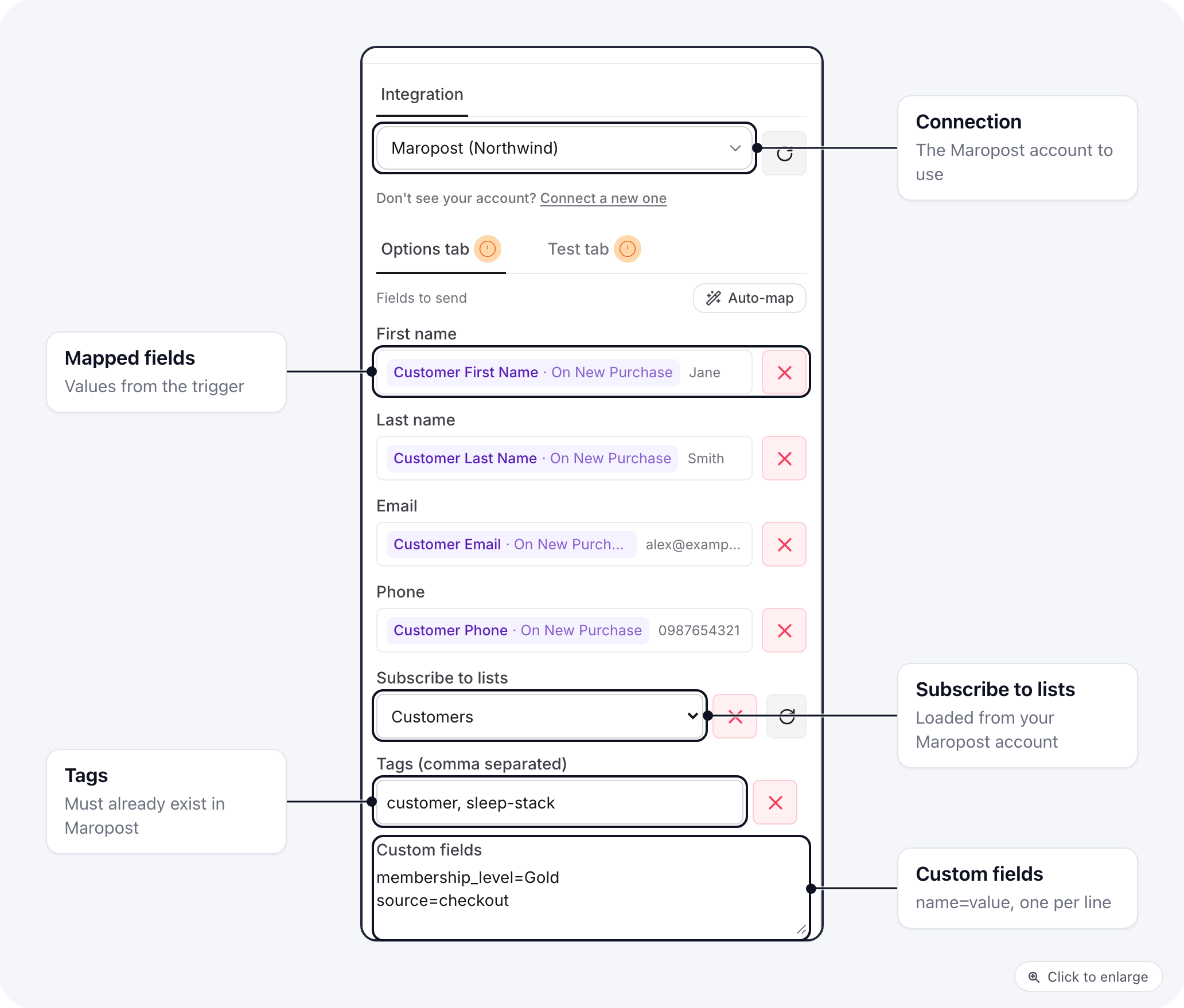
The list picker loads the lists from your Maropost account, so you choose them by name.
Setup
1
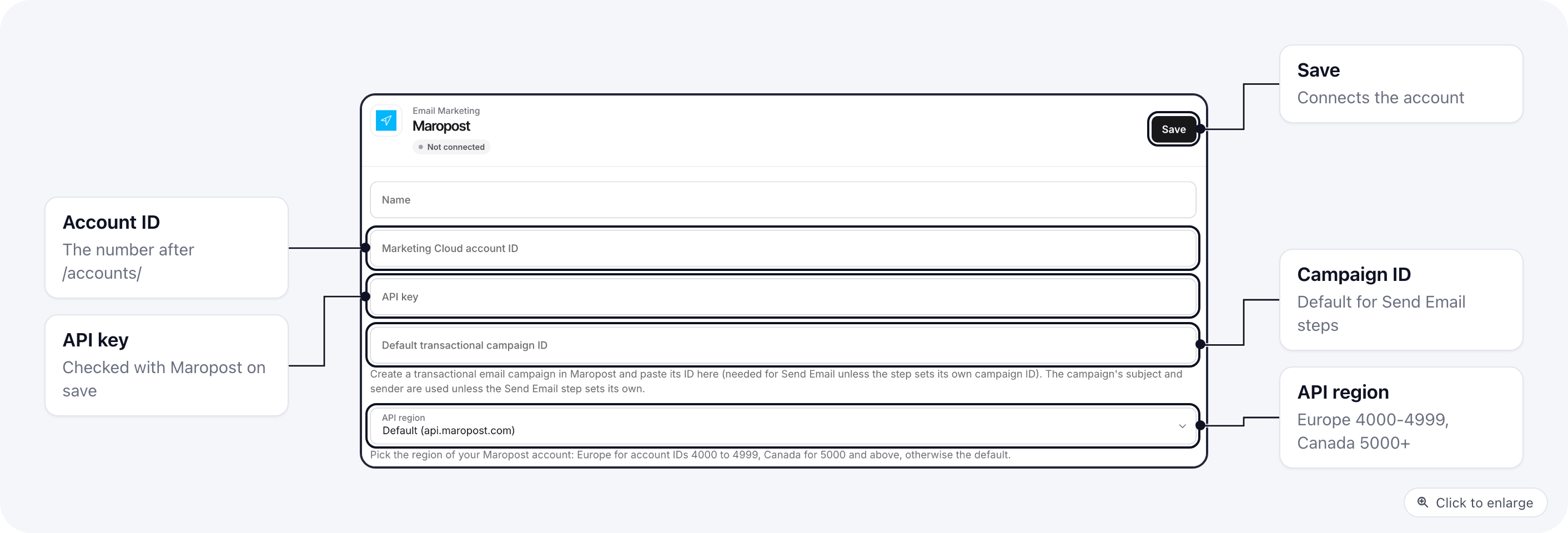
Find your account ID
Sign in to Maropost Marketing Cloud. Your account ID is the number after
/accounts/ in the browser address bar, for example 1234 in app.maropost.com/accounts/1234/dashboard.2
Create an API key
In the navigation panel, click Settings, then API Keys under Connections, and click Add Key. Name the key and give it API privileges for contacts, lists and campaigns. Leave the IP whitelist empty: a key with IP addresses on it only accepts calls from those addresses. Click Save and copy the key from the dialog. Maropost does not show it again once you close the dialog.
3
Create a transactional campaign (for Send Email)
Go to Marketing > Campaigns > Transactional Email, click New Campaign, fill in the fields and save. Note the campaign’s ID. Skip this step if you only sync contacts.
4
Connect it in ElasticFunnels
Go to Integrations, open Maropost, and fill in Marketing Cloud account ID, API key and, for Send Email, Default transactional campaign ID. Under API region, pick Europe if your account ID is between 4000 and 4999, Canada if it is 5000 or above, and keep the default otherwise. Save. The key is checked with Maropost when you save.
5
Use it in automations
Open Automations, add a Maropost: Create / Update Contact step after your trigger, choose the Maropost connection, map the trigger’s fields and pick the list under Subscribe to lists.
Lists
Tags and custom fields
Tags and custom fields must already exist in your Maropost account. Create custom fields in Maropost first, then fill them from the step using the field’s name in Maropost, one per line:{"membership_level": "Gold", "isMember": true}) works too, and keeps true/false and numbers as they are.
If Maropost does not know one of the custom fields, the contact is still saved without them, and the step’s run log lists custom_field under dropped_fields. The same happens with a phone number Maropost refuses.
Send Email
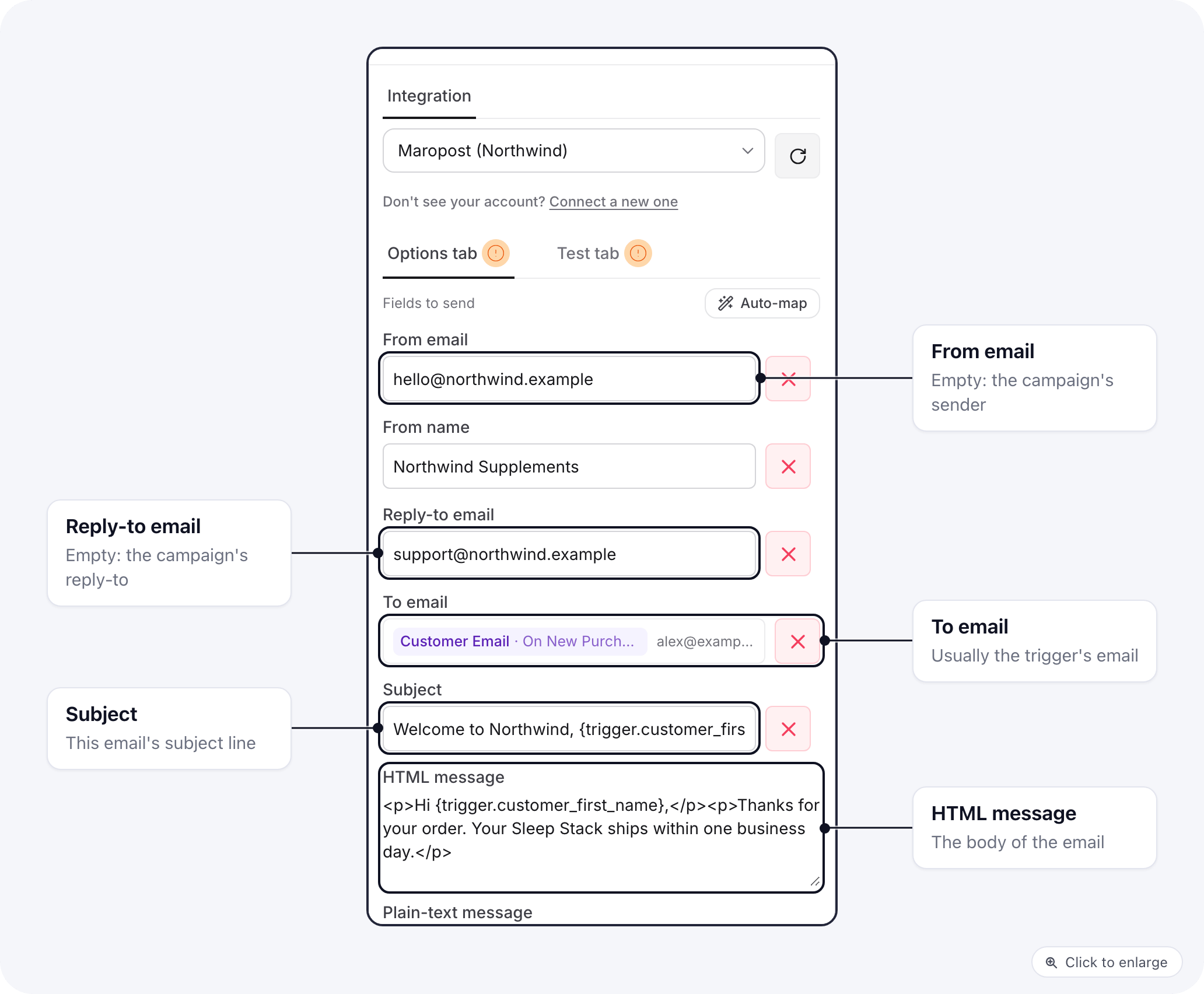
The from address must be one Maropost lets your account send from.
Troubleshooting
Saving the integration says the credentials could not be validated
Saving the integration says the credentials could not be validated
Check the account ID, the API key and the API region. A key with addresses in its IP whitelist refuses calls from ElasticFunnels: remove the addresses or create a new key.
The step fails with 'API base URL must be one of...'
The step fails with 'API base URL must be one of...'
The connection was saved with an address that is not a Maropost API host. Open the Maropost integration, pick the API region again and save.
The contact was saved but is not on my list
The contact was saved but is not on my list
The step has no list under Subscribe to lists, or the contact is on Maropost’s Do Not Mail list. Pick the list on the step, or check the contact in Maropost.
Send Email fails with 'transactional campaign_id is required'
Send Email fails with 'transactional campaign_id is required'
Neither the step nor the integration has a transactional campaign ID. Create a transactional campaign in Maropost and save its ID on the integration.